
AINAVI B0C23SKCDY
AINAVI 10.2 inch Android 12 Car Radio Stereo Head Unit Instruction Manual
For Honda Accord 7th Generation (2003-2007)
1. Product Overview
The AINAVI 10.2-inch Android 12 Car Radio Stereo Head Unit is designed to upgrade the in-car entertainment and navigation experience for Honda Accord 7th Generation vehicles (2003-2007). It features a high-definition QLED touch screen, an 8-core processor, and supports wireless CarPlay and Android Auto for seamless smartphone integration. The unit also includes advanced audio processing with a 48-band EQ and DSP, along with support for a 1080P rear view camera.

Figure 1: AINAVI 10.2 inch Android 12 Car Radio Stereo Head Unit, showing the main display, included rear camera, and a smartphone screen demonstrating Android Auto and CarPlay connectivity.

Figure 2: Illustration of the unit's internal components, emphasizing the 8-core processor, Android 12 operating system, 3GB RAM, and 32GB ROM for powerful performance and storage.
2. What's Included
Verify that all components are present in the package before beginning installation.
- Car Head Unit (1280*720) with Frame for Honda Accord 7th *1
- User Manual *1
- Power Cable *1
- AHD 1080P Rear View Camera *1
- Microphone *1
- Blue Frame Removal Tool *1
- GPS Antenna *1
- USB 4Pin Cable *1
- USB 6Pin Cable *1
- RCA Cable *1
- 24 Hours Engineer--Pre-sale and after-sale Services (Support)

Figure 3: Visual representation of all items included in the product package, including the head unit, frame, cables, and accessories.
3. Setup and Installation
3.1 General Installation Notes
Professional installation is recommended. Ensure the vehicle's power is disconnected before starting installation. Refer to your vehicle's specific disassembly instructions for removing the factory radio.
3.2 Connecting Wireless CarPlay/Android Auto
- Open the Bluetooth function on your iPhone or Android phone and on the Car Radio.
- Connect your mobile phone and car radio via Bluetooth. Use the password "0000" if prompted.
- Open the car radio application "T-Link" and select CarPlay (for iPhone) or Android Auto (for Android).

Figure 4: Depiction of the wireless CarPlay and Android Auto functionality, showing seamless integration between the head unit and a smartphone.
3.3 Connecting Wired Android Auto
- Connect your phone to the car radio via a 6-pin USB adapter.
- Install the "android auto" app on your Android phone (some Android phones support built-in Android Auto).
- Connect your mobile phone and radio through the original Android USB data cable.
- Open the Application "T-Link" and wait for it to automatically connect.
3.4 Using Wireless/Wired AirPlay MirrorLink
- Click on the T-Link app. A blue function switch button will be displayed in the bottom right corner, allowing you to select wired or wireless Mirroring for iPhone or Android.
- Wired iPhone Airplay/Android Mirroring: Connect the original power cord of your phone (IOS/Android) to the 4-pin USB interface to achieve wired Mirroring/Airplay.
- iPhone Wireless Airplay: Open your phone’s hotspot, connect to the car radio, and click iPhone Airplay.
- Android Wireless Mirroring: Download a Z-link APK. Connect to Bluetooth, open the phone hotspot, click on Z-link, and then click on "enable mirroring."

Figure 5: Demonstration of the mobile phone mirroring (Tlink) feature, allowing display of smartphone content on the head unit screen for both iPhone and Android devices.
4. Operating Instructions
4.1 Navigation Service
The unit supports most satellite navigation services, with 5G WiFi enhancing accuracy. Utilize Google Maps for 2D and 3D perspectives, various route options (driving, cycling, pedestrian), obstacle broadcasts, and voice guidance for intelligent navigation.
Video 1: Demonstration of Google Earth and Google Maps functionality on the AINAVI head unit, showcasing navigation capabilities.
4.2 Split Screen Function
The powerful 8-core processor supports simultaneous operation of two applications using the split-screen function. This allows for convenient multitasking, such as running navigation and a media player concurrently without lag.

Figure 6: The split-screen feature in action, displaying two applications simultaneously for enhanced multitasking while driving.
4.3 Audio Features (DSP & EQ)
The unit features a professional DSP (Digital Sound Processor) with a built-in 48-band EQ, allowing for extensive sound customization. You can adjust the sound point according to seating positions for optimal audio experience. Available sound modes include Normal, Jazz, Pop, Classical, Heavy Metal, Vocal, and Soft. Additionally, there are 6 surround sound patterns, Bass Boost, and individual speaker volume control.
- EQ Scene Mode: Choose from Normail, Jazz, Heavy metal, PoP, Classical, or custom modes.
- Surround Sound: Includes Full Car Mode, Driver Mode, Copilot Mode, Passenger Mode 1, 2, and 3. Adjust sound delay up to 5ms.
- Zone Control: Control volume and frequency for speakers in 5 directions.
- Sound Section: Adjust High Freq, Compression, Voice, Loudness (Low, Medium, High), and Timbre.
- Bass Filter: Enhance bass from 0-250 for a powerful audio experience.

Figure 7: The Intelligent Tone Adjustment System interface, demonstrating the extensive audio customization options available through the DSP and 48-band EQ.
5. Rear View Camera Functionality
The included AHD 1080P Rear View Camera provides clear, real-time video when the vehicle is in reverse gear. The display includes an astern ruler line for precise positioning and supports astern trajectory if your car is equipped with this feature, enhancing safety during parking and reversing maneuvers.
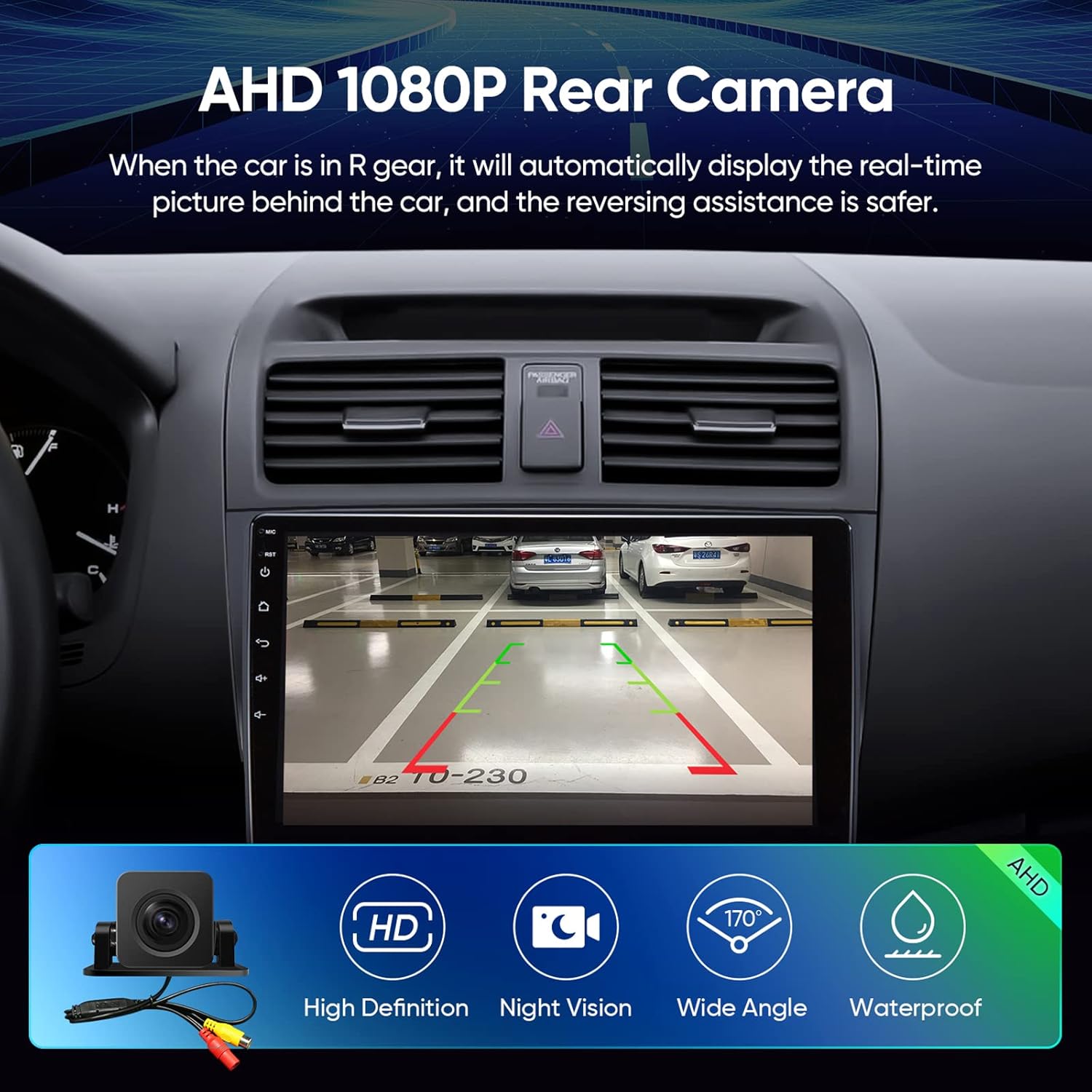
Figure 8: The AHD 1080P Rear Camera display, illustrating its high-definition view, parking assistance lines, and key features like night vision and wide-angle capture.
6. Connectivity
6.1 Wi-Fi
The unit supports 2.4GHz and 5GHz Wi-Fi networks, providing faster internet speeds for smooth application usage and real-time traffic information.
6.2 Bluetooth 5.0
Integrated Bluetooth 5.0 ensures stable and fast data transmission for hands-free calling, music streaming, and other connected features.
6.3 USB Connectivity
Equipped with dual USB ports (4-pin and 6-pin) for various connections, including wired Android Auto and media playback. The unit also supports USB to RCA output for connecting external displays like headrest monitors (requires ASIN: B0CCV2GC25).
7. Maintenance
To ensure the longevity and optimal performance of your AINAVI head unit, follow these maintenance guidelines:
- Screen Cleaning: Use a soft, lint-free cloth to gently wipe the screen. For stubborn smudges, slightly dampen the cloth with water or a screen-safe cleaner. Avoid abrasive materials or harsh chemicals.
- Dust Removal: Regularly clean dust from the unit's vents and buttons using a soft brush or compressed air.
- Software Updates: Periodically check for and install software updates to ensure system stability and access to new features.
- Temperature Control: Avoid exposing the unit to extreme temperatures for prolonged periods. The unit is designed to operate within a wide temperature range (-4°F to 158°F / -20°C to 70°C), but prolonged exposure to direct sunlight or extreme cold can affect performance.
- Power Management: Ensure proper vehicle electrical system health. Avoid frequent power fluctuations.
8. Troubleshooting
This section addresses common issues you might encounter with your AINAVI head unit. If the problem persists, please contact customer support.
| Problem | Possible Cause | Solution |
|---|---|---|
| Unit does not power on. | Loose power connection, blown fuse, vehicle battery issue. | Check all power cables and connections. Inspect vehicle fuses. Ensure vehicle battery is charged. |
| No sound from speakers. | Volume too low, mute activated, incorrect wiring, speaker issues. | Increase volume. Check if mute is on. Verify speaker wiring connections. Test with different audio sources. |
| CarPlay/Android Auto not connecting. | Bluetooth/Wi-Fi off, incorrect pairing, T-Link app issue, phone compatibility. | Ensure Bluetooth and Wi-Fi are enabled on both devices. Re-pair Bluetooth. Restart T-Link app. Check phone compatibility. |
| GPS signal weak or inaccurate. | GPS antenna obstruction, poor satellite reception, outdated maps. | Ensure GPS antenna has a clear view of the sky. Update navigation maps if available. |
| Touch screen unresponsive. | System freeze, dirt on screen, hardware malfunction. | Restart the unit. Clean the screen. If problem persists, contact support. |
9. Specifications
Key technical specifications for the AINAVI Car Radio Stereo Head Unit:
- Display Size: 10.2 Inches (1280*720 resolution QLED screen)
- Operating System: Android 12
- Processor: 8-Core CPU
- Memory: 3GB RAM
- Storage: 32GB ROM
- Connectivity: Bluetooth 5.0, Wi-Fi (2.4GHz & 5GHz), USB (4Pin + 6Pin)
- Audio: 48-band EQ, Professional DSP, Stereo Surround Audio Output
- Navigation: Supports Google Maps and other satellite services
- Rear Camera Input: AHD 1080P (with parking guidelines)
- Special Features: Wireless CarPlay, Android Auto, MirrorLink (Airplay), Split Screen Function, Customizable Panel Light and Themes, Voice Control, RDS, FM Tuner, RCA Output.
- Item Weight: Approximately 5.17 pounds
- Package Dimensions: 15.63 x 13.35 x 5.55 inches

Figure 9: Overview of the unit's advanced features, including its Android 12 system, powerful 8-core processor, dual-band WiFi, high-quality QLED screen, and Bluetooth 5.0 connectivity.

Figure 10: Detailed view of the High Grade QLED Quantum Screen technology, highlighting its multi-layered construction for superior touch sensitivity and visual clarity.
10. Warranty and Support
Warranty: The AINAVI Car Radio Stereo Head Unit comes with a 12 Months Manufacturer Guarantee.
Technical Support: Our professional technical support team is available to assist with installation and any other inquiries. Please contact us freely, and we will reply to you as soon as possible. Refer to the contact information provided with your purchase or on the official AINAVI website.

Figure 11: AINAVI customer support is available to assist with any product-related questions or issues.
Related documentsB0C23SKCDY


Ask a question about this manual
Ask about setup, troubleshooting, compatibility, parts, safety, or missing instructions. Manuals+ will review the question and use this page’s manual context to help answer it.