
1. Introduction
Thank you for choosing the WOSTOKE 13.1" QLED Touchscreen Car Stereo. This advanced multimedia system is designed to enhance your driving experience with features like CarPlay, Android Auto, GPS navigation, and a high-resolution display. This manual provides essential information for installation, operation, maintenance, and troubleshooting to ensure optimal performance and longevity of your device. Please read this manual thoroughly before installation and use.
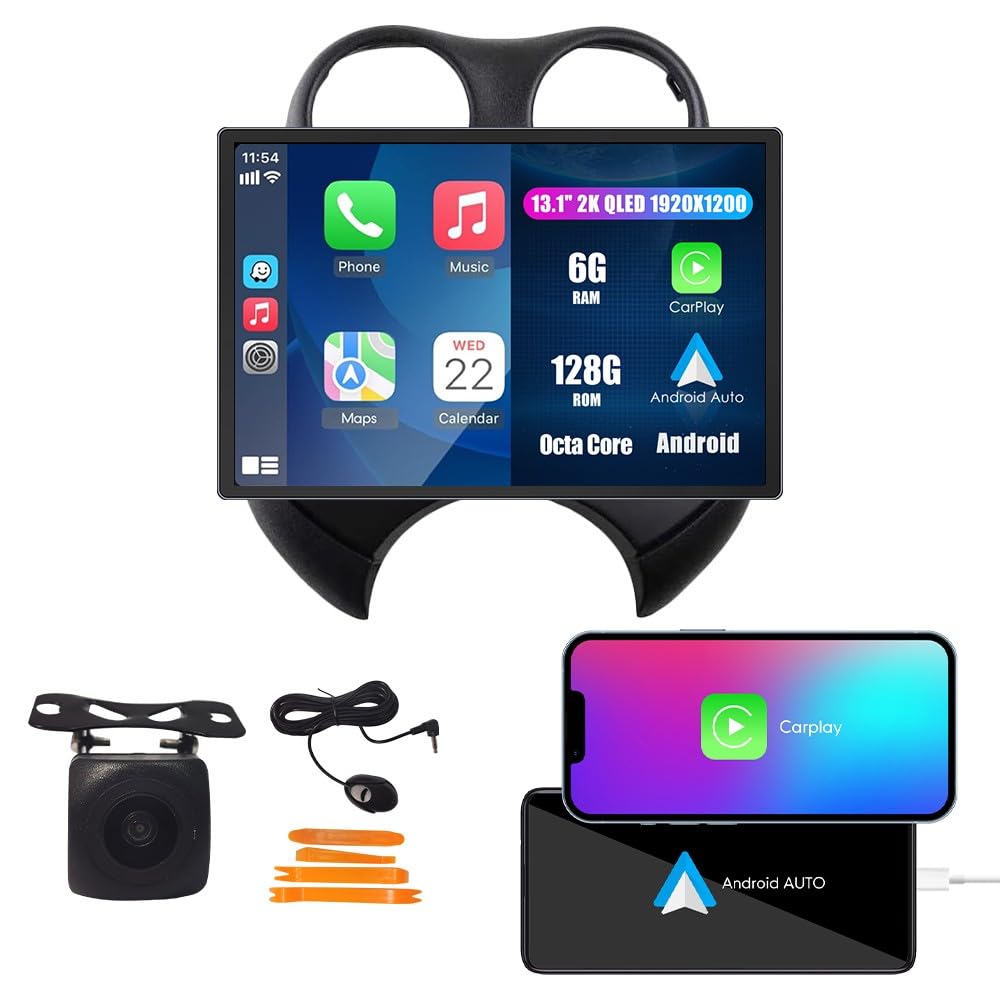
Image 1.1: Main unit of the WOSTOKE 13.1" QLED Touchscreen Car Stereo.
2. Safety Information
- Professional Installation Recommended: Due to the complexity of car electrical systems, professional installation is highly recommended to prevent damage to the unit or your vehicle.
- Power Supply: Ensure the unit is connected to a 12V DC power supply with negative grounding.
- Wiring: Do not short-circuit any wires. Incorrect wiring can cause damage or fire.
- Driving Safety: Do not operate the unit in a way that distracts you from driving. Always prioritize road safety.
- Temperature: Avoid exposing the unit to extreme temperatures or direct sunlight for prolonged periods.
- Moisture: Keep the unit away from water and excessive moisture.
3. Package Contents
Verify that all items listed below are included in your package. If any items are missing or damaged, please contact customer support.

Image 3.1: Contents of the product package.
- 13.1 Inch Main Unit
- Power Cable
- Cable Plug
- Camera Input Cable
- USB Cable (4-pin)
- USB Cable (6-pin)
- GPS Antenna
- RCA Wire Harness
- AHD Reverse Camera (Bundled)
- External Microphone (Bundled)
- Crowbar (Bundled)
4. Setup and Installation
This unit is specifically designed for Nissan March models from 2010-2017. Ensure your vehicle is compatible before proceeding with installation.
4.1 Pre-Installation Check
- Disconnect the vehicle's battery before starting any electrical work.
- Confirm the correct wiring harness for your Nissan March model.
- If your car has an original amplifier or factory navigation, a separate CANBUS adapter may be required to ensure sound functionality. Refer to the product listing or contact support for CANBUS options.

Image 4.1: Important note about CANBUS for vehicles with original amplifiers.
4.2 Installation Steps (General Guide)
- Carefully remove the original car stereo and trim panels using the provided crowbar or appropriate tools.
- Connect the power cable, cable plug, and other necessary harnesses (USB, camera input, RCA) to the new head unit. Ensure all connections are secure.
- Install the GPS antenna in a location with a clear view of the sky, typically on the dashboard or under the windshield.
- If installing the reverse camera, route the camera cable from the rear of the vehicle to the head unit and connect it to the camera input.
- Mount the new 13.1-inch display unit into the dashboard opening.
- Reconnect the vehicle's battery.
- Turn on the ignition and test all functions of the stereo system.
- Reinstall all trim panels.

Image 4.2: Visual comparison of the dashboard before and after installation.
5. Operating Instructions
5.1 CarPlay and Android Auto
Seamlessly integrate your smartphone for navigation, music, calls, and more. Connect your iOS device via USB for CarPlay or your Android device for Android Auto. Voice commands can be used to control functions, minimizing driver distraction.

Image 5.1: CarPlay and Android Auto interface integration.
5.2 GPS Navigation
The unit features built-in GPS functionality, allowing real-time navigation even without an internet connection. With Wi-Fi connected, you can access online navigation services and traffic updates. The system supports various navigation applications.

Image 5.2: GPS Navigation interface.
5.3 Wi-Fi Connectivity
Connect the head unit to a Wi-Fi network to browse the internet, stream videos, download applications, and receive online navigation updates.

Image 5.3: Wi-Fi connectivity and app access.
5.4 Car Reverse Camera
The system supports a car reverse camera input. When reversing your vehicle, the display automatically switches to the rear view, providing a clear image for safer parking and maneuvering. A 360-degree reverse camera option may also be supported.

Image 5.4: Car Reverse Camera display.
5.5 Steering Wheel Control (SWC)
The unit supports steering wheel controls, allowing you to manage audio, calls, and other functions directly from your steering wheel buttons. This feature enhances convenience and safety by keeping your hands on the wheel.

Image 5.5: Steering Wheel Control setup interface.
5.6 FM/AM/RDS Radio
Enjoy your favorite radio stations with the built-in FM/AM/RDS tuner. You can scan for stations, save presets, and access RDS information where available.

Image 5.6: FM/AM/RDS Radio interface.
6. Maintenance
- Screen Cleaning: Use a soft, lint-free cloth to clean the touchscreen. Do not use abrasive cleaners or solvents.
- Software Updates: Periodically check for software updates to ensure optimal performance and access to new features. Updates can usually be found on the manufacturer's website or through the device's settings.
- Environmental Conditions: Avoid exposing the unit to extreme heat, cold, or humidity, which can affect its lifespan.
7. Troubleshooting
| Problem | Possible Cause | Solution |
|---|---|---|
| No power | Incorrect wiring; Blown fuse; Vehicle battery issues. | Check power connections; Inspect vehicle fuses; Verify battery charge. |
| No sound | Speaker wires disconnected; Volume too low; CANBUS not installed (if applicable). | Check speaker connections; Increase volume; Install CANBUS adapter if your car has an original amplifier. |
| GPS not working | GPS antenna not connected or poorly positioned; Software issue. | Ensure GPS antenna is securely connected and has a clear view of the sky; Restart the unit; Check navigation app settings. |
| Touchscreen unresponsive | Software glitch; Screen damage. | Restart the unit; If problem persists, contact support. |
| CarPlay/Android Auto not connecting | Incorrect USB cable; Phone software issue; App permissions. | Use a high-quality USB cable; Update phone OS and apps; Check app permissions on your phone. |
If you encounter issues not listed here or if the suggested solutions do not resolve the problem, please contact WOSTOKE customer support for assistance.
8. Specifications
| Feature | Specification |
|---|---|
| Brand | WOSTOKE |
| Model Number | WS-D7654A-1 |
| Screen Size | 13.1 Inches |
| Display Type | 2K QLED 1920*1200 Ultra HD Touchscreen |
| Operating System | Android |
| Memory Storage Capacity | 128 GB |
| Connectivity Technology | USB, Bluetooth, Wi-Fi |
| Human Interface Input | Touch Pad, Touchscreen with Stylus Support |
| Control Method | Touch |
| Map Type | North America (Pre-installed) |
| Compatibility | Nissan March 2010-2017 |

Image 8.1: Display technology features.
9. Warranty and Support
9.1 Warranty Information
This WOSTOKE car stereo unit comes with a 1-year warranty covering manufacturing defects. The warranty does not cover damage caused by improper installation, misuse, accidents, or unauthorized modifications. Please retain your proof of purchase for warranty claims.
9.2 Customer Support
For any questions, technical assistance, or warranty claims, please contact WOSTOKE customer support. Your consultation is always welcomed.
Contact information can typically be found on the product packaging, the seller's Amazon store page, or the WOSTOKE official website.