
Introduction
Thank you for purchasing the Robosen Elite Optimus Prime HR30. This fully automatic transforming robot is designed to provide an interactive experience with voice control, app functionality, and programmable actions. Please read this manual thoroughly before operating your robot to ensure proper use and to maximize its features.
Product Overview
The Robosen Elite Optimus Prime HR30 is an advanced, interactive robot that brings the iconic character to life with cutting-edge technology. It features:
- Fully Automatic Transformation: Seamlessly transforms between robot and vehicle modes.
- Voice Control: Responds to over 40 pre-programmed voice commands for dynamic interactions.
- App Control: Utilize the dedicated iOS/Android application for remote control and advanced functionalities.
- Programmable Actions: Create custom sequences and movements with four programming options.
- Advanced Robotics: Equipped with 27 servo motors and 60 microchips for precise movements and realistic articulation, built from over 5000 individual parts.
- Authentic Design: Faithfully reproduces the classic G1 design.

Figure 1: Robosen Elite Optimus Prime in robot mode, highlighting its core features including G1 design, automatic transformation, free movement, voice interaction, and powerful internal motors.

Figure 2: The robot in both robot and vehicle forms, illustrating its technical capabilities such as smartphone app control, voice command recognition, programming options, 27 servo motors, microchips, Bluetooth connectivity, built-in microphone, and speaker.
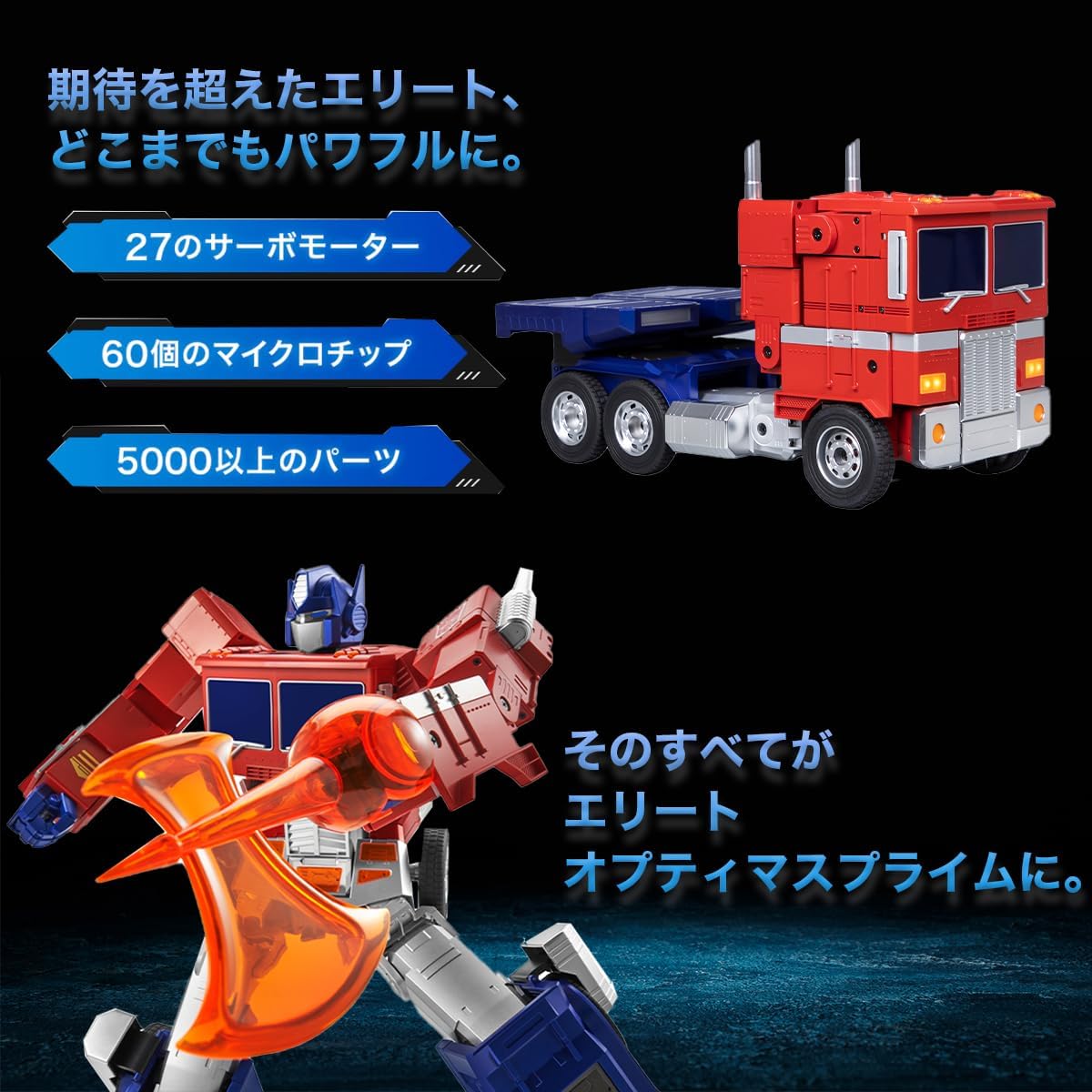
Figure 3: An illustration of the robot in both modes, emphasizing the complex engineering with 27 servo motors, 60 microchips, and over 5000 precision parts that enable its advanced functionality.
Package Contents
Please verify that all items listed below are included in your package. If any items are missing or damaged, please contact customer support.

Figure 4: The complete packing list for the Robosen Elite Optimus Prime HR30. It includes the main Optimus Prime unit, an axe accessory, a blaster accessory, the instruction manual, a data cable for charging/connection, and a power adapter.
- Optimus Prime Unit
- Axe Accessory
- Blaster Accessory
- Instruction Manual
- Data Cable
- Power Adapter
Setup
1. Charging the Robot
Before first use, fully charge your Robosen Elite Optimus Prime. Connect the provided data cable to the robot's charging port and the power adapter. Plug the adapter into a standard wall outlet. The charging indicator will show the charging status.
2. Powering On/Off
To power on the robot, press and hold the power button located on its back for a few seconds until it activates. To power off, press and hold the same button until it shuts down.
3. App Installation (Optional)
For enhanced control and programming features, download the official Robosen app from your device's app store (available for iOS and Android). Search for "Robosen" and follow the on-screen instructions to install.
4. Bluetooth Pairing
Ensure Bluetooth is enabled on your smartphone or tablet. Open the Robosen app and follow the in-app instructions to pair your device with the Elite Optimus Prime HR30. The robot's Bluetooth name will typically appear as "Robosen Optimus Prime HR30".
Operating Instructions
Voice Control
The Robosen Elite Optimus Prime HR30 responds to over 40 pre-programmed voice commands. Please note that the primary voice commands for this model are in Japanese, as indicated by the product's localization. Ensure you are in a quiet environment for optimal voice recognition. Speak clearly and at a normal volume. Some example commands include:
- "Hello Optimus" (or equivalent Japanese command)
- "Transform" (or equivalent Japanese command)
- "Walk forward" (or equivalent Japanese command)
- "Attack" (or equivalent Japanese command)
Refer to the in-app command list for a complete list of supported voice commands in Japanese.
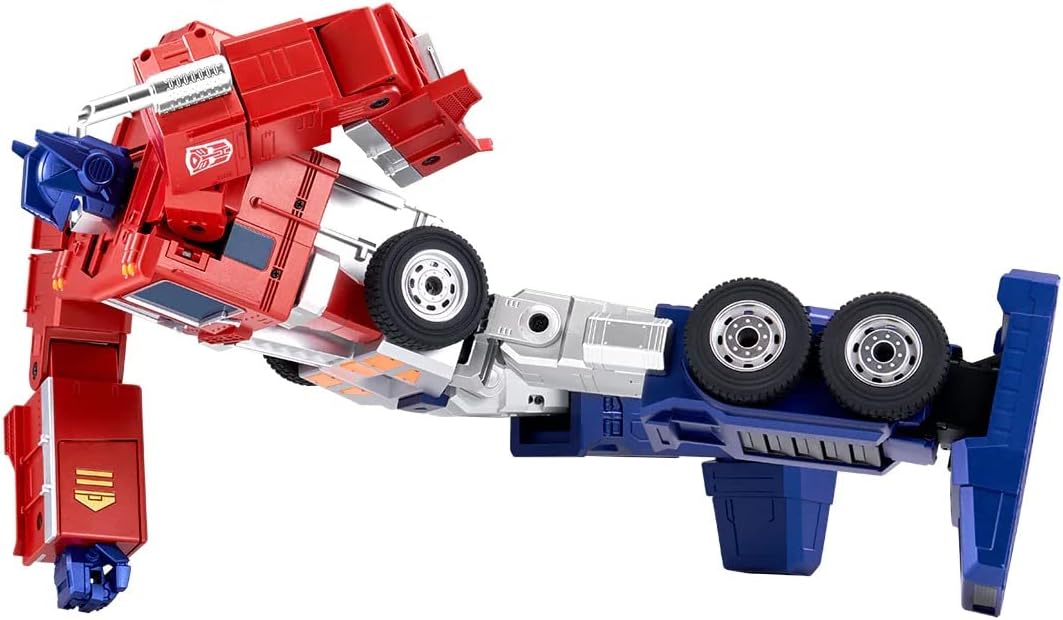
Figure 5: Optimus Prime demonstrating a dynamic action pose, showcasing its articulation and movement capabilities.
App Control
The Robosen app provides comprehensive control over your Optimus Prime. After successful Bluetooth pairing, you can:
- Remote Control: Use the virtual joystick and buttons to control movement and actions.
- Pre-set Actions: Trigger various pre-programmed actions and poses.
- Customization: Adjust settings and preferences for your robot.

Figure 6: The Robosen app interface, demonstrating options for voice commands, remote control, and programming. The app allows users to select various actions and customize the robot's movements.
Programming
The app offers four programming options to create custom action sequences. This feature allows you to design unique movements and interactions for your Optimus Prime. Detailed tutorials are available within the app to guide you through the programming process.

Figure 7: Optimus Prime in a bipedal walking stance, illustrating its ability to move and pose dynamically.
Maintenance
To ensure the longevity and optimal performance of your Robosen Elite Optimus Prime HR30, follow these maintenance guidelines:
- Cleaning: Use a soft, dry cloth to wipe the robot's surface. Avoid using harsh chemicals or abrasive materials.
- Storage: Store the robot in a cool, dry place away from direct sunlight and extreme temperatures.
- Battery Care: Do not overcharge the battery. If storing for an extended period, charge the battery to approximately 50% and recharge every three months to prevent deep discharge.
- Avoid Impact: The robot contains delicate internal mechanisms. Avoid dropping or subjecting it to strong impacts.
Troubleshooting
| Problem | Possible Cause | Solution |
|---|---|---|
| Robot does not power on. | Low battery or power button not pressed correctly. | Charge the robot fully. Ensure the power button is pressed and held for a few seconds. |
| Voice commands are not recognized. | Noisy environment, unclear speech, or robot too far. | Move to a quieter area. Speak clearly and closer to the robot. Check the app for a list of supported commands. |
| App cannot connect to the robot. | Bluetooth is off, robot is off, or app needs restart. | Ensure robot is powered on and Bluetooth is enabled on your device. Restart the app and try pairing again. |
| Robot's movements are erratic or incomplete. | Low battery, obstruction, or software glitch. | Charge the robot. Check for any physical obstructions. Restart the robot and the app. If issues persist, check for firmware updates. |
Specifications

Figure 8: Technical specifications and physical dimensions of the Robosen Elite Optimus Prime HR30, including its height and width in robot mode, and length, width, and height in vehicle mode. Also details internal components and power requirements.
- Model Number: HR30
- Material: ABS Plastic, Aluminum Alloy Frame
- Weight: Approximately 1.9 kg
- Battery: 1200mAh Lithium-ion (Rechargeable)
- Adapter Input: 100V-240V~50/60Hz 1A
- Adapter Output: DC 12.6V 1A
- Connectivity: Bluetooth 5.0 BLE
- Motors: 27 Servo Motors
- Microchips: 60 Microchips
- Control: Smartphone App (iOS/Android), Voice Control
- Language: Product supports Japanese voice commands; this manual is in English.
Warranty and Support
Manufacturer's Warranty
The Robosen Elite Optimus Prime HR30 comes with a one-year manufacturer's warranty from the date of purchase. This warranty covers defects in materials and workmanship under normal use. It does not cover damage caused by misuse, accidents, unauthorized modifications, or normal wear and tear.
Customer Support
For technical assistance, troubleshooting, or warranty claims, please contact Robosen customer support. You can find contact information on the official Robosen website or through the Robosen app.
Please have your product model number (HR30) and proof of purchase ready when contacting support.


