
Introduction
This manual provides detailed instructions for the installation, operation, and maintenance of your Gravity D96CP HiFi Audio Processor Car Stereo. Please read this manual thoroughly before using the product to ensure proper function and to prevent damage.
Safety Information
- Ensure all wiring is correctly connected to prevent short circuits or damage to the unit and vehicle.
- Do not operate the unit in a way that distracts you from driving. Always prioritize road safety.
- Consult a professional for installation if you are unsure about any steps.
- Keep the unit away from water and excessive moisture.
- Do not attempt to repair the unit yourself. Refer servicing to qualified personnel.
What's in the Box
Upon opening the package, verify that all components are present:
- Gravity D96CP Car Stereo Unit
- Remote Control
- Wiring Harness
- User Manual (this document)
Note: Additional accessories such as a trim kit, specific vehicle wiring harness, or RCA cables may be required for installation and are sold separately.
Product Overview
Front Panel

Figure 1: Front view of the Gravity D96CP Car Stereo. The 6.5-inch touchscreen displays the main interface with icons for various functions. Physical buttons for IR, RST, Power, Band, Volume Up/Down, and Disc Eject are located on the left side. A USB port is at the bottom left.
Rear Panel and Connections

Figure 2: Rear panel of the Gravity D96CP Car Stereo. This view highlights the multiple RCA jacks for audio/video input and output, a TV antenna port (functionality may vary), a radio antenna input, and the main connector for the wiring harness.
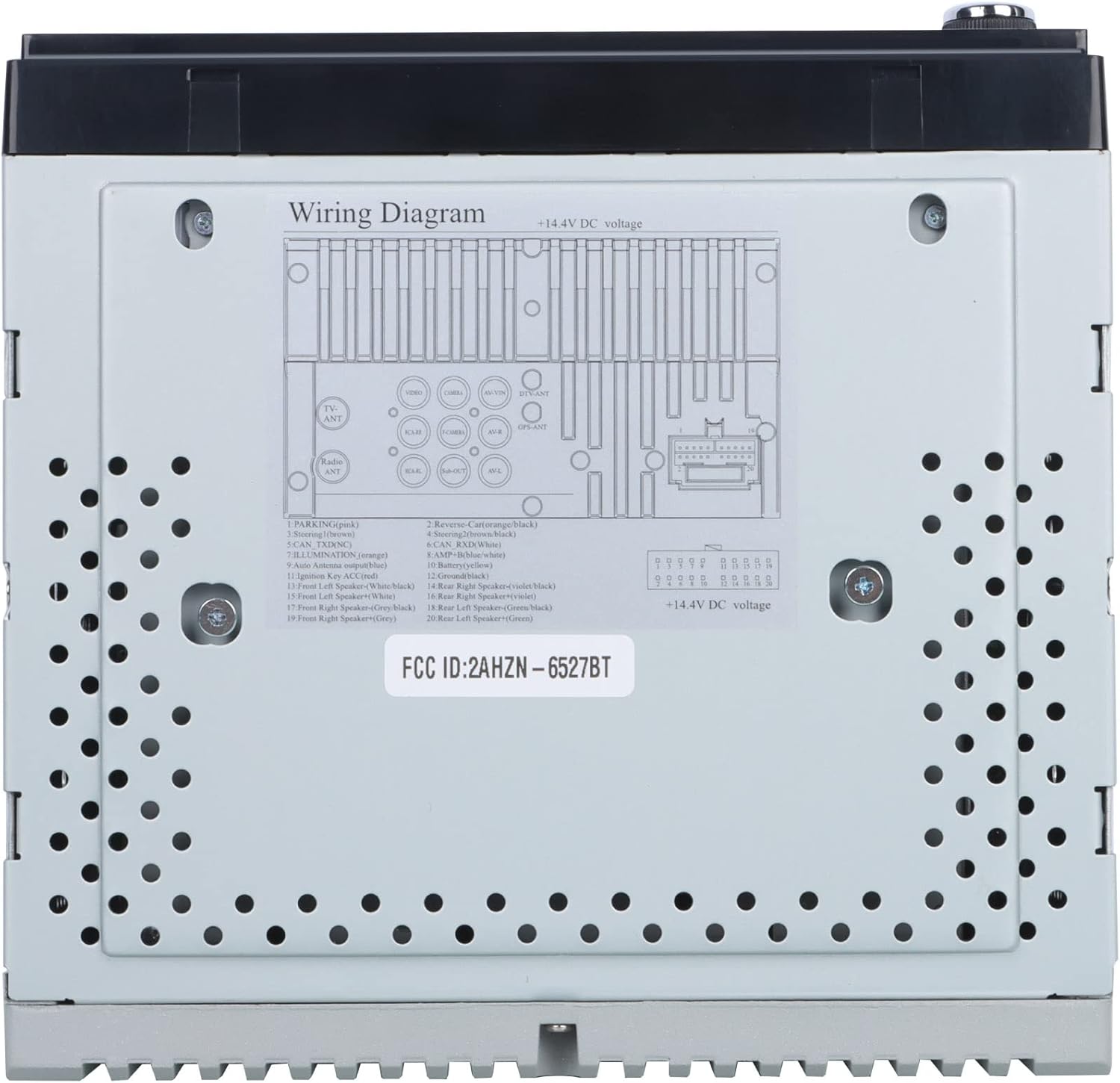
Figure 3: Detailed wiring diagram for the Gravity D96CP. This diagram illustrates the pin assignments for the main power and speaker harness, including connections for parking brake, reverse, illumination, antenna, and amplifier control.
Setup and Installation
Proper installation is crucial for the performance and safety of your car stereo. If you are not confident in performing the installation yourself, seek professional assistance.
Pre-Installation Checklist
- Ensure the vehicle's battery is disconnected before starting any wiring.
- Verify the stereo's dimensions fit your vehicle's dashboard opening. A trim kit may be necessary.
- Obtain a vehicle-specific wiring harness adapter if not included, to avoid cutting factory wires.
Wiring Connections
Refer to Figure 3 for the detailed wiring diagram. Key connections include:
- Power (Yellow): Constant 12V supply.
- Ignition (Red): Switched 12V supply (ACC).
- Ground (Black): Connect to a clean chassis ground point.
- Speaker Wires: Connect to corresponding vehicle speakers (Front Left, Front Right, Rear Left, Rear Right). Ensure correct polarity.
- Reverse (Orange/Black): Connect to the vehicle's reverse light circuit for automatic camera display.
- Parking (Pink): This unit may not have a dedicated parking brake interlock. Exercise caution when operating video functions while driving.
- Antenna (Blue): Power antenna/amplifier remote turn-on.
- External Microphone: Connect the external microphone for improved call quality.
Note: The unit features RCA jacks for video in/out and audio in/out, allowing connection of external sources or additional screens. RCA cables are not included.
Operating Instructions
Basic Operation
- Power On/Off: Press the power button on the front panel.
- Volume Control: Use the VOL+ and VOL- buttons on the front panel or the touchscreen controls.
- Mode Selection: Tap the desired icon on the touchscreen (e.g., Radio, Bluetooth, USB, AUX, Phonelink, Settings).
Apple CarPlay / Android Auto
Connect your iPhone (for CarPlay) or Android phone (for Android Auto) to the stereo via a certified USB cable. The system will automatically detect and launch the respective interface. This allows access to phone functions like navigation, music, calls, and messages directly from the stereo's touchscreen or via voice commands (Siri/Google Assistant).
- Ensure your phone's operating system is up to date.
- Use the original USB cable for optimal connection stability.
- The phone screen and stereo screen operate independently, allowing different content to be displayed on each.
Mirror Link
The Mirror Link function projects your smartphone's screen directly onto the car stereo display. Connect your phone via a USB cable, and follow the on-screen prompts to activate mirroring. Any content displayed on your phone will be synchronized in real-time on the 6.5-inch stereo screen.
Bluetooth Connectivity
- Pairing: Go to the Bluetooth menu on the stereo. Enable Bluetooth on your smartphone and search for available devices. Select "Gravity D96CP" (or similar name) and confirm pairing.
- Hands-Free Calling: Once paired, you can answer/make calls directly from the stereo. The external microphone picks up your voice, and audio plays through the car speakers.
- Audio Streaming: Stream music and audio from your phone to the stereo. Control playback (play/pause, skip) via the stereo's touchscreen or your phone.
DVD/CD Player
Insert a DVD or CD into the disc slot. The unit will automatically detect the disc and begin playback. Use the touchscreen controls for playback functions (play, pause, skip, menu).
Radio
- Select the "Radio" icon from the main menu.
- Use the scan function to find available stations or manually tune to a frequency.
- Save preferred stations to preset buttons for quick access.
USB Playback
Insert a USB drive into the front USB port. The unit will automatically detect compatible media files (audio, video, images) and allow you to browse and play them.
Rear View Backup Camera
If a compatible rear view camera (sold separately) is connected and the reverse wire is properly installed, the stereo will automatically display the camera feed when the vehicle is shifted into reverse.
Maintenance
- Screen Cleaning: Use a soft, lint-free cloth to gently wipe the touchscreen. Do not use abrasive cleaners or solvents.
- General Cleaning: Keep the unit free from dust and debris. Use a soft, dry cloth for exterior cleaning.
- Firmware Updates: Check the manufacturer's website periodically for any available firmware updates to improve performance and add features.
Troubleshooting
| Problem | Possible Cause | Solution |
|---|---|---|
| Unit does not power on. | Incorrect wiring (power/ground), blown fuse. | Check all power and ground connections. Inspect the fuse on the wiring harness. |
| No sound. | Speaker wires incorrectly connected, volume too low, mute activated. | Verify speaker wiring polarity and connections. Increase volume. Check if mute is active. |
| Apple CarPlay/Android Auto not connecting or unstable. | Non-original USB cable, outdated phone OS, loose connection. | Use a certified, original USB cable. Ensure phone OS is updated. Reconnect the USB cable firmly. |
| Bluetooth connection issues or poor call quality. | Interference, phone not paired, microphone issue. | Re-pair the device. Ensure the external microphone is properly connected and positioned. |
| DVD player plays sound but no video. | Disc issue, video format incompatibility, parking brake safety feature (if present). | Try a different DVD. Ensure the video format is supported. Verify parking brake connection if applicable. |
| Screen goes black when headlights are turned on. | Illumination wire incorrectly connected. | Check the illumination wire connection (orange wire) to ensure it's correctly wired to the vehicle's dimmer circuit or constant 12V if no dimmer is desired. |
Specifications
| Model Number | VGR-D96CP |
| Brand | Gravity |
| Screen Size | 6.5 inches |
| Connectivity Technology | Auxiliary, Bluetooth, USB |
| Controller Type | Android, Google Assistant, iOS |
| Special Features | Spotify, Touchscreen, Apple CarPlay, Android Auto, Mirror Link, DVD/CD Player |
| Compatible Devices | Mobile Phone, Speaker |
| Audio Output Mode | Surround |
| Surround Sound Channel Configuration | 5.1 |
| Video Encoding | MPEG-2 |
| Number of Channels | 4 |
| Item Weight | 3.89 pounds |
| Package Dimensions | 9.69 x 9.41 x 7.17 inches |
Warranty Information
Specific warranty details for the Gravity D96CP are not provided in the available product information. Please refer to the warranty card included with your purchase or contact Gravity customer support for detailed warranty terms and conditions.
Customer Support
For technical assistance, troubleshooting beyond this manual, or inquiries regarding your Gravity D96CP car stereo, please contact Gravity customer support. Contact information is typically found on the product packaging or the manufacturer's official website.