
Techkey Black-5.3-1
Techkey Long Range USB Bluetooth 5.3 Adapter User Manual
Model: Black-5.3-1
1. Introduction
The Techkey Long Range USB Bluetooth 5.3 Adapter is designed to provide seamless wireless connectivity for your desktop PC. Utilizing the latest Bluetooth 5.3+EDR technology, this adapter ensures low energy consumption, high speed, and enhanced anti-interference capabilities. It allows you to connect multiple Bluetooth devices simultaneously, extending your wireless range up to 328 feet (100 meters) in open areas.
This manual will guide you through the setup, operation, and troubleshooting of your new Bluetooth adapter.
2. Package Contents
- 1 x Techkey Long Range USB Bluetooth 5.3 Adapter
- 1 x User Manual
3. Product Overview
The Techkey Bluetooth 5.3 Adapter features a compact USB design with an external antenna for extended range. The antenna is rotatable, offering flexibility in positioning for optimal signal reception.

Image: The Techkey USB Bluetooth 5.3 Adapter, showing its compact USB form factor and the adjustable external antenna.

Image: A comparison chart highlighting the advantages of Bluetooth 5.3+EDR technology, including faster response, better anti-interference, and extended range compared to older Bluetooth versions.
4. System Requirements
This Bluetooth adapter is compatible with the following operating systems:
- Windows 11
- Windows 10
- Windows 8.1
Note: This adapter is NOT compatible with Mac OS, Linux, car stereo systems, XBOX, PS4, or TVs.

Image: Visual representation showing compatibility with Windows 8.1, Windows 10, and Windows 11 operating systems.
5. Setup and Installation
The Techkey Bluetooth 5.3 Adapter is designed for plug-and-play functionality, requiring no driver installation on supported Windows systems.
5.1. Initial Setup
- Disable Existing Bluetooth (if applicable): If your computer has a built-in Bluetooth adapter, it is recommended to disable it before installing the Techkey adapter to avoid conflicts. You can usually do this through Windows Device Manager or Bluetooth settings.
- Plug in the Adapter: Insert the USB Bluetooth 5.3 adapter into an available USB port on your desktop PC.
- Automatic Recognition: Your Windows operating system (11/10/8.1) should automatically detect and configure the adapter. No manual driver installation is typically required.

Image: A visual demonstrating the simple plug-and-play installation of the Bluetooth adapter into a desktop computer, showing the adapter's antenna extended.
5.2. Driver Installation (If Needed)
While the adapter is generally plug-and-play, in rare cases, if Windows does not automatically install the necessary drivers or if you experience connectivity issues, you may need to manually install them. The product typically comes with a mini-CD containing drivers and useful information. Alternatively, you can visit the Techkey official support website to download the latest drivers for your model.
6. Operating Instructions
6.1. Connecting Bluetooth Devices
- Enable Bluetooth: Once the adapter is installed, go to Windows Settings > Devices > Bluetooth & other devices. Ensure Bluetooth is toggled "On".
- Add a Device: Click on "Add Bluetooth or other device" and select "Bluetooth".
- Pairing Mode: Put your Bluetooth device (e.g., headphones, mouse, keyboard, speaker, printer) into pairing mode. Refer to your device's user manual for specific instructions on how to do this (often indicated by a flashing LED).
- Select and Connect: Your PC will scan for available Bluetooth devices. Select your device from the list and follow any on-screen prompts to complete the pairing process.

Image: An illustration depicting the adapter's capability to connect up to five different Bluetooth devices simultaneously, including printers, phones, headphones, mice, and speakers.
6.2. Simultaneous Connections and Performance
The adapter supports simultaneous connection of up to 5 Bluetooth devices. Thanks to EDR technology and Bluetooth Low Energy (BLE) configuration, it achieves a transmission rate of up to 3Mbps, ensuring fast and stable wireless data connections without significant delay.
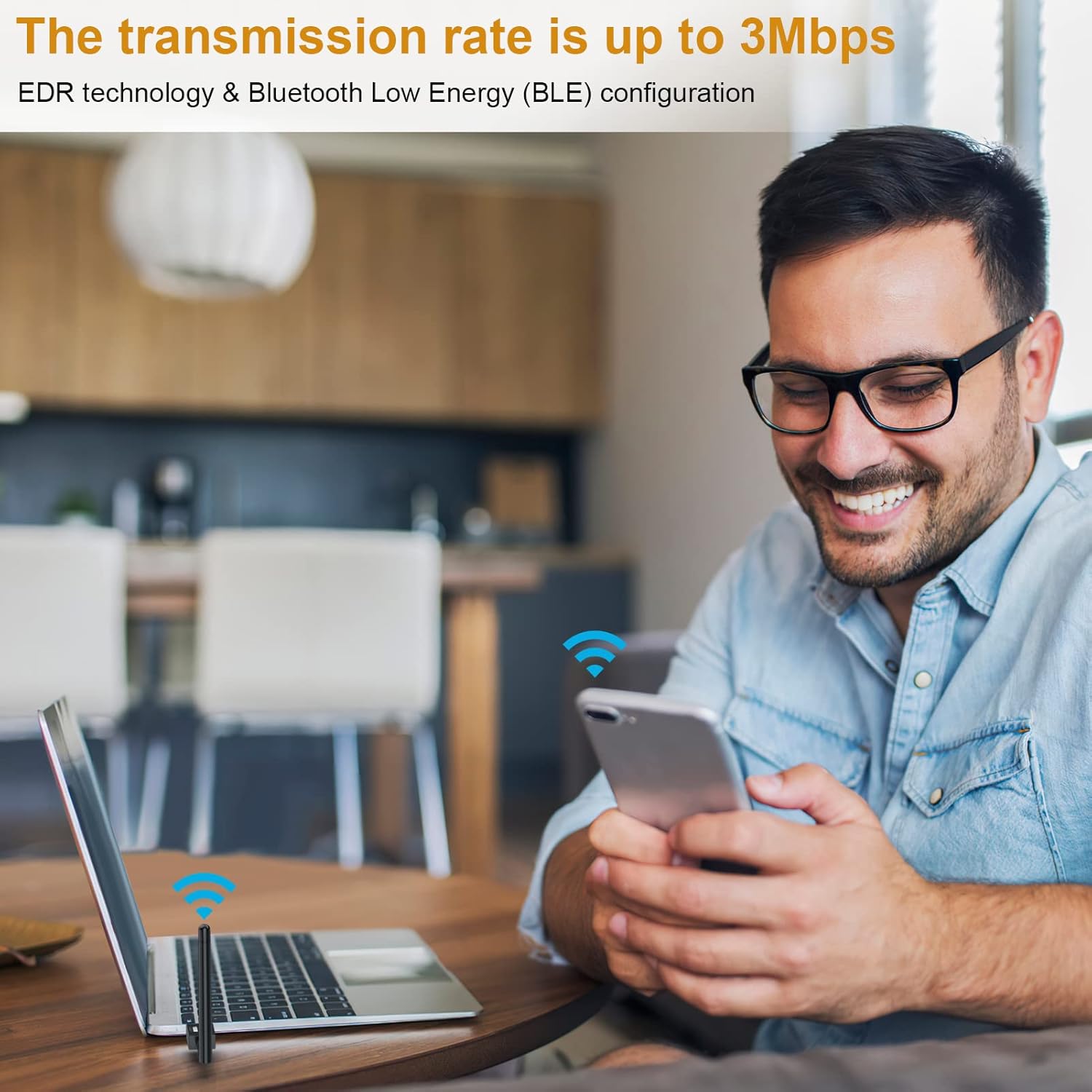
Image: A user enjoying wireless connectivity with their laptop, illustrating the high transmission rate of up to 3Mbps provided by the Bluetooth adapter.
6.3. Extended Range
Equipped with Class 1 radio technology and an extra-long antenna, the adapter offers an impressive transmission range of up to 328 feet (100 meters) in open areas. This significantly reduces the impact of distance on your Bluetooth connections.
Note: Actual transmission range may vary and can be affected by physical obstructions (walls, furniture) and wireless interference from other devices.

Image: A diagram showing the wide coverage area of the Bluetooth adapter within a multi-room environment, emphasizing its long-range capabilities.
6.4. Product Demonstration Video
Video: An official product video demonstrating the plug-and-play functionality, simultaneous device connection, and extended range of the Techkey Bluetooth 5.3 Adapter.
7. Maintenance
The Techkey Bluetooth adapter requires minimal maintenance. Keep the adapter clean and free from dust. If the adapter feels warm during extended use, this is normal and generally not a cause for concern. Ensure the antenna is not obstructed for optimal performance.
- Cleaning: Use a soft, dry cloth to wipe the adapter. Do not use liquid cleaners.
- Storage: When not in use for extended periods, you may unplug the adapter and store it in a cool, dry place.
8. Troubleshooting
| Problem | Possible Cause | Solution |
|---|---|---|
| Adapter not recognized / Bluetooth not appearing |
|
|
| Frequent disconnections or unstable connection |
|
|
| Sound cutting out (especially with headphones) |
|
|
| Cannot connect to specific device |
|
|
9. Specifications
| Feature | Detail |
|---|---|
| Brand | Techkey |
| Model Number | Black-5.3-1 |
| Bluetooth Version | 5.3 + EDR (Enhanced Data Rate) |
| Compatibility | Bluetooth 5.2/4.2/4.2 LE/4.0/2.1+EDR |
| Supported OS | Windows 11/10/8.1 |
| Transmission Range | Up to 328ft / 100m (in open area) |
| Data Transfer Rate | Up to 3 Mbps |
| Hardware Interface | Bluetooth, USB |
| Product Dimensions | 3.74 x 0.67 x 4.29 inches |
| Item Weight | 1.76 ounces |
| Supported Devices | Bluetooth speakers, keyboards, headsets, mice, Bluetooth printers, etc. |
10. Warranty and Support
Techkey products are designed for reliability and performance. For warranty information, technical support, or any inquiries regarding your Bluetooth adapter, please refer to the contact information provided with your product packaging or visit the official Techkey support website. Please have your model number (Black-5.3-1) and purchase details ready when contacting support.
Ask a question about this manual
Ask about setup, troubleshooting, compatibility, parts, safety, or missing instructions. Manuals+ will review the question and use this page’s manual context to help answer it.