
1. Introduction
This manual provides essential instructions for setting up, operating, and maintaining your Apple Watch Series 6 (GPS + Cellular, 44mm) with Titanium Case and White Sport Band. Please read this guide thoroughly to ensure proper use and to maximize your device's capabilities.
2. Product Overview
The Apple Watch Series 6 is a sophisticated wearable device designed to enhance your daily life through health monitoring, communication, and convenience. Key features include:
- GPS + Cellular Connectivity: Make calls, send texts, and get directions directly from your watch without your iPhone nearby.
- Blood Oxygen Sensor and App: Measure your blood oxygen saturation levels.
- ECG App: Generate an electrocardiogram similar to a single-lead ECG.
- Always-On Retina Display: A brighter display that remains visible even when your wrist is down.
- S6 SiP: Provides faster performance compared to previous models.
- Activity Tracking: Monitor daily activity, workouts, and set fitness goals.
- Water Resistance: Water-resistant up to 50 meters (164 feet).

Image 2.1: Front view of the Apple Watch Series 6 with a white sport band, displaying a chronograph watch face.
3. What's in the Box
Upon opening the packaging, verify that all components are present:
- Apple Watch Series 6 (44mm Titanium Case)
- White Sport Band (includes S/M and M/L sizes)
- Magnetic Charging Cable
- Documentation (Quick Start Guide, Safety Information)

Image 3.1: The minimalist white retail box for the Apple Watch, indicating its packaging.
4. Setup
4.1. Charging Your Apple Watch
Before initial use, fully charge your Apple Watch. Place the back of your Apple Watch on the magnetic charging cable. The charger will snap into place magnetically. Connect the other end of the cable to a USB power adapter (sold separately) or a USB port.
4.2. Pairing with iPhone
- Ensure your iPhone is updated to the latest iOS version and has Bluetooth enabled.
- Turn on your Apple Watch by pressing and holding the Side Button until the Apple logo appears.
- Bring your iPhone near your Apple Watch. A pairing screen will appear on your iPhone. Tap "Continue."
- Position your iPhone so that your Apple Watch appears in the viewfinder of the Apple Watch app.
- Follow the on-screen instructions on both your iPhone and Apple Watch to complete the pairing process, including setting up a passcode and choosing your preferred settings.
4.3. Setting Up Cellular (GPS + Cellular Models Only)
During the pairing process, you will be prompted to set up cellular service. You will need an active cellular plan with a compatible carrier that supports Apple Watch cellular service. Follow the instructions provided by your carrier through the Apple Watch app on your iPhone.
5. Operating Instructions
5.1. Controls and Navigation
- Digital Crown: Rotate to scroll, zoom, or adjust values. Press once to go to the watch face or app list. Double-press to switch between recently used apps. Press and hold to activate Siri.
- Side Button: Press once to open the Dock (recently used apps). Press and hold to access power options, Medical ID, and Emergency SOS. Double-press to use Apple Pay.
- Touch Display: Tap to select, swipe to navigate, force touch (press firmly) for additional options in some apps.
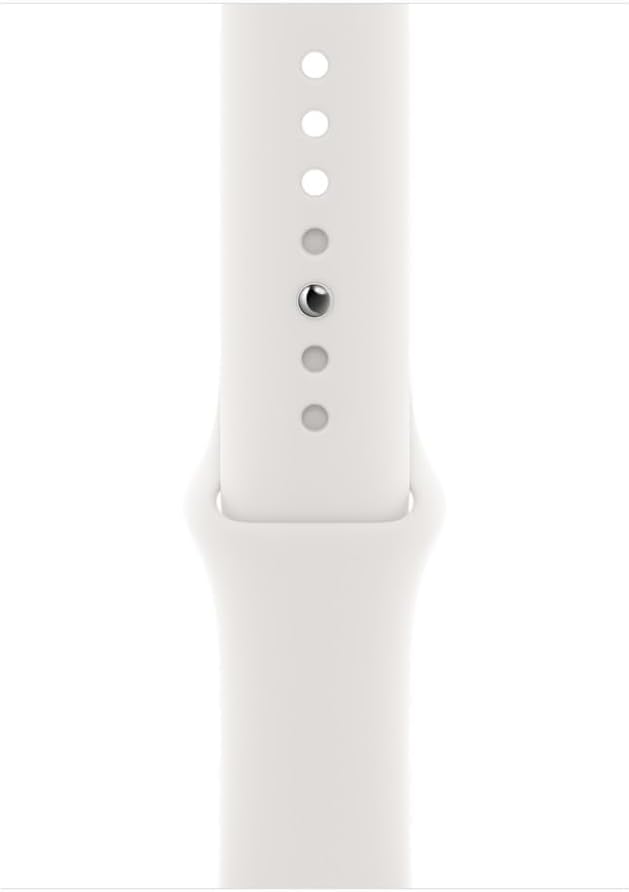
Image 5.1: Close-up of the Apple Watch Series 6 showing the Digital Crown and Side Button on the right side of the watch case.
5.2. Basic Functions
- Checking Notifications: Swipe down from the top of the watch face.
- Accessing Control Center: Swipe up from the bottom of the watch face.
- Changing Watch Faces: Force touch the watch face, then swipe left or right to select.
- Making Calls: Use the Phone app or Siri.
- Sending Messages: Use the Messages app or Siri.
6. Health and Fitness Features
The Apple Watch Series 6 offers advanced health and fitness tracking capabilities:
- Blood Oxygen App: Open the Blood Oxygen app and follow the on-screen instructions to take a measurement. Ensure your watch is snug on your wrist.
- ECG App: Open the ECG app and place your finger on the Digital Crown for 30 seconds. Remain still during the recording.
- Heart Rate Monitoring: The watch continuously monitors your heart rate. View your current heart rate and trends in the Heart Rate app.
- Activity Rings: Track your daily movement, exercise, and standing hours. Close your rings to achieve your daily goals.
- Workout App: Select from various workout types to track metrics like duration, distance, calories burned, and heart rate.
- Sleep Tracking: Set a sleep schedule and track your sleep patterns using the Sleep app.

Image 6.1: The Apple Watch Series 6 displaying an analog watch face with various complications, including temperature and activity rings.
7. Connectivity (GPS + Cellular)
Your Apple Watch Series 6 (GPS + Cellular) offers enhanced connectivity:
- GPS: Provides accurate location tracking for workouts and navigation, even without your iPhone.
- Cellular: Once activated with a compatible carrier, your watch can make and receive calls, send messages, and use data independently of your iPhone. This is ideal for situations where you don't want to carry your phone, such as during a run.
- Wi-Fi and Bluetooth: The watch automatically connects to known Wi-Fi networks and your paired iPhone via Bluetooth for data synchronization and communication.
8. Maintenance and Care
8.1. Cleaning Your Apple Watch
- Turn off your Apple Watch and disconnect it from the charger.
- Wipe the watch with a non-abrasive, lint-free cloth. If necessary, lightly dampen the cloth with fresh water.
- Do not use cleaning products, abrasive materials, or compressed air.
- Dry the watch thoroughly with a lint-free cloth.
8.2. Water Resistance
The Apple Watch Series 6 is water-resistant up to 50 meters. It can be used for shallow-water activities like swimming in a pool or ocean. It should not be used for scuba diving, waterskiing, or other activities involving high-velocity water or submersion below shallow depths. Water resistance is not a permanent condition and may diminish over time.
8.3. Band Care
Clean the White Sport Band regularly with a damp, non-abrasive cloth. Ensure it is dry before reattaching to your wrist. Avoid prolonged exposure to direct sunlight or extreme temperatures.

Image 8.1: Close-up of the white sport band, showing the pin-and-tuck closure mechanism.
9. Troubleshooting
- Watch Not Turning On: Ensure the watch is fully charged. If it still doesn't turn on, try a force restart (press and hold both the Digital Crown and Side Button for at least 10 seconds until you see the Apple logo).
- Pairing Issues: Ensure your iPhone's Bluetooth is on and both devices are close. Restart both your iPhone and Apple Watch. If issues persist, unpair the watch from your iPhone (if previously paired) and attempt to pair again.
- Cellular Not Working: Verify your cellular plan is active and supports Apple Watch. Check your carrier's coverage in your area. Ensure cellular is enabled in the Apple Watch app on your iPhone.
- Inaccurate Health Readings: Ensure the watch is worn snugly on your wrist, not too tight or too loose. Clean the back of the watch and your wrist.
- Poor Battery Life: Battery health for renewed products can vary. Check battery health in Settings > Battery > Battery Health on your watch. Reduce background app refresh, turn off Always-On display if not needed, and manage notifications to conserve battery.
10. Specifications
| Feature | Detail |
|---|---|
| Model Name | Apple Watch Series 6 |
| Model Number | AWS644MMTMSVWH |
| Case Size | 44mm |
| Case Material | Titanium |
| Connectivity | GPS, Cellular, Wi-Fi, Bluetooth |
| Display | Always-On Retina LTPO OLED, 1.78 Inches |
| Processor | S6 SiP with 64-bit dual-core processor |
| Operating System | watchOS (compatible with MAC OS for pairing) |
| Water Resistance | 50 meters (164 feet) |
| Sensors | Blood Oxygen sensor, Electrical heart sensor (ECG app), Optical heart sensor, Altimeter, Accelerometer, Gyroscope, Ambient light sensor |
| Storage Capacity | 32GB (internal) |
| Item Weight | Approximately 7.4 ounces (product weight, not watch only) |
11. Warranty and Support
As this is a renewed product, specific warranty terms may vary. Please refer to the warranty information provided by the seller at the time of purchase. For general product support, software updates, and additional resources, visit the official Apple Support website.
For issues related to the renewed condition or seller-specific warranty, contact the seller directly. For technical assistance with Apple Watch features and software, visit support.apple.com/watch.


