
Introduction
This manual provides detailed instructions for the setup, operation, maintenance, and troubleshooting of your IQUNIX ZX75 Gravity Wave Gaming Keyboard. Please read this manual thoroughly before using the product to ensure optimal performance and longevity.

Figure 1: IQUNIX ZX75 Gravity Wave Gaming Keyboard, top view.
Package Contents
Verify that all items are present in the package:
- IQUNIX ZX75 Gravity Wave Gaming Keyboard
- USB Type-C Cable
- Keycap Puller
- Additional MAC Keycaps
- Customizable Keycaps
Setup
1. Charging the Keyboard
Before initial use, connect the keyboard to a power source using the provided USB Type-C cable. The keyboard features a 6000 mAh rechargeable battery.
2. Attaching Detachable Feet
The keyboard includes innovative magnetic detachable feet for ergonomic typing. Align the feet with the slots on the bottom of the keyboard and allow the magnets to secure them in place. These feet can be removed for flat placement.
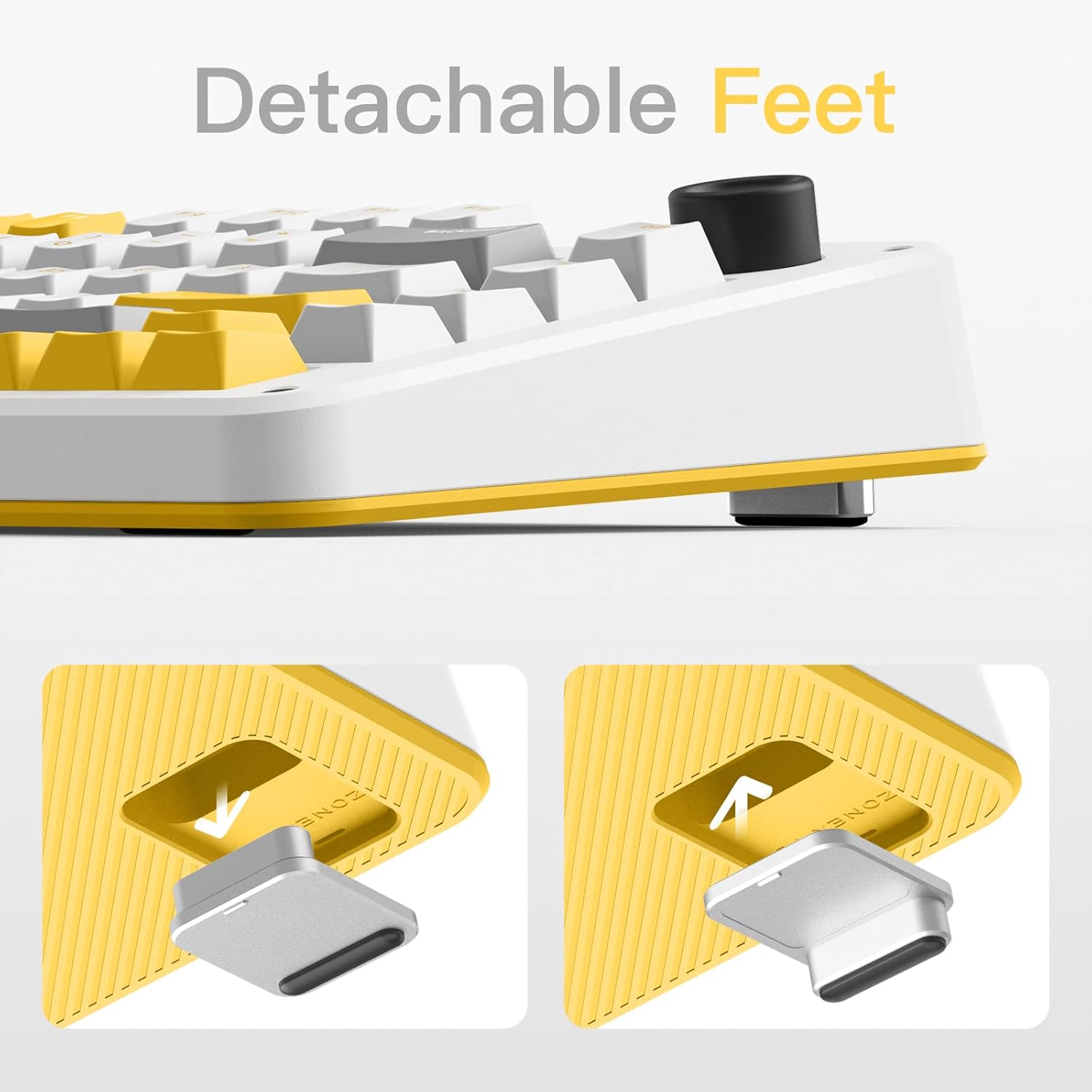
Figure 2: Illustration of attaching the detachable magnetic feet to the keyboard.
3. Connecting the Keyboard
The IQUNIX ZX75 supports three connection modes: Wired (USB Type-C), 2.4GHz Wireless, and Bluetooth 5.1.
Wired Connection
- Connect the USB Type-C cable to the keyboard's port.
- Connect the other end of the cable to a USB port on your computer.
- The keyboard will be automatically recognized and ready for use.
2.4GHz Wireless Connection
- Locate the 2.4GHz USB receiver (usually stored in a compartment on the keyboard or included separately).
- Plug the USB receiver into an available USB port on your computer.
- Switch the keyboard's connection mode to 2.4GHz (refer to the keyboard's physical switch or function key combination).
- The keyboard should connect automatically.
Bluetooth 5.1 Connection
- Switch the keyboard's connection mode to Bluetooth (refer to the keyboard's physical switch or function key combination).
- On your device (computer, tablet, smartphone), navigate to Bluetooth settings.
- Search for available devices and select "IQUNIX ZX75" (or similar name).
- Follow any on-screen prompts to complete the pairing process. The keyboard can connect to up to 3 devices simultaneously via Bluetooth.
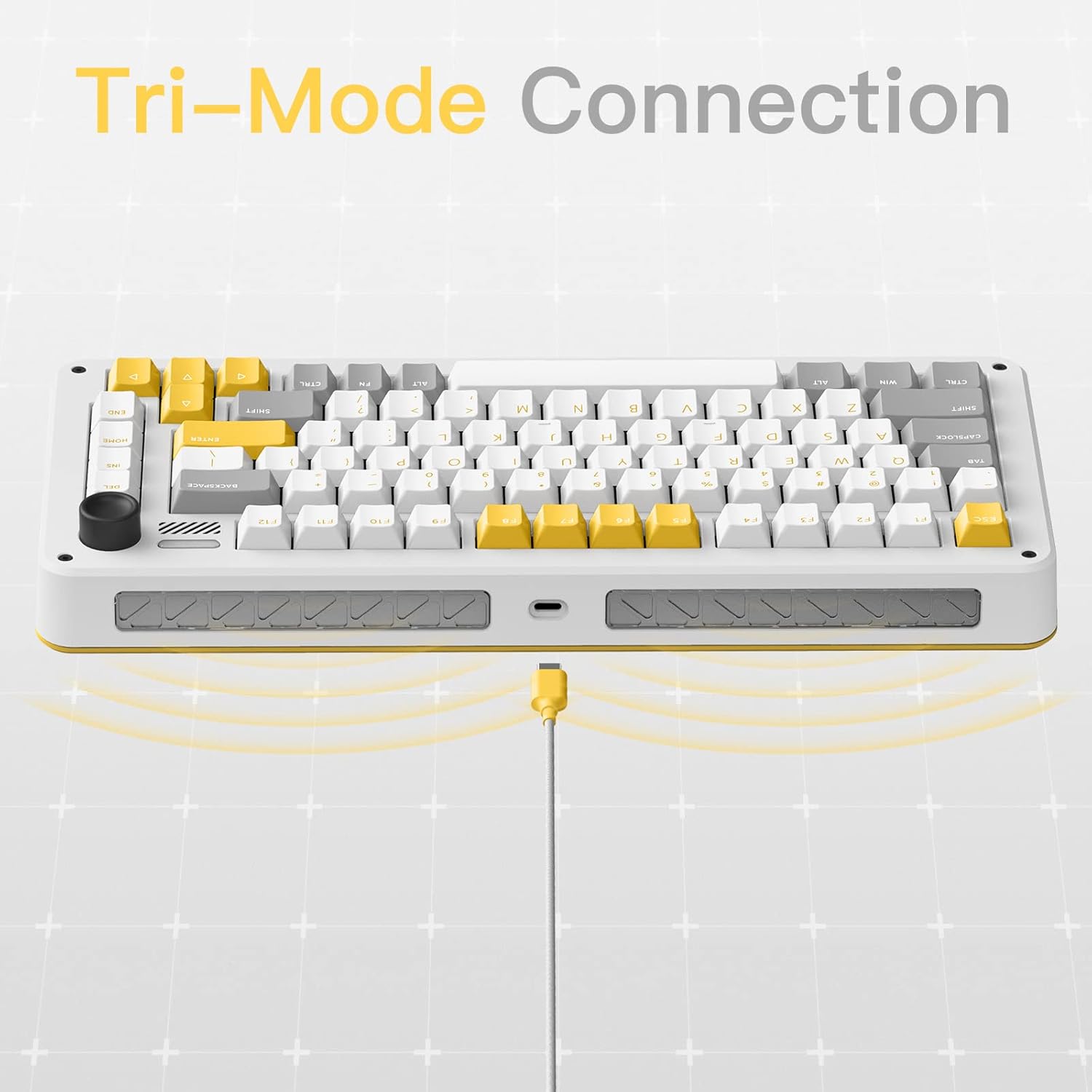
Figure 3: Visual representation of the keyboard's tri-mode connectivity (Wired, 2.4GHz, Bluetooth).
4. System Compatibility (Windows/Mac)
The ZX75 keyboard is compatible with both Windows and macOS operating systems. To switch between systems, hold down the FN + TAB keys for 5 seconds. The keyboard will adapt its key functions accordingly. Four additional MAC supplementary keycaps are included in the box for customization.

Figure 4: Included supplementary keycaps for macOS compatibility.
Operating Instructions
1. Multimedia Control Knob
The multimedia rotation knob located in the upper right corner of the keyboard provides quick access to audio controls:
- Rotate Right: Increase volume.
- Rotate Left: Decrease volume.
- Press Vertically: Play/Pause media.

Figure 5: Functions of the multimedia control knob.
2. RGB Backlighting
The keyboard features dynamic South-facing RGB backlighting with 7 modes and 16 million colors. Customize lighting effects using the dedicated software (available for download from the manufacturer's website). This allows users to create personalized lighting profiles.
3. Hot-Swappable Switches
The ZX75 keyboard is equipped with hot-swappable TTC switches, allowing users to change switches without soldering. This feature enables customization of typing feel and sound.

Figure 6: Detailed view of the mechanical switches on the keyboard.
Figure 7: Hot-swappable switch mechanism allowing easy replacement.
Maintenance
1. Cleaning the Keyboard
To maintain the keyboard's appearance and functionality:
- Disconnect the keyboard from all power sources and devices before cleaning.
- Use a soft, lint-free cloth slightly dampened with water or a mild cleaning solution to wipe the keycaps and chassis.
- For deeper cleaning, use the provided keycap puller to remove keycaps and clean underneath with compressed air or a small brush.
- Avoid using harsh chemicals or abrasive materials.
2. Battery Care
The integrated 6000 mAh Lithium Ion battery requires proper care:
- Avoid exposing the keyboard to extreme temperatures.
- Charge the battery regularly, even if not in frequent use, to prevent deep discharge.
- If storing the keyboard for an extended period, ensure the battery is charged to approximately 50%.
Troubleshooting
If you encounter issues with your IQUNIX ZX75 keyboard, refer to the following common solutions:
- Keyboard Not Responding:
Ensure the keyboard is charged. Check the connection mode switch (Wired, 2.4GHz, Bluetooth) and ensure it matches your intended connection. For wired connection, try a different USB port or cable. For wireless, re-pair the device or try a different USB port for the 2.4GHz receiver. - Bluetooth Connection Issues:
If experiencing interference, especially with other wireless devices like a trackpad, try switching to the 2.4GHz wireless mode or a wired connection. Ensure the keyboard is within range of your device. - Keys Not Registering or Missing Keycaps/Switches:
Verify that all keycaps and switches are properly seated. If a keycap or switch is missing or damaged upon arrival, contact customer support. The hot-swappable design allows for individual switch replacement if needed. - RGB Backlight Not Working:
Ensure the backlight is enabled via function keys or software. Check if the battery level is sufficient, as low battery can affect lighting performance. - System Mode Not Switching:
Ensure you are holding FN + TAB for the full 5 seconds to switch between Windows and Mac modes.
Specifications
| Feature | Detail |
|---|---|
| Model Number | ZX75 |
| Product Dimensions | 13.62 x 5.94 x 1.73 inches |
| Item Weight | 4.36 pounds |
| Manufacturer | iQunix |
| Batteries | 1 Lithium Ion battery required (included) |
| Brand | IQUNIX |
| Compatible Devices | Windows / macOS / iOS / Android |
| Connectivity Technology | Bluetooth, USB-C, 2.4GHz Wireless |
| Keyboard Description | Mechanical |
| Recommended Uses | Everyday Use, Gaming |
| Special Features | Backlit, Ergonomic, Hot-Swappable |
| Color | Silver (referring to the base model color, though keycaps vary) |
| Keyboard Backlighting | RGB |
| Material | Aluminum |
| Battery Capacity | 6000 mAh |
Warranty and Support
For warranty information and technical support, please refer to the official IQUNIX website or contact their customer service directly. Keep your purchase receipt as proof of purchase for warranty claims.

