
1. Introduction
The Yanmai USB Microphone is a versatile condenser microphone designed for various applications including streaming, podcasting, recording, and online communication on PC, PS4/5, and Mac. It features adjustable RGB lighting with 11 color modes, a quick mute button with LED indicators, and independent volume control knobs for the microphone and earphone monitoring. The microphone includes a built-in pop filter and anti-vibration mount to ensure clear audio capture by minimizing unwanted noise and vibrations. Its plug-and-play design allows for easy setup without additional drivers.
2. What's in the Box
- Yanmai USB Condenser Microphone
- Tripod Stand
- USB Cable (USB-C to USB-A)
- Pop Filter
- Shock Mount
- User's Manual
3. Product Overview
Familiarize yourself with the components and controls of your Yanmai USB Microphone.

Figure 3.1: Yanmai USB Microphone with included accessories.
3.1. Controls and Indicators
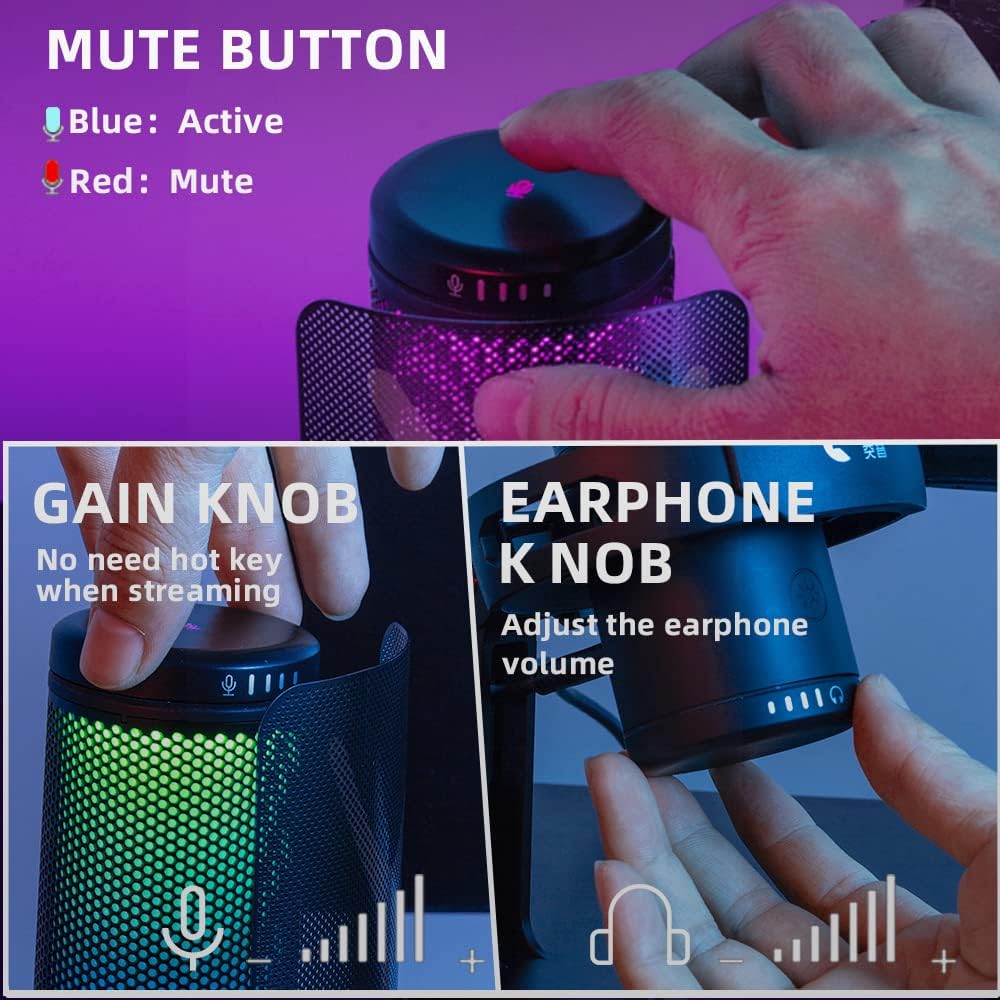
Figure 3.2: Mute Button, Gain Knob, and Earphone Volume Knob.
- Mute Button (Top): Tap to mute/unmute the microphone. A red LED indicates muted status, while a blue LED indicates active/monitoring status.
- Gain Knob (Front): Adjusts the microphone input sensitivity (gain). Rotate clockwise to increase gain, counter-clockwise to decrease.
- Earphone Volume Knob (Bottom): Controls the volume of the connected headphones for real-time audio monitoring.

Figure 3.3: RGB Control Button.
- RGB Control Button (Bottom): Cycles through 11 different RGB lighting modes, including static colors, dynamic multi-color gradients, and dynamic solid-color gradients.
4. Setup
The Yanmai USB Microphone is designed for easy plug-and-play setup.
- Assemble the Microphone: Attach the microphone to the included tripod stand or a compatible arm stand using the shock mount. Ensure it is securely fastened.
- Connect to Device: Connect the USB-C end of the provided USB cable to the microphone and the USB-A end to an available USB port on your computer (PC, Mac) or gaming console (PS4, PS5).
- System Recognition: Your operating system (Windows, macOS) or console should automatically detect and install the necessary drivers. No additional software installation is typically required.
- Select as Input Device: Navigate to your device's sound settings and select the Yanmai USB Microphone as your default audio input device.
- Connect Headphones (Optional): For real-time monitoring, plug your headphones into the 3.5mm jack located at the bottom of the microphone.

Figure 4.1: Multi-device compatibility for easy setup.
5. Operating Instructions
5.1. Adjusting Microphone Gain
Use the Gain Knob on the front of the microphone to adjust the input sensitivity. This controls how loud your voice or sound source will be captured. Adjust it to prevent clipping (distortion) while ensuring your audio is clear and audible.
5.2. Mute Function
Tap the Mute Button on the top of the microphone to instantly mute or unmute your audio. The LED indicator will change from blue (active) to red (muted) to provide visual confirmation.
5.3. Real-time Monitoring
If headphones are connected to the 3.5mm jack, you can monitor your audio in real-time without latency. Use the Earphone Volume Knob at the bottom of the microphone to adjust the monitoring volume to a comfortable level.
5.4. Adjusting Microphone Angle
The thumbscrew on the desktop microphone stand allows you to tilt the microphone to achieve the optimal recording angle. Position the microphone directly towards the sound source (e.g., your mouth) for best audio capture.

Figure 5.1: Microphone support for arm stand for flexible positioning.
5.5. Typical Usage Scenarios

Figure 5.2: Microphone in use for gaming, video calls, and music recording.
- Gaming: Position the microphone to capture your voice clearly while minimizing keyboard and mouse noise, thanks to the built-in anti-vibration mount and pop filter.
- Video Calls/Conferences: Ensures clear communication for online meetings and distance learning.
- Podcasting/Recording: The condenser capsule and pop filter contribute to vivid and clear sound for vocal recordings.
6. RGB Lighting Modes
The microphone features bicolored RGB lighting with 11 distinct color modes. Press the RGB Control Button on the bottom of the microphone to cycle through these modes.

Figure 6.1: Multiple RGB Lighting Modes.
- Static Solid Color: Displays a single, constant color.
- Dynamic Multi-color Gradient: Colors transition smoothly through multiple hues.
- Dynamic Solid-color Gradient: A single color gradually changes in brightness or shade.
7. Maintenance
To ensure the longevity and optimal performance of your Yanmai USB Microphone, follow these maintenance guidelines:
- Cleaning: Use a soft, dry cloth to wipe the microphone's surface. Avoid using abrasive cleaners or solvents.
- Storage: Store the microphone in a cool, dry place away from direct sunlight and extreme temperatures.
- Handling: Handle the microphone with care. Avoid dropping it or subjecting it to strong impacts, which can damage internal components.
- Cable Care: Do not bend or crimp the USB cable excessively. Always grasp the plug, not the cable, when disconnecting.
8. Troubleshooting
If you encounter issues with your Yanmai USB Microphone, refer to the following common solutions:
| Problem | Possible Cause | Solution |
|---|---|---|
| Microphone not detected by computer/console. | Loose connection, incorrect USB port, driver issue, system settings. |
|
| No sound or low sound output. | Microphone muted, gain too low, incorrect input device selected, application settings. |
|
| Distorted or unclear audio. | Gain too high, microphone too close, environmental noise. |
|
| RGB lighting not working. | Power issue, button malfunction. |
|
9. Specifications
| Feature | Detail |
|---|---|
| Model Number | SF |
| Microphone Form Factor | Tri-Capsule Array |
| Polar Pattern | Unidirectional |
| Connectivity Technology | USB |
| Connector Type | USB-C to USB-A |
| Power Source | Corded Electric |
| Hardware Platform | Laptop, PC |
| Compatible Devices | Audio Interface, iOS, macOS, Windows, Desktop, Laptop, PS4/PS5, Personal Computer |
| Frequency Response | 20 KHz |
| Audio Sensitivity | 35 dB |
| Item Weight | 1.55 pounds |
| Dimensions (Package) | 10.6 x 6.8 x 4.4 inches |
| Color | GM7 |
| Special Features | Headphones Jack, RGB Lights, RGB Control Key, Mute Function, Monitoring Volume Control, Microphone Stand, Pop Filter, Shock Mount, USB Connection, Mic Gain Control |
10. Warranty and Support
For warranty information or technical support, please refer to the contact details provided on the product packaging or the official Yanmai website. Keep your purchase receipt as proof of purchase for any warranty claims.


