
1. Introduction
This manual provides detailed instructions for the setup, operation, and maintenance of your Redragon Kumara Pro RGB Mechanical Gaming Keyboard (Model K552RGB-BRS-B). This keyboard features RGB backlighting, Brown mechanical switches, and multiple connectivity options including wired USB-C, 2.4GHz wireless, and Bluetooth.
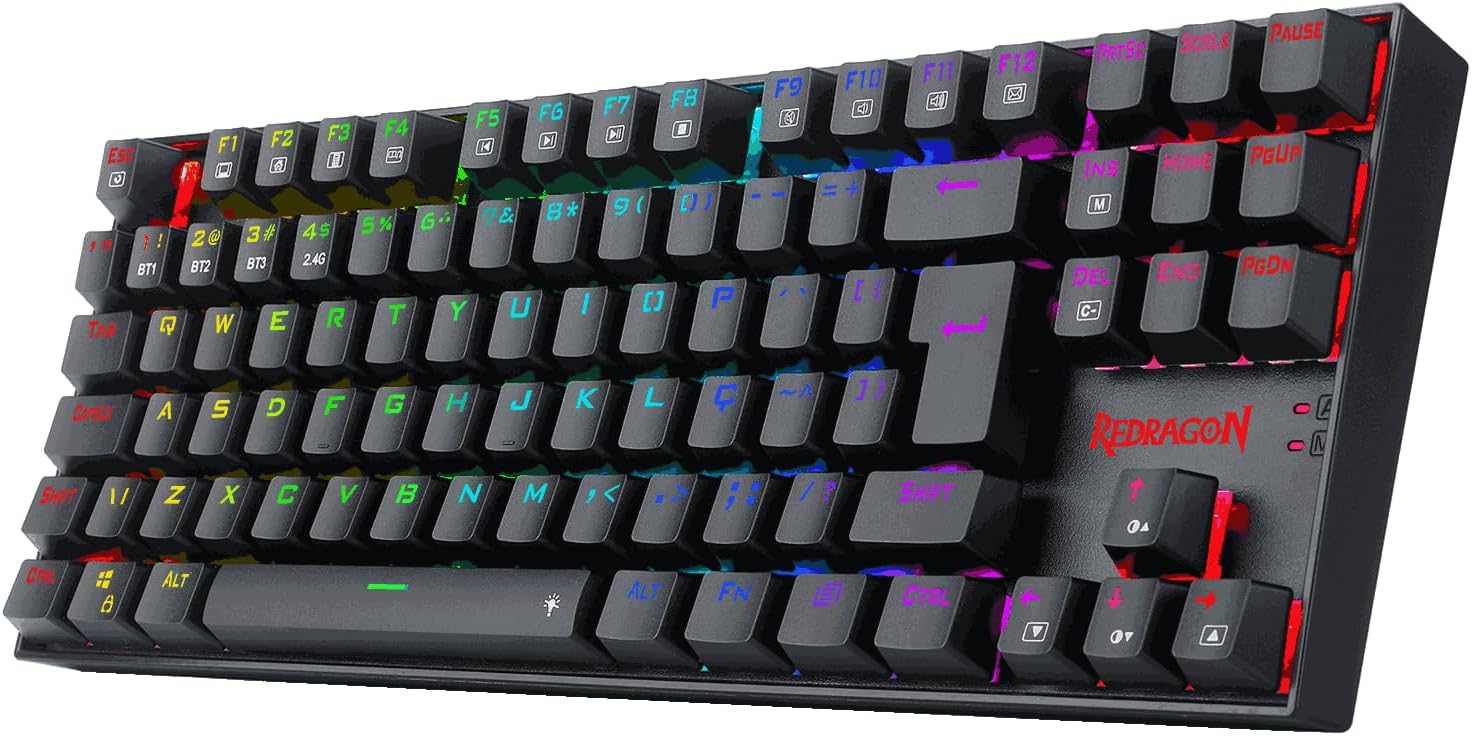
Image 1.1: Front view of the Redragon Kumara Pro RGB Mechanical Gaming Keyboard.
2. Package Contents
Please verify that all items are present in the package:
- Redragon Kumara Pro RGB Mechanical Gaming Keyboard (K552RGB-BRS-B)
- USB-C to USB-A Cable
- 2.4GHz Wireless USB Receiver
- Keycap Puller
- Switch Puller
- Spare Mechanical Switches (5 units)
- User Manual (this document)
3. Specifications
| Feature | Detail |
|---|---|
| Brand | Redragon |
| Model Number | K552RGB-BRS-B |
| Keyboard Type | Mechanical Gaming Keyboard |
| Switch Type | Brown Mechanical Switches |
| Backlighting | RGB |
| Connectivity | USB-C (Wired), 2.4GHz Wireless, Bluetooth (BT1, BT2, BT3) |
| Compatible Devices | Laptop, PC |
| Color | Black |
| Material | Acrylonitrile Butadiene Styrene |
| Product Dimensions | 35L x 12.4W x 3.8H centimeters |
| Item Weight | 1.06 Kilograms |
4. Setup
4.1 Charging the Keyboard
Before initial use, it is recommended to fully charge the keyboard. Connect the supplied USB-C cable to the keyboard's USB-C port and the other end to a powered USB port on your computer or a USB wall adapter.

Image 4.1: Connecting the USB-C charging cable to the keyboard.
4.2 Connectivity Options
The Redragon Kumara Pro keyboard offers three connection modes:
- Wired Mode (USB-C): Connect the keyboard directly to your computer using the provided USB-C cable. The keyboard will be recognized automatically. This mode also charges the keyboard.
- 2.4GHz Wireless Mode:
- Locate the 2.4GHz USB receiver, typically stored in a compartment on the underside of the keyboard.
- Plug the USB receiver into an available USB port on your computer.
- Set the switch on the keyboard's rear or side to "2.4G" mode. The keyboard should connect automatically.

Image 4.2: Location of the 2.4GHz wireless USB receiver on the keyboard's underside.
- Bluetooth Mode (BT1, BT2, BT3): The keyboard supports up to three Bluetooth devices.
- Set the switch on the keyboard to "BT" mode.
- To pair with a device, press and hold FN + BT1 (or BT2, BT3) for 3-5 seconds until the corresponding indicator light flashes rapidly.
- On your device (PC, laptop, tablet), enable Bluetooth and search for "Redragon K552RGB-BRS-B" or similar.
- Select the keyboard to pair. The indicator light will stop flashing once connected.
- To switch between paired Bluetooth devices, press FN + BT1/BT2/BT3 briefly.
5. Operating Instructions
5.1 Basic Keyboard Functions
The keyboard operates as a standard QWERTY layout. Special functions are typically accessed via the FN key in combination with other keys.

Image 5.1: Top-down view of the keyboard layout.
5.2 RGB Backlighting Control
The Redragon Kumara Pro features customizable RGB backlighting. Use the following key combinations to adjust lighting effects:
- FN + INS: Cycle through various lighting modes.
- FN + DEL: Cycle through different lighting colors within a mode.
- FN + ↑ / ↓: Adjust brightness levels.
- FN + ← / →: Adjust lighting speed or direction (for dynamic modes).
- FN + PRTSC: Turn backlighting On/Off.
For advanced customization and macro programming, download the official Redragon software from the Redragon website. Ensure the keyboard is connected via USB-C and powered on when using the software.
5.3 Multimedia and Function Keys
Access multimedia controls and other functions using the FN key in combination with the F-keys (F1-F12) or other designated keys:
- FN + F1-F12: Specific functions may vary, typically including media playback controls (play/pause, stop, previous/next track), volume control (mute, volume up/down), and application shortcuts. Refer to the keycap legends for exact functions.
- FN + WIN: Lock/Unlock the Windows key to prevent accidental presses during gaming.
6. Maintenance
6.1 Cleaning
To maintain optimal performance and appearance:
- Disconnect the keyboard from your computer before cleaning.
- Use a soft, lint-free cloth slightly dampened with water or a mild cleaning solution to wipe the keycaps and chassis.
- For dust and debris between keycaps, use compressed air or a small brush.
- Avoid using harsh chemicals or abrasive materials.
6.2 Keycap and Switch Replacement
The Redragon Kumara Pro supports hot-swappable mechanical switches. Use the provided tools for replacement:
- Removing Keycaps: Use the keycap puller to gently grasp and pull keycaps straight up.
- Removing Switches: After removing the keycap, use the switch puller to carefully grip the clips on the top and bottom of the switch and pull it straight out.
- Installing Switches: Align the pins of the new switch with the holes on the PCB. Press firmly until the switch clicks into place. Ensure pins are not bent.
- Installing Keycaps: Place the keycap over the switch stem and press down gently until it is seated.
7. Troubleshooting
- Keyboard not responding:
- Ensure the keyboard is charged.
- Check the connection mode switch (Wired, 2.4G, BT).
- For wired mode, try a different USB port or cable.
- For 2.4GHz wireless, ensure the USB receiver is properly inserted and try a different USB port.
- For Bluetooth, ensure the keyboard is paired correctly and selected on your device. Try re-pairing if necessary.
- RGB lighting not working or incorrect:
- Ensure backlighting is enabled (FN + PRTSC).
- Adjust brightness (FN + ↑ / ↓).
- If using software, ensure the keyboard is connected via USB-C and the software is up to date.
- Keys not registering or double-typing:
- Clean under the affected keycap.
- Consider replacing the switch using the provided spare switches and tools.
- Poor wireless connection:
- Ensure the keyboard is within range of the receiver/device.
- Minimize interference from other wireless devices.
- For 2.4GHz, try moving the USB receiver to a front USB port on your computer.
8. Warranty and Support
Redragon products are designed for durability and performance. For warranty information, technical support, or service inquiries, please refer to the official Redragon website or contact your local retailer. Keep your proof of purchase for warranty claims.
Official Redragon Website: www.redragonzone.com