Introduction
Thank you for choosing the Glacier GK84 Arctic 75% Wired Mechanical Keyboard. This compact and high-performance keyboard is designed for both gaming and productivity, featuring a durable aluminum frame, hot-swappable switches, and vibrant RGB backlighting. This manual provides detailed instructions on setting up, operating, maintaining, and troubleshooting your new keyboard to ensure optimal performance and longevity.
Package Contents
Please verify that all items are present and in good condition upon unboxing.
- Glacier GK84 Arctic 75% Mechanical Keyboard (Black)
- Detachable USB-C Cable
- Keycap Puller
- Switch Puller (if not integrated with keycap puller)
- User Manual (this document)

Image: The Glacier GK84 Arctic keyboard with its detachable USB-C cable and a keycap puller, illustrating the typical package contents.
Setup
- Unpack the Keyboard: Carefully remove the keyboard and all accessories from the packaging.
- Connect the USB-C Cable:
- Locate the USB-C port on the back or side of the keyboard.
- Insert the smaller USB-C end of the detachable cable into the keyboard's port.
- Insert the standard USB-A end of the cable into an available USB port on your computer.

Image: The Glacier GK84 Arctic keyboard positioned on a desk, connected to a computer, demonstrating a typical setup environment.
- Driver Installation (Plug & Play): The Glacier GK84 Arctic keyboard is plug-and-play compatible with most operating systems (Windows, macOS, Linux). No additional drivers are typically required. Your computer should automatically detect and configure the keyboard.
- Adjust Keyboard Feet: The keyboard features adjustable feet on the underside. Flip them out to achieve a more ergonomic typing angle if desired.
Operating Instructions
Basic Functions
- Typing: Begin typing immediately after connecting the keyboard.
- Function Keys (F1-F12): Access multimedia controls and system functions by pressing the Fn key in combination with the corresponding F-key. Refer to the keycap legends for specific functions (e.g., Fn+F1 for media player, Fn+F2 for volume down).
Backlighting Control (RGB)
The Glacier GK84 Arctic features customizable RGB backlighting. Use the following key combinations to adjust lighting effects:
- Fn + \ |: Cycle through different lighting modes (e.g., static, breathing, wave, reactive).
- Fn + ↑ / ↓: Adjust backlight brightness.
- Fn + ← / →: Adjust lighting speed or direction (depending on the mode).
- Fn + Del: Change backlight color in certain static modes.
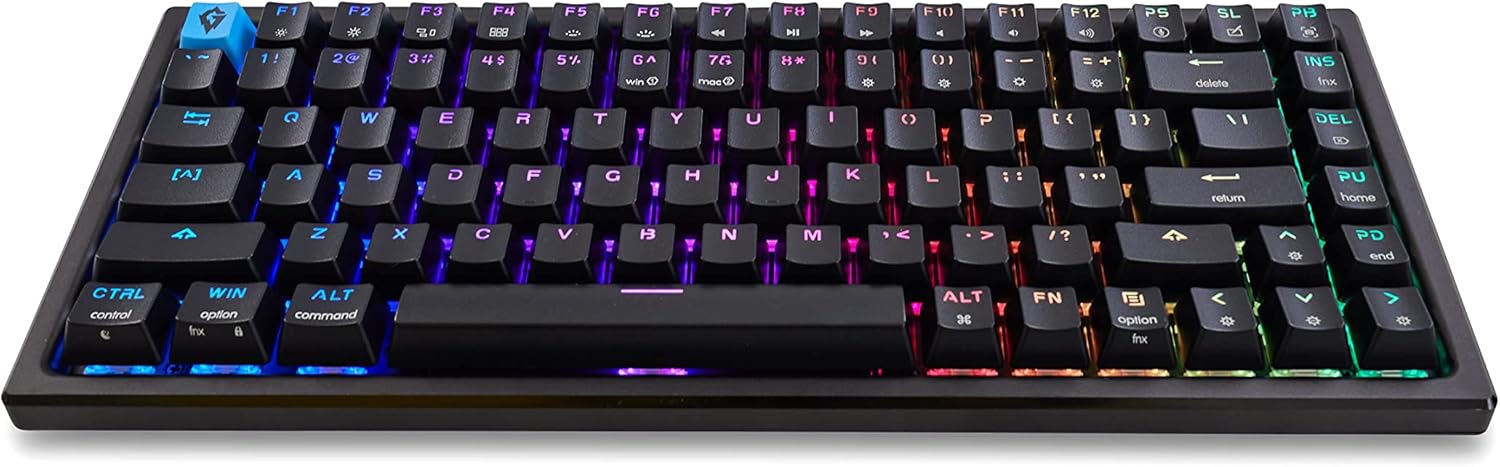
Image: An angled view of the keyboard highlighting the dynamic RGB backlighting across the keys, demonstrating its visual appeal.
Hot-Swappable Switches
The keyboard supports hot-swappable mechanical switches, allowing you to change switches without soldering. It is compatible with most 3-pin and 5-pin mechanical switches.
- Removing Keycaps: Use the included keycap puller to gently remove the desired keycap. Hook the puller onto opposite sides of the keycap and pull straight up.
- Removing Switches: Use a switch puller (often integrated with the keycap puller or a separate tool) to grasp the clips on the top and bottom of the switch. Gently rock and pull the switch straight up from the PCB.
- Installing New Switches: Align the pins of the new switch with the holes on the PCB. Ensure the pins are straight. Gently push the switch down until it clicks into place. Do not force it, as bent pins can damage the socket.
- Reinstalling Keycaps: Place the keycap over the new switch and press down firmly until it is seated properly.

Image: A close-up view of a mechanical keyboard switch, illustrating its structure and pins for hot-swapping.

Image: A keycap puller tool, essential for safely removing keycaps during switch replacement or cleaning.
Maintenance
Regular maintenance will help prolong the life and performance of your keyboard.
- General Cleaning:
- Disconnect the keyboard from your computer.
- Use a can of compressed air to blow away dust and debris from between the keycaps.
- Wipe the keycaps and frame with a soft, slightly damp, lint-free cloth. Avoid excessive moisture.
- Deep Cleaning (Keycaps):
- Using the keycap puller, carefully remove all keycaps.
- Wash the keycaps in warm, soapy water. Rinse thoroughly and allow them to air dry completely before reattaching.
- While keycaps are off, clean the keyboard plate with compressed air and a soft brush.
- Cable Care: Avoid sharp bends or kinks in the USB-C cable to prevent damage.
Troubleshooting
| Problem | Possible Cause / Solution |
|---|---|
| Keyboard not responding |
|
| Backlighting not working or inconsistent |
|
| A specific key is not working |
|
| Keys feel inconsistent after hot-swapping |
|
Specifications
| Feature | Detail |
|---|---|
| Model Name | Glacier Arctic Keyboard |
| Layout | 75% (84 Keys) |
| Connectivity | Wired USB-C (Detachable) |
| Switch Type | Mechanical (Hot-Swappable, 3-pin/5-pin compatible) |
| Keycap Material | ABS Plastic |
| Frame Material | Aluminum (Top Plate) |
| Backlighting | RGB |
| Dimensions (L x W x H) | 13 x 5.5 x 1 inches |
| Weight | 2.01 pounds |
| Compatible Devices | PC (Windows, macOS, Linux) |
Warranty and Support
Glacier products are manufactured to the highest quality standards. For information regarding warranty coverage, technical support, or replacement parts, please contact Glacier customer service through the official website or your point of purchase.
Manufacturer: Glacier
ASIN: B0C1MZHZ83
For further assistance, please visit the Glacier Store on Amazon.


