
1. Product Overview
The Nivian NVS-ALARM1-W-V3 WiFi Home and Business Alarm System is a comprehensive and user-friendly security solution designed for both residential and commercial applications. This wireless system offers advanced features for intrusion detection, remote monitoring, and smart home integration, all managed through the intuitive Tuya Smart App.
Key features include:
- Wireless connectivity via WiFi for internet access.
- Remote control and monitoring through the Tuya Smart App (iOS and Android compatible).
- Integrated 90dB siren in the central panel for immediate alerts.
- SOS function for emergency notifications to authorized contacts.
- Expandable system supporting up to 60 wireless devices.
- Backup battery in the central unit providing up to 4 hours of operation during power outages.
- Compatibility with Amazon Alexa and Google Assistant for voice control and scene automation.
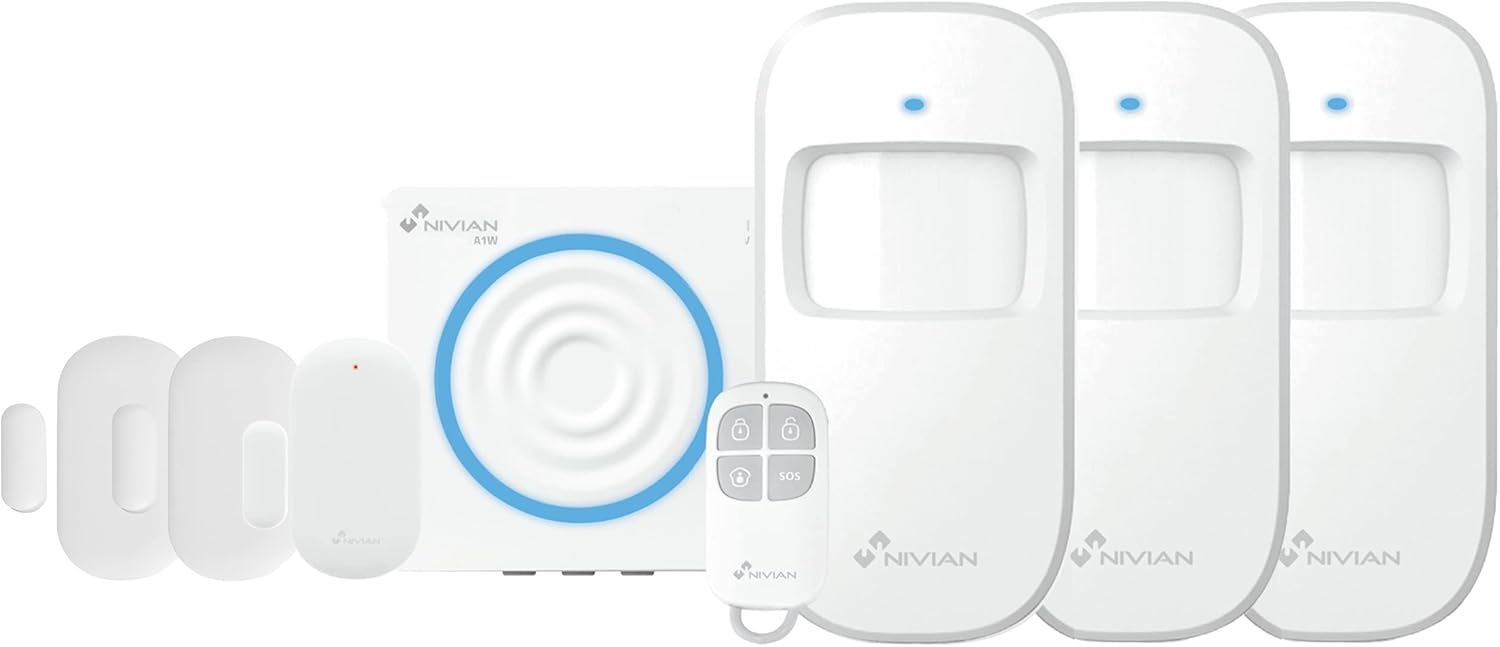
Image 1.1: Nivian NVS-ALARM1-W-V3 WiFi Alarm Kit components and app interface.
2. What's Included
The Nivian NVS-ALARM1-W-V3 Alarm Kit typically includes the following components:
- 1 x Alarm Central Panel (with built-in 90dB siren)
- 1 x Remote Control
- 3 x Magnetic Door/Window Detectors
- 3 x PIR Motion Detectors (including anti-pet PIR motion detectors)
- Power Adapter for Central Panel
- Mounting Hardware
- User Manual
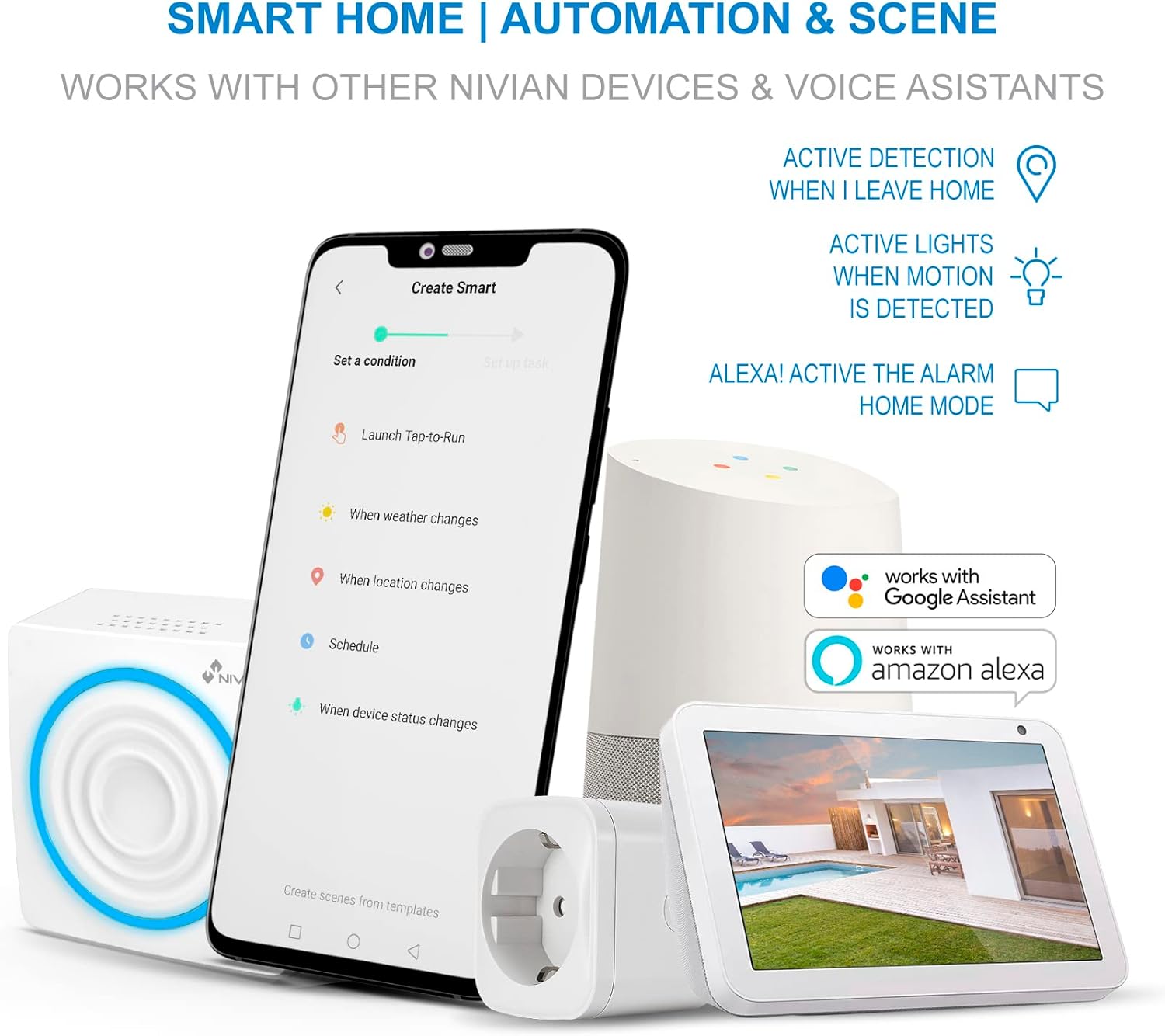
Image 2.1: Nivian Smart Home Alarm System product packaging.
3. Setup and Installation
The Nivian alarm system is designed for easy, wireless DIY installation. Follow these general steps for initial setup:
3.1 Central Panel Installation
- Power On: Connect the central panel to a power outlet using the provided adapter. The panel has a backup battery for power outages.
- Download App: Download the "Tuya Smart" app from your smartphone's app store (iOS or Android).
- Register/Login: Open the app and register a new account or log in if you already have one.
- Add Device: In the Tuya Smart app, tap '+' to add a new device. Select 'Security & Video Surveillance' > 'Alarm (Wi-Fi)'.
- Connect to Wi-Fi: Follow the in-app instructions to connect the central panel to your home or business 2.4GHz Wi-Fi network. Ensure your Wi-Fi signal is strong in the installation area.
3.2 Sensor and Accessory Pairing
Once the central panel is connected to the app, you can pair the included sensors and accessories:
- Enter Pairing Mode: In the Tuya Smart app, navigate to the central panel's settings and select the option to add accessories or sensors. The central panel will enter pairing mode.
- Activate Sensors: For door/window sensors, separate the two parts. For PIR motion detectors, activate them by pressing their test button or removing the battery tab. The central panel will confirm successful pairing.
- Remote Control: Pair the remote control by following similar steps in the app, usually by pressing a button on the remote when the panel is in pairing mode.
- Placement: Install door/window sensors on frames, ensuring the two parts are aligned and within 1cm when the door/window is closed. Place PIR motion detectors in corners or areas with high traffic, avoiding direct sunlight or heat sources.

Image 3.1: Nivian alarm system integrated into a smart home environment.
4. Operating Instructions
The Nivian alarm system can be operated via the Tuya Smart App or the included remote control.
4.1 Using the Tuya Smart App
- Arm/Disarm: Use the app to arm the system (all sensors active), home mode (perimeter sensors active, internal sensors inactive), or disarm the system.
- Notifications: Receive instant push notifications on your smartphone for any triggered alarms, system status changes, or power cuts.
- SOS Function: Activate the SOS function from the app to send emergency alerts to pre-configured contacts.
- Device Management: View the status of all connected sensors, add new devices, or remove existing ones.
- Automation & Scenes: Create custom automation rules and scenes, such as activating lights when motion is detected or changing alarm modes based on location or schedule.
4.2 Using the Remote Control
The remote control provides quick access to essential alarm functions:
- Arm Button: Activates the full alarm system.
- Disarm Button: Deactivates the alarm system.
- Home Mode Button: Activates perimeter protection while allowing movement inside.
- SOS Button: Triggers an emergency alarm and sends notifications.
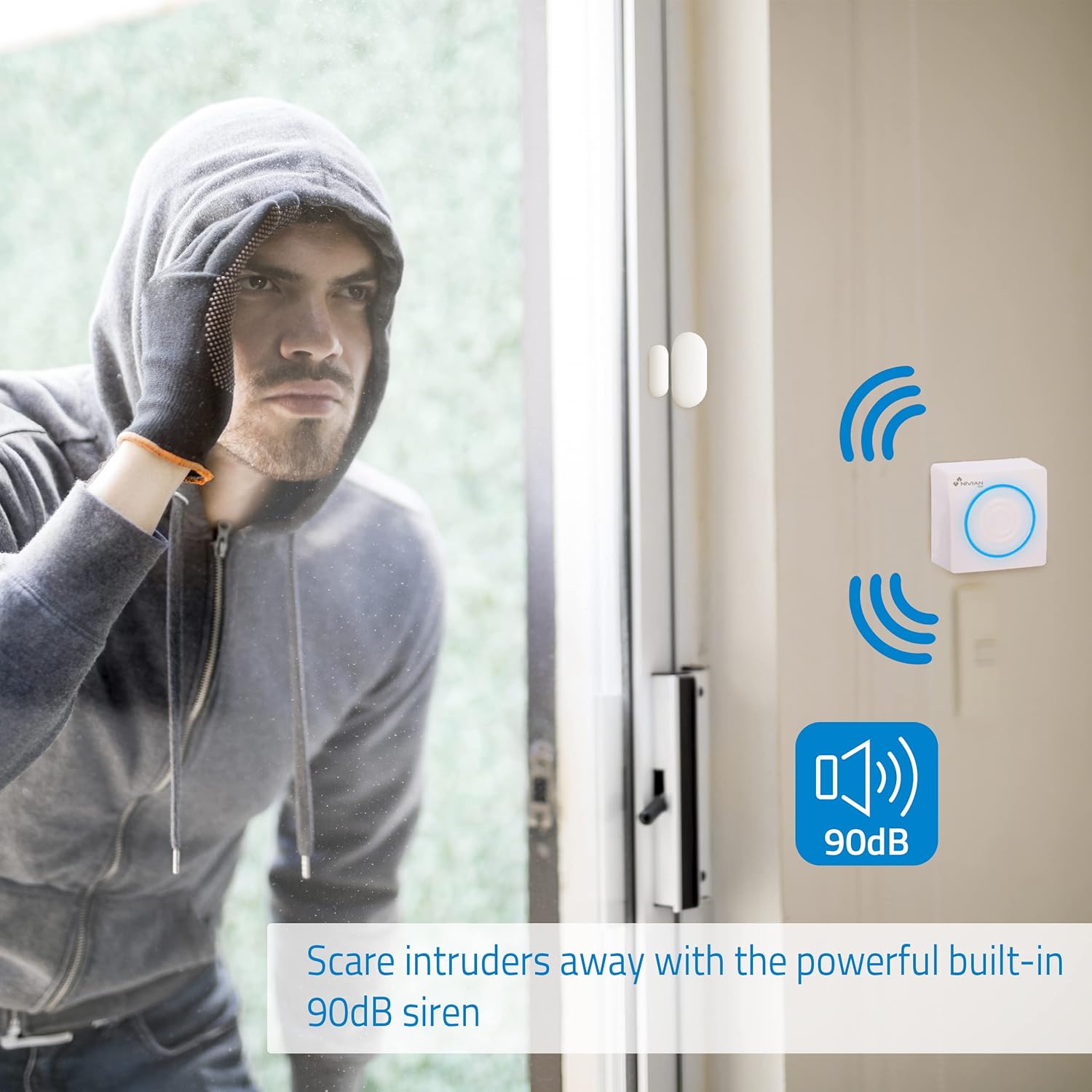
Image 4.1: Remote control with SOS function for emergency alerts.

Image 4.2: The 90dB siren deters potential intruders upon detection.
5. Maintenance
Regular maintenance ensures the optimal performance of your Nivian alarm system.
- Battery Check: Periodically check the battery status of wireless sensors via the Tuya Smart App. Replace batteries as needed to ensure continuous protection.
- Central Panel Backup Battery: The central panel includes a backup battery providing approximately 4 hours of operation during a power outage. The system will notify your smartphone if a power cut occurs. Ensure the central panel remains connected to a power source for charging.
- Sensor Cleaning: Gently clean the exterior of sensors and the central panel with a soft, dry cloth. Avoid using abrasive cleaners or solvents.
- Firmware Updates: Check the Tuya Smart App regularly for any available firmware updates for your central panel or sensors. Updates can improve performance and add new features.
- Wi-Fi Connectivity: Ensure your Wi-Fi network is stable and the central panel has a strong signal for reliable communication.
6. Troubleshooting
If you encounter issues with your Nivian alarm system, refer to the following troubleshooting tips:
- System Not Arming/Disarming:
- Check if all sensors are closed (for door/window sensors) or if there is any active motion (for PIR sensors).
- Ensure the remote control batteries are not depleted.
- Verify the central panel's status in the Tuya Smart App.
- No Notifications:
- Confirm your smartphone has an active internet connection.
- Check app notification settings on your phone and within the Tuya Smart App.
- Ensure the central panel is connected to Wi-Fi.
- Siren Not Sounding:
- Verify the alarm mode is correctly set (e.g., armed, not disarmed).
- Check the central panel's power supply.
- If the siren has stopped working, contact customer support.
- Sensor Not Triggering:
- Check the sensor's battery level in the app.
- Ensure the sensor is properly installed and within range of the central panel (up to 80 meters).
- For door/window sensors, confirm the two parts are correctly aligned.
- For PIR sensors, ensure there are no obstructions and it's placed in an optimal detection area.
- Wi-Fi Connection Issues:
- Restart your Wi-Fi router and the central panel.
- Ensure the central panel is within range of your Wi-Fi router.
- Confirm your Wi-Fi network is 2.4GHz, as the system may not support 5GHz networks.
7. Specifications
| Brand | NIVIAN |
| Model | NVS-ALARM1-W-V3 |
| Color | V3 |
| Power Source | AC with backup battery |
| Compatible Devices | Smartphone, Tablet |
| Item Dimensions (LxWxH) | 20 x 18 x 11 centimeters |
| Connectivity Technology | Wireless (Wi-Fi) |
| Installation Type | Wireless DIY |
| Alert Type | Sound and Motion |
| Control Method | Remote Controlled (App, Remote) |
| Maximum Range | 80 Meters |
| Battery Life (Backup) | 4 Hours |
| Number of Units | 1.0 piece (Central Panel) |
| Included Components | 3 X Door/Window Detector, 3 X Motion Detector, Remote Control, Alarm Panel |
8. Warranty and Support
Nivian is committed to providing reliable security solutions. For warranty information and technical support, please refer to the following:
- Manufacturer: Nivian
- Customer Support: For assistance with installation, troubleshooting, or product inquiries, please contact Nivian customer support directly. Contact details can typically be found on the official Nivian website or within the Tuya Smart App's support section.
- Tuya Smart App: The Tuya Smart App serves as the primary interface for managing your alarm system and often includes a help section or FAQs.
Nivian products are designed to integrate seamlessly, allowing you to build a comprehensive security network. We encourage you to utilize the Tuya Smart App to its full potential for scene automation and real-time monitoring.