
1. Introduction
This manual provides comprehensive instructions for the installation, operation, and maintenance of your Splenssy 433MHz WiFi GSM Wireless Home Security Alarm System. Please read this manual thoroughly before installation and use to ensure proper functionality and safety. Keep this manual for future reference.
2. Package Contents
Verify that all items listed below are present in your package:
- 1 x Wireless Alarm Panel
- 1 x Wireless PIR Motion Sensor
- 3 x Wireless Door/Window Sensors
- 2 x Remote Controls
- 2 x RFID Cards
- 1 x Wired Siren
- 1 x PIR Sensor Holder
- 1 x Set of Mounting Screws
- 1 x USB Charging Cable
- 1 x DC 5V/1A Power Adapter
- Batteries for sensors and remote controls (pre-installed or included separately)
- 1 x User Manual (English)
3. Specifications
| Feature | Specification |
|---|---|
| Power Adapter | DC 5V/1A |
| Working Current | <120mA |
| Standby Current | <80uA |
| Wireless Frequency | 433MHz |
| Coded Mode | 1527 |
| Wireless Standard | IEEE802.11b/g/n 2.4G |
| Alarm Panel Battery | Li-ion DC 3.7V 500mAh |
| PIR Sensor Battery | 3 x 1.5V AAA batteries |
| Door Sensor Battery | 1 x CR2450 3V |
| Remote Control Battery | 2 x CR2025 3V |
| Siren Volume | 110dB |
| Temperature Range | 0℃~55℃ |
| Humidity Range | <80% RH (non-condensing) |
| Control Method | Remote, Smartphone App, RFID |
| Maximum Wireless Range | 100 Metres (open area) |
| Battery Average Life (Panel) | 72 Hours (standby) |
| Display | 2.4" TFT LCD Screen |
4. Safety Information
- Ensure the power adapter is connected to a suitable power outlet.
- Do not expose the alarm panel to water or extreme temperatures.
- Keep the device away from strong electromagnetic interference.
- Replace batteries in sensors and remote controls as needed to maintain optimal performance.
- Do not attempt to disassemble or repair the device yourself. Contact customer support for assistance.
5. Setup
5.1 Alarm Panel Installation
The alarm panel can be installed in two ways: wall-mounted or desktop placement.

Image: The alarm panel can be placed on a desktop using its integrated stand or mounted on a wall. The image shows both side and rear views of the panel's versatile placement options.
- Desktop Installation: Simply unfold the stand at the back of the panel and place it on a flat, stable surface.
- Wall Installation: Use the provided mounting screws and the PIR sensor holder (which can also be used for the panel) to secure the panel to a wall at a suitable height. Ensure the location allows for good Wi-Fi and GSM signal reception.
5.2 Sensor Installation
PIR Motion Sensor: Install the PIR sensor in a corner or on a wall where it can cover the desired area without obstructions. Avoid placing it directly facing heat sources or windows where direct sunlight or drafts might cause false alarms. Insert 3 x 1.5V AAA batteries.
Door/Window Sensors: Install the two parts of the door/window sensor on the frame and the movable part of a door or window. Ensure the two parts are aligned and within 1cm of each other when the door/window is closed. Insert 1 x CR2450 3V battery.
5.3 Wired Siren Connection
Connect the wired siren to the designated siren port on the alarm panel. Ensure the connection is secure.
5.4 Powering On and Initial Setup
- Connect the alarm panel to power using the USB charging cable and DC 5V/1A power adapter.
- The panel will power on automatically. Follow the on-screen prompts for initial setup.
- Insert a valid GSM SIM card (if using GSM features) into the designated slot on the panel.
- Wi-Fi Connection: Access the system settings on the LCD screen to connect the panel to your 2.4GHz Wi-Fi network. This enables app control and smart home integration.
5.5 App Connection and Smart Home Integration
Download the dedicated mobile application (available for Android and iOS) from your device's app store. Follow the in-app instructions to add your alarm system. This allows for remote control, parameter configuration, and accessory management.

Image: The alarm system can link to various smart home products, including smart speakers, cameras, and smart bulbs, all controllable via a smartphone application.
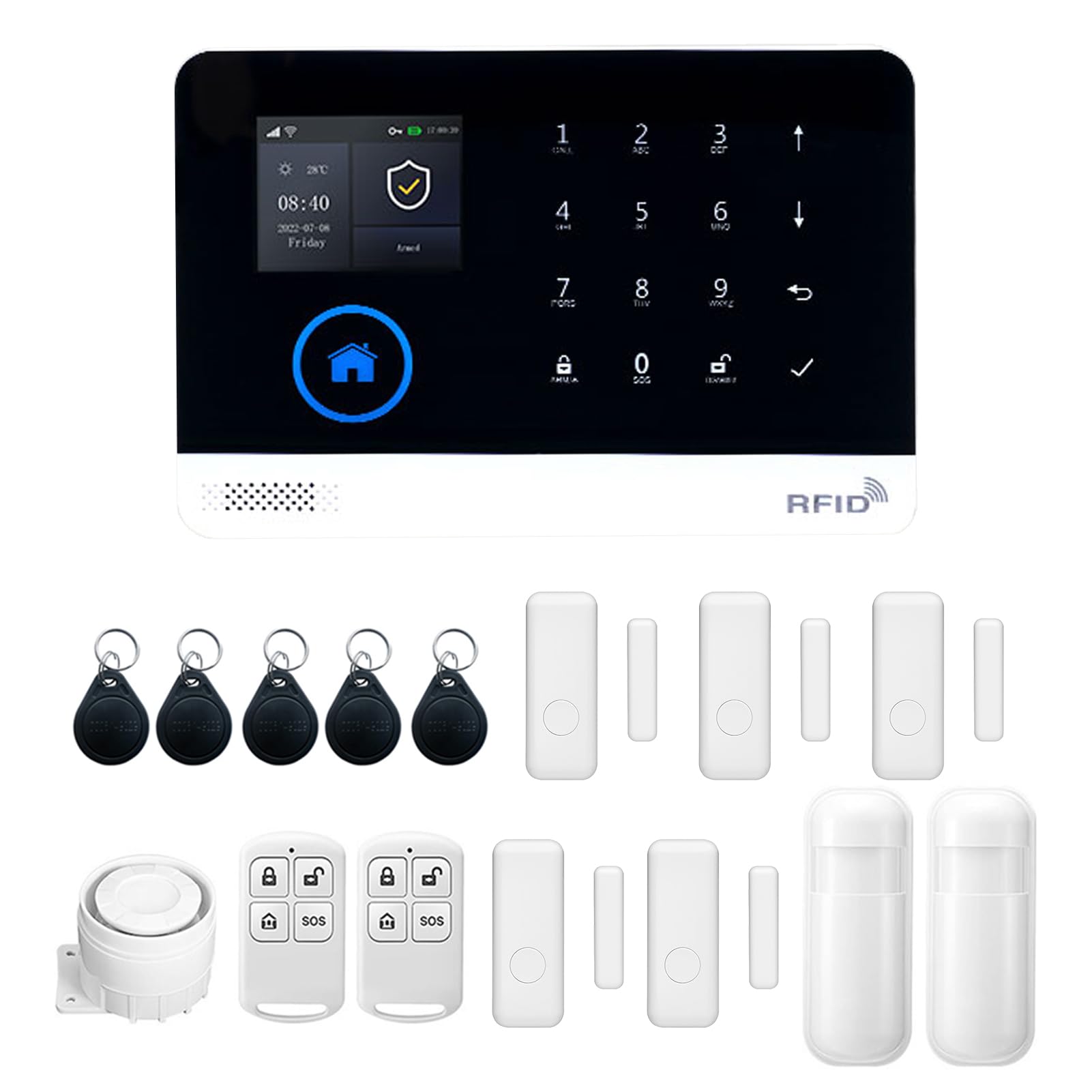
Image: The alarm panel supports eight defense areas and can link to a number of other wireless devices, offering various functions like intelligent prevention, ordinary zone, doorbell mode, and SOS.
6. Operating Instructions
6.1 Arming and Disarming
The system can be armed or disarmed using multiple methods:
- Remote Control: Press the arm/disarm buttons on the provided remote controls.
- RFID Card: Tap an authorized RFID card on the panel's RFID reader.
- Mobile App: Use the dedicated smartphone application for remote arming/disarming.
- Timer Function: Set scheduled arming and disarming times through the panel settings or mobile app.

Image: The alarm panel features a timer function for automatic arming and disarming, allowing users to set specific schedules, such as arming at 21:15 and disarming at 06:00.
6.2 Two-Way Voice Intercom
The alarm panel supports two-way voice communication. When an alarm is triggered or a call is initiated, you can communicate through the panel using your smartphone app.

Image: The system offers a two-way voice intercom feature, enabling communication between the alarm panel and a smartphone, useful for family members to stay connected.
6.3 Voice Control (Alexa Support)
The system supports voice control integration with compatible smart assistants like Amazon Alexa. Once configured through the mobile app, you can use voice commands to arm or disarm your system.

Image: The anti-theft alarm host supports Alexa voice control, allowing users to arm or disarm the system using voice commands through a smart speaker.
6.4 Language Settings
The alarm panel supports multiple languages. You can switch the display language through the system settings menu on the LCD screen. No restart is required after changing the language.

Image: The alarm panel supports 9 languages, including Chinese, English, German, Russian, Spanish, Polish, Greek, French, and Portuguese, allowing users to switch freely without restarting the device.
6.5 Adding/Managing Accessories
New wireless sensors, remote controls, or RFID cards can be added to the system via the mobile app or the alarm panel's settings menu. Refer to the on-screen instructions for pairing new devices.
6.6 Alarm Functions and Zones
The system features various defense areas and alarm types:
- Intelligent Prevention Area: For critical areas requiring immediate alerts.
- Ordinary Zone: Standard detection zone.
- Doorbell Mode: Configures a sensor to act as a doorbell.
- Welcome Mode Prevention Area: For entry points with a welcome chime.
- Emergency Prevention Area: For specific emergency sensors.
- Left-behind Prevention Area: For monitoring items left behind.
- SOS Distress Function: Activates an emergency alarm.
Configure these zones and their behaviors through the system settings.
7. Maintenance
7.1 Battery Replacement
Regularly check the battery status of your wireless sensors and remote controls. Replace batteries promptly when low battery indicators appear on the alarm panel or app.
- PIR Sensor: Replace with 3 x 1.5V AAA batteries.
- Door Sensor: Replace with 1 x CR2450 3V battery.
- Remote Control: Replace with 2 x CR2025 3V batteries.
The alarm panel has a built-in Li-ion battery for backup power during outages. This battery is designed for long endurance.

Image: The alarm panel features a low power consumption main board and a super long endurance built-in lithium battery, allowing it to dial phone calls and send SMS even during power outages.
7.2 Cleaning
Wipe the alarm panel and sensors with a soft, dry cloth. Do not use abrasive cleaners or solvents, as these can damage the device surfaces.
8. Troubleshooting
- System not powering on: Ensure the power adapter is correctly connected and the power outlet is functional. Check the USB cable for damage.
- Sensors not responding: Check the batteries in the sensors and replace if necessary. Ensure sensors are within the wireless range of the alarm panel. Re-pair the sensor if needed.
- No Wi-Fi connection: Verify your Wi-Fi network is 2.4GHz. Ensure the Wi-Fi password is entered correctly. Check your router for issues.
- No GSM signal: Ensure the SIM card is correctly inserted and has an active plan. Check for network coverage in your area.
- False alarms: Review sensor placement to avoid environmental triggers (e.g., direct sunlight, drafts, pets). Adjust sensor sensitivity if applicable.
- App connectivity issues: Ensure your smartphone has an active internet connection. Restart the app and the alarm panel.
9. Warranty and Support
This product comes with a standard manufacturer's warranty. Please refer to the warranty card included in your package or contact your retailer for specific warranty terms and conditions.
For technical support, troubleshooting assistance, or inquiries regarding your Splenssy Home Security Alarm System, please contact the retailer or manufacturer's customer service. Contact details are typically provided on the product packaging or the manufacturer's official website.