
Roconia G3
Roconia G3 Full HD 1080P Projector User Manual
Model: G3 | Brand: Roconia
1. Introduction
Thank you for choosing the Roconia G3 Full HD 1080P Projector. This manual provides essential information for the safe and effective use of your projector. Please read it thoroughly before operation and retain it for future reference.
2. Safety Information
- Do not block ventilation openings. Ensure adequate airflow around the projector.
- Do not look directly into the projector lens when the lamp is on.
- Keep the projector away from water or other liquids.
- Use only the power adapter supplied with the projector.
- Unplug the projector during lightning storms or when unused for long periods.
- Refer all servicing to qualified service personnel.
3. Package Contents
Verify that all items are present in your package:
- Roconia G3 Projector
- Power Adapter
- Remote Control
- HDMI Cable
- AV Cable
- Mini Tripod
- User Manual
4. Product Overview
The Roconia G3 projector is designed for versatile entertainment, offering a native 1080P resolution and high brightness for clear images. It features 5G WiFi for fast wireless connections and Bluetooth 5.0 for external audio devices.

Image: Front view of the Roconia G3 projector, highlighting its compact design and compatibility with various streaming platforms.

Image: The projector operating with minimal fan noise, shown next to a sleeping person, indicating quiet performance.
Key Features:
- Native 1080P Resolution: Provides sharp and detailed images.
- High Brightness: 9500 Lumens for clear viewing.
- Large Projection Size: Up to 300 inches for an immersive experience.
- Dual-band WiFi (2.4G/5G): For stable and fast wireless screen mirroring.
- Bluetooth 5.0: Connects wirelessly to external speakers or headphones.
- Low Noise Operation: Operates at less than 38dB for a quiet viewing environment.
- Portable Design: Compact dimensions for easy transport and setup.

Image: The mini projector displayed next to a tablet, illustrating its small and portable size for easy carrying.
5. Setup
5.1 Power Connection
Connect the power adapter to the projector's DC input port and then plug it into a power outlet. The projector will power on automatically or can be turned on using the power button.
5.2 Placement Options
The projector offers flexible placement options:
- Desktop: Place the projector on a flat surface.
- Tripod: Use the included mini tripod for adjustable height and angle.
- Hanging: Mount the projector to the ceiling using a compatible mount (not included).

Image: Demonstrates the projector's versatility with desktop, tripod, and ceiling hanging setup options.
5.3 Focus and Keystone Correction
Adjust the focus ring on the projector lens until the image is clear. Use the keystone correction feature (usually a dial or digital setting) to correct trapezoidal distortion if the projector is not perfectly perpendicular to the screen.

Image: Illustrates the maximum 300-inch projection size and the functionality of keystone correction and zoom features.
6. Operating
6.1 Connecting Devices
The Roconia G3 supports multiple input sources:
- HDMI: Connect laptops, gaming consoles, TV sticks, or DVD players.
- USB: Play media directly from a USB flash drive.
- AV: Connect older devices using the included AV cable.
- Bluetooth: Connect wirelessly to external Bluetooth speakers or headphones.

Image: A visual representation of the projector's multiple connectivity options, including AV, headphone, USB, and HDMI ports.
6.2 Smartphone Connection (Screen Mirroring)
To mirror your smartphone screen:
- For iOS devices (iPad/iPhone): Use a Micro USB/Type C to HDMI cable.
- For Android devices: Use a Lighting to HDMI Adapter Cable.
- Note: A 3-in-1 Smartphone to HDMI Cable Adapter is not included.
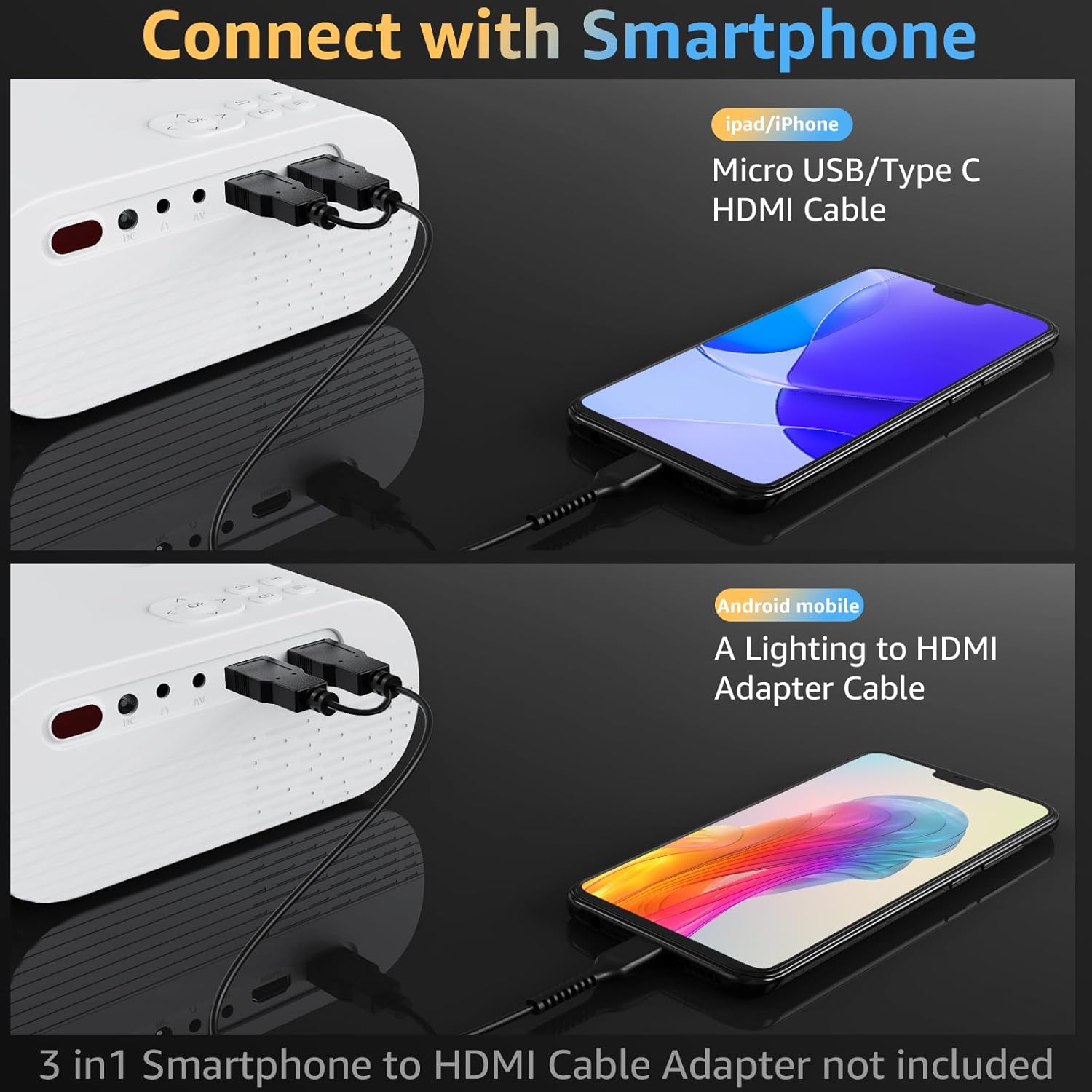
Image: Instructions on connecting smartphones (iPad/iPhone and Android) to the projector using appropriate HDMI adapter cables.
6.3 Media Playback and Streaming
Navigate the projector's menu using the remote control to select your desired input source or media file. For streaming services like Netflix, Disney+, or Hulu, due to HDCP copyright issues, direct playback from the projector is often restricted. It is recommended to use a TV Stick (not included) connected via HDMI to access these platforms.

Image: Displays popular streaming service logos and a TV Stick, with a note about HDCP restrictions and the recommendation to use a TV Stick for streaming.
7. Maintenance
- Lens Cleaning: Use a soft, lint-free cloth specifically designed for optical lenses. Do not use abrasive cleaners.
- Dust Removal: Regularly clean the projector's exterior with a soft, dry cloth. Ensure ventilation ports are free of dust and debris.
- Storage: When not in use, store the projector in a cool, dry place, away from direct sunlight and extreme temperatures.
8. Troubleshooting
| Problem | Possible Cause | Solution |
|---|---|---|
| No image on screen | Loose cable connection, incorrect input source, projector off. | Check all cable connections. Select the correct input source. Ensure projector is powered on. |
| Image is blurry | Out of focus, incorrect projection distance. | Adjust the focus ring. Move the projector closer or further from the screen. |
| Image is trapezoidal | Projector not perpendicular to screen. | Adjust keystone correction. Reposition the projector. |
| No sound | Volume too low, external speaker not connected, audio format not supported. | Increase volume. Check Bluetooth connection or audio cable. Ensure media audio format is compatible. |
| Cannot stream Netflix/Hulu | HDCP copyright protection. | Use an external streaming device (e.g., TV Stick) connected via HDMI. |
9. Specifications
| Feature | Detail |
|---|---|
| Brand | Roconia |
| Model Number | G3 |
| Display Resolution | 1920 x 1080 (Full HD Native) |
| Brightness | 9500 Lumens |
| Contrast Ratio | 10000:1 |
| Connectivity Technology | USB, HDMI, AV, Bluetooth, WiFi (2.4G/5G) |
| Special Feature | Portable |
| Recommended Uses | Tabletop Mount, Outdoor Movie, Home Theater |
| Item Weight | 2.4 pounds |
| Product Dimensions | 10.03 x 3.74 x 6.89 inches |
| Visible Screen Diagonal | 300 inches / 762 cm (Max) |
10. Warranty and Support
Roconia provides dedicated customer support for your product.
- After-Sales Service: Enjoy 3-year after-sales service.
- Customer Support: 24-hour service is available to provide professional and considerate support and help.
For further assistance, please refer to the contact information provided with your product packaging or visit the official Roconia website.