
Introduction
Welcome to your Vixic P3200 Label Maker. This manual provides detailed instructions for the setup, operation, and maintenance of your device to ensure optimal performance and longevity. The Vixic P3200 is a portable, Bluetooth-enabled thermal label printer designed for various labeling needs in home, office, and organizational environments.
The Vixic P3200 utilizes advanced thermal transfer technology, eliminating the need for ink cartridges and providing durable, high-definition labels resistant to fading, water, and cold temperatures.

Image: The Vixic P3200 label maker, a compact grey and white device, shown with various colored labels being printed.
Package Contents
Please verify that all items listed below are included in your package:
- Vixic P3200 Bluetooth Label Maker (1 unit)
- Label Tape (pre-installed, 12mm / 0.47 inches)
- USB Charging Cable (Type-C, approximately 12 inches in length)
- Instruction Sheet
Key Features
The Vixic P3200 Label Maker offers a range of features designed for convenience and versatility:
- Portable Design: Compact and lightweight with a built-in 1200mAh rechargeable battery for on-the-go printing.
- Wireless Connectivity: Seamlessly connects via Bluetooth to iOS and Android smartphones.
- Versatile Printing: Supports printing of texts, numbers, graphics, symbols, logos, barcodes, and QR codes.
- Inkless Thermal Technology: Produces high-definition, durable labels without the need for ink cartridges.
- Extensive Customization: Offers 11 languages, over 110 fonts, 1500+ icons, 26 templates, and 270+ borders for personalized label creation.
- User-Friendly App: Controlled by a dedicated smartphone application for intuitive label design and printing.
Setup
1. Charging the Device
Before initial use, fully charge your Vixic P3200 Label Maker. Connect the provided USB Type-C cable to the charging port on the device and to a compatible USB power source. The charging indicator will provide status updates. A full charge allows for approximately 4 hours of continuous operation.

Image: Close-up of the Vixic P3200 label maker showing the USB-C charging port and a charging indicator.
2. Installing the App
The Vixic P3200 is controlled via a smartphone application. Follow these steps to install it:
- Search for "Print Master" in your device's app store (Apple App Store for iOS or Google Play Store for Android).
- Download and install the application on your smartphone.
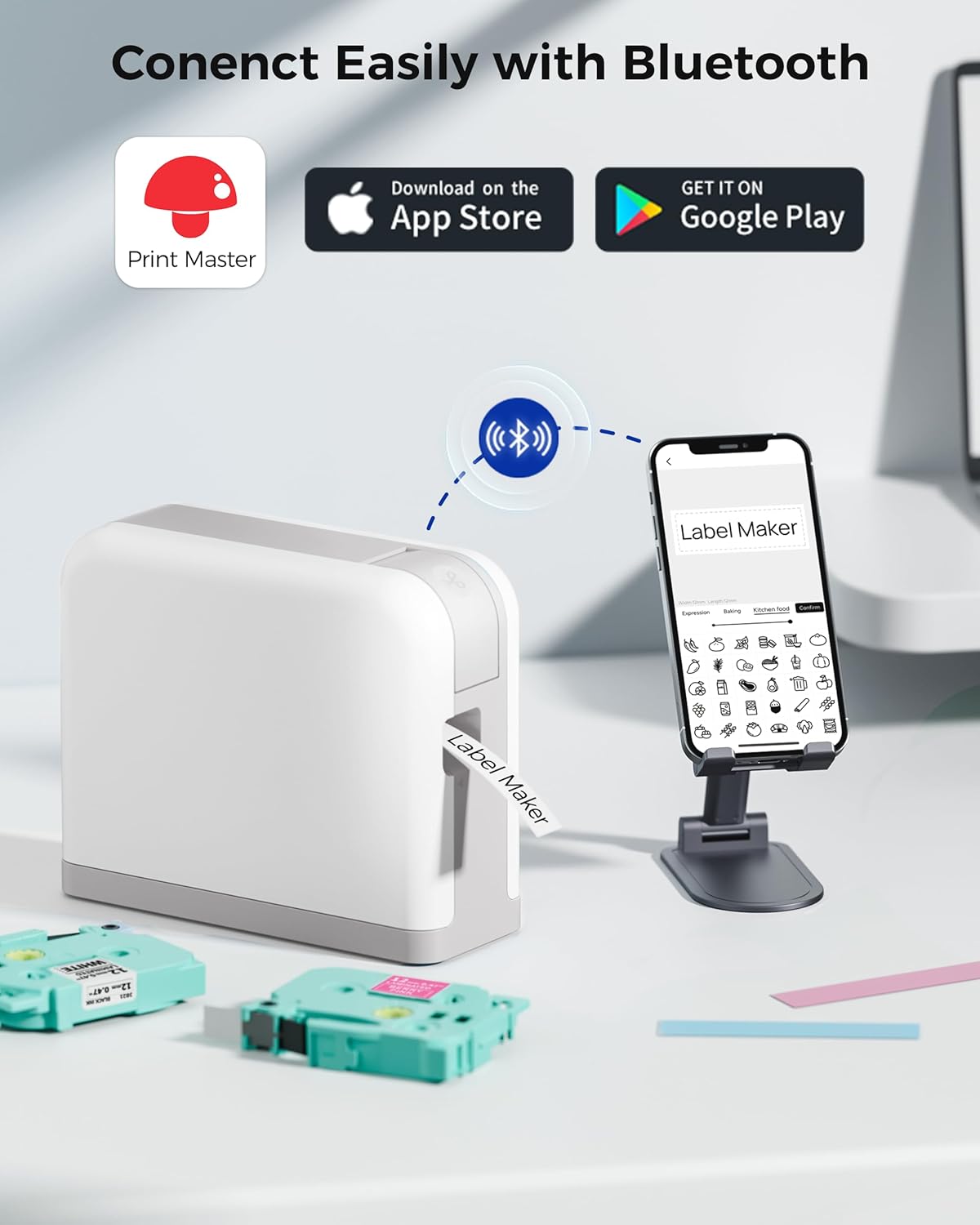
Image: An illustration of the Vixic P3200 label maker connecting via Bluetooth to a smartphone running the "Print Master" app, with download links visible.
3. Loading Label Tape
The device typically comes with a label tape roll pre-installed. To replace or load new tape:
- Gently open the label compartment cover on the side of the device.
- Insert the new label roll, ensuring the label end feeds out through the slot. The roll should be seated securely.
- Close the compartment cover firmly until it clicks into place.
Operating Instructions
1. Connecting via Bluetooth
- Ensure your Vixic P3200 Label Maker is powered on.
- Enable Bluetooth on your smartphone.
- Open the "Print Master" app. The app will automatically search for and connect to your P3200 device. A successful connection will be indicated within the app interface.
2. Designing Labels
The "Print Master" app provides a comprehensive interface for designing your labels:
- Text Input: Enter desired text, numbers, and special characters.
- Icons & Symbols: Choose from a library of over 1500 icons across various categories to enhance your labels.
- Templates & Borders: Utilize 26 pre-designed templates and over 270 borders for quick and creative label creation.
- Fonts: Select from over 110 fonts to match your style.
- Barcodes & QR Codes: Generate and print various code types directly from the app.

Image: A smartphone screen displaying the "Print Master" app, showing options for adding text, numbers, and a wide array of icons for label customization.

Image: A smartphone screen displaying the "Print Master" app, illustrating the selection of different border styles for labels.
3. Printing Labels
- Once your label design is complete, tap the "Print" button within the app.
- The label maker will begin printing. Use the integrated cutter to neatly separate the printed label from the roll.
Note on Tape Waste: To minimize blank tape waste, especially when printing multiple short labels, design them consecutively within the app and print them as a single batch. You can then manually cut them apart after printing.

Image: The Vixic P3200 label maker actively printing a label, with several household items like sunblock and cream already labeled, demonstrating its versatility.

Image: A person organizing kitchen containers with labels created using the Vixic P3200 Label Maker, showcasing practical application.
Maintenance
Cleaning the Print Head
Regular cleaning of the print head is essential to maintain clear print quality:
- Turn off the device.
- Open the label compartment cover.
- Gently wipe the print head with a soft, lint-free cloth or an alcohol wipe. Avoid using abrasive materials.
- Allow the print head to dry completely before closing the compartment cover.
Battery Care
To prolong the life of your device's rechargeable battery:
- Avoid frequently fully discharging the battery.
- Store the device in a cool, dry place when not in use for extended periods.
- Charge the device periodically if stored for a long time to prevent deep discharge.
Troubleshooting
Common Issues and Solutions
- Device not connecting via Bluetooth:
- Ensure the label maker is powered on and within close range of your smartphone.
- Verify that Bluetooth is enabled on your smartphone.
- Try restarting the "Print Master" app and/or the label maker.
- Poor print quality:
- Clean the print head as described in the Maintenance section.
- Ensure the label tape is correctly installed and not damaged.
- Check the battery level; low battery can affect print quality.
- Label tape not feeding:
- Verify the label tape is properly loaded and not jammed.
- Ensure the compartment cover is securely closed.
- Excessive blank tape dispensed:
- A small amount of blank tape may be dispensed when the machine starts. To minimize waste, consider batch printing multiple labels consecutively within the app.
Specifications
| Feature | Specification |
|---|---|
| Brand | Vixic |
| Model | P3200 Label Maker |
| Print Media | Labels |
| Printing Technology | Thermal |
| Printer Output | Monochrome |
| Maximum Print Resolution | 203 dpi |
| Connectivity Technology | Bluetooth |
| Compatible Devices | Smartphones (iOS, Android) |
| Maximum Media Size | 12mm x 8m |
| Battery Type | Rechargeable Lithium-Nickel Manganese Cobalt (NMC) |
| Product Dimensions | 14.61 x 11.99 x 7.59 cm |
| Item Weight | 440 g |
| Colour | Gray |
| Dual-sided Printing | No |
Warranty and Support
For detailed warranty information, technical assistance, or customer support, please refer to the contact details provided on the sticker located inside the label cartridge compartment of your device. Additionally, support options may be available directly within the "Print Master" application.
Customer support is typically available Monday through Friday, from 9 AM to 5 PM (US Eastern Standard Time). You may also visit the official Vixic website for further resources and frequently asked questions.


