
1. Introduction
This manual provides instructions for the proper setup, operation, and maintenance of your NOLYTH External USB-C CD/DVD Drive. Please read this manual thoroughly before using the device to ensure optimal performance and longevity. Keep this manual for future reference.
2. Product Overview
Key Features
- Slot-in Design with USB 3.0 Adapter: Connects via a single USB Type-C data cable. Includes a free USB 3.0 adapter for compatibility with various USB port types.
- Plug and Play: Automatic detection on Mac and Windows systems without complex settings.
- High-Speed Read/Write: Max 8X DVD+/-R write speed, 8X DVD read speed, 24X CD-R write speed, and 24X CD read speed.
- Wide Compatibility: Supports Windows 11/10/8.1/7/Vista/XP/98/SE/ME/2000, Linux, and all versions of Mac OS. Compatible with Apple laptops, Mac, MacBook Air/Pro, iMac, Mac mini, and various PC desktops.
- Stylish and Durable Design: Constructed from full aluminum alloy, matching the aesthetic of Mac devices.
- Slim and Portable: Compact size (139x139x17mm) and lightweight for easy transport.
- Multifunctional: Capable of playing music, watching DVD movies, burning/ripping CDs & DVDs, backing up data, burning files, and installing software/systems/games.
What's in the Box
- 1 x NOLYTH USB-C External CD/DVD Drive
- 1 x USB 3.0 Adapter
- 1 x User Manual
Product Views

Figure 2.1: Top-down view of the NOLYTH External CD/DVD Drive.

Figure 2.2: Close-up of the slot-loading mechanism and the aluminum alloy construction.

Figure 2.3: Physical dimensions of the drive (5.43 x 5.43 x 0.63 inches).
3. Setup Instructions
The NOLYTH External CD/DVD Drive is designed for plug-and-play functionality. Follow these steps to connect and begin using your drive:
- Connect the Drive: Locate an available USB-C port on your computer. Plug the attached USB-C cable from the NOLYTH drive directly into this port.
- Using the USB 3.0 Adapter (if needed): If your computer only has standard USB-A ports, attach the provided USB 3.0 adapter to the USB-C cable, then plug the adapter into a USB-A port on your computer.
- System Recognition: Your computer should automatically detect the drive. No additional drivers are typically required.

Figure 3.1: Connecting the drive directly via USB-C to a laptop.
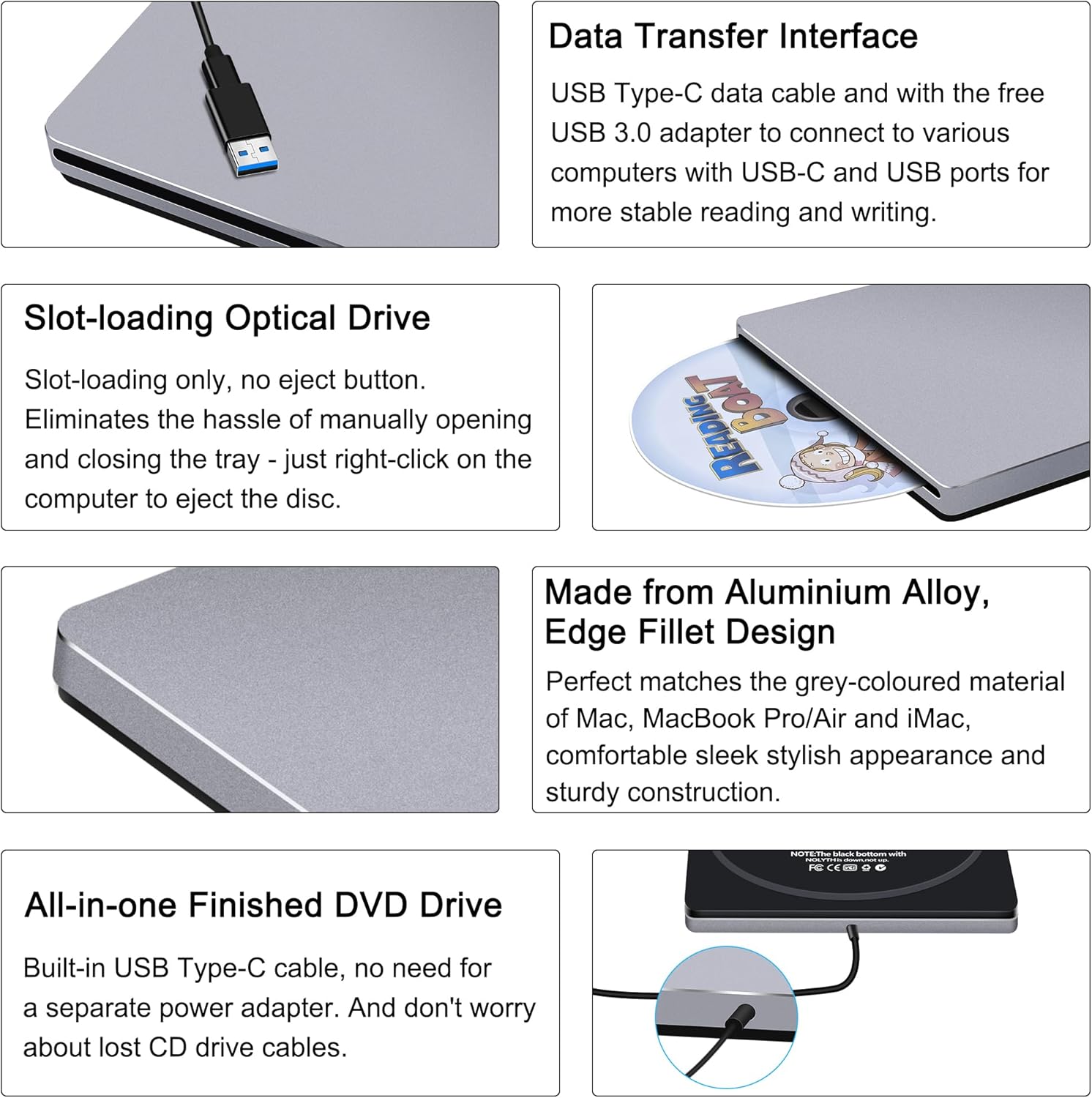
Figure 3.2: Connecting the drive using the USB 3.0 adapter to a laptop.
Setup Demonstration Video
Video 3.1: This video demonstrates the connection process of the NOLYTH External DVD Drive to both Mac and Windows laptops, showing how to insert and play a disc.
4. Operating Instructions
Inserting and Ejecting Discs
The NOLYTH drive features a slot-loading mechanism. There is no physical eject button on the drive itself.
- Inserting a Disc: Gently push the disc into the slot with the label side facing up. The drive will automatically pull the disc in.
- Ejecting a Disc: To eject a disc, right-click on the drive icon in your computer's file explorer (Windows) or drag the disc icon to the Trash/Eject icon (Mac). The disc will then be ejected automatically.

Figure 4.1: Visual guide for inserting a disc, dragging files for burning, and automatic ejection after use.
Supported Disc Formats and Speeds
The drive supports a variety of CD and DVD formats with the following maximum speeds:
- Read Speed: CD 24X, DVD 8X
- Write Speed: CD-R 24X, CD-RW 16X, DVD-R 8X, DVD+R 8X, DVD-RW 6X, DVD+RW 8X, DVD-R DL 6X, DVD+R DL 6X
Supported formats include CD-ROM, CD±R/RW, DVD-ROM, DVD-RAM, DVD±R/RW, VCD, and SVCD.

Figure 4.2: Overview of maximum read and write speeds for different CD and DVD formats.
DVD Region Code Information
DVDs are often region-coded. The drive's region code must match the disc's region code for playback. The drive allows for a limited number of region code changes (typically 4 times). Once the limit is reached, the region code becomes permanently set.

Figure 4.3: Explanation of DVD region codes and the limited number of changes allowed.
5. Compatibility
Supported Operating Systems
- Mac OS (all versions)
- Windows 11 / 10 / 8.1 / 7 / Vista / XP / 98 / SE / ME / 2000
- Linux
Supported Hardware Platforms
- Laptops (e.g., MacBook Pro/Air, PC laptops)
- Desktops (e.g., iMac, Mac mini, PC desktops, all-in-one computers)
Incompatible Devices and Formats
This external DVD player is not compatible with the following:
- Chromebooks
- TVs
- Cars
- Tablets
- iPads
- PS4/5
- Xbox
- Switch
- Projectors
- Some Surface models
- Blu-ray discs
- 4K discs
- M-Discs
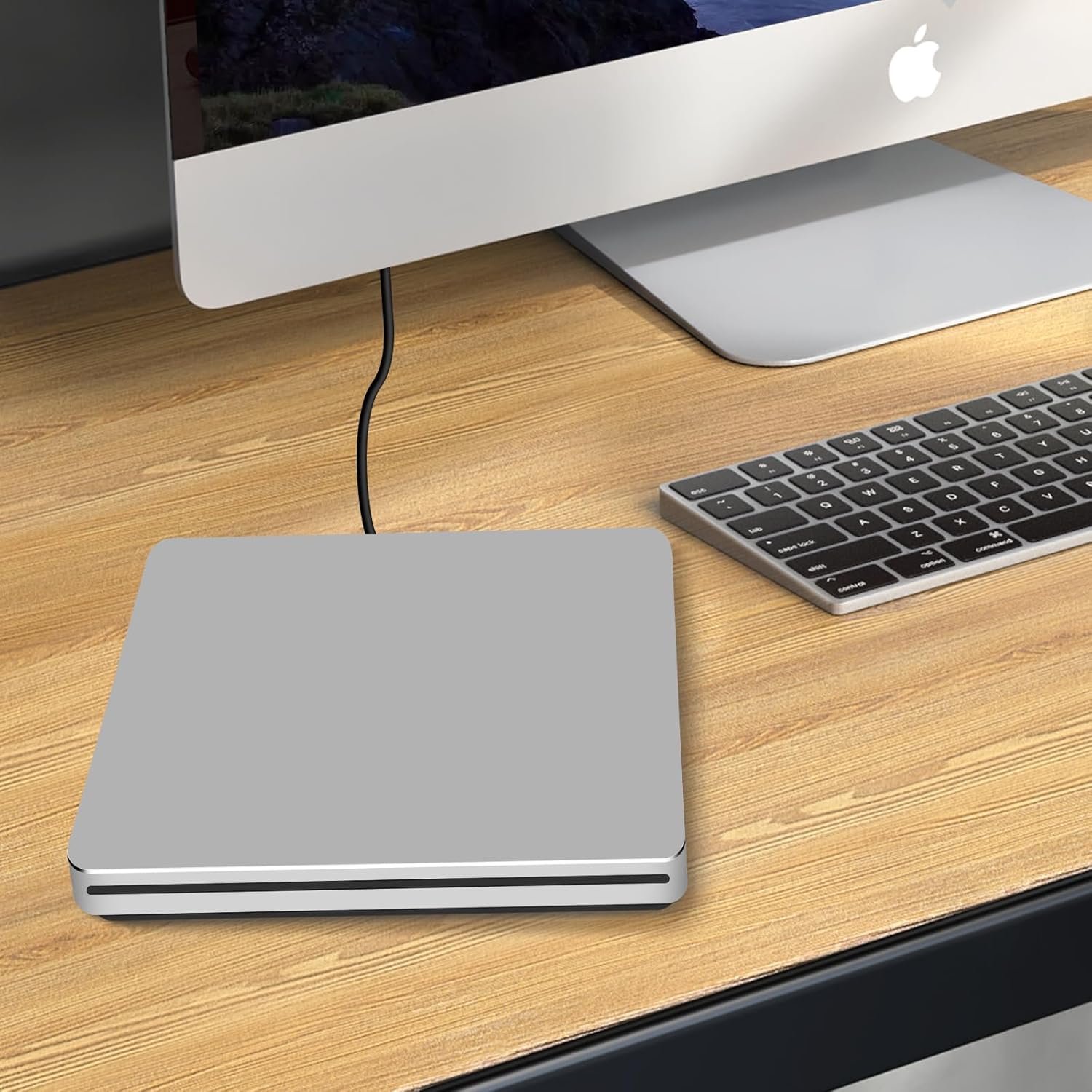
Figure 5.1: Visual representation of compatible operating systems and devices, along with a list of incompatible devices.
6. Maintenance
To ensure the longevity and optimal performance of your NOLYTH External CD/DVD Drive, follow these maintenance guidelines:
- Cleaning: Use a soft, dry cloth to clean the exterior of the drive. Do not use liquid cleaners or abrasive materials. For the disc slot, use a specialized optical drive cleaning disc if necessary.
- Storage: Store the drive in a clean, dry environment away from direct sunlight, extreme temperatures, and high humidity.
- Handling: Avoid dropping or subjecting the drive to strong impacts. Handle discs by their edges to prevent fingerprints and scratches.
- Cable Care: Do not bend or crimp the attached USB cable excessively.
7. Troubleshooting
If you encounter issues with your NOLYTH External CD/DVD Drive, refer to the following common problems and solutions:
- Drive Not Recognized:
- Ensure the USB cable is securely connected to both the drive and your computer.
- Try connecting to a different USB port on your computer.
- If using the USB 3.0 adapter, ensure it is firmly attached.
- Restart your computer.
- Verify that your operating system is supported (refer to Section 5).
- Disc Not Ejecting:
- As there is no physical eject button, eject the disc through your computer's operating system (right-click on the drive icon and select 'Eject' on Windows, or drag the disc icon to the Trash/Eject icon on Mac).
- If the disc is still stuck, try gently flipping the drive over (black side up) while attempting to eject via software. This can sometimes help with stubborn discs.
- Disc Read/Write Errors:
- Ensure the disc is clean and free of scratches or smudges.
- Verify that the disc format is supported by the drive (refer to Section 4).
- Check if the DVD region code matches the drive's region (refer to Section 4).
- Try a different disc to determine if the issue is with the drive or the disc itself.
- Slow Performance:
- Ensure the drive is connected to a USB 3.0 or USB-C port for optimal speed. USB 2.0 ports will result in slower data transfer.
- Close any unnecessary applications running in the background that might be consuming system resources.
If these steps do not resolve the issue, please contact NOLYTH customer support.
8. Specifications
| Feature | Specification |
|---|---|
| Brand | NOLYTH |
| Model Number | 726133312635 |
| Hard Drive Type | External DVD Drive |
| Hardware Platform | Laptop/PC/Desktop, Mac/MacBook Pro/MacBook Air/iMac |
| Operating System Compatibility | Mac OS/macOS/Windows 11/10/8/7/98/XP/2000/Vista/Linux |
| Item Weight | 14 ounces |
| Product Dimensions (LxWxH) | 5.43 x 5.43 x 0.63 inches |
| Color | Grey |
| Optical Storage Write Speed | CD 24x / DVD±R 8x / DVD±R DL 6x |
| Optical Storage Read Speed | CD 24x / DVD 8x |
| Special Features | Backward Compatible/Error Correction, Noise Reduction Technology, Plug & Play/Portable/Slim/Lightweight, Shock Resistant, Slip Resistant/full aluminum alloy/with a free USB 3.0 adapter, Slot-loading/no eject button/USB C data cable |
| Hardware Interface | USB 3.0, USB 3.0 Type C |
9. Warranty and Support
NOLYTH provides comprehensive support for its products:
- Warranty: The product includes a 24-month replacement warranty.
- Customer Support: 24-hour support is available for any inquiries or issues.
How to Contact Support
For after-sales service or support, please contact the seller directly through the Amazon platform:
- Go to the product page on Amazon.
- Click on the seller's name (e.g., "Sold by Confoly Tech").
- Click the "Ask a question" button to send a message to the seller.

Figure 9.1: Visual guide for contacting the seller via Amazon for support inquiries.