
1. Product Overview
The ANTELA Smart WiFi Power Strip (Model AM-01) is a versatile power solution designed for modern smart homes. It integrates four individually controllable AC outlets, two USB-A ports, and two USB-C ports, offering comprehensive power management and charging capabilities. This device allows for remote control, voice control, scheduling, and energy consumption monitoring through a dedicated mobile application.
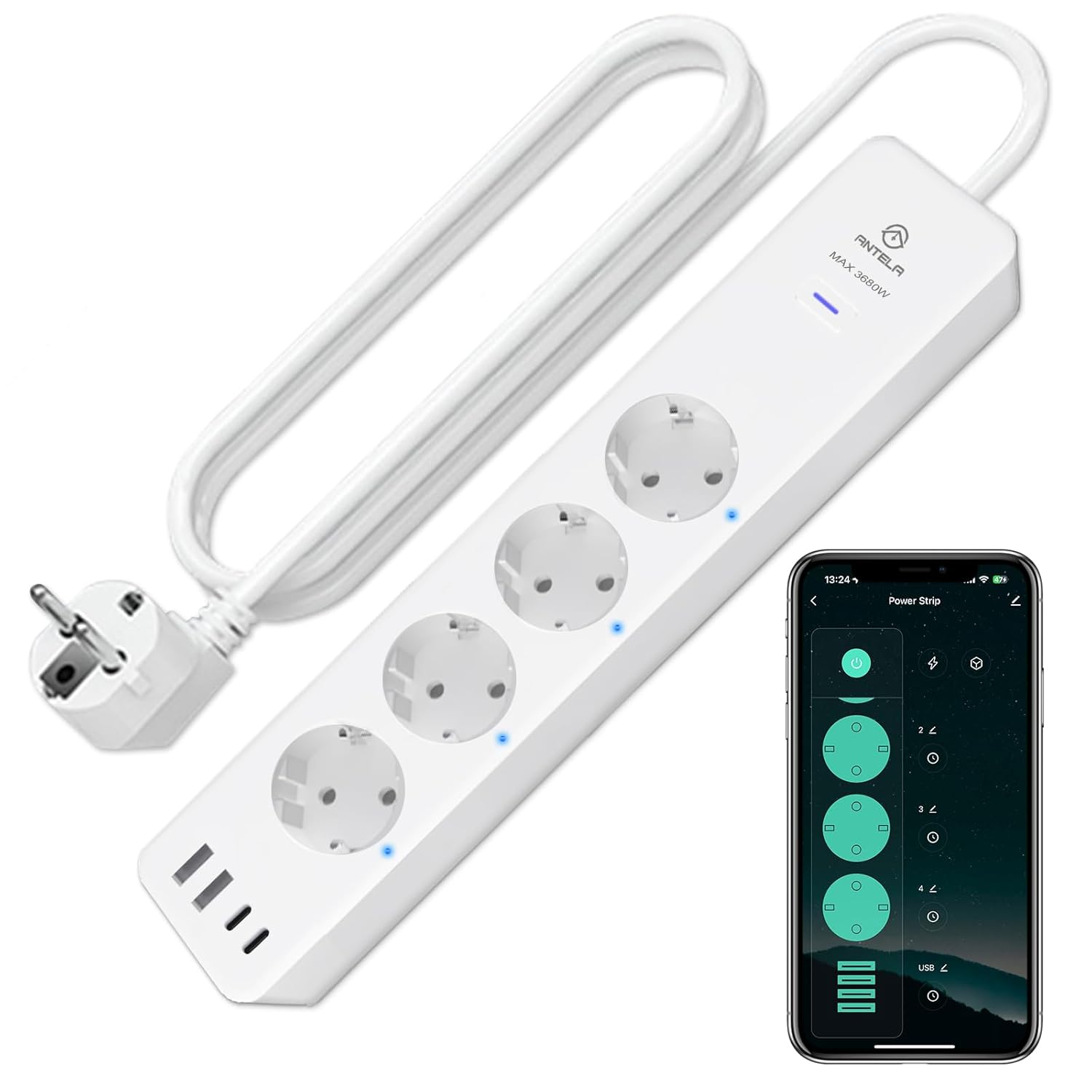
Image 1.1: The ANTELA Smart WiFi Power Strip shown alongside its mobile application interface, demonstrating remote control capabilities.
Key Features:
- 8-in-1 Functionality: Four individually controllable AC outlets, two USB-A ports, and two USB-C ports for charging multiple devices simultaneously.
- High Power Capacity: Supports a maximum power output of 3680W and a total amperage of 16A.
- Energy Monitoring: Track and manage electricity consumption for connected devices via the Smart Life/Tuya app.
- Remote Control: Control outlets and USB ports from anywhere using the mobile application over a 2.4GHz WiFi network.
- Voice Control: Compatible with Amazon Alexa and Google Assistant for hands-free operation. (Note: Not compatible with Apple HomeKit).
- Scheduling & Timers: Program devices to turn on/off automatically at specified times.
- Enhanced Safety: Constructed from flame-retardant plastic with protection against overcurrent, overvoltage, and lightning.
2. Safety Information
Please read and understand all safety instructions before using the ANTELA Smart WiFi Power Strip. Failure to follow these instructions may result in electric shock, fire, or property damage.
- Indoor Use Only: This device is designed for indoor use in dry locations. Do not expose to water, moisture, or high humidity.
- Electrical Rating: Do not exceed the maximum load of 3680W / 16A. Overloading the power strip can cause overheating and fire hazards.
- Grounding: Ensure the power strip is plugged into a grounded outlet.
- Children and Pets: Keep out of reach of children and pets.
- Disassembly: Do not attempt to disassemble, repair, or modify the device. Contact qualified personnel for service.
- Cleaning: Always unplug the power strip before cleaning. Use a dry, soft cloth. Do not use liquid cleaners.
- WiFi Compatibility: This device operates only on a 2.4GHz WiFi network. It is not compatible with 5GHz WiFi networks.
- Protection Features: The power strip includes built-in protection against overcurrent, overvoltage, and lightning.
3. Setup Guide
Follow these steps to set up your ANTELA Smart WiFi Power Strip and connect it to your smart home system.
3.1. What's in the Box
- ANTELA Smart WiFi Power Strip (Model AM-01)
- User Manual (this document)
3.2. App Installation
- Download the "Smart Life" or "Tuya Smart" app from your smartphone's app store (iOS App Store or Google Play Store).
- Register or log in to your account within the app.
3.3. Device Connection
- Plug the ANTELA Smart WiFi Power Strip into a standard wall outlet.
- Ensure your smartphone's Bluetooth is enabled.
- Open the Smart Life/Tuya app. The app should automatically detect the new device or prompt you to add it. If not, tap the "+" icon in the top right corner to manually add a device.
- Select "Power Strip (Wi-Fi)" or a similar option from the device list.
- Follow the on-screen instructions to connect the power strip to your 2.4GHz WiFi network. You will need to enter your WiFi password.
- Once connected, you can rename the power strip and its individual outlets for easier identification.

Image 3.1: A detailed diagram highlighting the components of the ANTELA Smart Power Strip, including four smart outlets, two USB-A ports, two USB-C ports, and the master switch. It also indicates the 2.4GHz WiFi requirement.

Image 3.2: The mobile application interface demonstrating how to control the power strip, with individual controls for each AC outlet and the USB section.
4. Operating Instructions
Learn how to use the various functions of your ANTELA Smart WiFi Power Strip.
4.1. Manual Control
The power strip features a master switch to turn all connected devices on or off simultaneously. Individual AC outlets can also be controlled manually via the app.
4.2. Remote Control via App
Once connected to the Smart Life/Tuya app, you can control the power strip from anywhere with an internet connection.
- Open the app and select your ANTELA Smart WiFi Power Strip.
- You will see controls for each individual AC outlet and a combined control for the USB ports.
- Tap the respective icons to turn outlets or USB ports on/off.

Image 4.1: Demonstrates remote control functionality, showing a user controlling a lamp via a tablet from a different location.
4.3. Voice Control
Integrate your power strip with Amazon Alexa or Google Assistant for convenient voice commands.
- Ensure your power strip is successfully connected to the Smart Life/Tuya app.
- Open the Alexa or Google Home app.
- Add the "Smart Life" or "Tuya Smart" skill/service.
- Follow the app's instructions to link your accounts and discover devices.
- Once linked, you can use commands like:
- "Alexa, turn on [Outlet Name]"
- "Hey Google, turn off [Power Strip Name]"

Image 4.2: An example of voice control in action, with a user issuing a command to a smart speaker to operate the power strip.
4.4. Scheduling and Timers
Automate your devices by setting schedules and countdown timers within the Smart Life/Tuya app.
- In the device interface, navigate to the "Schedule" or "Timer" section.
- Set specific times for individual outlets or the USB ports to turn on or off.
- Create countdown timers for temporary operations.

Image 4.3: Visual representation of the scheduling feature, showing a lamp programmed to turn on in the morning and a TV to turn off in the evening.
4.5. Energy Monitoring
Monitor the power consumption of devices connected to your smart power strip.
- Access the "Energy Statistics" or "Power Consumption" section within the app for your power strip.
- View real-time and historical data on energy usage, helping you manage and reduce electricity costs.

Image 4.4: A screenshot of the mobile app showing a graph of energy usage over several days, illustrating the energy monitoring feature.
4.6. USB Charging Ports
The power strip includes two USB-A and two USB-C ports for charging mobile devices.
- USB-A Ports: Support 5V/3A, 9V/2A, and 12V/1.5A output.
- USB-C Ports: Offer 20W fast charging capability.
- The USB ports are controlled as a single unit within the app.
5. Maintenance
Proper maintenance ensures the longevity and safe operation of your ANTELA Smart WiFi Power Strip.
- Cleaning: Disconnect the power strip from the wall outlet before cleaning. Use a soft, dry cloth to wipe the surface. Do not use abrasive cleaners, solvents, or immerse in water.
- Storage: When not in use for extended periods, store the power strip in a cool, dry place away from direct sunlight and extreme temperatures.
- Inspection: Periodically inspect the power cord and the power strip for any signs of damage, such as frayed wires or cracked casing. If damage is found, discontinue use immediately and contact customer support.
6. Troubleshooting
If you encounter issues with your ANTELA Smart WiFi Power Strip, refer to the following common problems and solutions.
| Problem | Possible Cause | Solution |
|---|---|---|
| Device cannot connect to WiFi. | Incorrect WiFi band (5GHz), weak signal, incorrect password. |
|
| Remote control not working. | No internet connection, app issue, device offline. |
|
| Voice commands are not recognized. | Incorrect voice assistant setup, wrong commands. |
|
| Power strip unexpectedly turns off. | Overload protection activated. |
|
7. Specifications
| Feature | Detail |
|---|---|
| Model Number | AM-01 |
| Brand | ANTELA |
| AC Outlets | 4 (individually controllable) |
| USB Ports | 2 x USB-A, 2 x USB-C |
| USB-A Output | 5V/3A, 9V/2A, 12V/1.5A |
| USB-C Output | 20W Fast Charge |
| Max Power Rating | 3680W / 16A |
| Operating Voltage | 230 Volts (AC) |
| WiFi Compatibility | 2.4GHz only (IEEE 802.11 b/g/n) |
| Material | Flame-retardant V0 material |
| Dimensions (L x W x H) | 38.29 x 7.7 x 7.6 cm |
| Weight | 660 grams |
| Mounting Type | Wall mountable |

Image 7.1: Physical dimensions of the power strip (36 cm length, 6.2 cm width, 4 cm height) and its features such as hangable design and non-slip pads.
8. Warranty and Support
8.1. Warranty Information
Specific warranty details for the ANTELA Smart WiFi Power Strip (Model AM-01) are typically provided with your purchase documentation or can be found on the official ANTELA website. Please retain your proof of purchase for warranty claims.
8.2. Customer Support
For technical assistance, troubleshooting not covered in this manual, or warranty inquiries, please contact ANTELA customer support through their official website or the contact information provided with your product packaging.
You can also visit the ANTELA store on Amazon for more product information: ANTELA Amazon Store