
BENFEI 000307black
BENFEI USB C HUB 7-in-1 Multiport Adapter User Manual
Model: 000307black | Brand: BENFEI
1. Introduction
This user manual provides detailed instructions for the BENFEI USB C HUB 7-in-1 Multiport Adapter. This versatile hub expands the connectivity of your USB-C enabled devices, offering multiple ports for data transfer, video output, and power delivery. Please read this manual thoroughly before using the product to ensure proper operation and longevity.
2. Product Overview
The BENFEI USB C HUB 7-in-1 is designed to provide seamless expansion for your modern devices. It integrates essential ports into a compact and durable aluminum alloy casing.

Figure 2.1: Front view of the BENFEI USB C HUB 7-in-1, showcasing its compact design and various ports.
Key Features:
- HDMI Port: Supports 4K @ 60Hz video output for high-definition displays.
- 3 x USB 3.0 Ports: Enables data transfer speeds up to 5Gbps.
- SD Card Slot: For quick access to photos and other media from standard SD cards.
- Micro SD (TF) Card Slot: For quick access to photos and other media from micro SD cards.
- 60W Power Delivery (PD) Port: Allows charging of your host device while using the hub.

Figure 2.2: Illustration of the hub's massive expansion capabilities, highlighting the 7-in-1 functionality.
3. Setup
Setting up your BENFEI USB C HUB is straightforward. No drivers are required for most operating systems.
- Connect the Hub: Plug the USB-C connector of the BENFEI hub directly into an available USB-C port on your laptop, tablet, or smartphone.
- Power Delivery (Optional): If your device requires charging or if you are using a smartphone/iPad with video output, connect your original USB-C power adapter to the 60W PD port on the hub. This ensures stable power for all connected peripherals and video output.
- Connect Peripherals: You can now connect your desired devices (e.g., external hard drives, USB flash drives, SD/TF cards, HDMI display) to the corresponding ports on the hub.
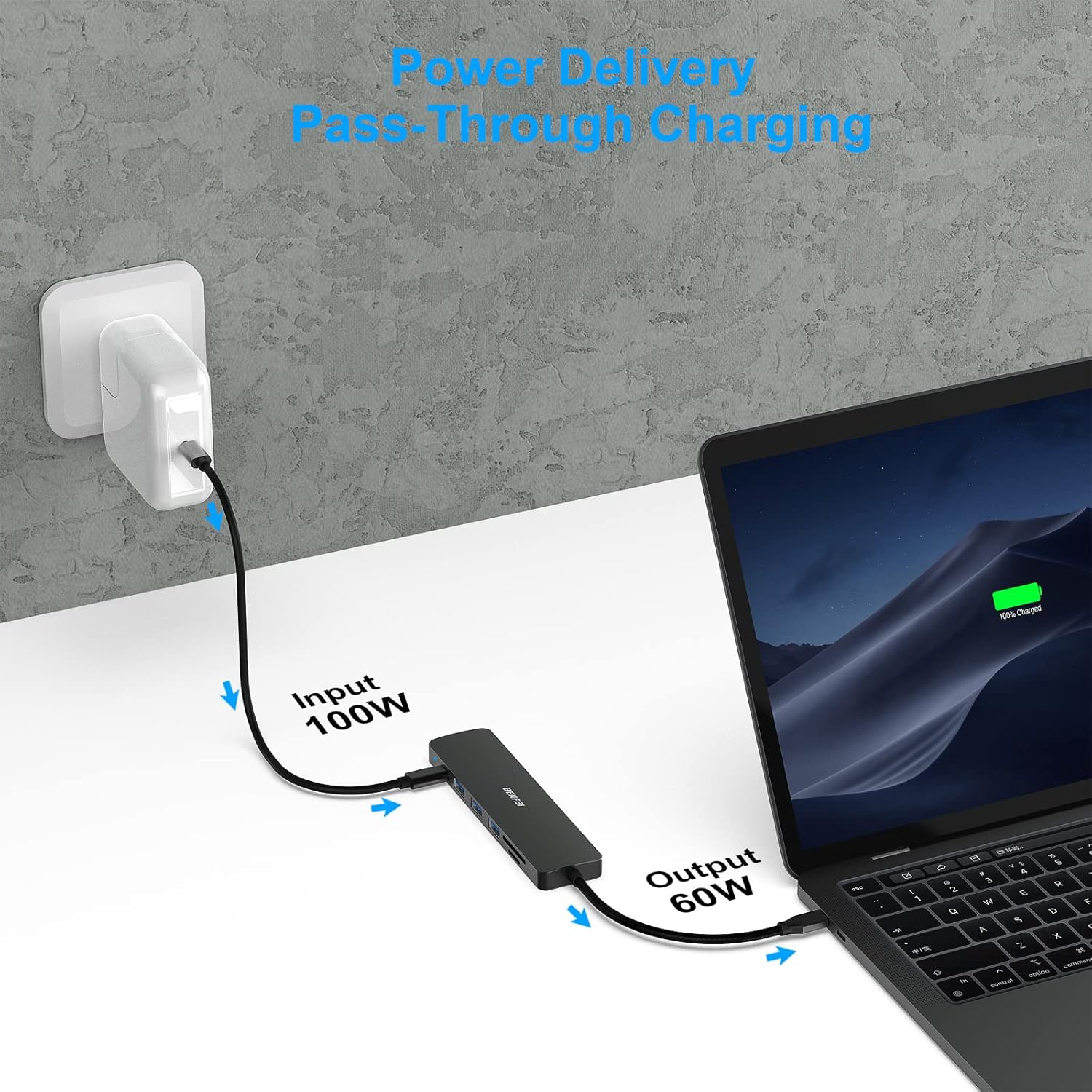
Figure 3.1: Diagram showing the power delivery pass-through charging setup, where the hub charges the host device.
Important Note:
- ✔ Your USB-C device must support video output function (USB Type-C DP Alt mode) for the HDMI port to function.
- ✔ For devices with USB 3.1 Gen 1, and Samsung Galaxy S9/S8, it may take longer time to sync. Please be patient.
4. Operating Instructions
4.1. HDMI Video Output
Connect an HDMI cable from the hub's HDMI port to your external monitor or TV. The hub supports resolutions up to 3840*2160@30Hz and 1920x1080@60Hz (1080p Full HD). Your device should automatically detect the external display. You can configure display settings (mirror or extend mode) through your device's operating system settings.

Figure 4.1: Displaying a laptop connected to an external monitor via the hub's HDMI port, showing 4K output.
4.2. USB 3.0 Data Transfer
The three USB 3.0 ports allow you to connect various USB devices such as flash drives, external hard drives, keyboards, and mice. Enjoy high-speed data transfer up to 5Gbps, which is 10 times faster than USB 2.0.

Figure 4.2: Visual representation of fast data transfer speeds (5Gbps) via USB 3.0 ports compared to USB 2.0.
4.3. SD/TF Card Reader
Insert your SD or Micro SD (TF) card into the respective slot. The hub provides quick and easy access to your photos and other media files. Both card slots can be used simultaneously.

Figure 4.3: A laptop screen showing progress bars for SD and TF card loading, indicating fast transmission.
5. Maintenance
To ensure the longevity and optimal performance of your BENFEI USB C HUB, follow these maintenance guidelines:
- Keep the hub clean and free from dust. Use a soft, dry cloth for cleaning.
- Avoid exposing the hub to extreme temperatures, humidity, or direct sunlight.
- Do not drop or subject the hub to strong impacts.
- Disconnect the hub from your device when not in use for extended periods.
- Ensure proper ventilation around the hub during operation to prevent overheating. The premium aluminum alloy casing is designed for better heat insulation.
6. Troubleshooting
If you encounter issues with your BENFEI USB C HUB, please refer to the following common solutions:
6.1. No Video Output via HDMI
- Ensure your host USB-C device supports video output (DisplayPort Alternate Mode).
- Verify that the HDMI cable is securely connected to both the hub and the display.
- Try connecting your device's power adapter to the hub's PD port to ensure sufficient power.
- Test with a different HDMI cable or display if possible.
6.2. USB Devices Not Recognized
- Ensure the hub is securely connected to your host device.
- Try connecting the USB device directly to your host device to confirm it's working.
- If connecting high-power USB devices (e.g., external hard drives), ensure the hub is powered via its PD port.
- Restart your host device.
6.3. Slow Data Transfer Speeds
- Ensure you are using USB 3.0 compatible devices and cables for optimal speeds.
- Avoid connecting too many power-hungry devices simultaneously without external power to the hub.
- For Samsung Galaxy S9/S8 and USB 3.1 Gen 1 devices, syncing may take longer.
7. Specifications
| Feature | Detail |
|---|---|
| Brand | BENFEI |
| Model Number | 000307black |
| Ports | 1x HDMI, 3x USB 3.0, 1x Micro SD, 1x SD, 1x 60W PD USB-C |
| HDMI Resolution | Up to 3840*2160@30Hz, 1920x1080@60Hz |
| USB 3.0 Speed | Up to 5Gbps |
| SD/TF Card Reader Speed | Up to 160MB/s |
| Power Delivery | Up to 60W (Input 100W) |
| Material | Premium Aluminum Alloy |
| Color | black |
| Item Weight | 3.17 ounces |
| Operating System Compatibility | Chrome OS, Windows, Mac OS, iOS, iPad OS |
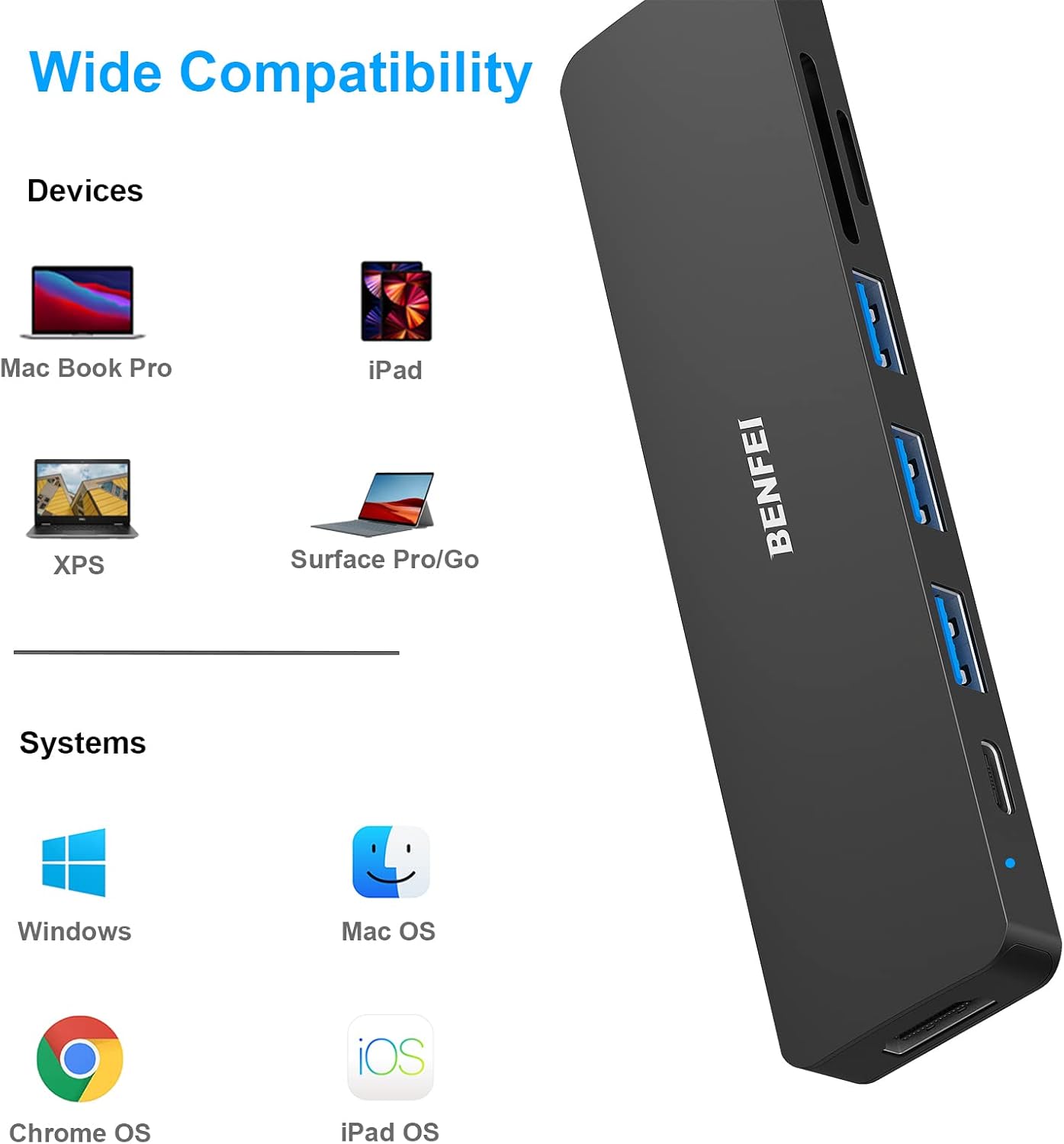
Figure 7.1: Visual guide to the wide compatibility of the BENFEI USB C HUB with various devices and operating systems.
8. Warranty & Support
8.1. Warranty Information
The BENFEI USB C HUB 7-in-1 comes with an Exclusive BENFEI Unconditional 18-month Warranty. This warranty covers manufacturing defects and ensures long-time satisfaction with your purchase.
8.2. Customer Support
For any questions, concerns, or technical assistance, please contact our friendly and easy-to-reach customer service. We are committed to solving your problems timely.
You can visit the official BENFEI website for more information and support resources: www.benfei.com
Ask a question about this manual
Ask about setup, troubleshooting, compatibility, parts, safety, or missing instructions. Manuals+ will review the question and use this page’s manual context to help answer it.