
Introduction
The ZTE 5G Indoor CPE Router MC8020 is a high-performance wireless router designed to provide fast and reliable internet connectivity using 5G technology. It supports Wi-Fi 6, 4x4 MIMO, and 4KQAM, offering speeds up to 5.4Gbps and connectivity for up to 128 devices. This manual provides essential information for setting up, operating, maintaining, and troubleshooting your device.

Image: Front view of the ZTE 5G Indoor CPE Router MC8020, showcasing its sleek white design and indicator lights.
Key Features
- 3.0 Super Antenna Technology: Enhanced 5G signal penetration with 15% more coverage and 20% faster access speed compared to previous models.
- Fast Connectivity: Qualcomm NPU, Wi-Fi 6, 4x4 MIMO, and 4KQAM for peak speeds up to 5.4Gbps, supporting up to 128 simultaneous users.
- zLink Boost: Automatically converges wireless and wired broadband networks for doubled upstream and downstream speeds.
- NFC One-Touch Connection: Simplifies connection to NFC-enabled smartphones and other smart devices.
- Network Compatibility: Supports both 5G SA and NSA modes, as well as Sub-6GHz and mmWave spectrum bands.

Image: Diagram illustrating the ZTE MC8020's capability to support up to 128 Wi-Fi users, surrounded by icons of various connected devices.
Setup Guide
Package Contents:
- ZTE 5G Indoor CPE Router MC8020
- Power Adapter
- Ethernet Cable
- Quick Start Guide (refer to this manual for detailed instructions)
Initial Setup Steps:
- Insert SIM Card: Locate the SIM card slot on the device. Gently insert your 5G-enabled Nano-SIM card until it clicks into place. Ensure the SIM card is correctly oriented.
- Connect Power: Connect the provided power adapter to the router's power port and then plug it into a power outlet. The power indicator light will illuminate.
- Power On: Press the power button (if available) or wait for the device to automatically power on. Allow a few minutes for the router to boot up and establish a 5G network connection. The Network indicator light will change color (e.g., blue or green) when connected.
- Connect Devices:
- Wi-Fi Connection: On your device (smartphone, laptop, etc.), search for available Wi-Fi networks. Select the network name (SSID) printed on the label at the bottom of your router. Enter the Wi-Fi password (Key) also found on the label.
- Ethernet Connection: For wired devices, connect one end of the Ethernet cable to a LAN port on the router and the other end to your device's Ethernet port.
- NFC Connection (for NFC-enabled devices): Tap your NFC-enabled smartphone near the NFC logo on the router to automatically connect to the Wi-Fi network.
- Access Web Interface: Open a web browser on a connected device and enter the router's default IP address (e.g., 192.168.0.1 or 192.168.1.1) into the address bar. Log in using the default username and password (usually "admin" for both, or as specified on the router label).
- Configure Settings (Optional): From the web interface, you can change Wi-Fi name/password, set up advanced network settings, or monitor your connection.

Image: Rear view of the ZTE MC8020 router, displaying the Ethernet ports, phone ports, and power input.
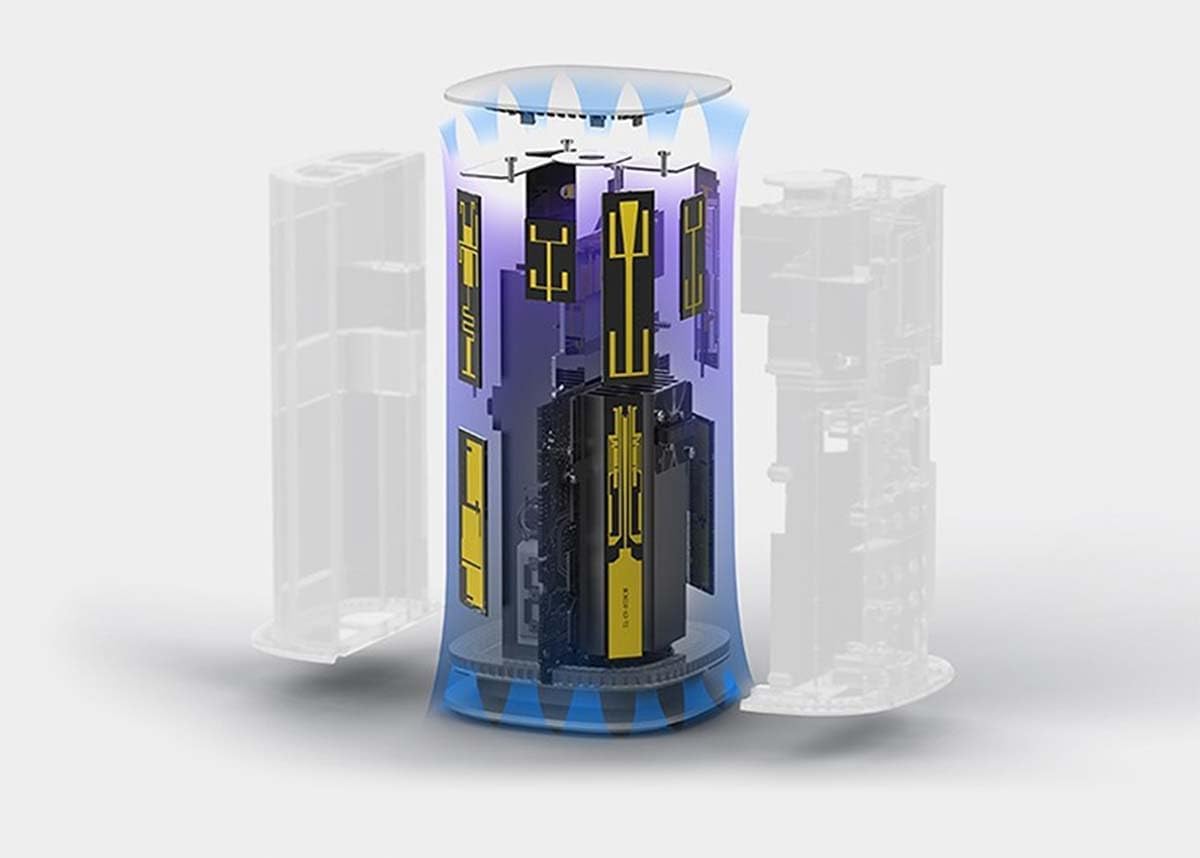
Image: A smartphone being tapped against the top of the ZTE MC8020, demonstrating the NFC one-touch connection feature.
Operating Instructions
Indicator Lights:
- Power Indicator:
- Solid Green: Device is powered on and operating normally.
- Off: Device is powered off.
- Network Indicator:
- Solid Blue/Green: Connected to 5G/4G network.
- Solid Red: No network connection or SIM card error.
- Blinking: Searching for network.
- Wi-Fi Indicator:
- Solid Green: Wi-Fi is active.
- Blinking: Data transmission via Wi-Fi.
- Off: Wi-Fi is disabled.
Basic Operations:
- Restarting the Router: To restart, unplug the power adapter, wait 10 seconds, and then plug it back in.
- WPS Function: Press the WPS button on the router and then the WPS button on your Wi-Fi device to establish a secure connection without entering a password.
- Accessing Settings: Use the web interface (refer to Setup Guide) for advanced configurations like port forwarding, parental controls, or firmware updates.
Maintenance
- Cleaning: Use a soft, dry cloth to clean the router's exterior. Do not use liquid cleaners or aerosols.
- Ventilation: Ensure the router is placed in a well-ventilated area to prevent overheating. Do not block the ventilation holes.
- Firmware Updates: Regularly check for and install firmware updates through the router's web interface to ensure optimal performance and security.
- Placement: Place the router in a central location, away from obstructions and other electronic devices that may cause interference, to maximize Wi-Fi coverage.
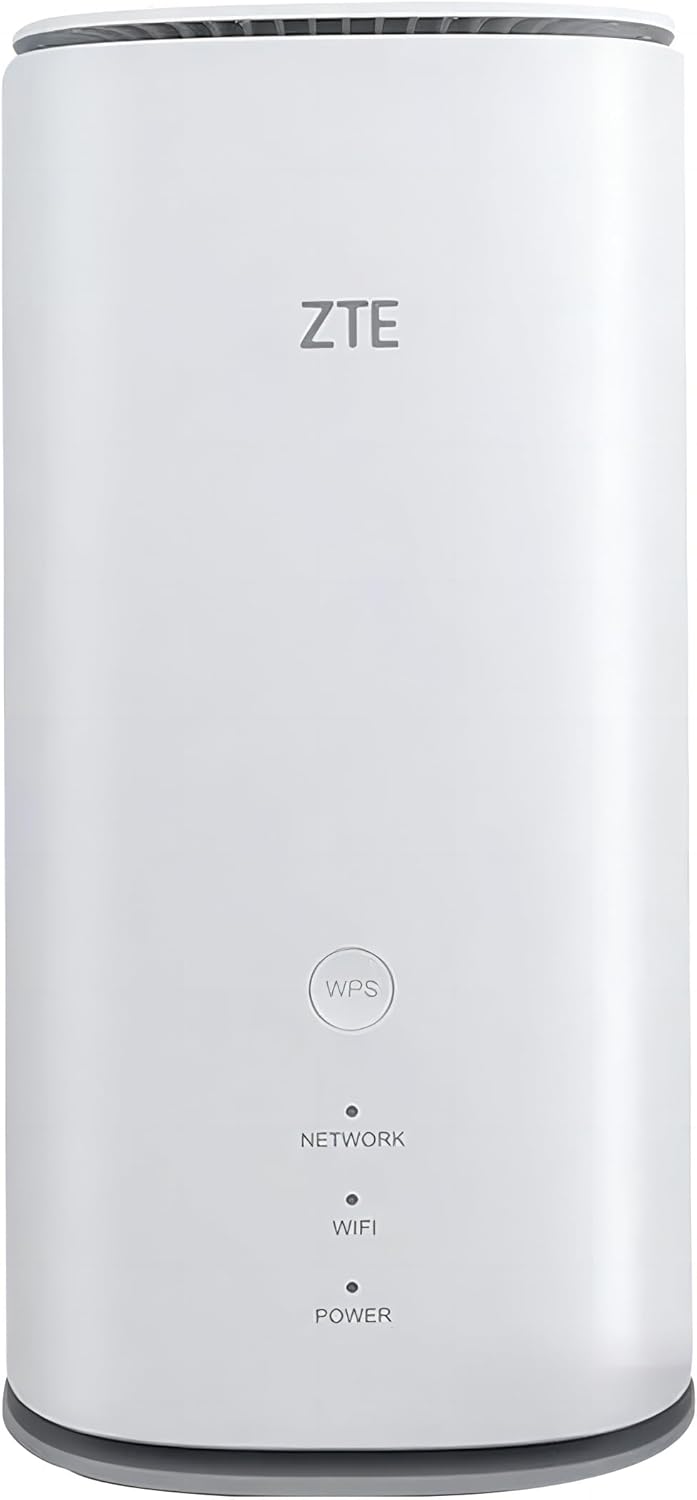
Image: The ZTE MC8020 router placed on a table in a living room setting, demonstrating its compact size and suitable placement.
Troubleshooting
| Problem | Possible Cause | Solution |
|---|---|---|
| No Power | Power adapter not connected or faulty. | Ensure power adapter is securely connected to the router and a working power outlet. Try a different outlet. |
| No Internet Connection (Network Indicator Red) | No SIM card, incorrect SIM card, no network signal, or SIM card not activated. | Check if SIM card is properly inserted. Ensure SIM card is 5G-enabled and activated. Move router to an area with better signal. Contact your service provider. |
| Wi-Fi Not Visible or Cannot Connect | Wi-Fi disabled, incorrect password, or device too far. | Check Wi-Fi indicator light. Ensure correct Wi-Fi password is entered. Move closer to the router. Restart the router. |
| Slow Internet Speed | Poor signal, too many connected devices, or network congestion. | Relocate router for better signal. Disconnect unused devices. Check for firmware updates. |
| Cannot Access Web Interface | Incorrect IP address, network issue, or browser cache. | Verify router's IP address. Ensure your device is connected to the router's network. Clear browser cache or try a different browser. Restart router. |
Specifications
| Attribute | Detail |
|---|---|
| Brand | ZTE |
| Model Name | 5G Indoor CPE (MC8020) |
| Product Dimensions | 10 x 10 x 20.5 cm |
| Item Weight | 640 g |
| Connectivity Type | 4G, 5G, Wi-Fi |
| Wireless Type | 802.11ac, 802.11ax (Wi-Fi 6), 802.11g |
| Frequency Band Class | Dual-Band |
| Voltage | 12 Volts |
| Operating System | RouterOS |
| Special Features | Access Point Mode, Beamforming, Internet Security, LED Indicator, Remote Access, NFC One-Touch Connection |
| Max Connected Devices | Up to 128 Wi-Fi users |
Warranty and Support
ZTE products typically come with a standard manufacturer's warranty. Please refer to the warranty card included with your product for specific terms and conditions, including warranty period and coverage details. For technical support, product registration, or further assistance, please visit the official ZTE website or contact their customer service department. Keep your purchase receipt as proof of purchase for warranty claims.
For extended warranty options, please check with your retailer or service provider.


