
1. Introduction
This manual provides detailed instructions for the setup, operation, and maintenance of your Lilliput HT10S 10.1-inch Camera Monitor. Please read this manual thoroughly before using the device to ensure proper functionality and to prevent damage.
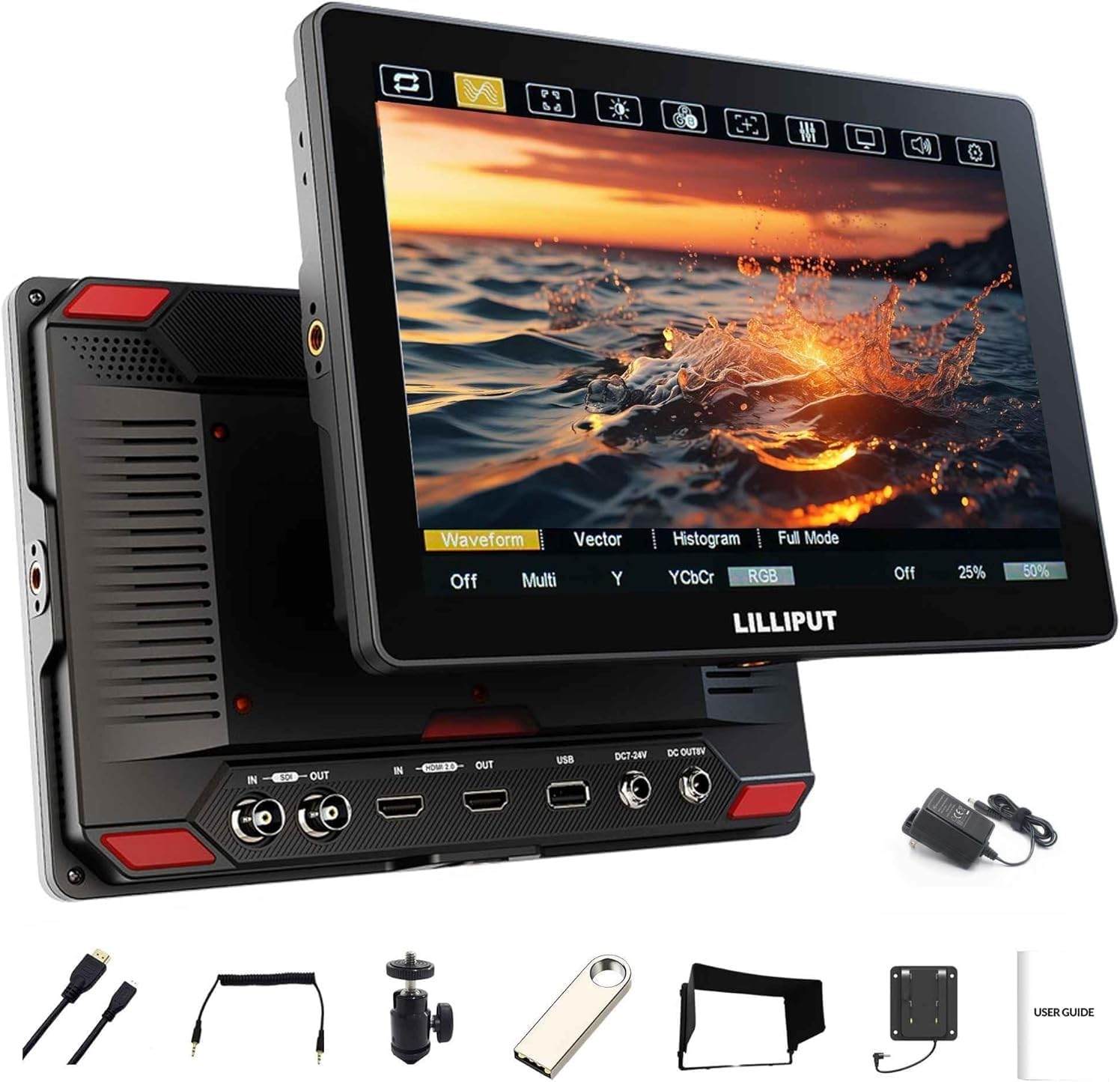
Image 1.1: Front and back view of the Lilliput HT10S 10.1 Inch Camera Monitor. The monitor features a large display on the front and various ports and mounting options on the rear.
2. Key Features
- Ultra-Bright Display: 1500 Nits brightness for outdoor visibility, with auto-dimming capability.
- High Resolution: 10.1-inch display with 1920 x 1200 physical resolution.
- Advanced Connectivity: HDMI 2.0 and 3G-SDI input/loop output interfaces, supporting up to 2160P 60Hz video signals.
- Touch Control: Intuitive touch screen for menu navigation and quick adjustments of camera assist functions and settings.
- LANC Camera Control: Control compatible cameras (e.g., Sony FS7) via LANC cable for focus, zoom, iris, and record functions.
- Color Management: Built-in 3D-LUT with 17 default logs and 6 user logs. Supports HDR (ST2084 300/1000/10000, HLG) for enhanced detail in highlights and shadows.
- Professional Assist Functions: Includes Waveform, Histogram, False Color, Anamorphic De-squeeze, Peaking Focus, Exposure, and more.
- Versatile Power Options: Supports V-Lock and NP-F battery plates, and DC 7-24V input.
3. Package Contents
Verify that all items listed below are included in your package:

Image 3.1: Visual representation of the standard accessories included with the Lilliput HT10S monitor.
- Lilliput HT10S Camera Monitor
- HDMI A-D Cable
- LANC Cable
- Hot Shoe Mount
- USB Drive Disk
- Sunshade
- F970 Battery Plate
- Power Adapter (if included in your specific package)
4. Setup
4.1 Mounting the Monitor
Attach the monitor to your camera rig or stand using the provided Hot Shoe Mount or other compatible mounting solutions. Ensure the monitor is securely fastened to prevent accidental drops.
4.2 Powering the Monitor
The HT10S monitor can be powered using several methods:
- DC Input: Connect the included power adapter to the DC IN port (7-24V) on the monitor and to a power outlet.
- NP-F Battery Plate: Attach an NP-F series battery to the F970 Battery Plate. Ensure the battery is fully charged.
- V-Lock Battery Plate (Optional): If you have an optional V-Lock battery plate and adapter, install it and connect a V-Lock battery.
When using external batteries, ensure they are compatible and correctly installed. The monitor can also power external devices when a battery is installed.
4.3 Connecting Video Sources
Connect your camera or video source to the monitor using either an HDMI or 3G-SDI cable.
- HDMI Connection: Use the provided HDMI A-D cable to connect your camera's HDMI output to the monitor's HDMI IN port. The monitor supports HDMI 2.0 up to 2160P 60Hz.
- 3G-SDI Connection: Connect your camera's SDI output to the monitor's 3G-SDI IN port. The monitor supports 3G-SDI up to 1080P 60Hz.

Image 4.1: Rear view of the monitor highlighting the HDMI 2.0 and 3G-SDI input and output ports.
5. Operating Instructions
5.1 Touch Control Interface
The HT10S features a capacitive touch screen for easy navigation and control. Tap the screen to wake up the menu and access various functions and settings.

Image 5.1: A hand demonstrating touch interaction with the monitor's on-screen menu.
Common touch gestures include tapping icons for functions, swiping to navigate menus, and pinching to zoom. The touch function can be temporarily switched off by pressing the Power button to prevent accidental changes.
Video 5.1: A short demonstration of the touch screen interface on the Lilliput HT10S monitor, showing menu navigation and function selection.
5.2 Camera Control via LANC
Connect the provided LANC cable from the monitor to your compatible camera (e.g., Sony FS7). This allows you to control certain camera functions directly from the monitor's interface.

Image 5.2: Diagram illustrating the connection of the LANC cable between the monitor and a video camera for control.
To access camera control, tap the "camera" icon on the right side of the menu. Actions performed on the monitor's UI are reflected in real-time on the video camera. Supported functions typically include:
- Focus Control: Adjusting the camera's focus.
- Zoom Control: Controlling the zoom in and out of the camera lens.
- Iris Control: Adjusting the aperture size.
- Record Function: Starting and stopping video recording.
Note: Compatibility and available functions may vary depending on the camera model.
5.3 Camera Assist Functions
The HT10S monitor provides a suite of professional tools to aid in accurate exposure, focus, and color analysis:

Image 5.3: Display of various camera assist functions such as Waveform, Histogram, and False Color.
- Waveform: Visualizes the luminance and chrominance levels of your video signal.
- Histogram: Displays the distribution of tonal values in your image, helping to assess exposure.
- False Color: Uses color overlays to represent different exposure levels, making it easier to identify overexposed or underexposed areas.
- 3D-LUT: Apply custom Look Up Tables for accurate color representation and creative grading.
- HDR: Supports various HDR standards (ST2084, HLG) for displaying high dynamic range content.
- Peaking Focus: Highlights in-focus areas with a colored outline for precise focusing.
- Anamorphic De-squeeze: Corrects the aspect ratio of anamorphic footage.
- Exposure: Tools to assist in achieving correct exposure.
6. Specifications
Detailed technical specifications for the Lilliput HT10S monitor:
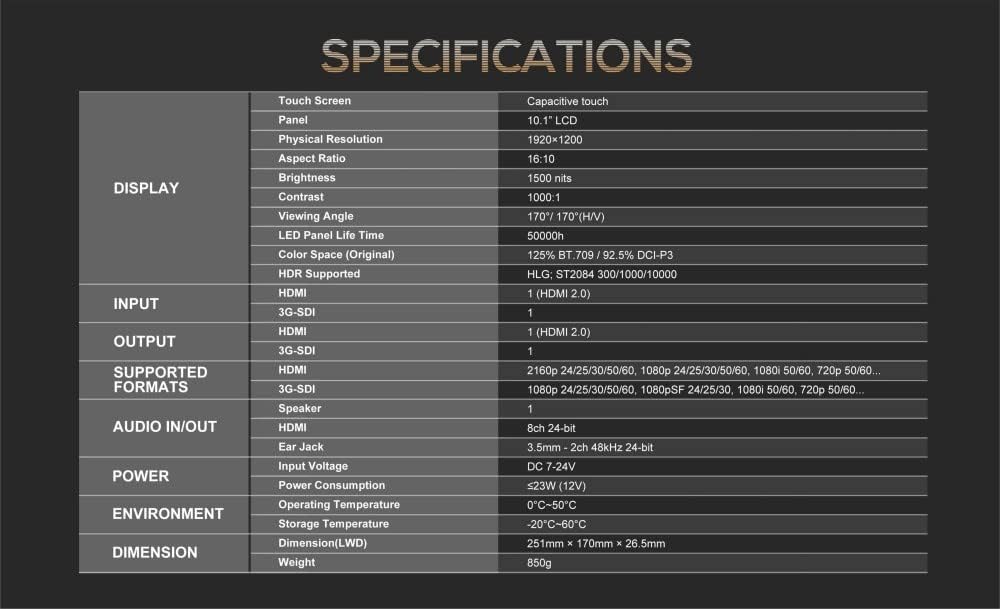
Image 6.1: A table summarizing the technical specifications of the Lilliput HT10S monitor.
| Category | Specification |
|---|---|
| Display | |
| Screen Size | 10.1 Inches |
| Panel Type | Capacitive Touch LCD |
| Physical Resolution | 1920 x 1200 |
| Aspect Ratio | 16:10 |
| Brightness | 1500 Nits |
| Contrast Ratio | 1000:1 |
| Viewing Angle | 170° (H/V) |
| LED Panel Life Time | 50000h |
| Color Space | 125% BT.709 / 92.5% DCI-P3 |
| HDR Supported | HLG, ST2084 300/1000/10000 |
| Input | |
| HDMI | 1 (HDMI 2.0) |
| 3G-SDI | 1 |
| Output | |
| HDMI | 1 (HDMI 2.0) |
| 3G-SDI | 1 |
| Supported Formats | |
| HDMI | 2160P 24/25/30/50/60, 1080P 24/25/30/50/60, 1080i 50/60, 720P 50/60... |
| 3G-SDI | 1080P 24/25/30/50/60, 1080PsF 24/25/30, 1080i 50/60, 720P 50/60... |
| Audio In/Out | |
| HDMI | 8ch 24-bit |
| Ear Jack | 3.5mm - 2ch 48kHz 24-bit |
| Power | |
| Input Voltage | DC 7-24V |
| Power Consumption | ≤23W (12V) |
| Environment | |
| Operating Temperature | 0°C~50°C |
| Storage Temperature | -20°C~60°C |
| Dimension | |
| Dimension (LWD) | 251mm × 170mm × 26.5mm |
| Weight | 850g |
7. Maintenance
- Cleaning: Use a soft, dry cloth to clean the monitor screen and body. For stubborn smudges, lightly dampen the cloth with water or a screen-safe cleaning solution. Avoid harsh chemicals.
- Storage: When not in use, store the monitor in a cool, dry place, away from direct sunlight and extreme temperatures. Use a protective case to prevent scratches and impacts.
- Handling: Always handle the monitor with care. Avoid dropping or subjecting it to strong vibrations.
- Ventilation: Ensure the monitor's ventilation openings are not blocked during operation to prevent overheating.
8. Troubleshooting
- No Power: Check power connections. Ensure the power adapter is securely plugged in or that the battery is charged and correctly installed.
- No Video Signal: Verify that the HDMI or 3G-SDI cable is securely connected to both the camera and the monitor. Ensure the camera is outputting a signal and that the monitor's input source is correctly selected. Check if the camera's output resolution is supported by the monitor.
- Image Issues (e.g., flickering, distortion): Check cable connections. Try a different cable. Ensure the video source is stable.
- Touch Screen Unresponsive: Ensure the touch function has not been disabled via the power button. Restart the monitor.
- LANC Control Not Working: Confirm the LANC cable is properly connected. Verify that your camera model is compatible with LANC control via the monitor (e.g., Sony FS7). Check camera settings for external control.
9. Warranty and Support
The Lilliput HT10S Camera Monitor comes with a 1-year limited warranty from the date of purchase. This warranty covers manufacturing defects and workmanship under normal use.
For technical support, warranty claims, or service inquiries, please contact your retailer or the manufacturer's customer service. Keep your proof of purchase for warranty validation.


