1. Introduction and Overview
The ARZOPA 15.6" Digital Picture Frame is designed to display your cherished photos and videos with stunning clarity. Featuring a 1920x1080 FHD touchscreen with anti-glare technology, it offers a vibrant and immersive viewing experience. With built-in Wi-Fi connectivity and a dedicated mobile application, sharing memories with family and friends has never been easier. This manual provides comprehensive instructions for setting up, operating, and maintaining your digital picture frame.
2. What's in the Box
Please check the contents of your ARZOPA Digital Picture Frame package. If any items are missing or damaged, please contact customer support.
- ARZOPA 15.6" Digital Picture Frame
- Power Adapter
- Detachable Stand/Support
- User Manual

Image: The Arzopa 15.6 inch Digital Picture Frame alongside a smartphone displaying its companion app.
3. Setup Guide
- Unpack and Inspect: Carefully remove all components from the packaging. Ensure the frame and accessories are free from any visible damage.
- Attach the Stand: Locate the detachable stand. Insert the stand into the designated hole on the back of the frame and screw it in securely. The frame can be placed horizontally or vertically, and the stand can be adjusted accordingly. Alternatively, the frame supports wall mounting.
- Connect Power: Plug the power adapter into the DC power port on the frame. Then, plug the adapter into a standard electrical outlet. The frame requires continuous power to operate.
- Initial Power-On: The frame will automatically power on once connected to electricity. Follow the on-screen prompts to select your preferred language.
- Connect to Wi-Fi: Select your 2.4GHz Wi-Fi network from the list and enter the password. A stable Wi-Fi connection is essential for app functionality and remote content sharing.
- Download the ARZOPA App: Scan the QR code displayed on the frame's screen or search for "ARZOPA" in your mobile device's App Store (iOS) or Google Play Store (Android) to download the companion application.
- Pair Your Frame: Open the ARZOPA app on your smartphone. Follow the app's instructions to pair your device with the digital picture frame, typically by scanning a unique QR code displayed on the frame.

Image: The Arzopa Digital Picture Frame demonstrating its flexible placement options, including auto-rotation between portrait and landscape modes.
4. Operating Instructions
Your ARZOPA Digital Picture Frame features an intuitive touchscreen interface for easy navigation.
Basic Navigation:
- Swipe: Swipe left or right on the screen to manually switch between photos or videos.
- Tap: Tap the screen once to bring up the menu options or to pause/play media.
- Pinch-to-Zoom: Use a two-finger pinch gesture to zoom in or out on photos.
Settings and Customization:
Access the frame's settings menu by tapping the screen and selecting the 'Settings' icon. Here you can adjust:
- Brightness: Manually adjust screen brightness for optimal viewing in different lighting conditions.
- Sleep Mode: Configure automatic on/off times to save energy and avoid screen light during sleep.
- Date and Time: Set the current date and time, or enable automatic synchronization via the internet.
- Slideshow Interval: Customize the duration each photo is displayed before transitioning to the next.
- Photo Order: Choose sequential, random, or other display orders for your media.
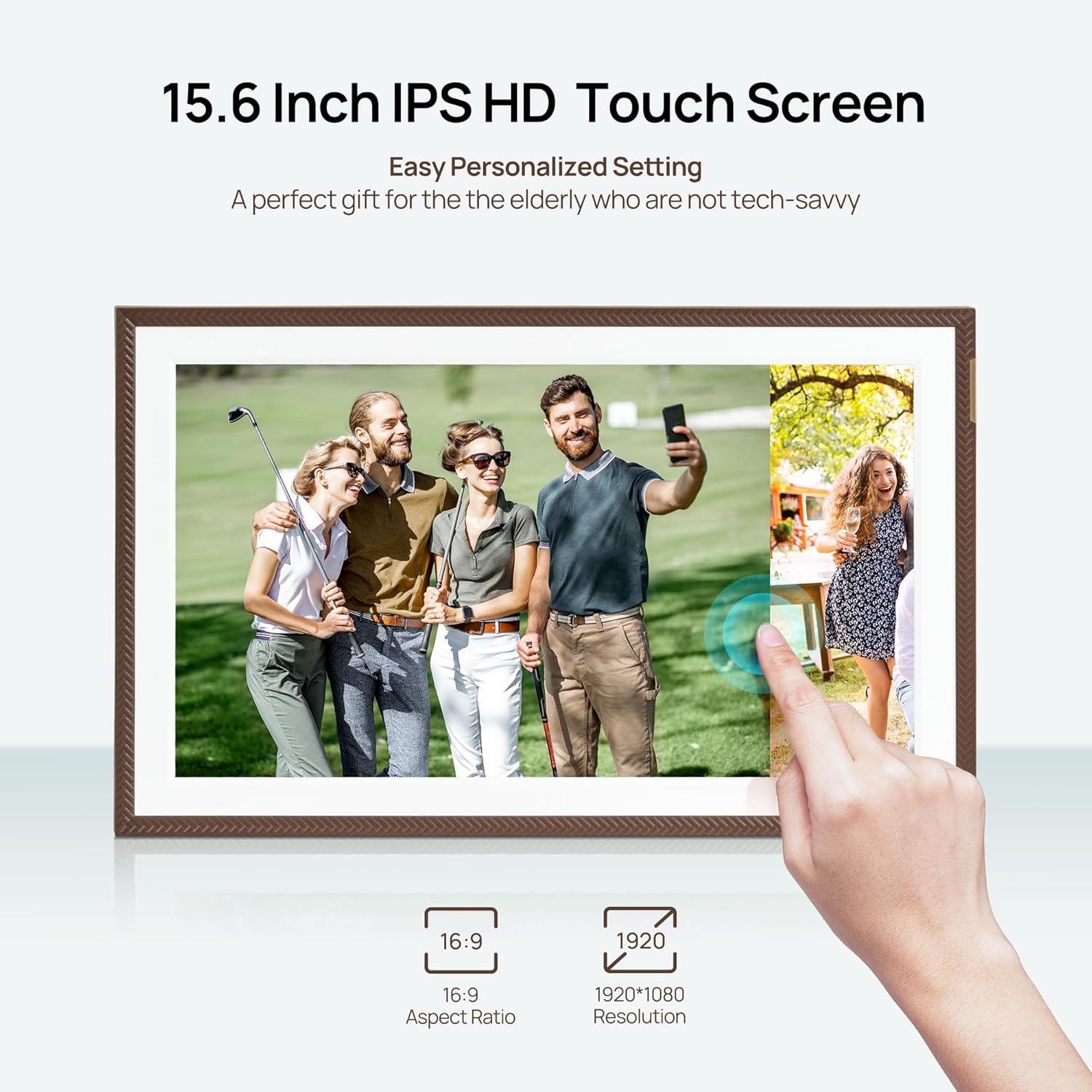
Image: A hand interacting with the touchscreen of the Arzopa Digital Picture Frame, highlighting its responsive interface.
5. Media Management (Photos & Videos)
Your ARZOPA Digital Picture Frame offers multiple ways to upload and manage your media.
Wireless Sharing via ARZOPA App:
The most convenient way to add content is through the ARZOPA mobile app. Once your frame is paired:
- Open the app and select the frame you wish to send media to.
- Choose photos and videos from your phone's gallery.
- Upload them directly to the frame. The app supports unlimited single-upload photos (e.g., 100 photos in 60 seconds) and 2-minute HD video transmissions.
- You can invite family and friends to share their photos and videos to your frame by sharing a unique code from the app.
Using External Storage:
The frame supports expandable memory up to 128GB via a TF (microSD) card (not included) and USB drives.
- TF Card: Insert a formatted TF card (FAT32/NTFS) into the designated slot on the frame. You can directly play media from the card or import it to the frame's internal 32GB storage.
- USB Drive: Connect a USB drive to the USB-A port. You can browse and import media from the drive to the frame.
Supported Formats:
- Pictures: JPG, JPEG, WEBP, PNG
- Videos: MP4, M4V, 3GP, MOV
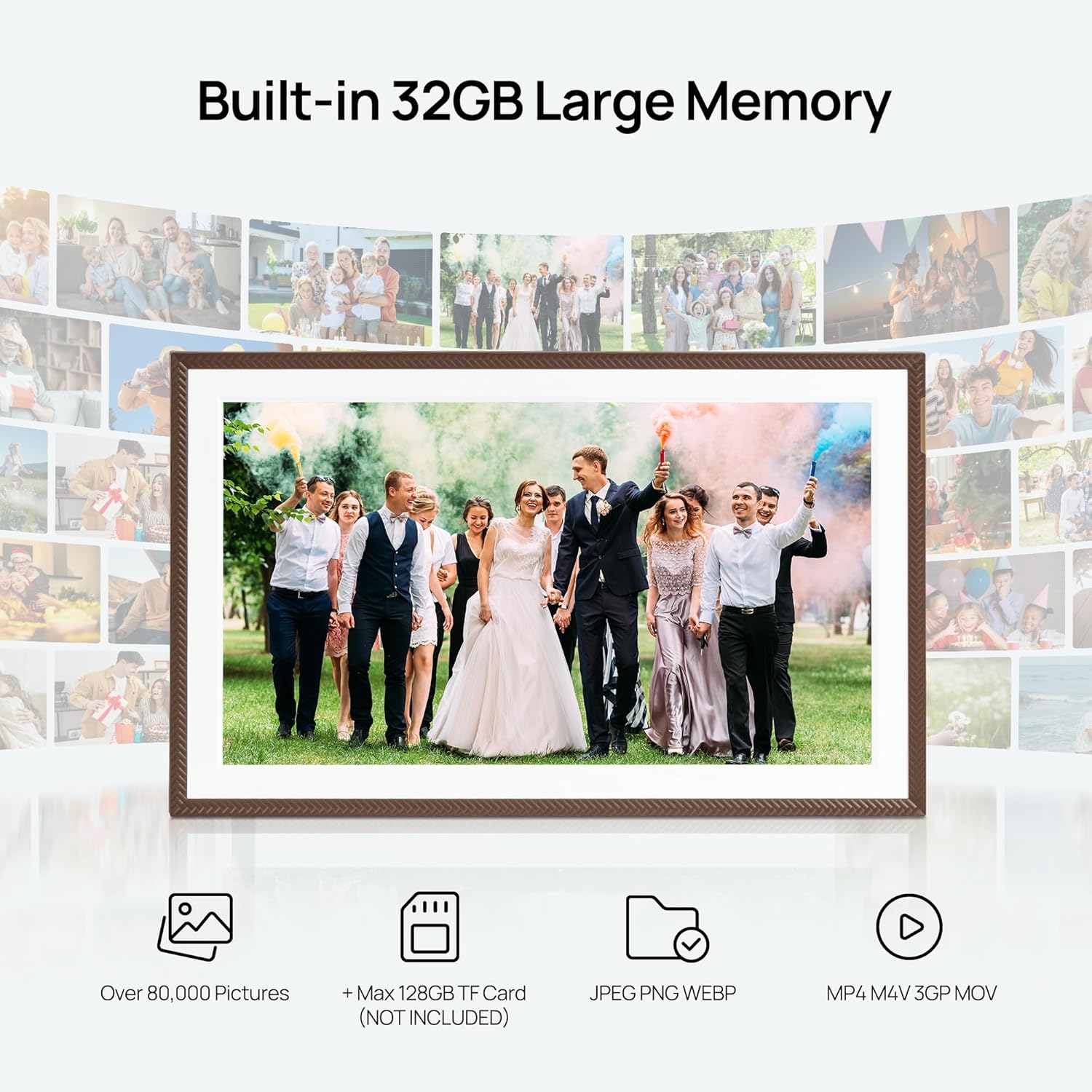
Image: The Arzopa Digital Picture Frame showcasing its 32GB built-in memory and the option for 128GB expandable storage via TF card.

Image: A smartphone screen displaying the Arzopa app, illustrating the instant and unlimited photo and video sharing capabilities to the digital picture frame.
6. Special Features
Custom Gift Mode:
The innovative preset function allows you to set up the Wi-Fi and upload content to the frame before gifting it. This means the recipient can simply plug it in and enjoy the pre-loaded memories immediately, making it a perfect personalized gift.
Auto-Rotation:
Equipped with a precision gravity sensor, the frame automatically rotates the display between portrait and landscape modes to match the orientation of the frame, ensuring your photos are always displayed correctly.
Flexible Placement:
The frame is designed for versatile placement. It can be easily set up on a desktop using its stand or mounted on a wall to save space and integrate seamlessly into your home decor.

Image: The Arzopa Digital Picture Frame in a bedroom, illustrating its personalized sleep mode feature with a partially dimmed screen for energy saving and minimal sleep disruption.
7. Maintenance & Care
- Cleaning: Use a soft, dry, lint-free cloth to clean the screen and frame. For stubborn smudges, lightly dampen the cloth with water; avoid harsh chemicals or abrasive materials.
- Placement: Avoid placing the frame in direct sunlight, near heat sources, or in areas with high humidity to prevent damage.
- Software Updates: Ensure your frame's software is up to date by checking the ARZOPA app regularly. Updates often include performance improvements and new features.
- Power: Always use the original power adapter provided with the frame.
8. Troubleshooting
Common Issues and Solutions:
- Frame Not Turning On:
- Ensure the power adapter is securely plugged into both the frame and a working electrical outlet.
- Check if the power outlet is functional. - Wi-Fi Connection Issues:
- Verify that your Wi-Fi network is 2.4GHz. The frame does not support 5GHz networks.
- Restart your Wi-Fi router.
- Re-enter the Wi-Fi password on the frame to ensure it's correct.
- Ensure the frame is within range of your Wi-Fi router. - Photos/Videos Not Displaying:
- Check if the media files are in supported formats (JPG, JPEG, WEBP, PNG for photos; MP4, M4V, 3GP, MOV for videos).
- Ensure the TF card or USB drive is properly inserted and formatted (FAT32/NTFS).
- If sharing via app, confirm the frame is successfully paired and connected to Wi-Fi. - Screen Unresponsive:
- Try restarting the frame by unplugging and re-plugging the power adapter.
- Ensure the screen is clean and free from debris.
If you encounter persistent issues, please refer to the contact information in the Support section.
9. Specifications
| Feature | Detail |
|---|---|
| Screen Size | 15.6 Inches |
| Resolution | 1920x1080 FHD |
| Internal Storage | 32GB |
| Expandable Storage | Up to 128GB via TF Card (not included) |
| Connectivity | Wi-Fi (2.4GHz), USB-A, USB-C, SD Card Slot |
| Product Dimensions | 10 x 15 x 0.99 inches |
| Item Weight | 2.49 pounds |
| Power Input | 5V-2A |
10. Warranty & Support
ARZOPA is committed to providing high-quality products and excellent customer service.
Warranty:
Your ARZOPA Digital Picture Frame comes with a 1-year free warranty from the date of purchase, covering manufacturing defects.
Customer Support:
Should you have any questions, concerns, or require technical assistance, please do not hesitate to contact our dedicated customer support team. We aim to respond within 48 hours.
Email: support@arzopa.com
For more information and additional resources, please visit our official website: www.arzopa.com