
IROK ND63PRO
IROK ND63PRO Rapid Trigger Magnetic Switch Keyboard User Manual
Model: ND63PRO
1. Overview
The IROK ND63PRO is a 60% compact TKL mechanical keyboard designed for gaming and general use. It features rapid trigger magnetic switches, full RGB backlighting, and advanced customization options through its dedicated driver software. Its compact layout saves desk space while retaining essential keys, and its robust construction ensures durability and a satisfying typing experience.

Image: Top-down view of the IROK ND63PRO keyboard, showcasing its compact 63-key layout and RGB backlighting.
2. Package Contents
Please ensure all items are present in your package:
- IROK ND63PRO Keyboard
- Keycap Puller
- USB Cable (USB-C)
3. Setup
3.1 Connecting the Keyboard
- Connect the USB-C end of the provided cable to the USB-C port on the keyboard.
- Connect the USB-A end of the cable to an available USB port on your computer (PC or Mac).
- The keyboard will automatically be recognized by your operating system.
3.2 Driver Installation
For full customization and advanced features, download and install the IROK ND63PRO driver software. The driver supports both web-based and one-stop HUB driver options, simplifying parameter adjustment.
- Driver Download Address: www.irok.cc

Image: Screenshot of the IROK ND63PRO customization driver interface, showing options for magnetic switch settings, lighting, and key actions.
4. Key Features
4.1 63 Keys Compact Layout
The ND63PRO keyboard features a 60% layout, optimizing desktop space while retaining essential keys. It incorporates an aluminum alloy positioning plate, contributing to a solid typing feel and clear, resonant key sounds.

Image: Exploded view diagram illustrating the solid gasket construction of the IROK ND63PRO, highlighting components like the magnetic switch, aluminum positioning plate, and silicone backing pad.
4.2 Gaming Grade Magnetic Switches
Equipped with OKT Azure magnetic switches, this keyboard offers high trigger accuracy and a stable feel, minimizing disconnections during rapid presses. This enhances responsiveness for a more efficient competitive gaming experience.
4.3 Full Customization 200-Segment Keys (RT Function)
The Rapid Trigger (RT) function allows for up to 200 segments of adjustment, with a trigger track range between 0.02mm and 4.0mm. This precise adjustability, down to 0.02mm, caters to various key customization needs for both typing and gaming.
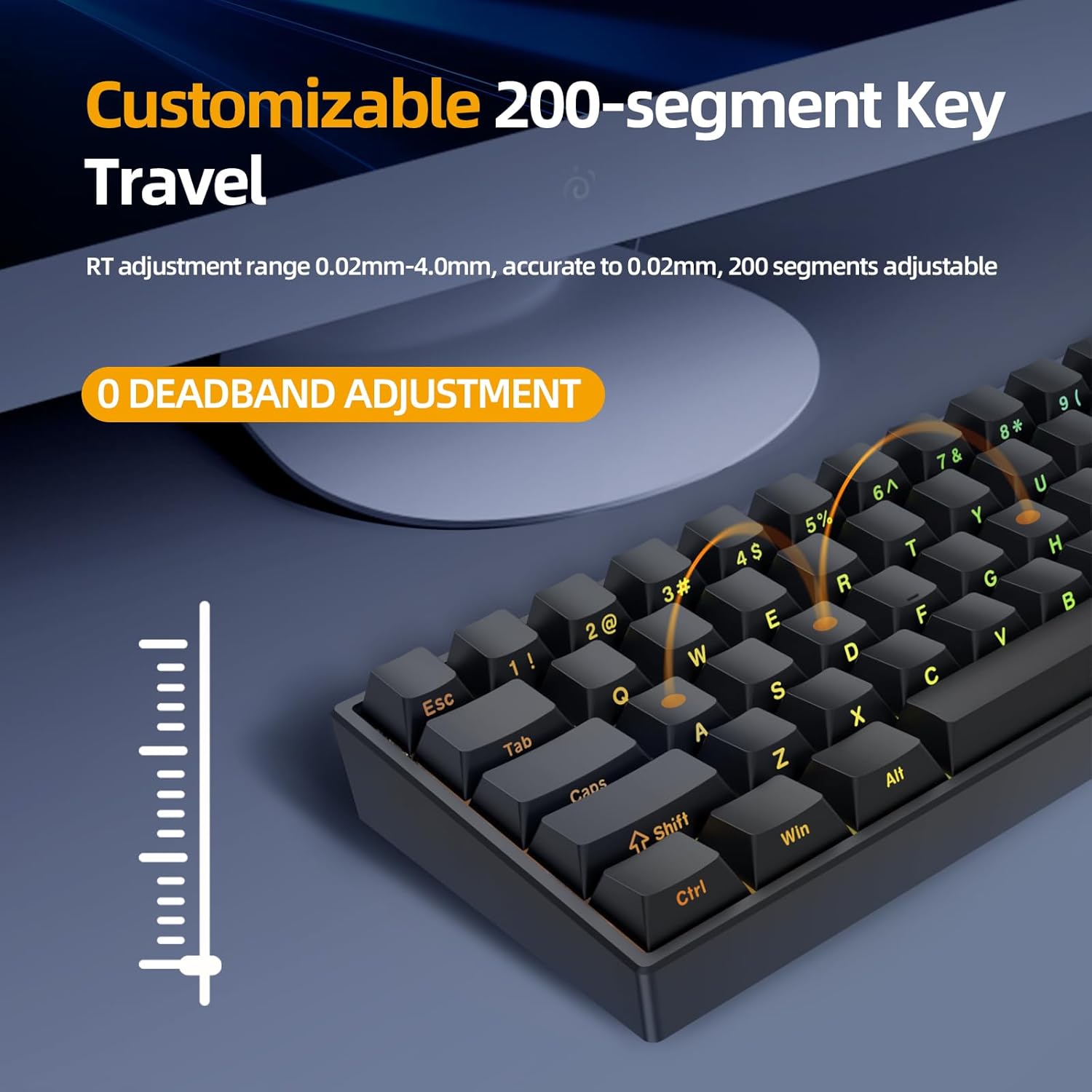
Image: Diagram illustrating the customizable 200-segment key travel feature, showing the adjustable trigger range from 0.02mm to 4.0mm.
4.4 0.3ms Low Latency
Leveraging Lengendspeed technology, the IROK ND63PRO Gaming Keyboard achieves a latency of less than 0.3ms, providing an excellent and highly responsive experience for video game enthusiasts.

Image: Graphic comparing the 8000Hz return speed of the IROK ND63PRO with a standard 1000Hz keyboard, highlighting its superior low latency of less than 0.3ms.
4.5 Customized RGB Keyboard
The ND63PRO supports full-color RGB lighting with 21 customizable light effects. Its hot-swappable design allows for easy replacement of magnetic switches and keycaps without soldering, offering extensive personalization.

Image: The IROK ND63PRO keyboard on a desk with a monitor, showcasing its vibrant full-color RGB backlight, described as visually more vibrant and bright.
5. Operation
5.1 Basic Key Functions
Due to its 60% compact layout, some functions are accessed via the Function (FN) key combined with other keys. Secondary functions are typically printed on the front of the keycaps for easy reference.
- FN + [Key]: Accesses secondary functions, including F-row keys, media controls, and navigation keys (Home, End, PgUp, PgDn).
5.2 Competition Mode
For competitive gaming, the keyboard offers a Competition Mode to prevent accidental interruptions.
- Activate Competition Mode: Press FN + C. In this mode, the Windows key is locked by default to prevent accidental presses during gameplay.
- Deactivate Competition Mode: Press FN + C again. The Windows key will be re-enabled.
Additional keys can be configured to be locked in Competition Mode via the driver software.
6. Maintenance
6.1 Cleaning the Keyboard
The low-profile design of the IROK ND63PRO makes it easy to clean and maintain. Dust and debris can be easily removed.
- Disconnect the keyboard from your computer.
- Use a soft brush or compressed air to remove dust and crumbs from between and under the keycaps.
- Wipe the keycaps and keyboard surface with a slightly damp, lint-free cloth. Avoid excessive moisture.
- Ensure the keyboard is completely dry before reconnecting it.
7. Troubleshooting
| Issue | Possible Cause | Solution |
|---|---|---|
| Keyboard not responding | Loose cable connection, driver issue, or system conflict. | Ensure USB-C cable is securely connected to both keyboard and computer. Try a different USB port. Reinstall the keyboard driver from www.irok.cc. |
| Keys not registering or double-typing | Highly sensitive magnetic switches, debris under keycap, or software setting. | Adjust your typing style to account for the low actuation point. Clean the affected key. Check driver software for actuation point settings and adjust if necessary. |
| RGB lighting not working or incorrect | Software settings, or a temporary glitch. | Ensure the keyboard driver software is installed and check RGB settings. Try cycling through lighting modes using FN key combinations. Disconnect and reconnect the keyboard. |
| Windows key is disabled | Competition Mode is active. | Press FN + C to deactivate Competition Mode. |
8. Specifications
| Feature | Detail |
|---|---|
| Product Dimensions | 11.65 x 4.21 x 0.79 inches |
| Item Weight | 1.21 pounds |
| Manufacturer | IROK |
| Item Model Number | ND63PRO |
| Brand | IROK |
| Compatible Devices | PC |
| Connectivity Technology | USB-C |
| Keyboard Description | Tenkeyless Mechanical Ergonomic |
| Recommended Uses | Business, Gaming |
| Special Features | Backlit, Ergonomic, Hot-Swappable |
| Color | Black (Keyboard), RGB (Backlighting) |
| Number of Keys | 63 |
| Keyboard Backlighting Color Support | RGB |
| Style | Modern |
9. Warranty and Support
For warranty information and technical support, please refer to the official IROK website or contact their customer service directly. Keep your purchase receipt for warranty claims.
- Official Website: www.irok.cc
Related documentsND63PRO


Ask a question about this manual
Ask about setup, troubleshooting, compatibility, parts, safety, or missing instructions. Manuals+ will review the question and use this page’s manual context to help answer it.