
Keychron K12-D2
Keychron K12 Pro Mechanical Keyboard User Manual
Model: K12-D2
Introduction
The Keychron K12 Pro is a highly customizable 60% compact mechanical keyboard designed for versatility and performance. It features QMK/VIA programmability, hot-swappable switches, and vibrant RGB backlighting, making it suitable for various operating systems including macOS, Windows, and Linux. This manual provides detailed instructions for setting up, operating, maintaining, and troubleshooting your K12 Pro keyboard.

Image: Keychron K12 Pro Mechanical Keyboard, showcasing its compact 60% layout with dark grey and red keycaps.

Image: Exploded view of the Keychron K12 Pro keyboard, illustrating its internal components including keycaps, switches, plate, sound-absorbing foam, PCB, silicone bottom pad, and bottom case.
Package Contents
Upon unboxing your Keychron K12 Pro keyboard, please verify that all the following items are included:
- 1x Fully Assembled Keyboard (including 1x PCB, 1x Steel Plate, 1x Sound Absorbing Foam, 1x Silicone Bottom Pad, 5 Sets of Stabilizers (PCB Screw-In), 1 Set of Switches (Keychron K Pro))
- 1x Type-A to Type-C Cable
- 1x Switch Puller
- 1x Keycap Puller
- 1x Screwdriver

Image: Diagram showing the Keychron K12 Pro keyboard and its included accessories: USB cable, switch puller, keycap puller, and screwdriver.
Setup
1. Initial Setup
Before first use, it is recommended to fully charge the keyboard's battery using the provided USB-C cable. Connect the cable to the keyboard's USB-C port and a power source (e.g., computer USB port or USB wall adapter).
Locate the switches on the back or side of the keyboard:
- Mode Switch: Toggle between "BT" (Bluetooth wireless mode) and "Cable" (wired USB mode).
- OS Switch: Select the appropriate operating system mode: "Mac/iOS" for Apple devices or "Windows/Android" for Windows and Android devices. This ensures correct key mapping.

Image: Side view of the Keychron K12 Pro keyboard, showing the USB-C port and the physical switches for mode selection (BT/Cable) and operating system (Mac/Win).
2. Connectivity
Bluetooth Connection:
- Ensure the mode switch is set to "BT".
- Press and hold Fn + 1 (or Fn + 2, Fn + 3) for 4 seconds until the indicator light under the key flashes rapidly. This indicates the keyboard is in pairing mode.
- On your device (computer, tablet, or phone), open Bluetooth settings and search for "Keychron K12 Pro".
- Select the keyboard to pair. The indicator light will stop flashing once connected.
- You can connect up to three devices and switch between them using Fn + 1, Fn + 2, or Fn + 3.
Wired Connection:
- Ensure the mode switch is set to "Cable".
- Connect the provided USB-C cable from the keyboard to your device's USB port.
- The keyboard will automatically be recognized and function as a wired keyboard.

Image: The Keychron K12 Pro keyboard connected wirelessly to a laptop and a smartphone, and wired to a tablet, demonstrating its multi-device compatibility.

Image: The Keychron K12 Pro keyboard with icons representing compatibility with Linux, macOS, and Windows operating systems, highlighting its broad system support.
Operating Instructions
1. Key Functions and Combinations
The K12 Pro features a compact 60% layout. Many functions are accessed via the Fn key in combination with other keys. Refer to the table below for common key combinations:

Image: Table detailing Keychron K12 Pro key combinations, including functions for media control, backlight adjustments, and system commands using the Fn key.
2. Backlight Control
The K12 Pro features dynamic RGB backlighting with multiple effects. Use the following key combinations to control the backlight:
- Fn + Q: Cycle through RGB backlight modes.
- Fn + W: Increase backlight brightness.
- Fn + S: Decrease backlight brightness.
- Fn + E: Increase hue.
- Fn + D: Decrease hue.
- Fn + R: Increase saturation.
- Fn + F: Decrease saturation.
- Fn + G: Increase RGB speed.
- Fn + H: Decrease RGB speed.
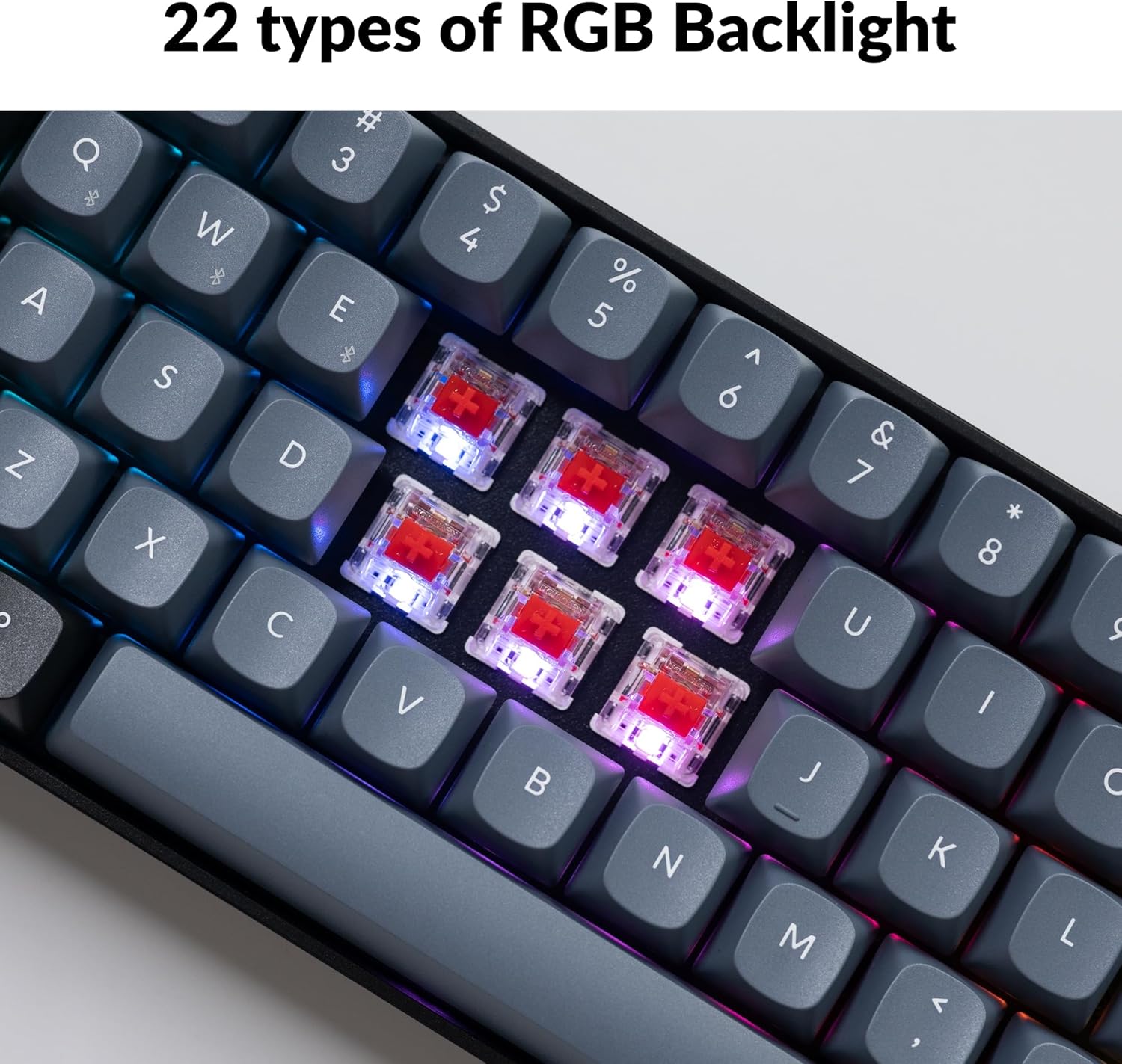
Image: Close-up of the Keychron K12 Pro keyboard showcasing its RGB backlighting illuminating the hot-swappable switches beneath the keycaps.
3. QMK/VIA Customization
The Keychron K12 Pro supports QMK/VIA, allowing for advanced customization of key assignments, macros, and lighting effects. VIA is a powerful software tool that provides a graphical user interface for programming your keyboard without needing to write code.
To use VIA:
- Download the VIA software from the official Keychron website or the VIA GitHub repository.
- Connect your K12 Pro keyboard to your computer via USB-C cable.
- Launch the VIA software. The software should automatically detect your keyboard.
- Use the intuitive interface to remap keys, create complex macros, and customize lighting layers. Changes are applied in real-time to the keyboard.
For detailed instructions and software downloads, please visit the official Keychron support page for the K12 Pro.

Image: Screenshot of the VIA software interface demonstrating how to program keys and macros for the Keychron K12 Pro keyboard.
Maintenance
1. Cleaning Your Keyboard
To maintain optimal performance and appearance, regularly clean your keyboard:
- Disconnect the keyboard from power.
- Use a can of compressed air to blow away dust and debris from between the keycaps.
- Wipe the keycaps and keyboard surface with a soft, slightly damp, lint-free cloth. Avoid excessive moisture.
- For stubborn stains, a small amount of isopropyl alcohol on a cloth can be used, but avoid direct application to the switches.
2. Hot-Swappable Switches
The K12 Pro features hot-swappable switch sockets, allowing you to change switches without soldering. This enables customization of typing feel and sound.
Removing Switches:
- Gently remove the keycap using the provided keycap puller.
- Use the switch puller to grasp the top and bottom clips of the switch.
- Apply gentle, even pressure and pull the switch straight up to remove it from the PCB.
Installing Switches:
- Ensure the switch pins are straight and align with the holes on the PCB.
- Carefully push the switch straight down until it clicks into place. Do not force it, as bent pins can damage the socket.
- Replace the keycap.

Image: A hand using a switch puller to remove a mechanical switch from the Keychron K12 Pro keyboard, demonstrating the hot-swappable feature.

Image: Table comparing Keychron K Pro Red and Brown switch features, including operating force, pre-travel, travel distance, behavior, pre-lubed status, sound level, and suitable use cases.
Troubleshooting
If you encounter issues with your Keychron K12 Pro keyboard, please refer to the following common solutions:
- Keyboard not responding:
- Ensure the mode switch is set correctly (BT for Bluetooth, Cable for wired).
- For Bluetooth, ensure the keyboard is paired and selected on your device. Try re-pairing.
- For wired, ensure the USB-C cable is securely connected to both the keyboard and your device. Try a different USB port or cable.
- Check the battery level. Connect the keyboard to a power source to charge.
- Bluetooth connection issues:
- Remove "Keychron K12 Pro" from your device's Bluetooth list and attempt to re-pair.
- Ensure no other devices are interfering with the Bluetooth signal.
- Try resetting the keyboard's Bluetooth connection by holding Fn + J + Z for 3 seconds.
- Backlight not working or incorrect:
- Ensure the backlight is turned on (check Fn key combinations for backlight control).
- Adjust brightness using Fn + W (increase) and Fn + S (decrease).
- Cycle through modes using Fn + Q.
- Keys not registering or double-typing:
- This might indicate a faulty switch. Since the keyboard is hot-swappable, try replacing the problematic switch with a spare one or a switch from a less-used key.
- Ensure the switch is fully seated in its socket.
- Keyboard not recognized by VIA software:
- Ensure the keyboard is connected via USB-C cable (VIA typically requires a wired connection).
- Make sure you have the correct VIA software version for your operating system.
- Try restarting the VIA software and reconnecting the keyboard.
Factory Reset:
If issues persist, you can perform a factory reset. This will revert all keyboard settings, including keymaps and lighting, to their default state. To perform a factory reset, hold Fn + J + Z for 3 seconds.
Specifications
| Feature | Detail |
|---|---|
| Model Number | K12-D2 |
| Connectivity | Bluetooth 5.1, USB-C (Wired) |
| Layout | 60% Compact (61 Keys) |
| Switches | Keychron K Pro Red (Hot-Swappable) |
| Backlighting | RGB (22 types) |
| Keycaps | OSA Profile Double-shot PBT Keycaps |
| Battery | Lithium Polymer (included) |
| Compatible OS | macOS, Windows, Linux |
| Dimensions | 14 x 5 x 2 inches (Package Dimensions) |
| Item Weight | 1.8 pounds |
| Adjustable Feet Angles | 3.5°, 8.4°, and 12° |

Image: Close-up of the Keychron K12 Pro's adjustable feet, illustrating the three available typing angles: 3.5°, 8.4°, and 12°.
Warranty and Support
Warranty Information:
Keychron products are typically covered by a limited warranty against manufacturing defects. The specific warranty period and terms may vary by region and retailer. Please retain your proof of purchase for warranty claims.
Customer Support:
For further assistance, technical support, or warranty inquiries, please visit the official Keychron website's support section. You can often find FAQs, driver downloads, and contact information there.
Official Keychron Website: www.keychron.com
You may also refer to the official User Manual (PDF) and User Guide (PDF) provided by Keychron for additional details:
Related documentsK12-D2


Ask a question about this manual
Ask about setup, troubleshooting, compatibility, parts, safety, or missing instructions. Manuals+ will review the question and use this page’s manual context to help answer it.