INNPLUS Secure Flash Drive User Manual
Model: Secure Flash Drive (32GB Orange)
Product Overview
The INNPLUS Secure Flash Drive is a high-security, password-protected USB 3.0 drive designed to safeguard your confidential data. It features military-grade 256-bit AES XTS hardware encryption, ensuring that your files remain secure even if the drive is lost. Its robust zinc alloy and ABS shell provides durability against scratches, rust, and damage, while its compact size enhances portability.
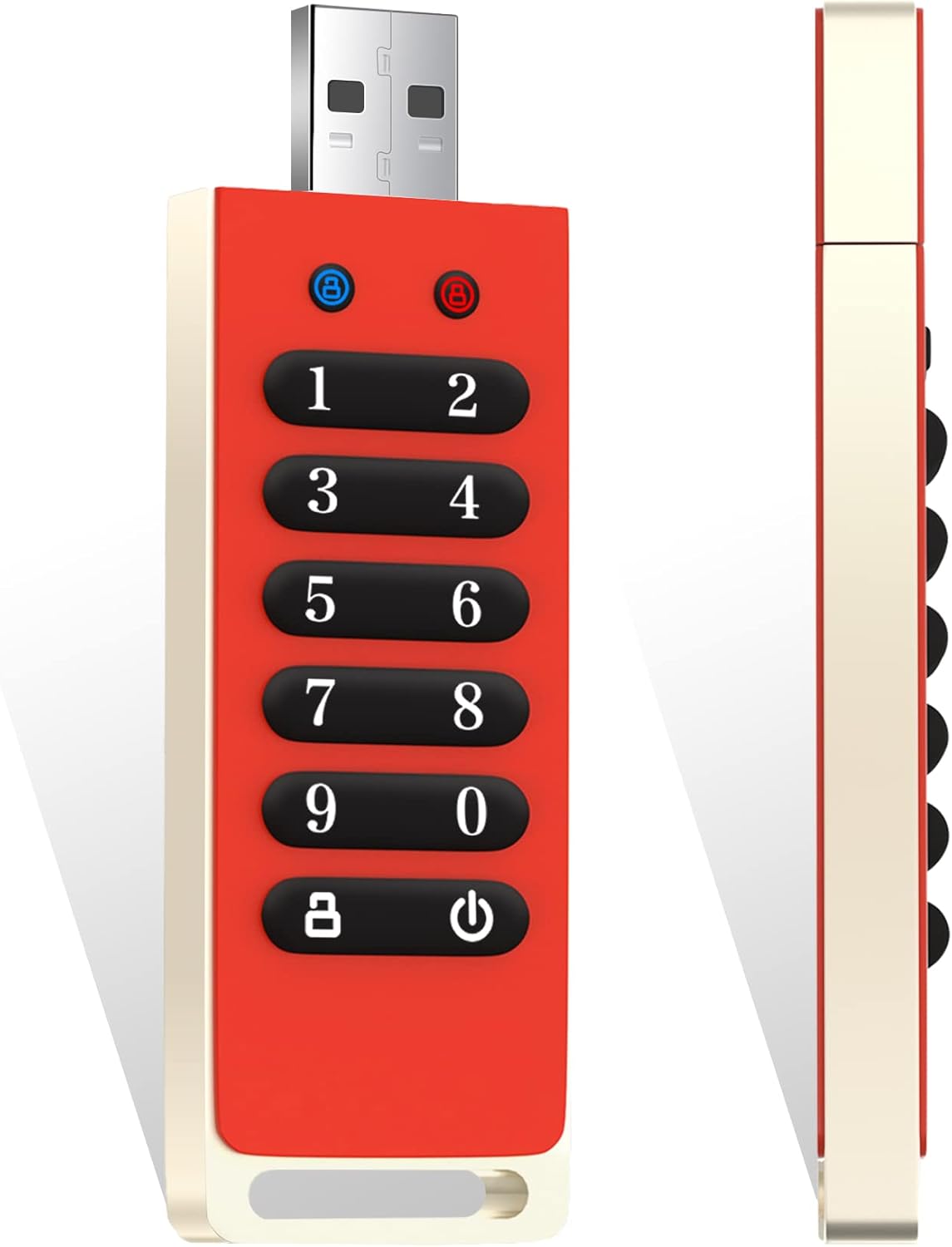
Figure 1: Front and side view of the INNPLUS Secure Flash Drive, highlighting its compact design and integrated numeric keypad for password entry.
This drive offers fast data transfer speeds, with writing speeds up to 160MB/s and reading speeds up to 480MB/s, utilizing the latest USB 3.0 interface. It is compatible with a wide range of operating systems including Windows, Mac, Linux, and various embedded systems, requiring no additional software or drivers for basic functionality.

Figure 2: Internal view of the flash drive, illustrating the 256-bit AES XTS hardware encryption for robust data security.
Specifications
| Feature | Detail |
|---|---|
| Brand | INNÔPLUS |
| Model Name | Secure Flash Drive |
| Memory Storage Capacity | 32 GB |
| Read Speed | Up to 480 MB/s |
| Write Speed | Up to 160 MB/s |
| Hardware Interface | USB 3.0 (USB Type A) |
| Connectivity Technology | USB |
| Color | Orange |
| Item Weight | 2.89 ounces |
| Product Dimensions (LxWxH) | 0.99 x 0.44 x 3.31 inches |
| Special Feature | Lightweight, Password Protected, Hardware Encryption |
| Batteries | 1 Lithium Polymer battery required (included) |
Setup and Operation
The INNPLUS Secure Flash Drive requires no software or drivers for operation. All security functions are managed directly on the device via its integrated keypad.
Initial Password Setup
Upon first use, the drive does not have a password set. Follow these steps to set your initial password:
- Press and hold the Key button (key icon) for approximately 5 seconds until both the green and red LEDs light up.
- Enter your desired new password. The password must be 6 to 14 digits long. Avoid consecutive or repeating digits for stronger security.
- Press the Key button again to confirm the first entry.
- The green and red LEDs will flash together. Re-enter the same new password to confirm.
- Press the Key button one more time.
- If the green LED flashes, your password has been successfully set. The drive is now locked.
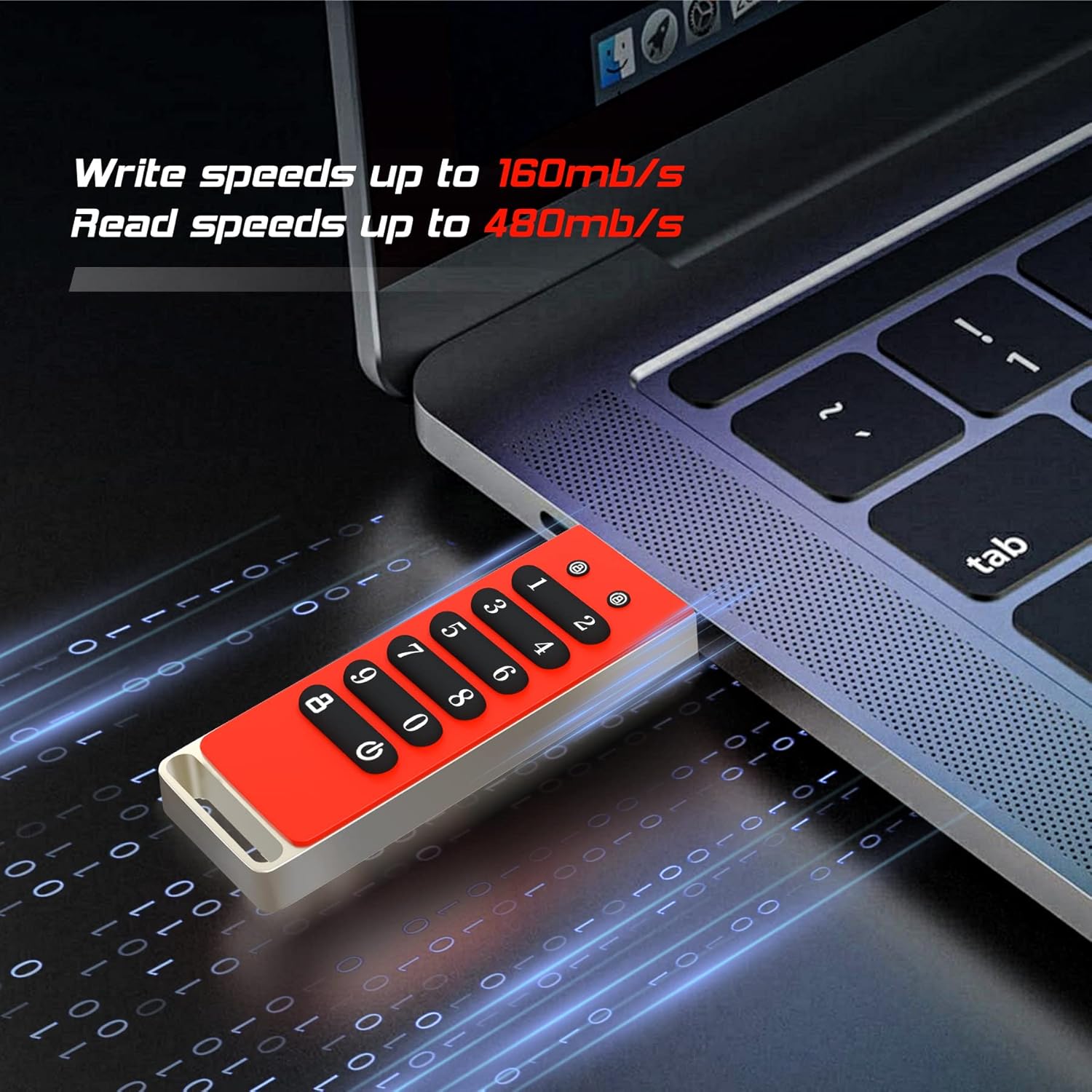
Figure 3: The flash drive connected to a laptop, ready for operation. All password management is done directly on the device's keypad.
Unlocking the Drive
To access your files, the drive must be unlocked. This can be done before or after plugging it into a USB port:
- Press the Key button once. The green and red LEDs will light up.
- Enter your current password.
- Press the Key button again.
- If the green LED flashes, the drive is successfully unlocked and ready for use. You can now plug it into your device if not already connected.
Locking the Drive
To secure your data after use, lock the drive:
- Press the Key button twice in quick succession.
- The red LED will blink, indicating that the drive is now locked and your data is protected.
Changing the Password
To change your existing password, first unlock the drive, then follow these steps:
- Ensure the drive is unlocked (green LED flashing).
- Press and hold the Key button for approximately 5 seconds until both the green and red LEDs light up.
- Enter your new desired password (6-14 digits).
- Press the Key button once.
- The green and red LEDs will flash together. Re-enter the new password to confirm.
- Press the Key button one more time.
- If the green LED flashes, your password has been successfully changed. The drive will automatically lock.
Compatibility
The INNPLUS Secure Flash Drive is designed for broad compatibility across various platforms without requiring specific drivers or software installations. It supports:
- Microsoft Windows operating systems
- Apple macOS operating systems
- Linux distributions
- Various embedded systems and devices with USB 3.0 or 2.0 ports.
Figure 4: Visual representation of the drive's powerful system compatibility across different operating systems.
Maintenance
To ensure the longevity and optimal performance of your INNPLUS Secure Flash Drive, please observe the following maintenance guidelines:
- Physical Care: Keep the drive clean and free from dust and debris. Avoid exposing it to extreme temperatures, direct sunlight, or excessive moisture. The zinc alloy and ABS shell is durable, but avoid dropping or subjecting it to strong impacts.
- USB Port Protection: Always insert and remove the drive carefully from USB ports to prevent damage to both the drive's connector and your device's port.
- Data Integrity: Regularly back up critical data stored on the drive to another secure location. While the drive offers robust security, no storage device is immune to all forms of data loss (e.g., physical damage, user error).
- Password Management: Keep your password confidential and do not share it. Consider storing a physical backup of your password in a secure, separate location.
Troubleshooting
If you encounter issues with your INNPLUS Secure Flash Drive, refer to the following common troubleshooting tips:
- Drive Not Recognized:
- Ensure the drive is properly unlocked before connecting it to your computer.
- Try connecting the drive to a different USB port on your computer.
- Test the drive on another computer to rule out a computer-specific issue.
- Ensure your operating system is up to date.
- Incorrect Password Attempts:
- If an incorrect password is entered 10 times consecutively, the drive will automatically restore to factory settings, and all data will be permanently erased for security purposes. This feature prevents brute-force attacks.
- There is no way to recover data once this reset occurs.
- Slow Transfer Speeds:
- Ensure you are using a USB 3.0 compatible port on your computer for optimal speeds. USB 2.0 ports will result in slower transfer rates.
- Large numbers of small files may transfer slower than a single large file of the same total size.
- Keypad Unresponsive:
- Ensure the drive has sufficient power. While typically powered by the USB port, internal battery issues could affect keypad responsiveness.
- If the issue persists, contact customer support.
Warranty and Support
The INNPLUS Secure Flash Drive comes with a 5-year warranty, covering manufacturing defects and ensuring reliable performance. For any technical assistance, warranty claims, or further inquiries, please contact INNPLUS customer support through the following channels:
- Online Support: Visit the official INNÔPLUS Store on Amazon for FAQs and contact options: INNÔPLUS Amazon Store
- Email Support: Refer to the product packaging or the INNÔPLUS Amazon store page for the most current email contact information.
- When contacting support, please have your product model number (Secure Flash Drive) and purchase details readily available.


