
Product Overview
The Delton S12 Ergonomic Vertical Wireless Mouse is designed for comfort and efficiency, promoting a natural hand and wrist posture. It features a 2.4GHz wireless connection, six buttons, and three adjustable DPI levels for precise control. This manual provides instructions for setup, operation, maintenance, and troubleshooting.

Image: The Delton S12 Ergonomic Vertical Wireless Mouse, showcasing its vertical design.
Setup
1. Unpacking
Carefully remove the mouse and its accessories from the packaging. Ensure all components are present: the Delton S12 Vertical Wireless Mouse and the USB dongle.
2. Battery Installation
The Delton S12 mouse requires two (2) AAA batteries (not included). Follow these steps to install them:
- Locate the battery compartment on the underside of the mouse.
- Gently slide open the battery compartment cover.
- Insert two AAA batteries, ensuring correct polarity (+/-).
- Close the battery compartment cover until it clicks securely into place.
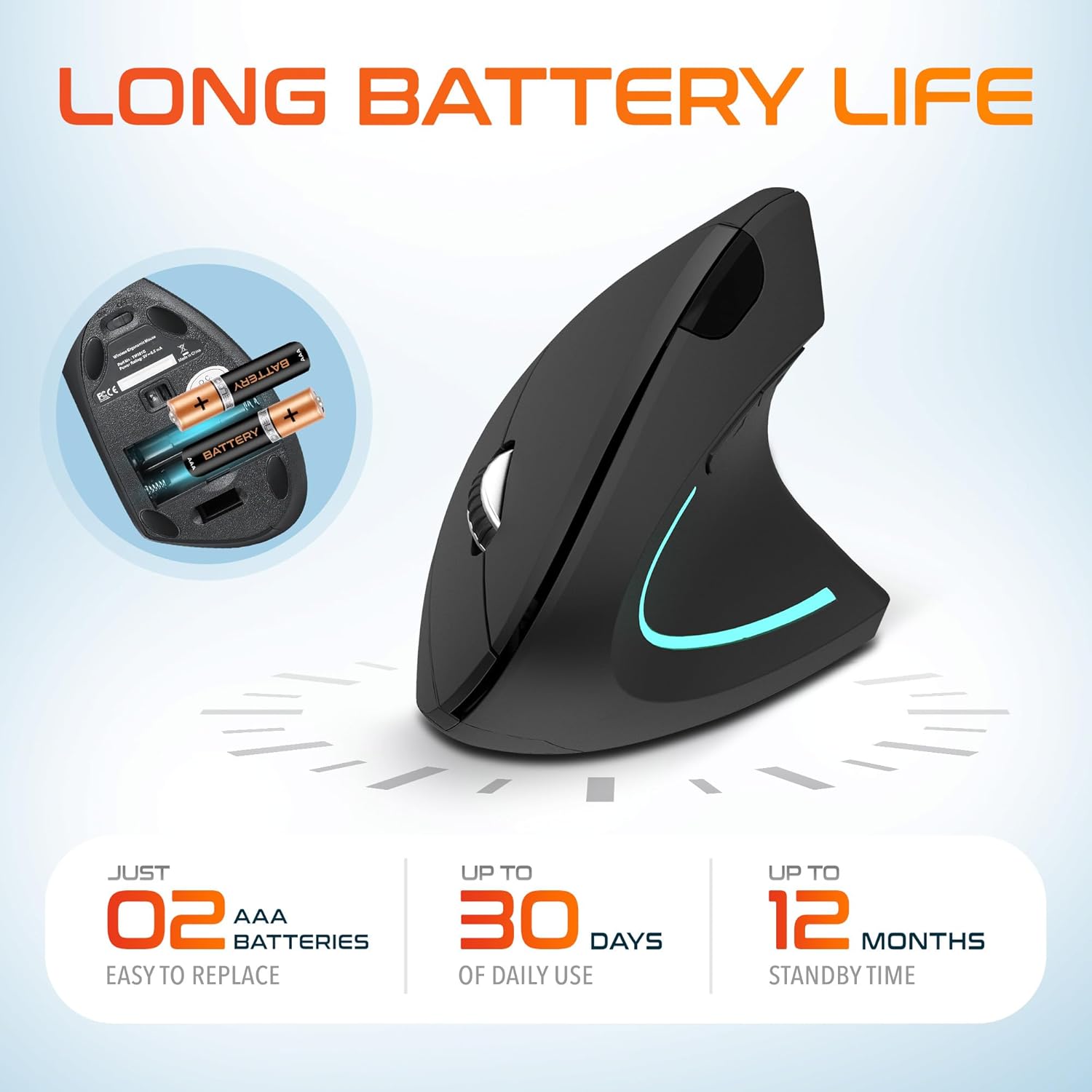
Image: The underside of the Delton S12 mouse with the battery compartment open, showing the correct placement for two AAA batteries.
3. Connecting the USB Dongle
The mouse connects wirelessly via a 2.4GHz USB dongle. No drivers are typically required for most operating systems.
- Remove the USB dongle from its storage slot, usually located near the battery compartment.
- Plug the USB dongle into an available USB port on your computer (PC, Laptop, Mac, Chromebook, etc.).
- The computer should automatically detect and install the necessary drivers. The mouse is ready for use once detected.

Image: The Delton S12 mouse positioned next to its USB dongle, ready for connection to a computer.
Operating Your Mouse
The Delton S12 mouse features six buttons and a scroll wheel for enhanced functionality.
1. Button Functions
- Left Click: Primary selection and activation button.
- Right Click: Accesses contextual menus.
- Scroll Wheel: Scrolls vertically through documents and web pages. Can also be clicked for middle-click functionality.
- DPI Switch Button: Adjusts cursor sensitivity (DPI).
- Forward Button: Navigates forward in web browsers or file explorers.
- Backward Button: Navigates backward in web browsers or file explorers.

Image: Diagram illustrating the location and function of the six buttons on the Delton S12 Ergonomic Vertical Wireless Mouse.
2. DPI Adjustment
The mouse offers three adjustable DPI levels (800, 1200, 2400) to suit different tasks and preferences. Press the DPI Switch Button (located behind the scroll wheel) to cycle through the settings. An indicator LED will change color to show the current DPI level:
- Blue LED: 800 DPI (Lower sensitivity, suitable for precise work)
- Red LED: 1200 DPI (Medium sensitivity, standard use)
- Green LED: 2400 DPI (Higher sensitivity, suitable for faster cursor movement)

Image: Close-up of the Delton S12 mouse showing the DPI indicator LED changing colors (blue, red, green) for different sensitivity settings.
Maintenance
1. Cleaning
To maintain optimal performance, regularly clean your mouse. Use a soft, dry cloth to wipe the surface. For stubborn dirt, a slightly damp cloth can be used, but ensure no moisture enters the internal components. Avoid harsh chemicals or abrasive cleaners.
2. Battery Replacement
When the mouse performance degrades or it stops responding, it's time to replace the batteries. Follow the battery installation steps outlined in the Setup section. Dispose of used batteries responsibly according to local regulations.
Troubleshooting
Mouse Not Responding:
- Ensure the mouse is powered on.
- Check if the batteries are correctly installed and have sufficient charge. Replace if necessary.
- Verify the USB dongle is securely plugged into a working USB port on your computer. Try a different USB port.
- Move the mouse closer to the USB dongle to ensure it's within the 30-foot operating range.
- Restart your computer.
Erratic Cursor Movement:
- Clean the optical sensor on the underside of the mouse with a soft, dry cloth.
- Ensure you are using the mouse on a suitable surface. Avoid highly reflective or transparent surfaces. A mouse pad is recommended.
- Check for interference from other wireless devices.
DPI Indicator Light Not Changing:
- Press the DPI switch button firmly. If the issue persists, ensure batteries are fresh.
Specifications
| Brand | Delton |
| Model Number | S12 |
| Connectivity Technology | 2.4GHz Wireless (USB Dongle) |
| Movement Detection Technology | Optical |
| DPI Levels | 800, 1200, 2400 |
| Number of Buttons | 6 |
| Hand Orientation | Right |
| Power Source | Battery Powered (2 x AAA batteries required) |
| Battery Average Life | Up to 30 days (daily use) |
| Wireless Range | Up to 30 feet |
| Compatible Devices | PC, Laptop, Mac, Chromebook, iOS devices |
| Operating System | Windows 11/10/9/8/7/XP, Mac OS 9/8/7, Linux, Chrome OS |
| Material | Plastic |
Warranty and Support
Warranty Information:
This Delton S12 Ergonomic Vertical Wireless Mouse comes with a 1-Year Manufacturer Warranty. This warranty covers defects in materials and workmanship under normal use. For warranty claims, please retain your proof of purchase.
Customer Support:
For technical assistance, troubleshooting, or any questions regarding your Delton S12 mouse, please contact Delton customer support. Refer to the product packaging or the official Delton website for the most current contact information.