
1. Product Overview
The Kittyhok KBR40T4 is a comprehensive wireless outdoor security camera system designed for home surveillance. It features 360° pan and tilt capabilities, 2K clarity video recording, color night vision, and operates on a WiFi 6 NVR with local storage. This system is solar-powered, offering an energy-efficient and hassle-free solution for monitoring your property without the need for monthly subscription fees.
This manual provides detailed instructions for setting up, operating, and maintaining your Kittyhok KBR40T4 security camera system to ensure optimal performance and longevity.
2. What's in the Box
Upon unboxing your Kittyhok KBR40T4 system, verify that all the following components are included:
- 1 x WiFi Security Video Recorder (NVR)
- 4 x Wire-Free Security Camera with Solar Panel
- 1 x HDMI Cable (1.5m)
- 1 x Ethernet Cable (1m)
- 1 x NVR Power Adapter
- 1 x USB Mouse
- 1 x User Manual
- 4 x Screw Package (for mounting)
- 2 x Type-C Cable (for manual camera charging)
- Pre-installed 64GB SD Card (in NVR)

Image: All components included in the Kittyhok KBR40T4 Solar Security Camera System package.
Video: An unboxing and overview of the Kittyhok WiFi NVR Security System components.
3. Product Features
3.1 Camera Features
- 2K HD Video: Crystal-clear 2K (1440p) resolution for detailed surveillance.
- 360° Pan & Tilt: Motorized horizontal (355°) and vertical (90°) movement for comprehensive coverage.
- Color Night Vision: Enhanced visibility in low-light conditions with color imaging.
- Solar Powered: Integrated solar panel for continuous charging, reducing manual intervention.
- Two-Way Audio: Built-in microphone and speaker for communication.
- Human Detection & Alerts: Instant motion alerts to your phone with intelligent human detection.
- Spotlight & Siren: Integrated bright spotlight and siren to deter intruders.
- Waterproof Design: IP66 rated for outdoor use in various weather conditions.

Image: Detailed view of the camera's components, including the 2K lens, infrared lights, and sensors.

Image: Illustration of the camera's 360° panoramic viewing capability.
Video: A demonstration of the Kittyhok Solar PT Security Camera's 360-degree pan and tilt functionality.
3.2 NVR Features
- WiFi 6 & Dual-Band Connectivity: Supports 2.4GHz and 5GHz for faster, stronger, and longer-range wireless connections.
- Local Storage: Built-in 64GB microSD card (expandable up to 256GB) and support for up to 6TB HDD for extensive local video storage without subscription fees.
- Expandable System: Supports up to 10 channels, allowing for additional cameras.
- Easy Setup: NVR and cameras come pre-paired for quick installation.
- Remote Access: View live feeds and recordings from anywhere via the Kittyhok app.

Image: The NVR unit showcasing its WiFi 6 and dual-band capabilities.
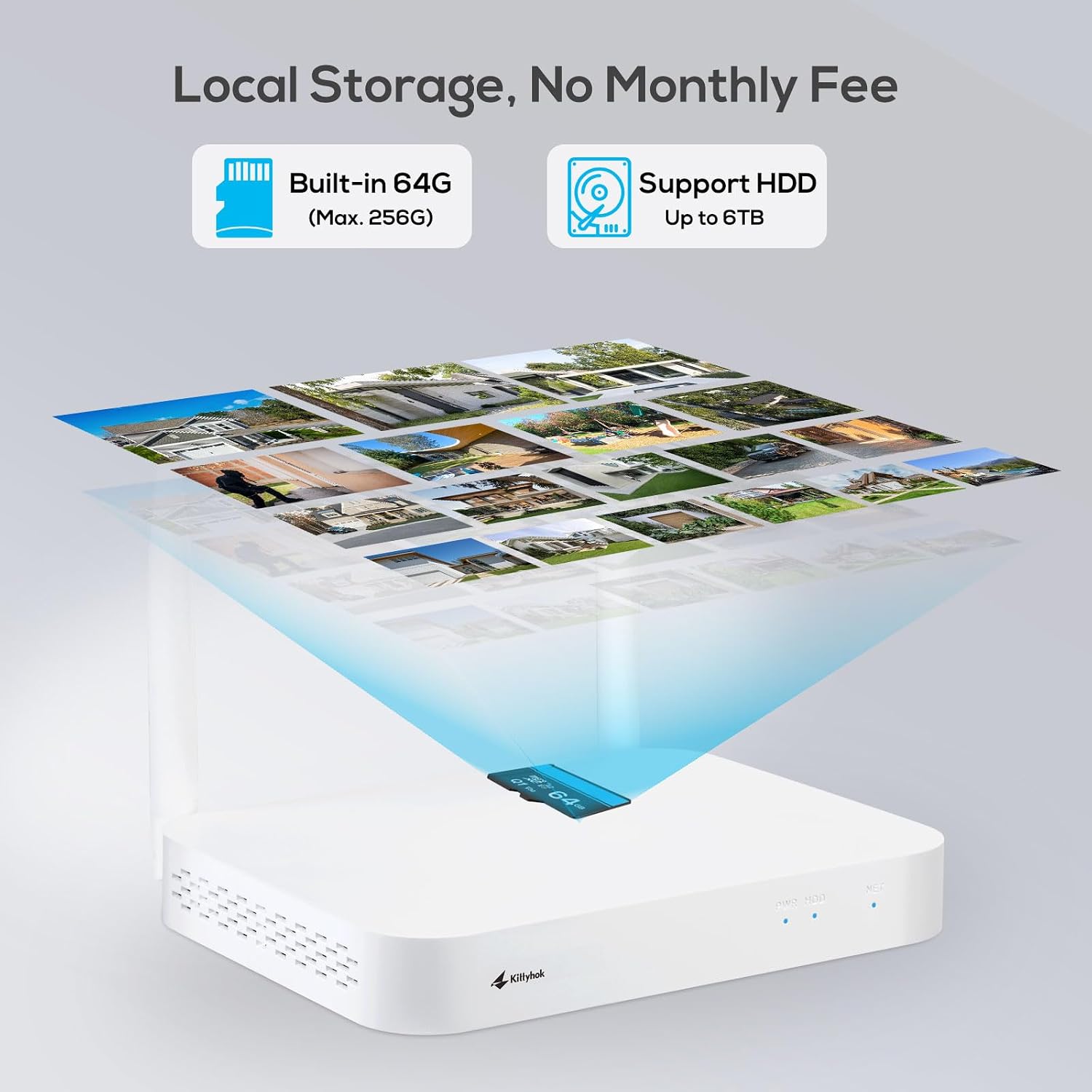
Image: The NVR's local storage features, highlighting the built-in SD card and HDD support.
4. Setup Guide
4.1 NVR Connection
- Connect the NVR to power using the included power adapter.
- Connect the USB mouse to the NVR's USB port.
- Connect the NVR to a PC monitor or TV using the HDMI cable. This is required for initial setup.
- Follow the on-screen instructions on the monitor/TV to complete the initial setup, including network settings. You can connect the NVR to your router via an Ethernet cable or wirelessly via Wi-Fi.

Image: NVR connection diagram for initial setup.
4.2 Camera Installation
The cameras and NVR are pre-paired for convenience. Ensure cameras are fully charged before mounting.
- Choose a mounting location for each camera. The camera distance from the NVR can reach up to 1300 ft wirelessly in line of sight. Avoid placing near high voltage wires or other sources of electrical interference.
- Install the camera 2-3 meters (7-10 ft) above the ground to maximize motion detection range.
- For dome cameras, install them upside down for better waterproof performance and motion sensor efficiency.
- For optimal motion detection, install the camera at an angle.
- Use the provided screw packages and mounting brackets to secure the camera and solar panel. The solar panel's bracket allows for vertical or horizontal adjustment to capture maximum sunlight.
- Turn on the power switch on each camera.
- Bring cameras to desired mounting locations, power them on, and go back to the NVR screen. Wait 5 minutes to see if they stream fluently.

Image: Example of a camera and solar panel mounted on a wall.

Image: Guidelines for optimal NVR and camera placement for wireless signal.
Video: A detailed walkthrough of the user manual, including setup and installation steps.
5. Operation
5.1 Recharging Cameras
It is recommended to fully recharge the camera before installation. The solar panels provide continuous power, but manual charging may be necessary if the battery level is low due to insufficient sunlight or high activity.
- To charge cameras, use 5V 1A or 2A DC phone chargers (not included) and the provided Type-C cables.
- The indicator light on the camera blinks green while charging and turns solid green when fully charged.
- Charging typically takes 4-6 hours for a full charge.
- Please charge the battery at room temperature to avoid damage.

Image: Illustration of how to manually recharge the camera.
5.2 Accessing Your System via Smartphone
The Kittyhok app allows you to view live feeds, recordings, and control your cameras remotely.
- Download and install the "Kittyhok" app from the App Store (iOS) or Google Play Store (Android).
- Launch the app, register a user account, and log in.
- In the app, tap the "+" button and then "Scan" to scan the QR code on the NVR. Follow the on-screen instructions to add the NVR. The QR code can also be found in the NVR's System settings > Download the App.

Image: Steps to connect the NVR to the Kittyhok smartphone app.

Image: Remote viewing of multiple camera feeds on a smartphone.
5.3 Accessing Your System via PC/Mac
You can also access your security system from a computer.
- Download and install the CMS (Central Management Software) on your computer from kittyhok.com/pages/download.
- Log in with your phone app user account; your system will automatically sync to the CMS.
- You can also add your system to the CMS Client with Cloud ID manually.

Image: Kittyhok CMS software for PC/Mac showing live camera feeds.
5.4 Camera Control
- Pan & Tilt: Use the controls in the smartphone app to remotely adjust the camera's viewing angle (355° horizontal, 90° vertical).
- Two-Way Audio: Utilize the intercom feature in the app to speak to individuals near the camera.
- Alarm Trigger: Manually trigger the camera's alarm (spotlight and siren) for 15 seconds via the app to deter intruders. This can be disabled at any time.

Image: Using the two-way audio feature via the smartphone app.

Image: Human detection and instant alerts with spotlight and siren activation.
6. Maintenance
- Solar Panel Cleaning: Regularly clean the solar panels to ensure maximum sunlight absorption and efficient charging. Dust, dirt, or debris can reduce charging effectiveness.
- Battery Health: While solar-powered, the cameras contain batteries. If the camera is in an area with limited sunlight, occasional manual charging may be required. Ensure batteries are charged at room temperature.
- Firmware Updates: Check the Kittyhok app or website for any available firmware updates for your NVR and cameras to ensure optimal performance and security.
- Physical Inspection: Periodically inspect cameras and mounts for any signs of wear, damage, or loose connections, especially after severe weather.
7. Troubleshooting (Frequently Asked Questions)
7.1 Why cannot I see continuous live video on the monitor?
Because the cameras automatically enter standby mode to save power. As a thermal detection security system powered with solar and batteries, the system works when activities are detected and standby when there is no activity.
7.2 Does the system have to be connected to a monitor all the time?
Not really. Connecting the NVR to your TV or monitor enables you to enter the NVR's menu. It is necessary for the initial setup. After completing the initial setup, your NVR does not need to be connected to a TV or monitor to view or capture recordings. If you are using a TV, you can switch the signal source to TV programs and switch back to this HDMI connection while needed.
7.3 Does the battery/solar cameras record 24/7?
No, by default. All solar/battery-powered security cameras record motion-triggered activities only. If you need 24/7 cameras, please go for Wi-Fi security camera systems with plug-in power. You can also plug this camera to power with a 5V DC phone charger, then switch to Continuous Recording Mode to make it work 24/7.
7.4 Why my cameras run out of batteries fast?
- Make sure to fully recharge your cameras before you mount them. It should take 4-6 hours to fully charge them.
- When you are using a solar panel as the power source, make sure the camera is in Event Record Mode. If you want the cameras to work in Continuous Record Mode, plug the cameras to wall outlets with 5V power chargers.
- Make sure your solar panel is properly installed to obtain solar power.
7.5 Do I have to use the cameras with solar panels?
No, you can use the cameras without solar panels. The cameras' batteries last 45-120 days depending on how often they are activated. You will need to take the cameras down for recharge. With solar panels, they replenish power to batteries every day. It saves the troubles to take cameras down for recharge.
8. Specifications
| Feature | Detail |
|---|---|
| Model Name | KBR40T4 |
| Video Capture Resolution | 2K (1440p) |
| Pan & Tilt Coverage | 355° Horizontal, 90° Vertical |
| Connectivity Technology | Wireless (WiFi 6, Dual-Band 2.4G/5G) |
| Power Source | Solar Powered |
| Local Storage | 64GB Micro SD (up to 256GB), supports up to 6TB HDD |
| Night Vision Range | 65 Feet |
| Water Resistance Level | IP66 Waterproof |
| Compatible Devices | Amazon Alexa, Smartphone (Android/iOS), Kittyhok NVR, Kittyhok(Pro) APP |
| Item Weight | 7.72 Pounds |
| Product Dimensions | 12.99 x 6.69 x 12.6 inches |
9. Warranty and Support
- 1-Year Warranty: Kittyhok offers a 1-year warranty for product replacement, not repair.
- 30-Day Money Back Guarantee: Enjoy a 30-day money-back guarantee from the date of purchase.
- 24/7 Online Support: Dedicated 1-to-1 online support is available for any technical assistance or inquiries.
- No Monthly Fees: The system operates without any hidden monthly fees for local storage.
For further assistance, please visit the official Kittyhok website or contact their customer support.


