
Kedok C202
Kedok C202 Photo, NameCard, Slide & Negative Scanner User Manual
Model: C202 | Brand: Kedok
1. Introduction
This manual provides detailed instructions for the operation and maintenance of your Kedok C202 Photo, NameCard, Slide & Negative Scanner. This device is designed to convert various physical media, including 35mm and 110 film, 135 film slides, 3R, 4R, 5R photos, and business cards, into high-resolution 22-megapixel digital JPEG files. Featuring a large 5-inch LCD screen, it allows for easy previewing and sharing of digitized content without the need for a computer. Please read this manual thoroughly before using the scanner to ensure proper function and longevity of the product.
2. Safety Information
To ensure safe operation and prevent damage, please observe the following safety guidelines:
- Do not expose the scanner to water or excessive moisture.
- Avoid placing the scanner in direct sunlight or near heat sources.
- Use only the provided power adapter and USB cable.
- Keep the scanner away from strong magnetic fields.
- Do not attempt to disassemble or repair the unit yourself. Refer all servicing to qualified personnel.
- Ensure proper ventilation around the device during operation.
- Keep out of reach of children.
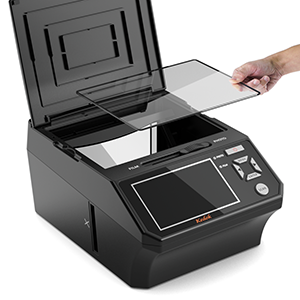
- Always remove the acetate protective sheet from the photo plate before use to ensure optimal scan quality.
3. Package Contents
Verify that all items listed below are included in your package:
- Kedok C202 Film & Photo Scanner
- USB Data Cable
- Power Adapter
- 8GB SD Card
- Cleaning Cloth
- Cleaning Brush
- 135 Negative Film Holder
- 135 Positive Slide Holder
- 110 Film Holder
- Photo Holder (5"x7" (5R), 4"x6" (4R), 3.5"x5" (3R))
- Business Card Holder
- Instruction Manual
- Three-year Warranty Card

4. Product Overview
Familiarize yourself with the main components and controls of your scanner.
4.1 Front and Top View

- A. 5-inch LCD Display: Large, crystal-clear screen for previewing scans and navigating menus.
- B. Photo Tray: Area for placing physical photos for scanning.
- C. Film/Photo Selector Switch: Slide to choose between film or photo scanning modes.
- D. Control Buttons: Power, Menu, Navigation (Up/Down/Left/Right), Enter, and Scan buttons.
- E. Film Slot: Insert film holders here for scanning negatives and slides.
4.2 Side View and Ports

- F. SD/MMC Card Slot: Insert the included 8GB SD card or another compatible SD/SDHC card (up to 32GB) for saving scanned images.
- G. USB Port: Connect the scanner to a computer for data transfer or power.
5. Setup
Follow these steps to set up your Kedok C202 scanner for first use:
- Unpack the Scanner: Carefully remove all components from the packaging.
- Insert SD Card: Locate the SD/MMC card slot on the side of the scanner. Insert the included 8GB SD card firmly until it clicks into place. Ensure the card is inserted in the correct orientation.
- Connect Power: Connect the USB data cable to the scanner's USB port and the power adapter. Plug the power adapter into a standard electrical outlet.
- Power On: Press the Power button on the control panel to turn on the scanner. The 5-inch LCD display will illuminate.
- Remove Protective Film: If scanning physical photos, gently remove the clear acetate protective sheet from the photo plate on the top of the scanner. This is crucial for clear photo scans.

6. Operating Instructions
The Kedok C202 scanner offers versatile scanning options for various media types.
6.1 Selecting Scan Mode
Use the FILM/PHOTO selector switch located on the top of the scanner to choose your desired scanning mode:

- PHOTO Mode: For scanning physical photos (3R, 4R, 5R) and business cards.
- FILM Mode: For scanning 35mm and 110 negative films, and 135 positive slides.
6.2 Scanning Photos and Business Cards
- Slide the selector switch to PHOTO mode.
- Open the top lid of the scanner.
- Place your photo or business card onto the photo plate. For photos, use the appropriate photo holder (3R, 4R, or 5R) to ensure proper alignment. For business cards, use the dedicated business card holder.
- Close the lid. The image will appear on the 5-inch LCD display.
- Use the MENU button to access settings such as color, brightness, and resolution. Use the navigation buttons to adjust and ENTER to confirm.
- Press the SCAN button to capture the image. The scanned image will be saved to the inserted SD card.

6.3 Scanning Films and Slides
- Slide the selector switch to FILM mode.
- Select the appropriate film holder for your media: 135 Negative Film Holder, 135 Positive Slide Holder, or 110 Film Holder.
- Insert your film or slides into the chosen holder. Ensure they are properly seated and flat.
- Insert the loaded film holder into the film slot on the side of the scanner.
- The image will appear on the 5-inch LCD display.
- Use the MENU button to access settings such as film type (color negative, B&W negative, slide), color, brightness, and resolution. Use the navigation buttons to adjust and ENTER to confirm.
- Press the SCAN button to capture the image. The scanned image will be saved to the inserted SD card.

6.4 Transferring Files to Computer
You can transfer scanned files to your computer using the USB cable or by directly accessing the SD card.
6.4.1 Via USB Cable:
- Connect the scanner to your computer using the provided USB cable.
- Turn on the scanner. It will be recognized as a mass storage device.
- Access the scanner's internal memory or the SD card via your computer's file explorer and copy the JPEG files.
6.4.2 Via SD Card:
- Safely eject the SD card from the scanner.
- Insert the SD card into your computer's SD card reader (or an external card reader).
- Access the card via your computer's file explorer and copy the JPEG files.
7. Maintenance
Regular cleaning ensures optimal performance and extends the lifespan of your scanner.
7.1 Cleaning the Scanner
- Exterior: Wipe the exterior of the scanner with a soft, dry cloth. Do not use liquid cleaners or abrasive materials.
- Photo Plate: Use the provided cleaning cloth to gently wipe the photo plate. For stubborn dust or smudges, slightly dampen the cloth with water, then dry thoroughly. Ensure no moisture enters the device.
- Film Slot and Lens: Use the provided cleaning brush to carefully remove dust and debris from the film slot and the internal lens area. Avoid touching the lens directly with your fingers.
7.2 Storage
When not in use, store the scanner in a cool, dry place, away from direct sunlight and extreme temperatures. Keep it covered to prevent dust accumulation.
8. Troubleshooting
If you encounter issues with your scanner, refer to the table below for common problems and their solutions.
| Problem | Possible Cause | Solution |
|---|---|---|
| Scanner does not power on. | Power adapter not connected or faulty. | Ensure power adapter is securely connected to the scanner and a working power outlet. Try a different outlet. |
| Scanned images are blurry or scratched. | Protective film still on photo plate; dirty photo plate/lens; scratched photo plate. | Remove the clear protective sheet from the photo plate. Clean the photo plate and lens with the provided cleaning cloth/brush. If the plate is scratched, contact customer support. |
| SD card not recognized. | SD card not inserted correctly; incompatible SD card; faulty SD card. | Reinsert the SD card, ensuring correct orientation and a firm click. Use a compatible SD/SDHC card (up to 32GB). Try a different SD card. |
| Cannot transfer files to computer. | USB cable not connected properly; computer driver issue. | Ensure USB cable is securely connected to both scanner and computer. Try a different USB port. Restart computer. |
| Image quality is poor (color/brightness). | Incorrect settings; original media quality. | Adjust color, brightness, and resolution settings via the MENU button before scanning. Ensure original media is clean and in good condition. |
9. Specifications
| Feature | Detail |
|---|---|
| Model Name | Photo,NameCard,Slide & Negative Scanner |
| Model Number | C202 |
| Brand | Kedok |
| Scanner Type | Film, Photo, Business Card, Negative |
| Display | 5-inch LCD Screen |
| Resolution | 22 Megapixels (Interpolated), 4800 DPI (Optical) |
| Supported Film Types | 35mm Negatives, 110 Film, 135 Slides |
| Supported Photo Sizes | 3R (3.5"x5"), 4R (4"x6"), 5R (5"x7") |
| Internal Memory | 128MB |
| External Storage | SD/SDHC Card (up to 32GB, 8GB included) |
| Connectivity | USB |
| Product Dimensions | 9.5 x 7.9 x 5.1 inches (24.1 x 20.1 x 13 cm) |
| Item Weight | 4.85 pounds (2.2 kg) |
| Minimum System Requirements | Windows 7 |
10. Warranty and Support
Your Kedok C202 scanner comes with a Three-year Warranty Card. Please refer to the card for specific terms and conditions.
For technical support, troubleshooting assistance, or warranty claims, please contact Kedok customer service. We provide 24-hour online technical support.
For the most up-to-date contact information, please refer to the warranty card included in your package or visit the official Kedok website.
Ask a question about this manual
Ask about setup, troubleshooting, compatibility, parts, safety, or missing instructions. Manuals+ will review the question and use this page’s manual context to help answer it.