1. Introduction
This manual provides detailed instructions for the installation, operation, and maintenance of your MSI GeForce RTX 4070 VENTUS 2X 12G OC graphics card. This high-performance graphics card is built with the NVIDIA Ada Lovelace architecture, offering advanced features for gaming and creative applications, including fast ray tracing and AI-accelerated performance with DLSS 3.
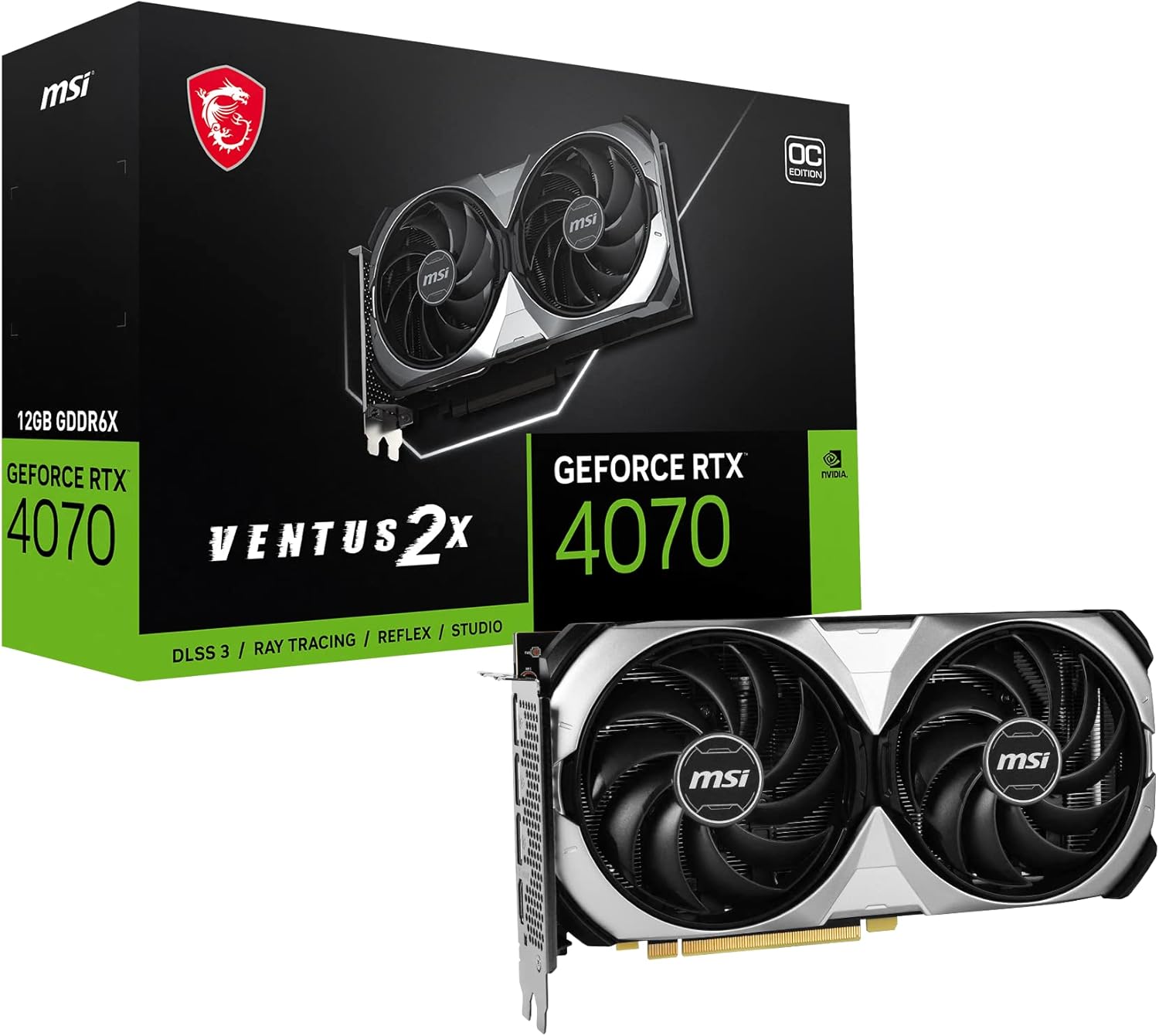
Figure 1.1: MSI GeForce RTX 4070 VENTUS 2X 12G OC Graphics Card and its retail packaging.
2. What's in the Box
Verify that all items are present in your product package:
- MSI GeForce RTX 4070 VENTUS 2X 12G OC Graphics Card
- Quick Setup Guide
3. Product Overview
The MSI GeForce RTX 4070 VENTUS 2X 12G OC features a robust design optimized for performance and thermal efficiency.
3.1. Key Components
- Dual TORX Fan 4.0 Cooling System: Features two powerful fans designed for efficient heat dissipation and quiet operation.
- Copper Baseplate: Directly contacts the GPU and memory modules to capture heat effectively.
- Core Pipes: Precision-crafted heat pipes maximize contact with the GPU baseplate to spread heat along the heatsink.
- Silencing Heatsink Design: Airflow Control with Wave Curve 2.0, updated deflectors, and Air Antegrade fin design for optimized cooling and reduced noise.
- Effective Thermal Padding: Clay-based thermal pads provide additional heat dissipation for board components.
- Reinforcing Backplate: A flow-through design enhances ventilation and protects the card.
- Output Ports: Includes 3x DisplayPort 1.4a and 1x HDMI 2.1 for versatile display connectivity.
3.2. Visual Reference

Figure 3.1: Front view of the graphics card, showcasing the dual TORX fans.

Figure 3.2: Side view of the graphics card, showing the heatsink fins and power connector location.

Figure 3.3: Rear view of the graphics card, highlighting the protective backplate.

Figure 3.4: Display output ports, including HDMI and DisplayPort connectors.
3.3. Cooling System Details

Figure 3.5: TORX Fan 4.0 design, featuring pairs of fan blades bound together to focus airflow.

Figure 3.6: Copper Baseplate design, showing direct contact with GPU and memory for efficient heat capture.

Figure 3.7: Core Pipes illustration, demonstrating how heat is spread along the heatsink.

Figure 3.8: Silencing Heatsink Design, showing airflow control for balanced cooling and acoustics.

Figure 3.9: Illustration of clay-based thermal pads providing additional heat dissipation.

Figure 3.10: Fan operation diagram, indicating fans stop at low temperatures for silent operation and restart under load.
4. Setup and Installation
Follow these general steps to install your graphics card. Always refer to your motherboard's manual for specific PCIe slot information.
- Prepare Your System: Power off your computer and unplug all cables. Open your PC case.
- Locate PCIe Slot: Identify an available PCIe x16 slot on your motherboard.
- Remove Slot Covers: Remove the necessary expansion slot covers from your PC case.
- Insert Graphics Card: Carefully align the graphics card with the PCIe slot and press down firmly until it is securely seated. Ensure the retention clip on the PCIe slot locks into place.
- Secure Card: Use screws to secure the graphics card to the PC case.
- Connect Power: Connect the appropriate power cables from your power supply unit (PSU) to the graphics card's power connectors. The MSI GeForce RTX 4070 VENTUS 2X 12G OC typically requires an 8-pin power connector.
- Close Case: Close your PC case and reconnect all cables.
- Install Drivers: Power on your computer. Once the operating system loads, install the latest graphics drivers from the official NVIDIA or MSI website.
5. Operating Instructions
After successful installation, your graphics card is ready for use. To optimize performance and manage features, consider using MSI's dedicated software.
5.1. Driver Installation
Always install the latest graphics drivers for optimal performance and stability. Visit the official NVIDIA website (www.nvidia.com/drivers) and select your graphics card model to download the most recent drivers.
5.2. MSI Center
MSI Center is a utility that helps you get the most out of your MSI products. It allows you to monitor, tweak, and optimize your system in real-time. Features include Mystic Light for RGB lighting control and system performance adjustments.

Figure 5.1: MSI Center software interface for system monitoring and optimization.
5.3. MSI Afterburner
MSI Afterburner is a widely recognized graphics card overclocking software. It provides comprehensive control over your graphics card, allowing you to monitor key system metrics in real-time and adjust clock speeds, voltage, and fan performance. It is compatible with most graphics cards.

Figure 5.2: MSI Afterburner software interface for advanced graphics card control.
5.4. Product Videos
The following videos provide additional visual information about the graphics card:
Video 5.1: An overview of the MSI GeForce RTX 4070 VENTUS 2X graphics card, highlighting its physical features and design.
Video 5.2: A closer look at the MSI GeForce RTX 4070's features, including its 12GB GDDR6X memory and cooling capabilities.
6. Maintenance
Proper maintenance ensures the longevity and optimal performance of your graphics card.
- Regular Cleaning: Periodically clean dust from the fans and heatsink using compressed air. Ensure the system is powered off and unplugged before cleaning.
- Driver Updates: Keep your graphics drivers updated to benefit from performance improvements and bug fixes.
- Monitor Temperatures: Use monitoring software (like MSI Afterburner) to keep an eye on GPU temperatures, especially during heavy loads, to prevent overheating.
7. Troubleshooting
If you encounter issues with your graphics card, try the following troubleshooting steps:
- No Display Output:
- Ensure the monitor cable is securely connected to both the graphics card and the monitor.
- Verify the graphics card is fully seated in the PCIe slot.
- Check that all necessary power connectors are plugged into the graphics card.
- Test with a different display cable or monitor if possible.
- System Instability/Crashes:
- Ensure graphics drivers are up-to-date. Consider performing a clean installation of drivers.
- Monitor GPU temperatures. Excessive heat can cause instability.
- If overclocked, revert to default settings to check for stability.
- Ensure your PSU provides sufficient wattage for the graphics card.
- Poor Performance:
- Verify that your system meets the minimum requirements for the applications or games you are running.
- Check for background applications consuming system resources.
- Ensure the graphics card is running at its expected clock speeds (monitor with MSI Afterburner).
8. Specifications
| Feature | Detail |
|---|---|
| Chipset | GeForce RTX 4070 |
| Video Memory | 12GB GDDR6X |
| Memory Interface | 192-bit |
| Extreme Clock | 2520 MHz |
| Output Ports | DisplayPort x 3 (v1.4a) / HDMI 2.1 x 1 |
| Max Digital Resolution | 7680 x 4320 |
| Series | VENTUS 2X |
| Item Model Number | RTX 4070 VENTUS 2X 12G OC |
| Item Weight | 2.1 pounds |
| Product Dimensions (LxWxH) | 9.5 x 4.9 x 0.1 inches |
9. Warranty and Support
For warranty information and technical support, please refer to the official MSI website or contact MSI customer service. Keep your proof of purchase for warranty claims.
MSI Official Website: www.msi.com


