
STRONG SRT420
STRONG SRT420 Android TV Receiver User Manual
Model: SRT420
1. Introduction
The STRONG SRT420 is a versatile 2-in-1 Smart TV Box, combining Android TV functionality with a DVB-T2 terrestrial receiver. This device allows you to stream content from popular services like Netflix, Prime Video, Hulu, and YouTube in stunning 4K resolution, access a wide range of apps via Google Play, and receive digital terrestrial television broadcasts. It features built-in Chromecast for easy content sharing and voice control for intuitive operation.
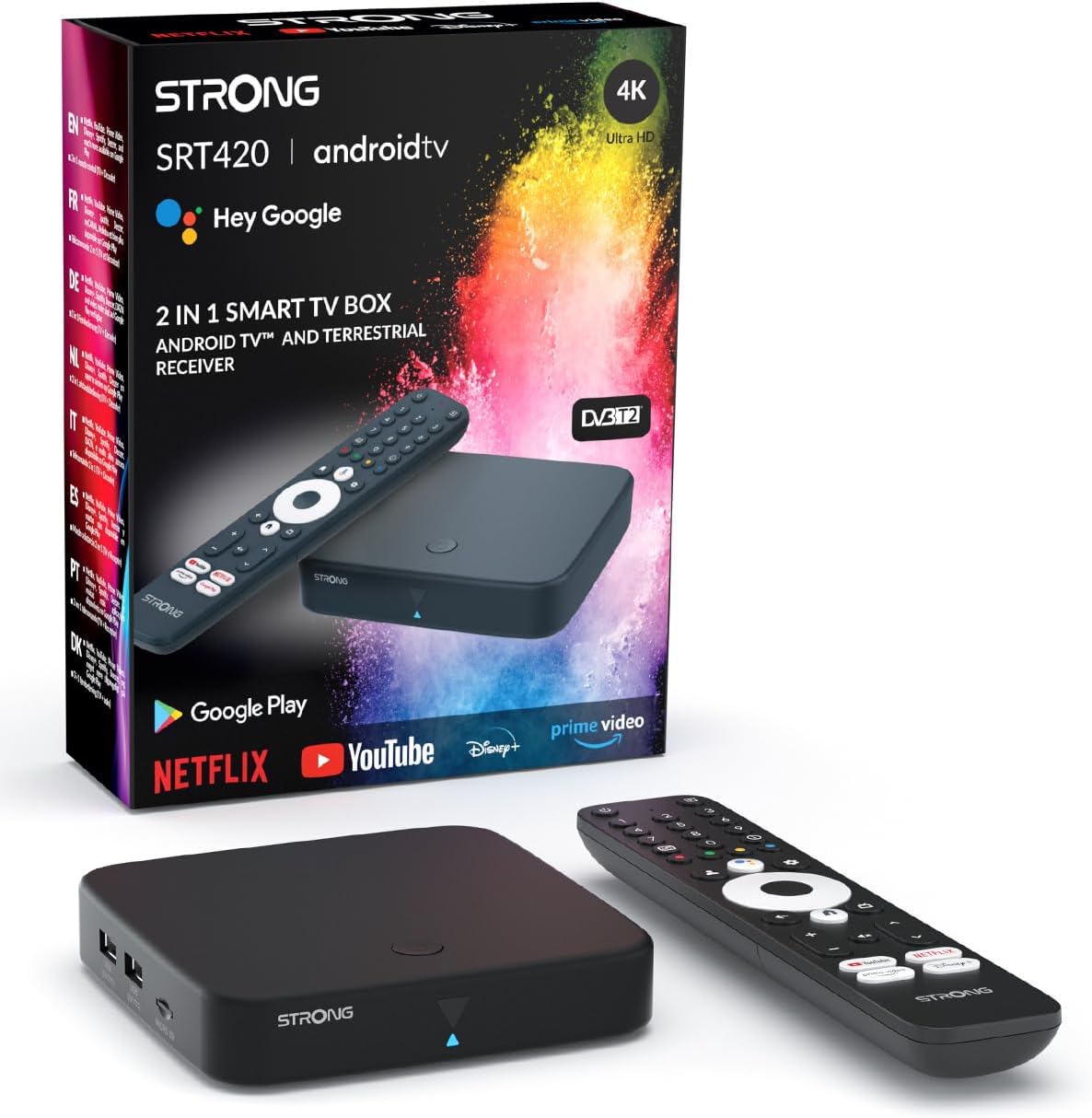
Image: The STRONG SRT420 Android TV Receiver, its remote control, and product packaging.
2. What's in the Box
Please check the package contents carefully. If any items are missing or damaged, contact your retailer.
- Android TV Box (SRT420)
- Voice-controlled Remote Control
- Power Adapter (12V / 1A)
- HDMI Cable
- 2x AAA Batteries (for remote control)
- User Manual (this document)
3. Setup Guide
3.1 Connecting Your Device
Follow these steps to connect your SRT420 to your television and power source.
- Connect to TV: Use the provided HDMI cable to connect the HDMI port on the SRT420 to an available HDMI input on your television.
- Connect to Power: Plug the power adapter into the DC 12V/1A port on the SRT420 and then into a wall outlet.
- Connect Antenna (for DVB-T2): If you intend to use the DVB-T2 terrestrial receiver, connect your DVB-T2 antenna to the 'ANT IN' port on the SRT420.
- Connect to Network (Optional): For a wired internet connection, connect an Ethernet cable from your router to the LAN port on the SRT420. For wireless connection, you will configure Wi-Fi during the initial setup.
- Insert Batteries: Open the battery compartment on the remote control and insert the two AAA batteries, ensuring correct polarity.

Image: Rear view of the SRT420 showing antenna, digital audio, HDMI, RJ45, power, USB, and Micro-SD ports.
3.2 Initial Configuration
Once connected, turn on your TV and select the correct HDMI input. The SRT420 will guide you through the initial setup process.
- Language Selection: Choose your preferred language from the on-screen options.
- Google Account Setup: Sign in with your Google account. This is required to access Google Play Store, YouTube, and other Google services. If you don't have one, you can create one.
- Network Connection: Select your Wi-Fi network and enter the password, or confirm your wired connection.
- Google Assistant Setup: Follow the prompts to set up Google Assistant for voice control.
- App Installation: The system may prompt you to install essential apps like Netflix, Prime Video, and YouTube.
- DVB-T2 Channel Scan: If an antenna is connected, the device will guide you through scanning for available DVB-T2 channels.
Image: Visual guide for easy operation: 1. Connect to TV, 2. Connect to internet, 3. Start streaming.
4. Operating Instructions
4.1 Navigating Android TV
The Android TV interface is designed for easy navigation using the provided remote control. Use the directional pad to move between options and the 'OK' button to select.
- Home Screen: Displays recommended content, installed apps, and settings.
- Apps: Access all your installed applications.
- Settings: Configure network, display, sound, accounts, and device preferences.
4.2 Voice Control with Google Assistant
The SRT420 features a voice-controlled remote. Press the Google Assistant button on your remote and speak your commands.
- "Open Netflix"
- "Search for action movies"
- "Play music"
- "What's the weather?"

Image: The SRT420 streaming box and remote, with a TV screen displaying the Google Assistant interface and app icons.
4.3 Streaming Services and Apps
Access a vast library of content through pre-installed apps and the Google Play Store.
- Pre-installed: Netflix, Prime Video, Hulu, YouTube.
- Google Play Store: Download thousands of additional apps, games, and streaming services.

Image: A television screen displaying the Google TV interface with various streaming applications like Netflix, YouTube, Prime Video, and Disney+.
4.4 Chromecast Built-in
The SRT420 includes Chromecast built-in, allowing you to cast content from your smartphone, tablet, or computer directly to your TV.
- Ensure your mobile device and the SRT420 are on the same Wi-Fi network.
- Open a Chromecast-enabled app (e.g., YouTube, Netflix) on your mobile device.
- Tap the Cast icon ▶ and select your SRT420 device.

Image: A television displaying content, with the SRT420 box below it and a hand holding a smartphone casting content to the TV, highlighting the Chromecast feature.
4.5 DVB-T2 Terrestrial Receiver
If you have connected a DVB-T2 antenna, you can access free-to-air digital terrestrial television channels. Use the TV input button on your remote or navigate to the DVB-T2 section in the Android TV interface to switch to live TV.
5. Maintenance
To ensure the longevity and optimal performance of your STRONG SRT420, follow these simple maintenance guidelines:
- Cleaning: Use a soft, dry cloth to clean the exterior of the device. Do not use liquid cleaners, aerosols, or abrasive materials, as they may damage the finish or internal components.
- Ventilation: Ensure the device is placed in a well-ventilated area. Do not block any ventilation openings. Overheating can affect performance and lifespan.
- Power Off: If the device will not be used for an extended period, it is advisable to unplug it from the power outlet.
- Software Updates: The device may receive automatic software updates. Ensure it is connected to the internet to receive these updates, which can improve performance and add new features.
6. Troubleshooting
This section addresses common issues you might encounter with your SRT420. If the problem persists, please contact customer support.
| Problem | Possible Cause / Solution |
|---|---|
| No power / Device not turning on. |
|
| No picture on TV. |
|
| No internet connection. |
|
| Remote control not responding. |
|
| Apps freezing or device rebooting. |
|
| No DVB-T2 channels found. |
|
7. Specifications
Key technical specifications for the STRONG SRT420 Android TV Receiver:
- Model Name: SRT 420
- Color: Black
- Resolution: 4K UHD
- Supported Internet Services: Netflix, Prime Video, Hulu, YouTube (and more via Google Play)
- Connectivity Technology: Bluetooth, USB, Ethernet, HDMI, WLAN (Wi-Fi)
- Special Features: Chromecast built-in, Voice Control (Google Assistant)
- Product Dimensions: 12 x 12 x 2 cm
- Weight: 0.42 grams
- Power Supply: 12V / 1A
- Batteries Required (Remote): 2 AAA batteries

Image: Features highlighting powerful technology including Dolby Vision, Dolby Atmos, and 4K UHD support.
8. Warranty and Support
STRONG offers reliable support for its products.
- Warranty: This product comes with a 4-year warranty. Please retain your proof of purchase for warranty claims.
- Software Updates: Software updates are provided to ensure optimal performance and introduce new features. The duration of guaranteed software updates is currently unknown.
- Customer Support: For further assistance, technical support, or warranty inquiries, please visit the official STRONG website or contact your local retailer.
Related documentsSRT420


Ask a question about this manual
Ask about setup, troubleshooting, compatibility, parts, safety, or missing instructions. Manuals+ will review the question and use this page’s manual context to help answer it.