
1. Introduction
This manual provides detailed instructions for the installation, operation, and maintenance of your Dpofirs 1080P HD Door Peephole Camera. Please read this manual thoroughly before use to ensure proper functionality and safety.
2. Product Overview
The Dpofirs Door Peephole Camera is designed for home security, offering 1080P HD video surveillance through your door's peephole. It features a high-sensitivity CMOS image sensor, H.264 compression, and supports mobile monitoring and remote alarm linkage.
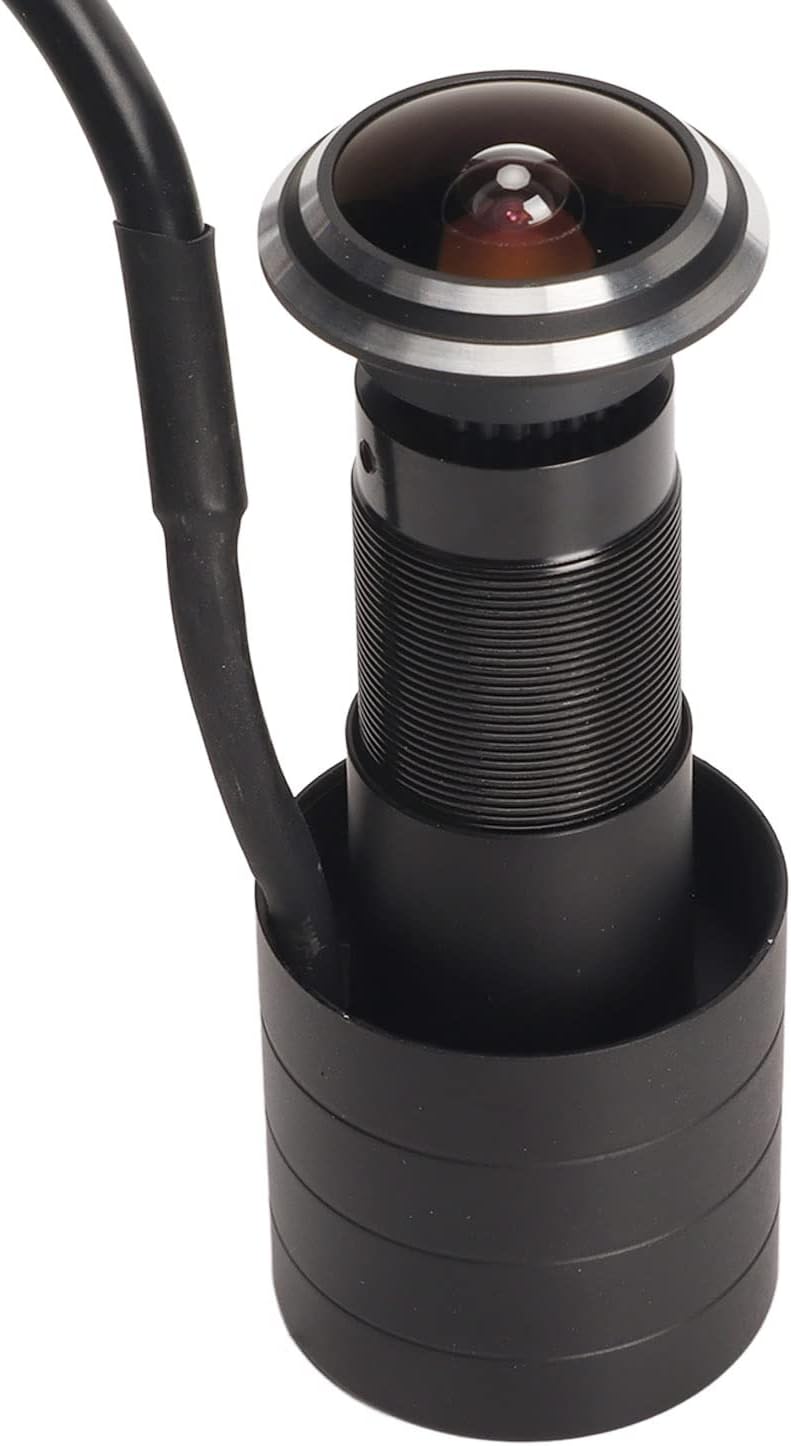
The product package includes the main camera unit and necessary connection cables for power and network connectivity.


3. Specifications
| Feature | Description |
|---|---|
| Horizontal Resolution | 1920P |
| Image Sensor | 1/2.7in 2.0 MP Communication GC2828 with Hi3518EV200 |
| Effective Pixels | 4MP |
| Signal Type | USB Digital (UVC Protocol) |
| Video Output | MJPG, YUY2 |
| Sound Output | None |
| Operating Temperature | -20 ℃ to 60 ℃ |
| Minimum Illumination | 0.001Lx |
| SNR | > 52dB |
| Interface | RJ45 |
| Network Protocols | TCP IP, HTTP, TCP, ICMP, UDP, ARP, IGMP, SMTP, FTP, DHCP, DNS, DDNS, NTP, UPNP, RTSP, TELNET, etc. |
| Access Protocol | Open Network Video Interface Forum 2.0 |
| Motion Detection Alarm | Supported |
| Alarm Linkage | Alarm pictures sent via Email, alarm pictures uploaded to FTP server |
| Time Snapshot | Support to catch pictures to FTP server at regular intervals |
| User Management | Three levels (admin, user, guest), modifiable login credentials |
| Material | PVC |
| Item Weight | 5.6 ounces |
| Package Dimensions | 3.94 x 2.76 x 2.36 inches |
| Operating System Compatibility | Android, iOS |
4. Setup
The Dpofirs Door Peephole Camera is designed for plug-and-play operation. Follow these steps for initial setup:
- Physical Installation: Install the camera unit into your door's peephole. Ensure it is securely fastened.
- Connect Cables: Connect the power cable to a suitable power source and the RJ45 network cable to your router or network switch.
- Network Configuration: The camera will typically obtain an IP address automatically via DHCP. For advanced settings or static IP configuration, access your router's administration panel.
- Initial Access: Use a web browser (e.g., Internet Explorer) to access the camera's interface by entering its IP address. The default login credentials are often 'admin' for both username and password. If these do not work, consult the manufacturer's website or contact support for the correct default credentials or password reset procedures.

5. Operating Instructions
Once the camera is set up and connected to your network, you can begin monitoring and configuring its features:
- Mobile Monitoring: Download the compatible application for your smartphone (Android or iOS) to view live feeds and manage settings remotely.
- Web Browser Access: Access the camera's full interface via a web browser (e.g., Internet Explorer) by entering its IP address. This allows for streaming and command access.
- Motion Detection: Configure motion detection zones and sensitivity settings within the camera's interface.
- Alarm Linkage: Set up alarm actions such as sending alarm pictures via email or uploading them to an FTP server when motion is detected.
- Time Snapshot: Enable the time snapshot feature to capture images at regular, user-defined intervals and upload them to an FTP server.
- User Management: Utilize the three levels of user management (admin, user, guest) to control access permissions. It is recommended to change the default admin username and password for security.
6. Maintenance
To ensure optimal performance and longevity of your Dpofirs Door Peephole Camera, follow these maintenance guidelines:
- Cleaning: Regularly clean the camera lens with a soft, dry, lint-free cloth to prevent dust and smudges from affecting image clarity. Avoid abrasive cleaners.
- Connections: Periodically check all cable connections (power and network) to ensure they are secure and free from damage.
- Environmental Conditions: Operate the camera within the specified temperature range of -20 ℃ to 60 ℃. Avoid exposing the device to extreme humidity or direct water.
- Firmware Updates: Check the Dpofirs official website periodically for any available firmware updates. Updating the firmware can improve performance, add new features, and enhance security.
7. Troubleshooting
If you encounter issues with your Dpofirs Door Peephole Camera, refer to the following troubleshooting tips:
- No Image/Video:
- Ensure the camera is properly powered on.
- Verify that the network cable is securely connected to both the camera and your router.
- Check your network settings to confirm the camera has a valid IP address.
- Cannot Access Camera Interface:
- Confirm the camera is powered and connected to the network.
- Double-check the IP address entered in your web browser.
- If the default 'admin/admin' login fails, the password may have been changed or is different. Contact Dpofirs technical support for assistance with initial login credentials or password reset procedures.
- Motion Detection Not Triggering:
- Review the motion detection settings in the camera's web interface. Adjust sensitivity and detection zones.
- Ensure alarm linkage actions (e.g., email notifications, FTP uploads) are correctly configured and enabled.
- Poor Image Quality:
- Clean the camera lens as described in the Maintenance section.
- Check your network bandwidth if streaming quality is consistently low.
8. Warranty and Support
For detailed warranty information, product registration, or technical assistance, please visit the official Dpofirs website or contact their customer service department. Keep your purchase receipt as proof of purchase for any warranty claims.