
WOLFBOX i05
WOLFBOX i05 4K Dash Cam User Manual
Model: i05 | Brand: WOLFBOX
Product Overview
The WOLFBOX i05 Dash Cam is a high-performance front and rear dash camera system designed to provide comprehensive road coverage and enhanced driving safety. It captures crystal-clear panoramic footage with its front 4K and rear 1080p cameras, offering wide viewing angles to minimize blind spots. Equipped with advanced features such as GPS, Wi-Fi, WDR, HDR, Night Vision, and Loop Recording, the i05 ensures reliable performance in various driving conditions.
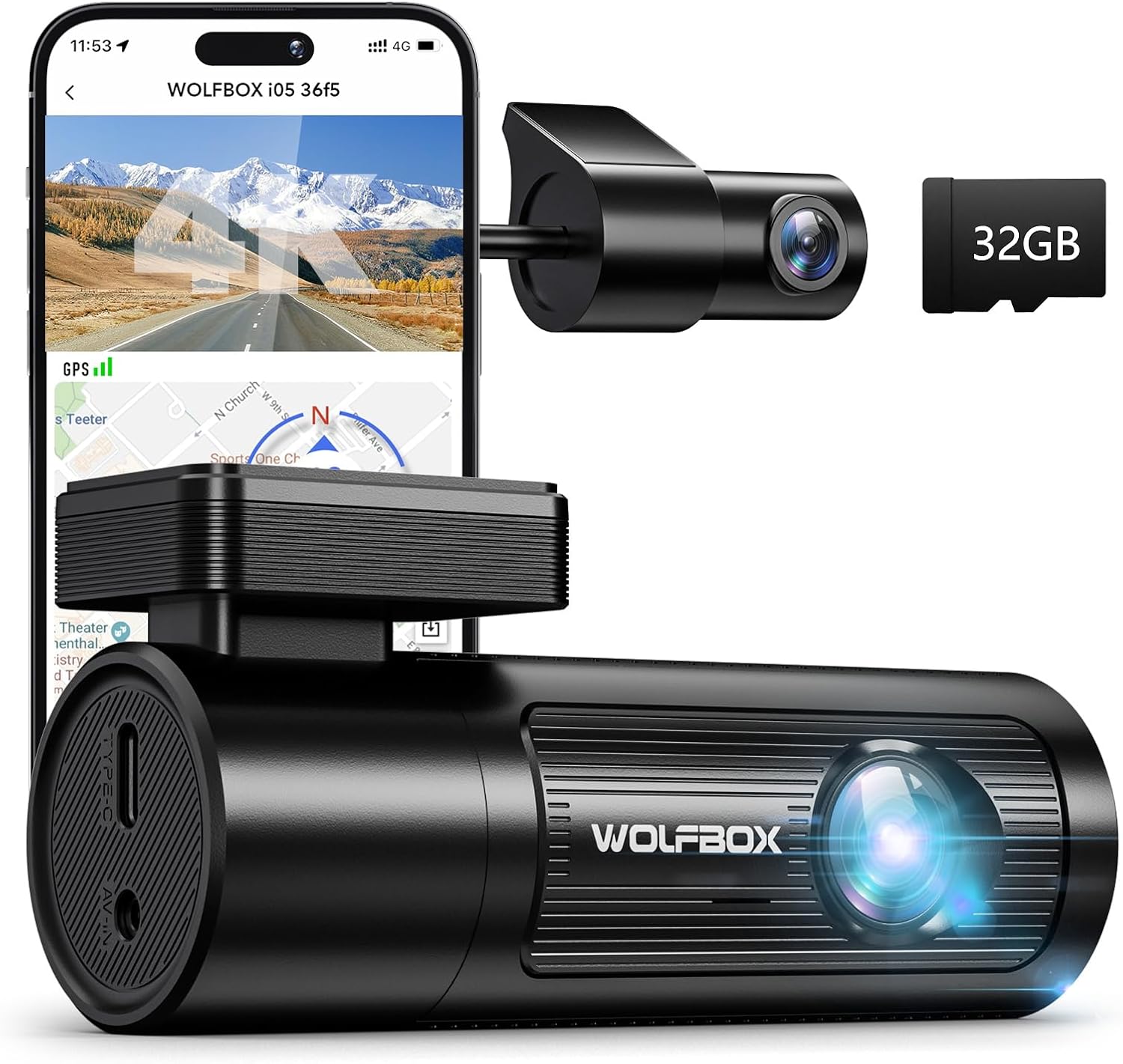
Figure 1: WOLFBOX i05 4K Dash Cam with included 32GB SD card and rear camera.
What's in the Box
Upon unboxing your WOLFBOX i05 Dash Cam, please verify that all the following components are included:
- i05 Dash Cam * 1
- 1080P Rear Camera * 1
- 11.5ft Power Supply Cable with Car Charger * 1
- 3M Sticker * 2
- User Manual
Setup and Installation
The WOLFBOX i05 Dash Cam is designed for straightforward installation. Follow these steps for optimal setup:
1. Mounting the Dash Cam
- Clean the windshield area where the dash cam will be mounted. Ensure it is free of dust and grease.
- Attach one of the 3M stickers to the dash cam mount.
- Carefully position the dash cam on the windshield, ensuring it does not obstruct your view. Use the built-in level (if available on your model) for precise alignment.
- Press firmly to secure the adhesive mount to the windshield.

Figure 2: The i05 dash cam features a center point scale for quick measurement and layout, and can be installed with an electrostatic sticker to prevent residual marks.
2. Connecting the Rear Camera
- Attach the 1080P rear camera to the rear window.
- Connect the rear camera cable to the main dash cam unit.
- Route the rear camera cable neatly along the vehicle's interior trim.
Figure 3: The rear camera attaches to the rear window with a simple one-wire connection.
3. Powering the Dash Cam
- Connect the 11.5ft power supply cable to the dash cam.
- Plug the car charger end into your vehicle's 12V power outlet (cigarette lighter socket).
- Route the power cable along the edge of the windshield and dashboard to keep it tidy and out of the way.
4. Hardwire Kit Installation (Optional)
For continuous power and parking monitoring features, a hardwire kit (sold separately, ASIN: B09X1L1GMX) is recommended. The installation process involves connecting three wires to your vehicle's fuse box.
Video 1: WOLFBOX Hardwire Kit Installation Guide. This video demonstrates the process of installing the hardwire kit for continuous power supply to the dash cam.
Hardwire Kit Connection Steps:
- Locate the Fuse Box: The fuse box location varies by vehicle. For BMWs, it's typically in the trunk. Consult your vehicle's manual for the exact location.
- Route the Hardwire Kit Cable:
- Reserve a section of wire near the dash cam.
- Use a crowbar tool to hide the remaining wire along the gap of the front windshield.
- Continue routing the cable through the A-pillar.
- Hide the cable along the gap between the car body and the ceiling on the passenger side.
- Route the cable between the rear seat and the ceiling.
- Remove the door rubber strips, plastic housing, and interior trunk trim to thread the hardwire kit to the trunk.
- Connect the Wires to the Fuse Box: The hardwire kit includes three wires: red, yellow, and black.
- Red Wire (ACC): Connect to an ACC (Accessory) terminal in the fuse box. This terminal receives power only when the car's ignition is on. Examples of ACC terminals include DOME, RADIO, TAIL, EFI, TEL, ECU-IG, ECU-B.
- Yellow Wire (B+): Connect to a B+ (Battery Positive) terminal. This terminal provides constant power, even when the car is off. Examples of B+ terminals include POWER, CB DOOR.
- Black Wire (Ground): Connect to a metal part of the car's chassis for grounding.
Note: Some car models have a delayed power-off feature for the ACC terminal. Wait until power is completely cut off before testing. Refer to your fuse box diagram for specific current information for each terminal.
Operating Instructions
1. Power On/Off
- The dash cam will automatically power on and begin recording when connected to a power source and the vehicle's ignition is turned on.
- It will automatically power off when the vehicle's ignition is turned off (unless hardwired for parking monitoring).
2. Video Recording
The i05 dash cam records simultaneously from both front and rear cameras, providing comprehensive coverage.
- Front Camera: Records in 4K UHD (2160p) with a 170° wide-angle field of view.
- Rear Camera: Records in 1080p with a 150° wide-angle field of view.
- Loop Recording: The camera continuously records, overwriting the oldest unlocked footage when the memory card is full.

Figure 4: The WOLFBOX i05 offers dual-channel recording with a 4K front camera (170° FOV) and a 1080P rear camera (150° FOV).
3. Night Vision and Image Enhancement
Advanced WDR (Wide Dynamic Range) and HDR (High Dynamic Range) technologies, combined with a large F1.5 aperture, ensure clear video capture in low-light conditions and challenging lighting environments.

Figure 5: Superior night vision capabilities with WDR and HDR technology for clear recordings in various lighting conditions.
4. Built-in WiFi and GPS
The dash cam features built-in Wi-Fi and GPS for convenient access to recordings and tracking capabilities.
- Wi-Fi Connectivity: Use the dedicated WOLFBOX software (available for iOS and Android) to connect to the dash cam via Wi-Fi. This allows you to view live footage, retrieve recorded videos, and adjust settings directly from your smartphone.
- GPS Tracking: The GPS feature records your driving route, speed, and other relevant data, which can be reviewed later via the app.

Figure 6: Conveniently download and review recordings on the WOLFBOX App, which also displays GPS route and speed tracking.
5. Parking Monitoring
When connected to a hardwire kit (ASIN: B09X1L1GMX), the i05 dash cam offers two parking monitoring modes:
- Collision Sense Mode (G-sensor): Records footage automatically when an impact is detected while parked.
- Time-Lapse Mode: Continuously records at 1 frame per second (1FPS) for extended coverage, allowing hours of surveillance video to be played back in minutes.

Figure 7: The dash cam supports two parking modes for 24-hour surveillance: Time Lapse Mode for continuous recording and G-sensor Mode for impact-triggered recording.
Maintenance
- Memory Card Formatting: It is recommended to format the included 32GB SD card periodically (e.g., once a month) to maintain optimal performance and prevent data corruption. If using a larger capacity card, the frequency may be reduced.
- Lens Cleaning: Regularly clean the front and rear camera lenses with a soft, lint-free cloth to ensure clear video quality.
- Firmware Updates: Check the WOLFBOX official website or app for any available firmware updates to ensure your dash cam has the latest features and bug fixes.
Troubleshooting
If you encounter any issues with your WOLFBOX i05 Dash Cam, please refer to the following common solutions:
- Camera Not Powering On:
- Ensure the power cable is securely connected to both the dash cam and the vehicle's power outlet.
- Check the vehicle's 12V power outlet for power.
- If hardwired, verify all fuse box connections are correct and fuses are intact.
- Video Quality Issues (Blurry/Unclear):
- Clean the camera lenses.
- Ensure the protective film has been removed from the lenses.
- Check if the dash cam is securely mounted and not vibrating.
- App Connectivity Issues (Wi-Fi/GPS):
- Ensure Wi-Fi is enabled on your smartphone and you are connected to the dash cam's Wi-Fi network.
- Restart both the dash cam and your smartphone.
- Update the WOLFBOX app to the latest version.
- If GPS data is inaccurate, ensure the dash cam has a clear view of the sky.
- Memory Card Errors:
- Format the SD card using the dash cam's settings or the WOLFBOX app.
- Try a different high-speed (Class 10 or U3 recommended) SD card.
For further assistance, please contact WOLFBOX customer service.
Specifications
| Feature | Detail |
|---|---|
| Product Dimensions | 2.76 x 5.12 x 4.33 inches |
| Item Weight | 1.13 ounces |
| Model Name | i05 |
| Color | Black |
| Video Capture Resolution | Front: 2160p (4K), Rear: 1080p |
| Field of View (FOV) | Front: 170°, Rear: 150° |
| Connectivity Technology | Wi-Fi |
| GPS | Built-in GPS for route and speed tracking |
| Special Features | 4K+1080P Dual Dash Cams, Built-In WiFi & GPS, Compact Design, Free APP Control, Dual Parking Monitor (G Sensor Trigger Record & Time-lapse), Night Vision, Loop Recording, G-sensor, WDR, HDR, Super Capacitor |
| Mounting Type | Adhesive Mount |
| Included Components | i05 Dash Cam, 1080P Rear Camera, 11.5ft Power Supply Cable with Car Charger, 3M Stickers (2), User Manual |

Figure 8: The compact size of the WOLFBOX i05 dash cam, similar to a lipstick, making it small and convenient.
Warranty and Support
WOLFBOX stands behind the quality of its products. Your i05 Dash Cam comes with:
- 1-Year Unconditional Warranty: Covers manufacturing defects and ensures product reliability.
- Lifelong Technical Support: Assistance is available for any usage problems or technical queries you may have throughout the product's lifespan.
For customer service and technical support, please reach out to:
Email: service_us@wolfbox.com
Phone: +1 888 296 8399
Related documentsi05


Ask a question about this manual
Ask about setup, troubleshooting, compatibility, parts, safety, or missing instructions. Manuals+ will review the question and use this page’s manual context to help answer it.