1. Introduction
The ADKIDO PTZ Camera Controller is a professional device designed for precise control of PTZ (Pan-Tilt-Zoom) cameras. It features a 4D joystick, a 5-inch LCD screen, and supports various network surveillance protocols, making it compatible with most dome IP cameras. This manual provides detailed instructions for setting up, operating, maintaining, and troubleshooting your controller.

Figure 1.1: ADKIDO PTZ Camera Controller overview.

Figure 1.2: Key features of the ADKIDO PTZ Controller including 4D Joystick, ONVIF Control, POE Support, and 5-inch LCD Screen.
2. Setup
Before using your ADKIDO PTZ Camera Controller, follow these steps to ensure proper setup and connection to your cameras.
2.1 Power and Connectivity
The controller supports Power over Ethernet (PoE) for simplified installation, or can be powered via a DC12V adapter. It connects to cameras via an Ethernet network.

Figure 2.1: Rear view of the controller showing DC12V power input, power switch, Ethernet port, and RS-232 port.
Connect the controller to your network using an Ethernet cable. If your cameras are also PoE-enabled and connected to a PoE switch, a single cable can provide both power and data. The controller also features an RS-232 port for serial communication, though network connectivity is the primary method for IP cameras.
2.2 Camera Connection and IP Configuration
The controller supports standard network surveillance protocols and can manage up to 999 devices. For optimal performance, ensure your cameras have static IP addresses to avoid frequent re-connection issues.
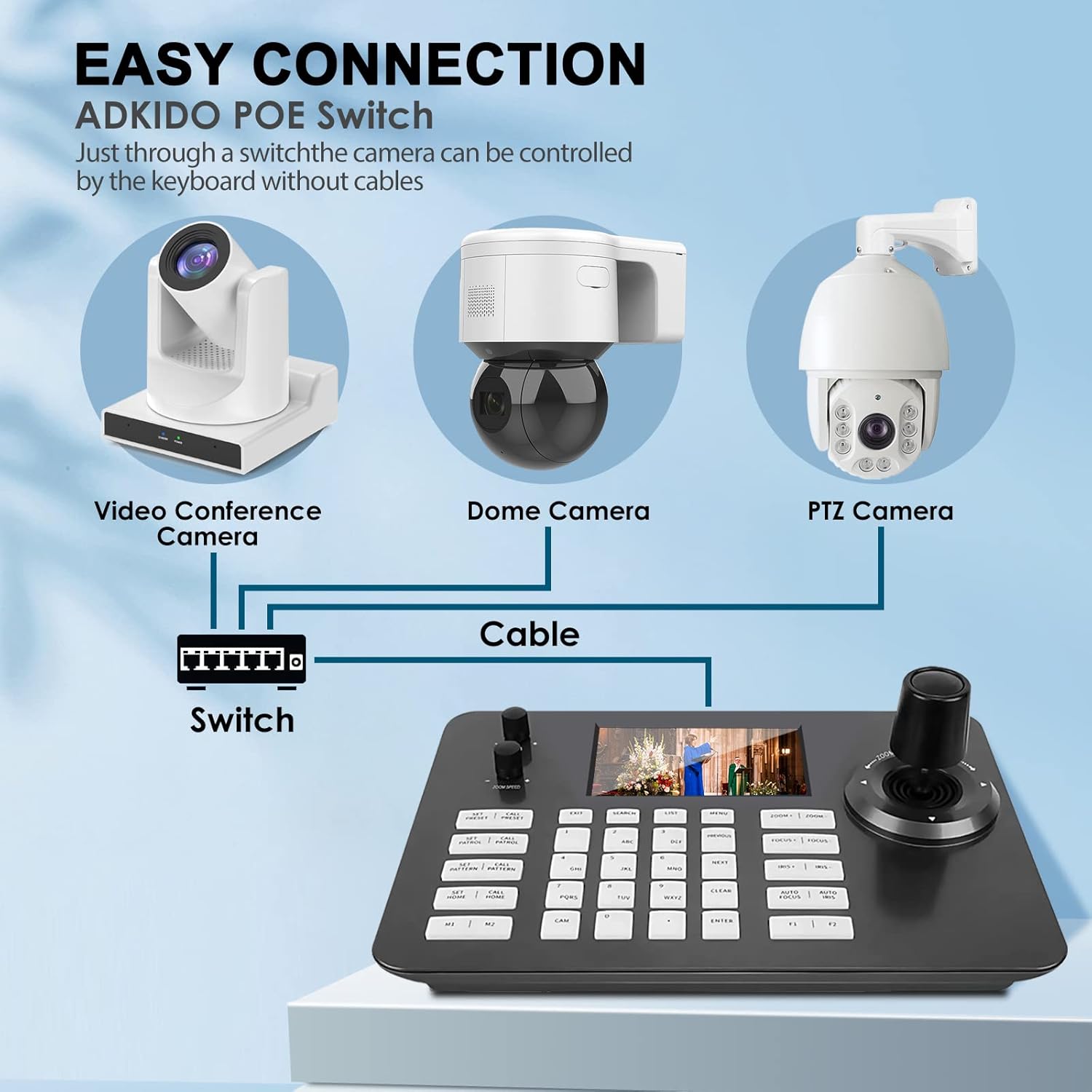
Figure 2.2: Diagram illustrating easy connection of the controller to various camera types (Video Conference Camera, Dome Camera, PTZ Camera) via a PoE switch.

Figure 2.3: Screenshot showing the "Setup/add your camera" interface for IP configuration and device search. Note: Synchronize the PTZ controller's IP segment settings with the camera's IP settings.
To add cameras:
- Access the controller's setup menu (refer to the on-screen interface).
- Navigate to the IP settings to configure the controller's IP address. Ensure it is in the same network segment as your cameras.
- Use the "Search Device" function to find available cameras on the network.
- Alternatively, use "Add Manually" to input camera IP addresses, ports, and login credentials.
Video 2.1: An overview of the ADKIDO PTZ Camera Controller with 4D Joystick, demonstrating its physical features and interfaces. This video provides a visual guide to the product's design and connectivity options.
3. Operating Instructions
The ADKIDO PTZ Camera Controller offers intuitive controls for managing your PTZ cameras.
3.1 4D Joystick Control
The integrated 4D joystick provides comprehensive control over camera movement and zoom. Move the joystick to pan (left/right) and tilt (up/down) the camera. Rotate the joystick head to control the zoom function (tele/wide).

Figure 3.1: Close-up of the variable-speed 4D joystick, illustrating its ability to control lens movement (up/down, left/right) and zoom.

Figure 3.2: Detailed diagram explaining the pan, tilt, and zoom functions of the 4D joystick.
3.2 Knob Keys for Speed Adjustment
Two dedicated knob keys allow for stepless adjustment of camera motion speed and zoom speed, providing fine-tuned control over camera movements.

Figure 3.3: Illustration of the stepless knob keys used to adjust camera motion speed and zoom speed.

Figure 3.4: Diagram detailing the function of the knob keys for adjusting camera motion and zoom speeds.
3.3 Camera Selection
To select a specific camera for control, use the dedicated camera selection buttons on the keyboard.

Figure 3.5: Instructions on how to select a camera using the CAM, Number, and ENTER buttons. Note: This function primarily supports ONVIF devices.
Steps to select a camera:
- Press the CAM button.
- Press the corresponding Number button for the desired camera.
- Press the ENTER button to confirm.
3.4 Preset, Patrol, and AB Scan Functions
The controller allows you to set and recall preset positions, configure patrol routes, and initiate AB scans for automated camera movements. Refer to the on-screen menu for detailed configuration of these advanced functions.
3.5 5-inch LCD Screen
The built-in 5-inch LCD screen provides real-time video monitoring, supporting H.264 and H.265 decoding with a resolution of 800x480. This allows you to view the camera feed directly on the controller.
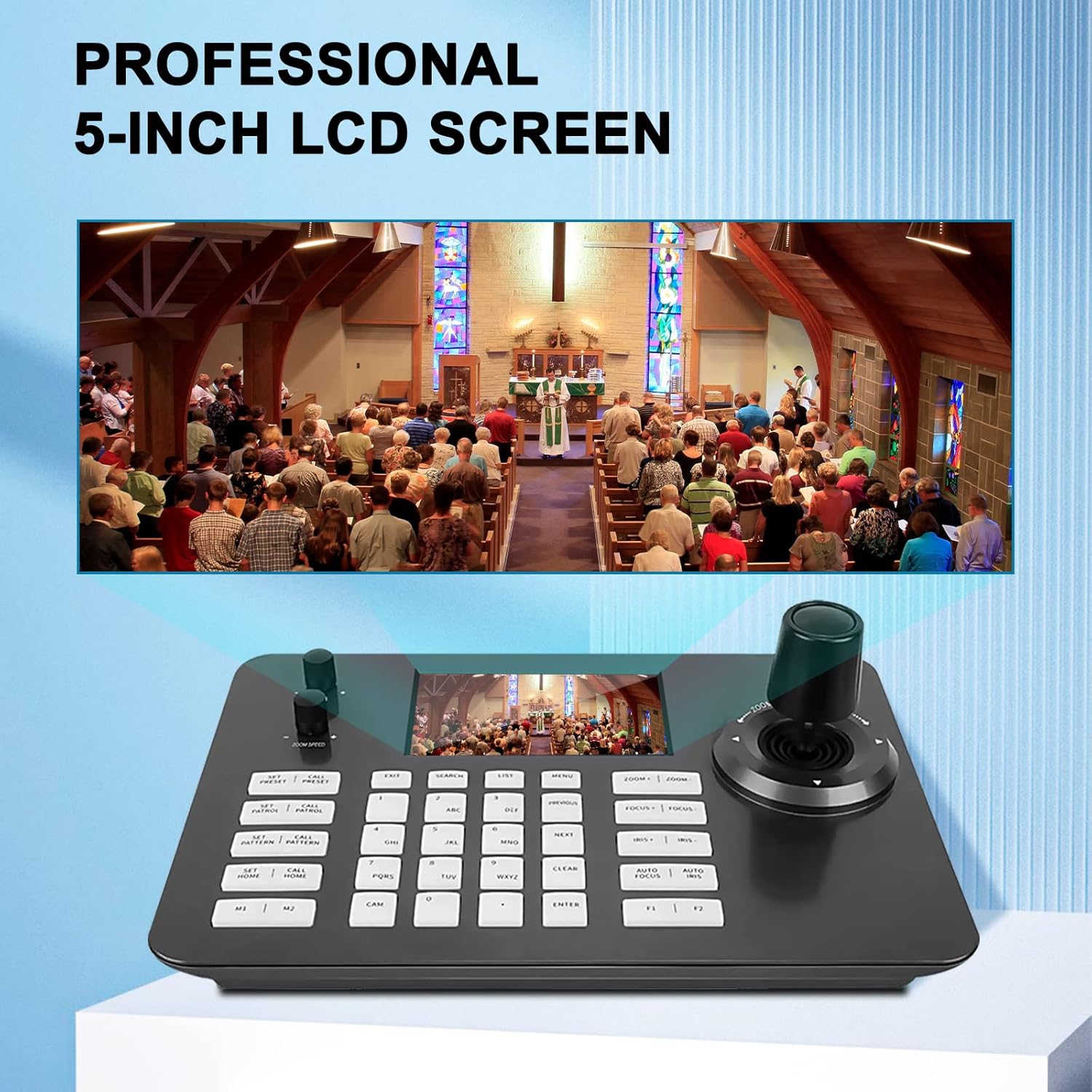
Figure 3.6: The 5-inch LCD screen displaying a live camera feed, highlighting its utility for real-time monitoring.
4. Maintenance
To ensure the longevity and optimal performance of your ADKIDO PTZ Camera Controller, follow these maintenance guidelines:
- Cleaning: Use a soft, dry cloth to clean the surface of the controller. For stubborn dirt, slightly dampen the cloth with water. Avoid abrasive cleaners or solvents.
- Protection: The controller's surface is made of hardening aluminum alloy to prevent scratching. However, avoid dropping the device or exposing it to harsh impacts.
- Environment: Operate and store the controller in a dry environment, away from extreme temperatures, direct sunlight, and high humidity.
- Connectivity: Periodically check all cable connections (Ethernet, power) to ensure they are secure and free from damage.
5. Troubleshooting
If you encounter issues with your ADKIDO PTZ Camera Controller, refer to the following common problems and solutions:
| Problem | Possible Cause / Solution |
|---|---|
| Controller not powering on. |
|
| Cannot connect to cameras / Cameras not found. |
|
| Joystick control is inaccurate or unresponsive. |
|
| LCD screen is blank or not displaying video. |
|
6. Specifications
Detailed technical specifications for the ADKIDO PTZ Camera Controller:
| Feature | Detail |
|---|---|
| Product Dimensions | 13.4 x 6 x 11 inches |
| Item Weight | 3.27 pounds |
| Brand | ADKIDO |
| Compatible Devices | Dome IP Camera (supports max 999 equipments) |
| Controller Type | 4D Joystick, Keyboard |
| Connectivity Technology | Ethernet (PoE support), RS-232 |
| Color | Black |
| LCD Screen | 5 inch, 800x480 resolution, H.264/H.265 decoding |
| Material | Hardening aluminum alloy |
7. Warranty and Support
ADKIDO is committed to providing high-quality products and customer satisfaction. While specific warranty details are not provided in this manual, we offer dedicated customer support.
If you have any issues or questions regarding your PTZ Camera Controller, please feel free to contact us by e-mail. Our support team will handle your questions one-on-one to ensure a satisfactory resolution.
For the most up-to-date warranty information and support contact details, please refer to the product packaging or the official ADKIDO website.


