
Introduction
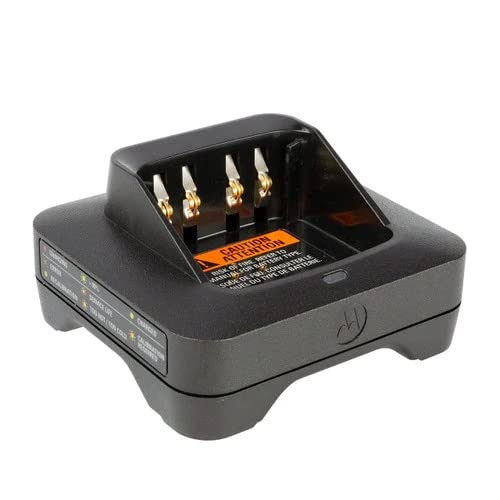
This manual provides essential instructions for the safe and efficient use of your Motorola MOTOTRBO IMPRES Single Unit Charger (Model PMPN4576A). This charger is designed to optimize battery life and talk time for compatible Motorola MOTOTRBO radios, ensuring reliable performance without the need for manual maintenance programs.
Setup
- Unpack the Charger: Carefully remove the charger base and power supply from its packaging.
- Connect Power Supply: Insert the power supply cable into the DC input port located at the back of the charger base. Ensure a secure connection.
- Plug into Outlet: Plug the power supply into a standard US electrical outlet. The charger's LED indicator may briefly illuminate upon connection.
- Place on Stable Surface: Position the charger on a flat, stable surface to prevent accidental tipping. The wide base and grips on the bottom enhance stability.
Operation
Charging a Radio/Battery
- Insert Radio/Battery: Carefully slide your compatible Motorola MOTOTRBO radio (with battery attached) or a standalone battery into the charging slot of the charger. Ensure the contacts on the radio/battery align with the contacts in the charger.
- Observe LED Indicator: The LED indicator on the front of the charger will illuminate to show the charging status.
LED Indicator Status
The charger features an LED indicator that provides visual feedback on the battery's status. Refer to the labels on the side of the charger for a quick reference guide.
- Red (Solid): Battery is currently charging.
- Green (Solid): Battery is fully charged.
- Orange/Amber (Solid): Reconditioning or Recalibration is in progress.
- Red (Flashing): Error condition (e.g., battery fault, incorrect battery type).
- Orange/Amber (Flashing): Service life indication or battery is too hot/too cold.
- Green (Flashing): Reconditioning/Recalibration required.
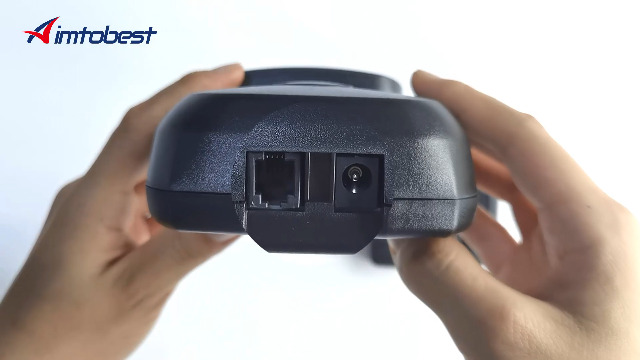
Video: Charging Demonstration
Video 1: This video demonstrates the process of placing a battery into the Motorola IMPRES Single Unit Charger and observing the LED indicator change from red (charging) to green (charged). It also highlights the compatibility with PMNN4409, PMNN4409AR, PMNN4065, PMNN4066A, and PMNN4077C batteries.
Maintenance
- Cleaning: Regularly wipe the charger with a dry, soft cloth to remove dust and debris. Do not use harsh chemicals or abrasive cleaners.
- Contact Points: Ensure the charging contacts inside the slot are clean and free from obstruction. Gently clean with a cotton swab if necessary.
- Storage: When not in use, store the charger in a cool, dry place away from direct sunlight and extreme temperatures.
Troubleshooting
If you encounter issues with your charger, refer to the LED indicator status for guidance:
- No LED Indication:
- Check if the power supply is securely connected to both the charger and the electrical outlet.
- Verify that the electrical outlet is functional.
- Red Flashing LED (Error):
- The battery may be faulty or incompatible. Try a different, known-good battery.
- Ensure the battery is inserted correctly and making proper contact.
- Orange/Amber Flashing LED (Service Life/Temperature):
- If the battery is too hot or too cold, move the charger and battery to a room-temperature environment and allow them to normalize before attempting to charge again.
- A persistent orange flash may indicate the battery is nearing the end of its service life and may require replacement.
- Green Flashing LED (Recalibration Required):
- The battery requires recalibration to optimize its performance. Allow the charger to complete the recalibration cycle.
If problems persist, contact Motorola customer support for further assistance.
Specifications
| Feature | Detail |
|---|---|
| Model | PMPN4576A |
| Brand | Motorola |
| Product Dimensions | 5 x 7 x 3 inches |
| Item Weight | 9.1 ounces |
| Input Voltage | 240 Volts |
| Output Voltage | 240 Volts |
| Connector Type | NEMA 1-15 |
| Manufacturer | Motorola Solutions |
| First Available | March 20, 2023 |
Warranty and Support
For warranty information or technical support, please refer to the documentation included with your product or visit the official Motorola Solutions website. You may also contact Motorola customer service directly for assistance with your PMPN4576A charger.


