
Introduction
Thank you for purchasing the Portronics Breeze Plus 20W Portable Bluetooth Speaker. This manual provides detailed instructions for setting up, operating, and maintaining your speaker to ensure optimal performance and longevity. Please read this manual carefully before using the product.
Product Features
- Powerful Audio Output: Equipped with 20W inbuilt speakers for clear sound, relaxing bass, and pleasant mid-ranges.
- Multiple Connectivity Options: Supports Bluetooth 5.0, AUX input, and USB playback.
- Water Resistant Design: Features an IPx6 water-resistant cylindrical body with a mesh grill, suitable for various environments.
- Extended Playtime: A powerful 2500mAh lithium-ion battery provides over 7 hours of playback on a single charge.
- True Wireless Stereo (TWS): Connect two Breeze Plus speakers wirelessly for an enhanced stereo sound experience.
- Built-in Microphone: Allows for hands-free calling with clear audio.
Controls and Indicators
Familiarize yourself with the speaker's control buttons and indicators:

Image: Diagram illustrating the function keys on the side of the Portronics Breeze Plus speaker. From top to bottom, the buttons are labeled: Bluetooth, TWS Connectivity, Volume Down, Volume Up, and Power On/Off & Mode.
- Power On/Off & Mode Button: Press and hold for approximately 3 seconds to power on/off. Short press to switch between Bluetooth, AUX, and USB modes.
- Volume Up (+): Short press to increase volume. Long press for next track (in Bluetooth/USB mode).
- Volume Down (-): Short press to decrease volume. Long press for previous track (in Bluetooth/USB mode).
- Play/Pause/Call Button (►/▮▮/☎): Short press to play/pause music. Short press to answer/end calls. Long press to reject calls.
- Bluetooth Button (Ⓑ): Short press to enter Bluetooth pairing mode.
- TWS Button (Ⓣ): Press to initiate True Wireless Stereo pairing.
Setup
1. Charging the Speaker
Before first use, fully charge the speaker. Connect the provided USB charging cable to the speaker's charging port and to a USB power adapter (not included) or a computer's USB port. The LED indicator will show charging status and turn off when fully charged. A full charge provides over 7 hours of playback.
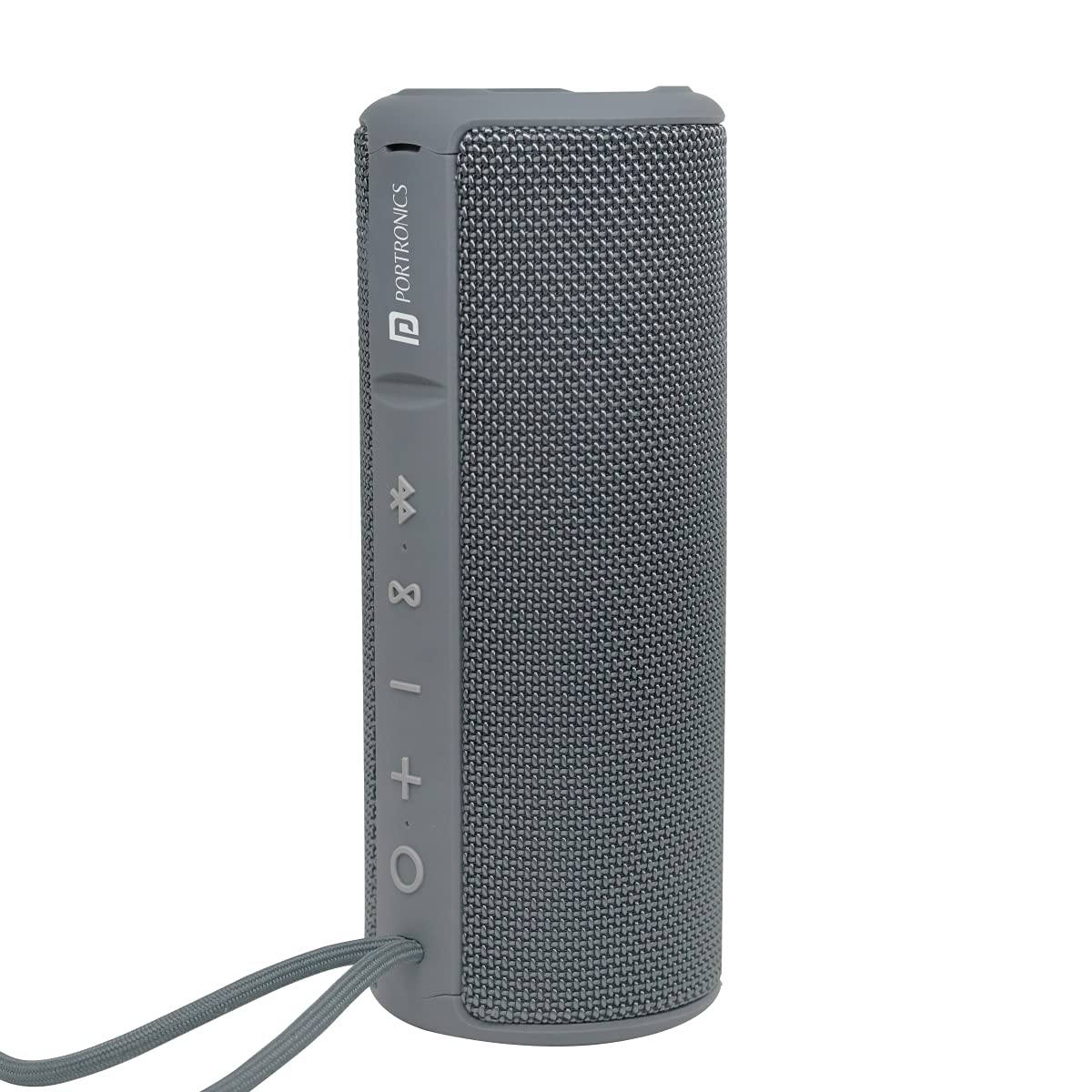
Image: A side view of the Portronics Breeze Plus speaker, showcasing its cylindrical design and mesh grill. The charging port is typically located on the side or back panel, often protected by a rubber flap for water resistance.
2. Powering On/Off
Press and hold the Power On/Off & Mode button for approximately 3 seconds to turn the speaker on or off. A sound prompt will indicate the power status.
3. Bluetooth Pairing
- Ensure the speaker is powered on and in Bluetooth mode. If not, short press the Power On/Off & Mode button until you hear the Bluetooth mode prompt. The Bluetooth indicator light will flash, indicating it's ready for pairing.
- On your mobile device, enable Bluetooth and search for available devices.
- Select "Portronics Breeze Plus" from the list of devices.
- Once paired, the speaker will emit a confirmation sound, and the Bluetooth indicator light will remain solid.
4. True Wireless Stereo (TWS) Pairing
To achieve a stereo sound experience, you can pair two Portronics Breeze Plus speakers together:
- Ensure both speakers are powered on and not connected to any Bluetooth device.
- On one speaker (this will be the primary speaker), short press the TWS button. The speaker will enter TWS pairing mode.
- The primary speaker will automatically search for the secondary speaker. Once connected, both speakers will emit a confirmation sound.
- Now, connect your mobile device to the primary speaker via Bluetooth as described in the "Bluetooth Pairing" section.
- Audio will now play in stereo through both speakers.
Operating Instructions
1. Bluetooth Playback
After successful Bluetooth pairing, open your music player on your device and start playback. You can control volume, play/pause, and skip tracks using the speaker's buttons or your connected device.

Image: The Portronics Breeze Plus speaker shown in a lifestyle setting, highlighting its Bluetooth 5.0 connectivity and 20W sound output. A person is interacting with a smartphone, presumably streaming music to the speaker.
2. AUX Input Playback
Connect one end of a 3.5mm audio cable (not included) to the AUX port on the speaker and the other end to the audio output jack of your device (e.g., MP3 player, laptop). Short press the Power On/Off & Mode button to switch to AUX mode. Audio will play from your connected device.
3. USB Playback
Insert a USB flash drive containing MP3 audio files into the USB port of the speaker. The speaker will automatically switch to USB mode and begin playing music from the drive. Use the volume and track control buttons on the speaker to manage playback.
4. Hands-Free Calling
When connected via Bluetooth, if a call comes in, the music will pause. Short press the Play/Pause/Call button to answer the call. Short press again to end the call. Long press to reject an incoming call.
Maintenance
- Cleaning: Wipe the speaker with a soft, damp cloth. Do not use abrasive cleaners or solvents.
- Water Resistance: The speaker is IPx6 water-resistant, meaning it can withstand powerful water jets. Do not submerge the speaker in water. Ensure the charging port and AUX port covers are securely closed when near water.
- Storage: Store the speaker in a cool, dry place away from direct sunlight and extreme temperatures.
- Battery Care: To prolong battery life, avoid fully discharging the speaker frequently. Charge it regularly, even if not in use for extended periods.

Image: The Portronics Breeze Plus speaker shown with water splashes, illustrating its splash-proof design. This image emphasizes its suitability for outdoor or poolside use, provided port covers are sealed.
Troubleshooting
| Problem | Possible Cause | Solution |
|---|---|---|
| Speaker does not power on. | Low battery. | Charge the speaker fully. |
| No sound from speaker. | Volume too low; incorrect mode; device not connected. | Increase volume on speaker and device. Ensure correct mode (Bluetooth/AUX/USB). Re-pair Bluetooth device or check AUX/USB connection. |
| Bluetooth pairing fails. | Speaker not in pairing mode; device too far; interference. | Ensure speaker is in Bluetooth pairing mode (flashing LED). Move device closer to speaker. Turn off other Bluetooth devices. Forget speaker from device's Bluetooth list and try pairing again. |
| TWS pairing fails. | Speakers already connected to other devices; too far apart. | Ensure both speakers are disconnected from any Bluetooth devices. Place speakers close to each other. Follow TWS pairing steps carefully. |
| Poor audio quality. | Low battery; device too far; interference. | Charge the speaker. Move device closer to speaker. Avoid obstacles between speaker and device. |
Specifications
- Brand: Portronics
- Model Name: Breeze Plus
- Speaker Maximum Output Power: 20 Watts
- Connectivity Technology: Auxiliary, Bluetooth, USB, Wireless
- Bluetooth Version: 5.0
- Audio Output Mode: Stereo
- Speaker Type: Portable Stereo Speaker
- Water Resistance: IPx6
- Battery Capacity: 2500 mAh Lithium-Ion
- Battery Average Life: 7+ Hours (at moderate volume)
- Controller Type: Button
- Compatible Devices: Laptop, MP3 Player, Personal Computer, Smartphone
- Power Source: Battery Powered
Safety Information
- Do not expose the speaker to extreme temperatures or direct sunlight for prolonged periods.
- Do not attempt to disassemble, repair, or modify the speaker yourself. This will void the warranty and may cause damage.
- Keep the speaker away from children and pets.
- Use only approved charging cables and adapters.
- Dispose of the speaker and its battery responsibly according to local regulations.
Warranty and Support
For warranty information and customer support, please refer to the warranty card included with your product or visit the official Portronics website. Keep your purchase receipt for warranty claims.


