
1. Introduction
Thank you for purchasing the ASHATA 4K Webcam. This high-quality webcam is designed to provide clear and smooth video communication with its 2K (2560 x 1440) resolution and built-in microphone. Featuring auto-focus and a plug-and-play design, it offers a convenient solution for various applications including video conferencing, online teaching, live broadcasting, and remote work. This manual provides detailed instructions for setting up, operating, maintaining, and troubleshooting your webcam to ensure optimal performance.

Figure 1.1: Front view of the ASHATA 4K Webcam, showing the lens and microphone ports.
2. Safety Information
Please read all safety instructions carefully before using this product. Failure to follow these instructions may result in electric shock, fire, or damage to the device.
- Do not expose the webcam to water or excessive moisture.
- Avoid placing the webcam near heat sources such as radiators, heat registers, stoves, or other apparatus (including amplifiers) that produce heat.
- Use only attachments/accessories specified by the manufacturer.
- Clean only with a dry cloth. Do not use liquid cleaners or aerosol cleaners.
- Protect the power cord from being walked on or pinched, particularly at plugs, convenience receptacles, and the point where they exit from the apparatus.
- Unplug this apparatus during lightning storms or when unused for long periods of time.
- Refer all servicing to qualified service personnel. Servicing is required when the apparatus has been damaged in any way, such as power-supply cord or plug is damaged, liquid has been spilled or objects have fallen into the apparatus, the apparatus has been exposed to rain or moisture, does not operate normally, or has been dropped.
3. Package Contents
Verify that all items are present in the package:
- ASHATA 4K Webcam
- User Manual
4. Setup
The ASHATA 4K Webcam is designed for easy plug-and-play installation, requiring no additional drivers for most operating systems.
4.1 Connecting the Webcam
- Unpack the Webcam: Carefully remove the webcam and its accessories from the packaging.
- Position the Webcam: The webcam features a versatile clip that allows for multiple mounting options. You can place it securely on top of your desktop monitor, laptop screen, or even on a flat surface like a desk. The clip also includes a standard tripod screw hole for mounting on a tripod (not included).

Figure 4.1: Webcam securely mounted on top of a computer monitor.

Figure 4.2: Rear view of the webcam showing the integrated USB cable and the tripod mounting point on the clip.
- Connect to Computer: Plug the USB cable from the webcam into an available USB port on your computer (desktop or laptop).
- Automatic Installation: Your computer's operating system should automatically detect and install the necessary drivers. This process typically takes a few moments. No manual driver installation is usually required.
4.2 System Compatibility
The ASHATA 4K Webcam offers wide compatibility with various operating systems, ensuring seamless integration with your existing setup.
- Supports Windows 2000 / XP / XP2 / Vista / Win7 / Win8 / Win10 / OS X / Linux and other operating systems.

Figure 4.3: The webcam is compatible with a wide range of operating systems, including Windows, macOS, and Linux.
5. Operation
Once connected, your ASHATA 4K Webcam is ready for use with your preferred video communication or recording software.
5.1 Using the Webcam for Video Calls and Recording
- Select Webcam: Open your video conferencing application (e.g., Zoom, Skype, Microsoft Teams) or recording software. In the application's settings, select the ASHATA 4K Webcam as your primary video input device.
- Audio Input: The webcam has a built-in microphone. Ensure that the ASHATA Webcam's microphone is selected as your audio input device in your application settings for clear voice communication. The microphone has a 3-meter pickup range.

Figure 5.1: The webcam delivers 2K picture quality and features a built-in microphone for clear audio.
- Auto-Focus: The webcam features an auto-focusing lens, which automatically adjusts to keep you clear and sharp in the frame.
- 360-Degree Rotation: The webcam's clip allows for 360-degree rotation, enabling you to adjust the camera angle horizontally and vertically to achieve the ideal view for your needs.
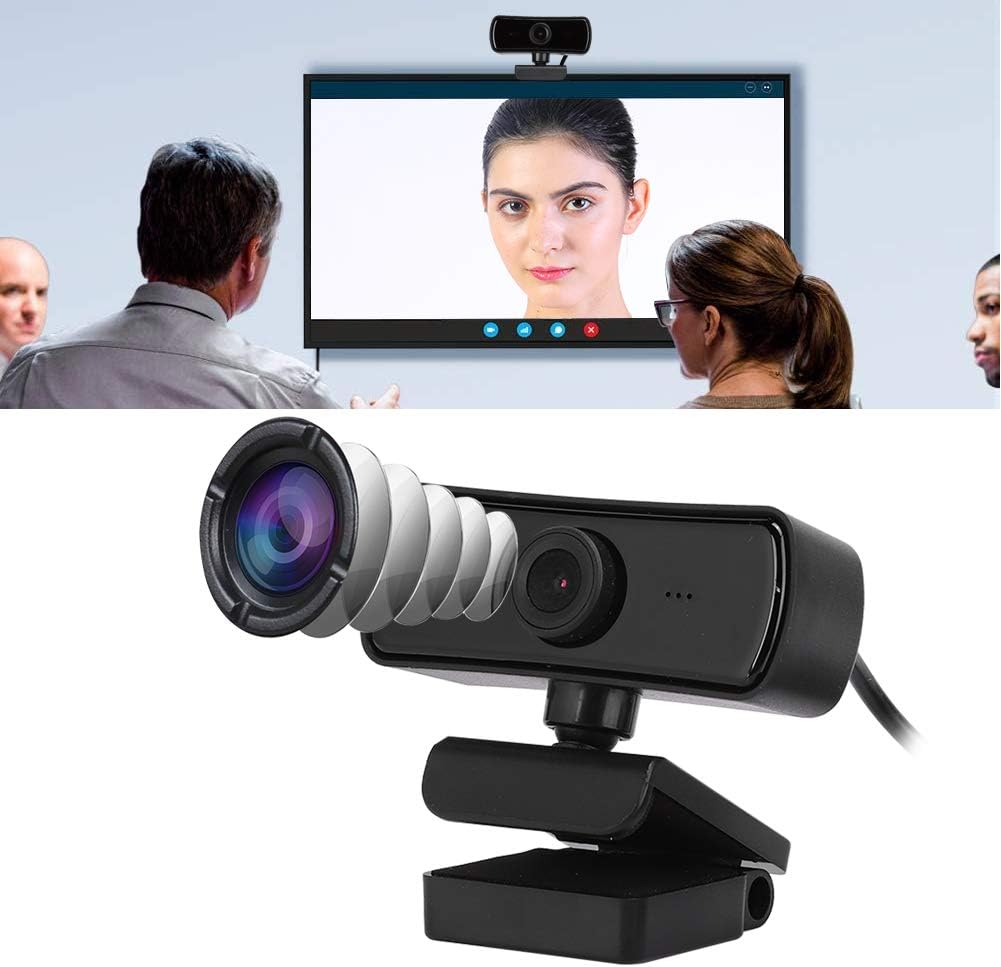
Figure 5.2: The webcam is suitable for various video scenarios, including video conferencing and remote work.
5.2 Common Applications
The ASHATA 4K Webcam is suitable for a wide range of uses:
- Network Teaching: Ideal for online classes and remote education.
- Video Conferencing: Perfect for business meetings and virtual collaborations.
- Remote Work: Facilitates effective communication for remote teams.
- Live Broadcasting: Provides clear video for streaming and content creation.
- HD Video Chat: Enhances personal video calls with friends and family.

Figure 5.3: The webcam is well-suited for professional and educational settings, providing clear visuals for network teaching and video conferences.
6. Maintenance
Proper care and maintenance will ensure the longevity and optimal performance of your ASHATA 4K Webcam.
- Cleaning the Lens: Gently wipe the webcam lens with a soft, lint-free cloth. For stubborn smudges, use a lens cleaning solution specifically designed for optical surfaces. Avoid abrasive materials or harsh chemicals.
- Cleaning the Body: Use a dry, soft cloth to clean the body of the webcam. Do not use liquid or spray cleaners directly on the device.
- Storage: When not in use for extended periods, store the webcam in a cool, dry place, away from direct sunlight and extreme temperatures.
- Cable Care: Avoid bending or kinking the USB cable excessively. Do not pull the cable to disconnect the webcam; always grasp the plug.
7. Troubleshooting
If you encounter issues with your ASHATA 4K Webcam, refer to the following common problems and solutions:
| Problem | Possible Cause | Solution |
|---|---|---|
| Webcam not detected by computer. | Loose USB connection, faulty USB port, driver issue. | Ensure the USB cable is securely plugged into both the webcam and the computer. Try a different USB port. Restart your computer. Check Device Manager (Windows) or System Information (macOS) to see if the webcam is listed. |
| No video output or black screen. | Webcam not selected in software, privacy settings, low light. | Verify the webcam is selected as the video input device in your application settings. Check your operating system's privacy settings to ensure camera access is granted to the application. Ensure adequate lighting in your environment. |
| No audio from built-in microphone. | Microphone not selected, muted, or volume too low. | Ensure the ASHATA Webcam's microphone is selected as the audio input device in your application and system sound settings. Check if the microphone is muted in the application or system. Adjust microphone volume levels. |
| Video quality is poor or blurry. | Insufficient lighting, dirty lens, network bandwidth. | Ensure sufficient lighting. Clean the webcam lens with a soft, lint-free cloth. Check your internet connection speed if streaming. |
| Webcam is unstable on monitor. | Improper placement of the clip. | Adjust the clip to ensure it firmly grips the top edge of your monitor or laptop screen. Ensure the monitor surface is clean and free of obstructions. |
8. Specifications
Detailed technical specifications for the ASHATA 4K Webcam:
| Feature | Description |
|---|---|
| Brand | ASHATA |
| Model Number | ASHATAo7tgv2qagh-11 |
| Video Capture Resolution | 2K (2560 x 1440) |
| Photo Sensor Technology | CMOS |
| Connectivity Technology | USB |
| Built-in Microphone | Yes, with 3-meter pickup range |
| Focus Type | Auto Focus |
| Rotation | 360-degree rotatable clip |
| Color | Black |
| Item Weight | 3.74 ounces |
| Package Dimensions | 3.94 x 2.36 x 2.36 inches |
| Special Features | Low Light capability |
| Video Capture Format | AVI |
| Supported Audio Format | PCM |
9. Warranty & Support
9.1 Warranty Information
ASHATA products are manufactured to high-quality standards. For specific warranty terms and conditions, please refer to the warranty card included with your purchase or contact ASHATA customer support. Keep your purchase receipt as proof of purchase for warranty claims.
9.2 Customer Support
If you have any questions, require technical assistance, or need to report an issue that cannot be resolved using the troubleshooting guide, please contact ASHATA customer support. Contact information can typically be found on the product packaging, the official ASHATA website, or through your retailer.