
1. Introduction
The QGOO AC600Mbps Dual Band Wireless USB Adapter (Model: Q-B2-5B12) provides high-speed wireless connectivity for your desktop or laptop computer. This adapter supports both 2.4GHz and 5GHz Wi-Fi bands, offering flexible and stable network access. With its built-in driver, installation is designed to be straightforward, allowing you to connect to your wireless network quickly.
2. Safety Information
- Keep the device away from water, fire, high temperatures, and corrosive environments.
- Do not attempt to disassemble or repair the device yourself. Refer to qualified personnel for service.
- Avoid dropping or subjecting the device to strong impacts.
- Ensure proper ventilation around the device during operation.
- This device is intended for indoor use only.
3. Package Contents
Please check the package contents carefully. If any item is missing or damaged, contact your retailer.
- QGOO AC600Mbps Dual Band Wireless USB Adapter (Model: Q-B2-5B12)
- User Manual (this document)

Image: The QGOO AC600Mbps Dual Band Wireless USB Adapter shown with its retail packaging, illustrating the product and its basic components.
4. Product Overview
The QGOO AC600Mbps USB Adapter features a compact design with an external antenna for enhanced signal reception.
Key Features:
- Dual Band Support: Operates on both 2.4GHz (up to 150Mbps) and 5GHz (up to 450Mbps) frequencies for a combined speed of up to 600Mbps.
- High Gain Antenna: Equipped with a rotatable 5dBi oxygen-free copper antenna for improved signal strength and wider coverage.
- Built-in Driver: Simplifies installation by eliminating the need for a CD-ROM or separate driver download.
- Security: Supports WPA/WPA2/WEP encryption for secure wireless connections.

Image: The QGOO USB adapter with text overlay explaining its dual-band functionality, showing 2.4GHz (150Mbps) and 5GHz (450Mbps) speeds.
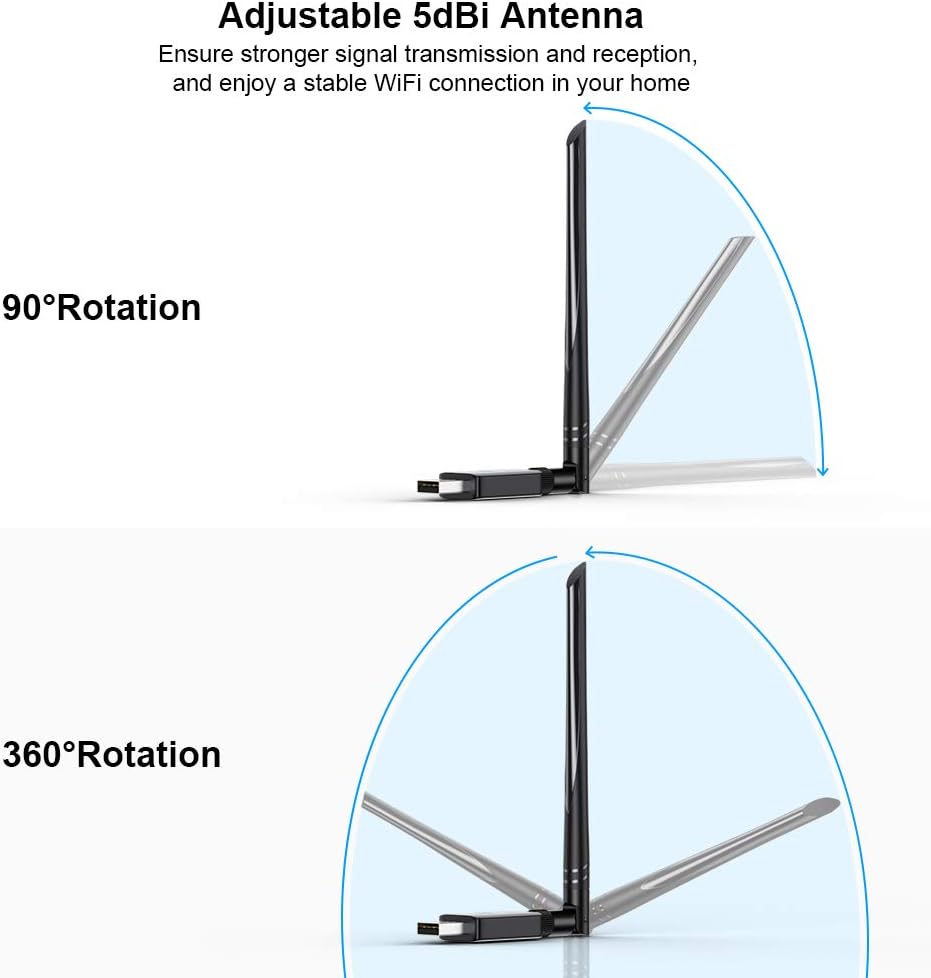
Image: An internal view diagram of the 5dBi high gain antenna, illustrating its design for powerful signal reception and wider coverage.

Image: The QGOO USB adapter demonstrating its adjustable 5dBi antenna, capable of 90-degree and 360-degree rotation for optimal signal reception.
5. Setup Instructions
The QGOO AC600Mbps USB Adapter features a built-in driver for simplified installation on compatible Windows operating systems.
5.1 Driver Installation (Windows)
- Insert the Adapter: Plug the QGOO USB Wireless Adapter into an available USB port on your desktop or laptop computer.
- Access Built-in Driver: The adapter functions as a small USB drive containing the necessary driver software. Open File Explorer (or My Computer) and locate a new drive letter (e.g., "CD Drive (X:)" or "QGOO WiFi").
- Run Installer: Double-click on the executable file (e.g., "setup.exe" or "install.exe") found within this new drive. Follow the on-screen prompts to complete the driver installation.
- Restart (if prompted): If prompted, restart your computer to ensure the driver is fully installed and recognized.
Note: While advertised as "Plug & Play," manual execution of the built-in driver installer is typically required for the first-time setup on Windows systems. This adapter is not compatible with Mac OS, Linux, or TV operating systems.

Image: The QGOO USB adapter connected to a laptop, illustrating the concept of automatic installation via its built-in driver, eliminating the need for external media.
5.2 Connecting to a Wi-Fi Network
- Enable Wi-Fi: After driver installation, ensure your computer's Wi-Fi is enabled.
- Select Network: Click on the Wi-Fi icon in your system tray (usually bottom-right corner on Windows). A list of available wireless networks will appear.
- Connect: Select your desired Wi-Fi network (SSID) and click "Connect."
- Enter Password: If prompted, enter the network security key (Wi-Fi password) and click "Next" or "OK."
- Verify Connection: Once connected, the Wi-Fi icon will indicate an active connection, and you should have internet access.
6. Operating Instructions
6.1 Using as a Wi-Fi Receiver (Client Mode)
Once installed, the adapter functions as your computer's primary Wi-Fi receiver. It will automatically scan for available networks and allow you to connect as described in the "Connecting to a Wi-Fi Network" section.

Image: The QGOO USB adapter plugged into a desktop computer, illustrating its function as a signal receiver for wireless internet access, replacing wired connections.
6.2 Using as a Wi-Fi Transmitter (AP Mode)
The adapter can also function as a Wi-Fi hotspot (Access Point mode) to share an existing wired internet connection with other wireless devices. This feature is typically enabled through the driver utility software or Windows' built-in mobile hotspot functionality.
- Ensure Wired Connection: Your computer must have an active internet connection via an Ethernet cable.
- Enable Mobile Hotspot (Windows 10/11):
- Go to Settings > Network & Internet > Mobile hotspot.
- Toggle "Share my Internet connection with other devices" to On.
- You can customize the network name (SSID) and password under "Edit."
- Using Driver Utility (Older Windows/Specific Drivers): Some driver installations include a utility that allows you to enable "Soft AP" or "Access Point" mode. Refer to the specific driver software interface for instructions.

Image: The QGOO USB adapter plugged into a laptop, demonstrating its capability to act as a signal transmitter, sharing the laptop's internet connection with a smartphone via Wi-Fi.
7. Maintenance
- Cleaning: Use a soft, dry cloth to clean the adapter. Do not use liquid cleaners or aerosols.
- Storage: When not in use, store the adapter in a cool, dry place, away from direct sunlight and extreme temperatures.
- Firmware/Driver Updates: Periodically check the manufacturer's website (qgoovip.com) for updated drivers or firmware, which may improve performance or compatibility.
8. Troubleshooting
8.1 Common Issues and Solutions
- Adapter not recognized / "Plug & Play" not working:
Solution: The adapter requires manual driver installation from its built-in memory. Ensure you have navigated to the adapter's virtual drive in File Explorer and run the setup executable. Refer to Section 5.1.
- Cannot connect to Wi-Fi network:
Solution:
- Verify the Wi-Fi password is correct.
- Ensure the adapter's driver is properly installed.
- Restart your computer and the wireless router.
- Try connecting to a different Wi-Fi network to isolate the issue.
- Check if your router's Wi-Fi band (2.4GHz or 5GHz) is enabled and visible.
- Slow Wi-Fi speeds:
Solution:
- Ensure you are connected to the 5GHz band if your router supports it, as it generally offers higher speeds and less interference.
- Move closer to your wireless router to improve signal strength.
- Minimize obstacles (walls, large metal objects) between the adapter and the router.
- Check for updated drivers on the manufacturer's website.
- Ensure other devices on your network are not consuming excessive bandwidth.
- Adapter frequently disconnects:
Solution:
- Ensure the adapter is securely plugged into the USB port.
- Try a different USB port.
- Disable power saving features for the USB port in Device Manager (for Windows).
- Update the adapter's driver.
- Check for interference from other devices (e.g., Bluetooth, cordless phones).
- "Error Message" or software issues:
Solution: Reinstall the driver. If the issue persists, visit the manufacturer's website (qgoovip.com) for the latest drivers and support resources.
8.2 Compatibility
This adapter is designed to support Windows operating systems including Windows 11, 10, 8.1, 8, 7, XP, and Vista. It is not compatible with Mac OS, Linux, or TV operating systems.
9. Specifications
| Brand | QGOO |
| Model Number | Q-B2-5B12 |
| Hardware Interface | USB |
| Color | Black |
| Compatible Devices | Desktop, Laptop |
| Data Link Protocol | 802.11ac (Wi-Fi), USB |
| Data Transfer Rate | 600 Mbps (450 Mbps at 5GHz, 150 Mbps at 2.4GHz) |
| Compatible Operating System Family | Windows (11/10/8.1/8/7/XP/Vista) |
| Antenna | 5dBi Rotatable Antenna |
10. Warranty & Support
10.1 Warranty Information
Please refer to the product packaging or your purchase receipt for specific warranty terms and conditions. QGOO typically offers a limited warranty against defects in materials and workmanship.
10.2 Technical Support
For technical assistance, driver updates, or further inquiries, please visit the official QGOO website or contact their customer support:
- Website: https://qgoovip.com
- Refer to the website for contact information such as email or phone support.
