
TCL 40-Inch Series 4 Class Full HD 1080p Smart Android TV
TCL 40-Inch Series 4 Smart Android TV User Manual
Model: 40-Inch Series 4 Class Full HD 1080p Smart Android TV
1. Introduction
This manual provides comprehensive instructions for the setup, operation, maintenance, and troubleshooting of your TCL 40-Inch Series 4 Class Full HD 1080p Smart Android TV. Please read this manual thoroughly before operating your TV and retain it for future reference.
The TCL 40-inch HD Smart TV offers a quality viewing experience with its 1080p resolution and 60Hz refresh rate. It runs on the Android operating system, providing access to various apps and online streaming services, including Google Assistant and Chromecast Built-in.
2. What's in the Box
Verify that all components are present in the packaging:
- TCL 40-Inch Series 4 Smart Android TV Unit
- TV Stand (2 pieces)
- Remote Control (batteries not included)
- Power Cord
- Quick Start Guide
- Screws for Stand Assembly

Figure 2.1: Front view of the TCL 40-Inch Smart Android TV. The screen displays a promotional image of a knife set on a white pedestal.
3. Setup
3.1 Attaching the TV Stand
- Carefully place the TV screen-down on a soft, clean surface to prevent scratches.
- Align the stand pieces with the screw holes on the bottom of the TV.
- Secure the stand using the provided screws. Ensure the stand is firmly attached.

Figure 3.1: Side profile of the TCL 40-Inch Smart Android TV, illustrating its slim design and the attached stand.
3.2 Connecting Cables
Before connecting any cables, ensure the TV and all external devices are powered off.
- Power: Connect the power cord to the TV's power input and then to a wall outlet.
- HDMI Devices: Connect your HDMI-enabled devices (e.g., game consoles, Blu-ray players) to the HDMI ports on the back of the TV. The TV features multiple HDMI inputs for versatile connectivity.
- Antenna/Cable: Connect an antenna or cable TV coaxial cable to the "ANT/CABLE IN" port for over-the-air or cable broadcasts.
- Network: For wired internet access, connect an Ethernet cable from your router to the LAN port on the TV. For wireless, the TV supports Wi-Fi connectivity.

Figure 3.2: Rear view of the TCL 40-Inch Smart Android TV, highlighting the arrangement of input ports and VESA mounting holes.
3.3 Initial Power-On and Setup Wizard
- Plug the power cord into a wall outlet.
- Press the Power button on the remote control or on the TV itself.
- Follow the on-screen instructions to complete the initial setup, including language selection, network connection (Wi-Fi or Ethernet), and Google account sign-in for Android TV features.
4. Operating Your TV
4.1 Smart Android TV Features
Your TCL TV runs on the Android operating system, providing access to a vast array of entertainment options:
- Streaming Services: Access popular apps like Netflix, Disney+, YouTube, and many more directly from your TV's home screen.
- Google Assistant: Use voice commands to search for content, get answers, control smart home devices, and manage tasks. Simply press the Google Assistant button on your remote and speak into the microphone.
- Chromecast Built-in: Easily cast movies, shows, photos, and more from your compatible Android or iOS device to your TV. Ensure your device and TV are on the same Wi-Fi network.
- Google Play Store: Download additional apps, games, and content to customize your viewing experience.

Figure 4.1: Angled view of the TCL 40-Inch Smart Android TV, showcasing its display capabilities with an image of a cutting board and a knife.
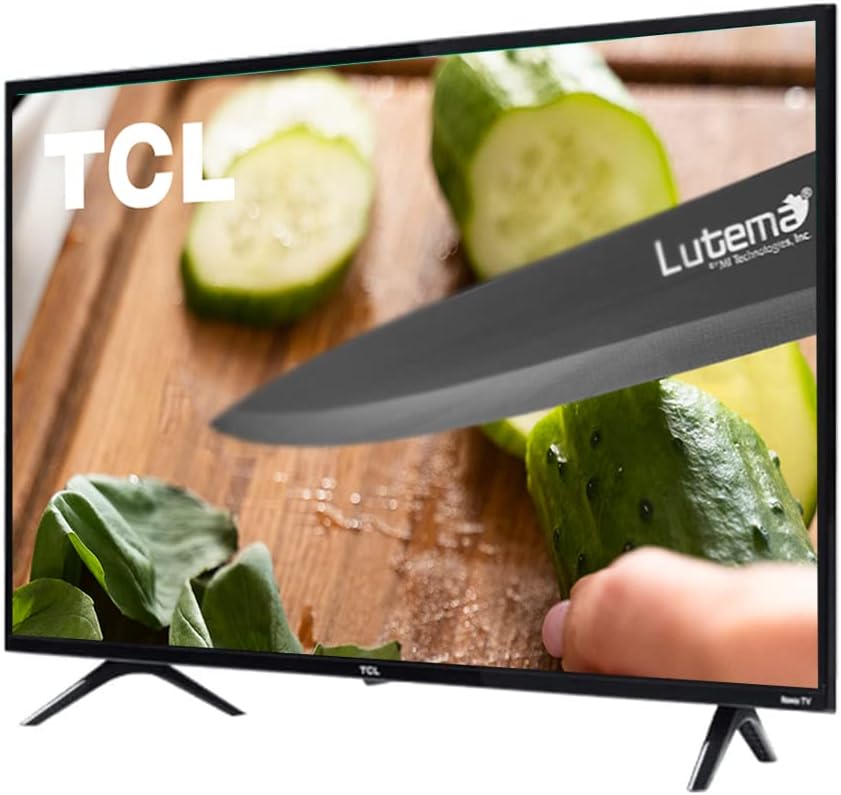
Figure 4.2: Close-up angled view of the TCL 40-Inch Smart Android TV, demonstrating the clarity of its display with an image of a knife slicing a cucumber.
4.2 Remote Control Functions
Familiarize yourself with the remote control buttons for optimal navigation:
- Power: Turns the TV on or off.
- Input: Selects the input source (HDMI 1, HDMI 2, TV, etc.).
- Navigation Pad (Up/Down/Left/Right/OK): Navigates menus and selects options.
- Back: Returns to the previous screen.
- Home: Returns to the Android TV home screen.
- Volume +/-: Adjusts the volume level.
- Channel +/-: Changes TV channels.
- Google Assistant Button: Activates voice control.
- App Shortcut Buttons: Dedicated buttons for popular streaming services (e.g., Netflix, YouTube).
4.3 Connecting External Devices
To connect external devices:
- Connect the device to an available HDMI port on the TV.
- Press the "Input" button on your remote control.
- Select the corresponding HDMI input (e.g., HDMI 1, HDMI 2) from the list.
5. Maintenance
5.1 Cleaning the TV
- Screen: Gently wipe the screen with a soft, lint-free cloth. For stubborn marks, slightly dampen the cloth with water or a specialized screen cleaner. Never spray cleaner directly onto the screen.
- Frame and Stand: Use a soft, dry cloth to wipe dust from the TV frame and stand.
- Power Off: Always unplug the TV before cleaning.
5.2 Software Updates
Your Android TV may receive software updates periodically. Ensure your TV is connected to the internet to receive these updates, which can improve performance and add new features. You can usually check for updates in the TV's settings menu.
6. Troubleshooting
If you encounter issues with your TV, refer to the following common solutions:
| Problem | Possible Cause / Solution |
|---|---|
| No Power | Ensure the power cord is securely plugged into the TV and a working electrical outlet. Try a different outlet. |
| No Picture / Sound | Check input source (press "Input" on remote). Verify external device connections (HDMI, etc.). Ensure volume is not muted or too low. |
| Remote Control Not Working | Replace batteries. Ensure no obstructions between remote and TV. Re-pair the remote if it's a Bluetooth remote. |
| Cannot Connect to Wi-Fi | Check Wi-Fi password. Restart your router and modem. Ensure TV is within range of the Wi-Fi signal. |
| Apps Not Loading / Slow Performance | Check internet connection speed. Clear app cache or data in TV settings. Restart the TV. |
If the issue persists after trying these steps, please refer to the TCL support website or contact customer service.
7. Specifications
- Brand: TCL
- Model: 40-Inch Series 4 Class Full HD 1080p Smart Android TV
- Screen Size: 40 Inches (102 cm diagonal)
- Display Technology: LED
- Resolution: 1080p Full HD (1920 x 1080)
- Refresh Rate: 60 Hz
- Operating System: Android TV
- Smart Features: Google Assistant Built-In, Chromecast Built-in, Access to Google Play Store and streaming services
- Connectivity: Wi-Fi, Multiple HDMI Inputs, USB, Ethernet, Antenna/Cable In
- Aspect Ratio: 1.77:1
- Product Dimensions (with stand): 36" W x 22" H x 7" D (approx.)
- Item Weight: 22 pounds (approx.)
- Color: Black
- Included Components: TV, Stand
8. Warranty and Support
This product is sold as a renewed item. Please refer to the specific warranty terms provided by the seller or Amazon Renewed at the time of purchase. Typically, renewed products come with a limited warranty or return policy.
For technical support, troubleshooting beyond this manual, or warranty claims, please contact the seller directly or visit the official TCL support website for general product information and resources.
Amazon Renewed Store: Visit Store
Related documents40-Inch Series 4 Class Full HD 1080p Smart Android TV


Ask a question about this manual
Ask about setup, troubleshooting, compatibility, parts, safety, or missing instructions. Manuals+ will review the question and use this page’s manual context to help answer it.