
1. Introduction
This manual provides detailed instructions for the installation, operation, and maintenance of your Linkind Smart Light Bulbs. Please read this manual thoroughly before using the product to ensure proper function and safety.

Image 1.1: Linkind Smart Light Bulbs enhancing a living space.
2. Package Contents
Verify that all items are present in your package:
- Linkind Smart Light Bulbs (4-pack)
- Remote Control (1)
- User Manual (this document)

Image 2.1: Contents of the Linkind Smart Light Bulb 4-pack.
3. Safety Information
Please observe the following safety precautions:
- Do not use with standard dimmer switches. This may cause flickering or damage.
- Ensure power is off before installing or removing bulbs.
- For indoor use only.
- Do not disassemble the bulb.
- Keep the remote control away from water and extreme temperatures.
4. Setup Instructions
4.1. Bulb Installation
- Ensure the power to the light fixture is turned off.
- Screw the Linkind Smart Light Bulb into a standard E26 socket.
- Turn on the power to the light fixture. The bulb will flash, indicating it is in pairing mode.
4.2. AiDot App Connection
The Linkind Smart Light Bulbs require the AiDot app for full functionality and smart home integration. Ensure your Wi-Fi network is 2.4GHz.
- Download the official AiDot app from your device's app store.
- Open the AiDot app and sign in or create an account.
- Tap the "+" icon in the top right corner to add a device.
- Select "Add Device" then "Nearby" to scan for your bulb.
- Follow the on-screen prompts to connect your Smart Light Bulb to your 2.4GHz Wi-Fi network.
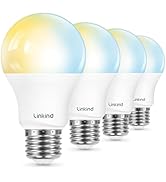
Image 4.1: Steps for connecting the Linkind Smart Light Bulb to the AiDot app.
4.3. Voice Assistant Integration (Alexa/Google Home)
After connecting your bulbs to the AiDot app, you can integrate them with Amazon Alexa or Google Home for voice control.
- In the AiDot app, navigate to "Integration."
- Choose Amazon Alexa or Google Home.
- You will be redirected to the respective voice assistant app or website. Log in with your credentials.
- Authorize the connection between AiDot and your voice assistant.
- Once linked, you can use voice commands to control your Linkind Smart Light Bulbs.
Image 4.2: Steps for integrating Linkind Smart Light Bulbs with voice assistants.
5. Operating Instructions
5.1. App Control (AiDot App)
The AiDot app provides comprehensive control over your smart light bulbs:
- On/Off: Toggle the power of individual bulbs or groups.
- Brightness Adjustment: Dim or brighten the lights from 1% to 100%.
- Color Changing: Select from 16 million colors to customize your lighting.
- Color Temperature: Adjust white light from 1800K (warm white) to 6500K (cool white).
- Preset Scenes: Choose from 64 pre-configured lighting scenes (e.g., Bonfire, Party, Night Light, Reading, Sunset).
- Schedules: Set automated on/off times for your bulbs based on your daily routine.
- Group Control: Create groups of bulbs to control multiple lights simultaneously.

Image 5.1: AiDot app interface for controlling smart light bulbs.

Image 5.2: Examples of 64 preset scenes available in the AiDot app.

Image 5.3: Example of scheduled lighting for a home.
5.2. Remote Control
The included remote control is pre-paired with your bulbs and allows basic control without Wi-Fi connectivity.
- On/Off: Press the power button to turn lights on or off.
- Dimming: Use the brightness buttons to adjust light intensity.
- Scene Selection: Cycle through various preset scenes.

Image 5.4: Using the Linkind remote control.
5.3. Voice Control
Once integrated with Alexa or Google Home, use voice commands for hands-free control:
- "Alexa, turn on the living room light."
- "Hey Google, dim the bedroom lights to 50%."
- "Alexa, set the kitchen light to blue."

Image 5.5: Voice control with Alexa.
6. Maintenance
To ensure the longevity and optimal performance of your Linkind Smart Light Bulbs:
- Cleaning: Dust the bulbs with a soft, dry cloth when the power is off. Do not use liquid cleaners.
- Storage: If storing bulbs, keep them in a cool, dry place away from direct sunlight.
- Remote Battery: The remote control uses 1 CR2032 battery (included). Replace the battery when the remote's performance degrades.
7. Troubleshooting
- Bulb not responding:
- Ensure the bulb is securely screwed into the socket and the power is on.
- Check your Wi-Fi connection. The bulb requires a stable 2.4GHz Wi-Fi network.
- Restart the bulb by turning the power off and on at the switch.
- If using the remote, ensure it has a working battery and is within range.
- Cannot connect to AiDot app:
- Verify your Wi-Fi network is 2.4GHz. 5GHz networks are not supported.
- Ensure your phone is connected to the same 2.4GHz Wi-Fi network during setup.
- Reset the bulb by cycling its power off and on five times until it flashes. Then attempt pairing again.
- Voice control not working:
- Confirm the Linkind skill/service is enabled in your Alexa or Google Home app.
- Ensure your voice assistant device is online and properly configured.
- Try re-linking your AiDot account with your voice assistant.
- Flickering or buzzing:
- Do not use these smart bulbs with traditional dimmer switches. They are designed for app/remote dimming.
- Ensure the bulb is not loose in the socket.
8. Specifications
| Feature | Specification |
|---|---|
| Brand | Linkind |
| Model Number | LS01017116 |
| Light Type | LED |
| Bulb Shape Size | A19 |
| Bulb Base | E26 |
| Wattage | 9 Watts (60W Equivalent) |
| Brightness | 800 Lumens |
| Color Temperature | 1800K-6500K (Tunable White) |
| Color Options | 16 Million Colors (RGBTW) |
| Control Method | App (AiDot), Remote, Voice (Alexa, Google Home) |
| Connectivity | 2.4GHz Wi-Fi |
| Voltage | 120 Volts |
| Average Life | 25,000 Hours |
| Material | Aluminum, Plastic |
| Product Dimensions | 2.36"W x 3.94"H |
| Item Weight | 9.9 ounces |
| Included Components | Remote |
| Remote Battery | 1 CR2032 (included) |

Image 8.1: Linkind Smart Light Bulb dimensions and key features.
9. Warranty and Support
Linkind products come with a 1-year coverage from the date of purchase. For technical assistance or warranty claims, please contact Linkind customer service.
Customer Service Hours: Monday - Friday, 9 AM - 5 PM PST
For further support, visit the official Linkind store: Linkind Store on Amazon


