
energeeks EG-CIPEXT003
energeeks Guardian Outdoor WiFi Surveillance Camera User Manual
Model: EG-CIPEXT003
Introduction
The energeeks Guardian outdoor fixed WiFi IP camera is designed to provide reliable and effective surveillance for your home, garden, or business. Featuring high-resolution imaging, advanced detection capabilities, and robust weather protection, this manual will guide you through its setup, operation, and maintenance to ensure optimal performance.
Product Overview
The energeeks Guardian camera is a compact and durable device built for outdoor environments. Below are key visual components and their descriptions.
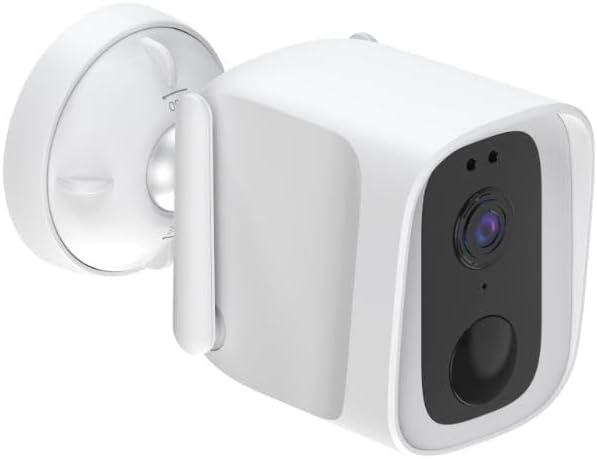
Overall View: This image shows the energeeks Guardian camera from an angled perspective, highlighting its compact design and the integrated mounting bracket. The camera features a white casing with a black front panel containing the lens and sensors.

Front Panel: A direct front view of the camera, detailing the central lens, the light sensor, and the infrared LEDs for night vision. The lower circular element is likely the microphone or a motion sensor.

Side Profile: This image displays the side of the camera, showing the integrated antenna for WiFi connectivity and the robust mounting arm that allows for flexible positioning.

Angled View with Mount: Another angled view, providing a clearer look at the adjustable mounting base, which facilitates easy installation on various surfaces.
Key Features
- IP65 Weather Protection: Designed to withstand dust and powerful water jets, ensuring reliable performance in various weather conditions (rain, snow, sun).
- 4 Megapixel Resolution: Captures clear and detailed high-definition images for precise surveillance.
- Advanced Night Vision: Provides clear monitoring up to 10 meters in total darkness, ensuring 24/7 security.
- Motion and Sound Detection: Equipped with advanced technology to detect both motion and sound, sending instant alerts to your mobile device for proactive surveillance.
- Two-Way Audio: Features a built-in microphone and speaker for real-time communication through the camera.
- Integrated LED Lights and Siren: Activates upon motion detection to deter potential intruders, adding an extra layer of security.
- Flexible Storage Options: Supports recording to a micro SD card (not included) or cloud storage for convenient access to your footage.
- Wi-Fi and ONVIF Compatibility: Easily integrates with 2.4 GHz Wi-Fi networks and other security devices via ONVIF protocol.
- Mobile Application: Control and monitor your camera from anywhere using the free mobile app available for iOS and Android, compatible with SMARTLIFE by Tuya.
Setup Guide
1. Unboxing and Preparation
- Carefully remove all components from the packaging.
- Verify that all listed components are present (camera, power adapter, mounting screws, user manual).
- Choose a suitable outdoor location for installation, ensuring good Wi-Fi signal strength and a clear view of the area to be monitored.
2. Powering On
- Connect the camera to the provided power adapter.
- Plug the power adapter into a suitable outdoor power outlet. Ensure the outlet is protected from weather elements.
- Wait for the camera's indicator light to show it is ready for pairing (refer to the camera's LED indicator guide in the full manual for specific light patterns).
3. App Installation and Pairing
- Download the "SMARTLIFE" or "Tuya Smart" app from your mobile device's app store (iOS App Store or Google Play Store).
- Register for a new account or log in if you already have one.
- In the app, tap "Add Device" or the "+" icon.
- Select "Security & Video Surveillance" and then "Smart Camera (Wi-Fi)".
- Follow the on-screen instructions to connect the camera to your 2.4 GHz Wi-Fi network. This usually involves scanning a QR code displayed on your phone with the camera's lens.
- Once successfully paired, you can rename your camera and begin live viewing.
4. Physical Installation
- Using the provided mounting screws and template (if included), securely attach the camera's base to your chosen surface (wall, eaves, etc.).
- Adjust the camera's angle to cover the desired surveillance area.
- Ensure all connections are secure and weatherproofed if necessary.
Operating Instructions
Live View and Recording
- Open the SMARTLIFE/Tuya Smart app and select your energeeks Guardian camera.
- The live video feed will appear. You can switch between SD and HD resolution.
- To manually record video or capture screenshots, use the respective buttons on the live view interface.
- If a micro SD card is inserted, recordings will be saved locally. Cloud storage options are also available via the app.
Motion and Sound Detection
- Navigate to the camera settings within the app.
- Enable "Motion Detection" and "Sound Detection".
- Adjust sensitivity levels as needed to minimize false alarms.
- Configure notification settings to receive alerts on your mobile device when an event is detected.
Two-Way Audio
- On the live view screen, tap the microphone icon to speak through the camera's speaker.
- Tap the speaker icon to listen to audio from the camera's microphone.
LED Lights and Siren
- These features can be configured to activate automatically upon motion detection via the app settings.
- You may also be able to manually activate the siren or LED lights from the live view interface.
Maintenance
- Cleaning: Periodically clean the camera lens and casing with a soft, damp cloth. Do not use harsh chemicals or abrasive materials.
- Firmware Updates: Check the app regularly for available firmware updates. Keeping your camera's firmware up-to-date ensures optimal performance, security, and access to new features.
- Power Supply: Ensure the power connection remains secure and free from damage.
- Wi-Fi Connection: Monitor your Wi-Fi signal strength in the app to ensure a stable connection for continuous surveillance.
Troubleshooting
| Problem | Possible Cause | Solution |
|---|---|---|
| Camera offline/Cannot connect to Wi-Fi | Weak Wi-Fi signal, incorrect Wi-Fi password, camera too far from router, router issues. |
|
| Poor image quality | Dirty lens, low light conditions, network bandwidth issues. |
|
| No motion/sound alerts | Detection settings disabled, sensitivity too low, app notifications blocked. |
|
| Two-way audio not working | Microphone/speaker disabled in app, volume too low, network latency. |
|
Specifications
| Feature | Detail |
|---|---|
| Model Name | Guardian 1080p outdoor fixed IP camera |
| Model Number | EG-CIPEXT003 |
| Resolution | 4 Megapixels (1080p video recording) |
| Night Vision Range | Up to 10 meters |
| Connectivity | Wi-Fi (2.4 GHz), Wired |
| Water Resistance Level | IP65 (Waterproof) |
| Audio | Two-way audio (microphone and speaker) |
| Special Features | Motion Detector, Sound Detection, LED Lights, Siren |
| Storage Options | Micro SD card, Cloud storage |
| Power | 5 Volts, 10 Watts |
| Dimensions (L x W x H) | 12 x 6 x 9 cm |
| Weight | 500 grams |
| Material | Plastic |
| Recommended Use | Outdoor Security |
Warranty and Support
Warranty Information
Specific warranty details for the energeeks Guardian camera are typically provided with your purchase documentation or on the manufacturer's official website. Please refer to these resources for information regarding warranty period, coverage, and claims process.
Customer Support
For technical assistance, troubleshooting beyond this manual, or any product-related inquiries, please contact energeeks customer support. Contact information can usually be found on the product packaging, the official energeeks website, or within the SMARTLIFE/Tuya Smart application.
Note: ENERGEEKS aims to make home automation accessible and provides detailed manuals and personalized support in Spanish. For English support, please check their official channels.
Ask a question about this manual
Ask about setup, troubleshooting, compatibility, parts, safety, or missing instructions. Manuals+ will review the question and use this page’s manual context to help answer it.