
1. Introduction
This user manual provides comprehensive instructions for the PRITOM 10-inch Kids Tablet (Model M10). Please read this manual carefully before using the device to ensure proper operation and to maximize its lifespan. This tablet is designed with children in mind, featuring a durable case and parental control functionalities to provide a safe and engaging learning and entertainment experience.

Image: The PRITOM 10-inch Kids Tablet, shown in its purple protective case, displaying a vibrant cartoon scene on its screen. This image illustrates the tablet's design and its primary use for children's content.
2. What's in the Box
Upon opening the package, please verify that all the following items are included:
- 1 x PRITOM 10 inch Kids Tablet
- 1 x Charger
- 1 x User Manual
- 1 x USB Cable
- 1 x Screen Protector (pre-installed)
- 1 x Ar Zoo Paper
3. Product Overview
Familiarize yourself with the physical components and ports of your PRITOM Kids Tablet:
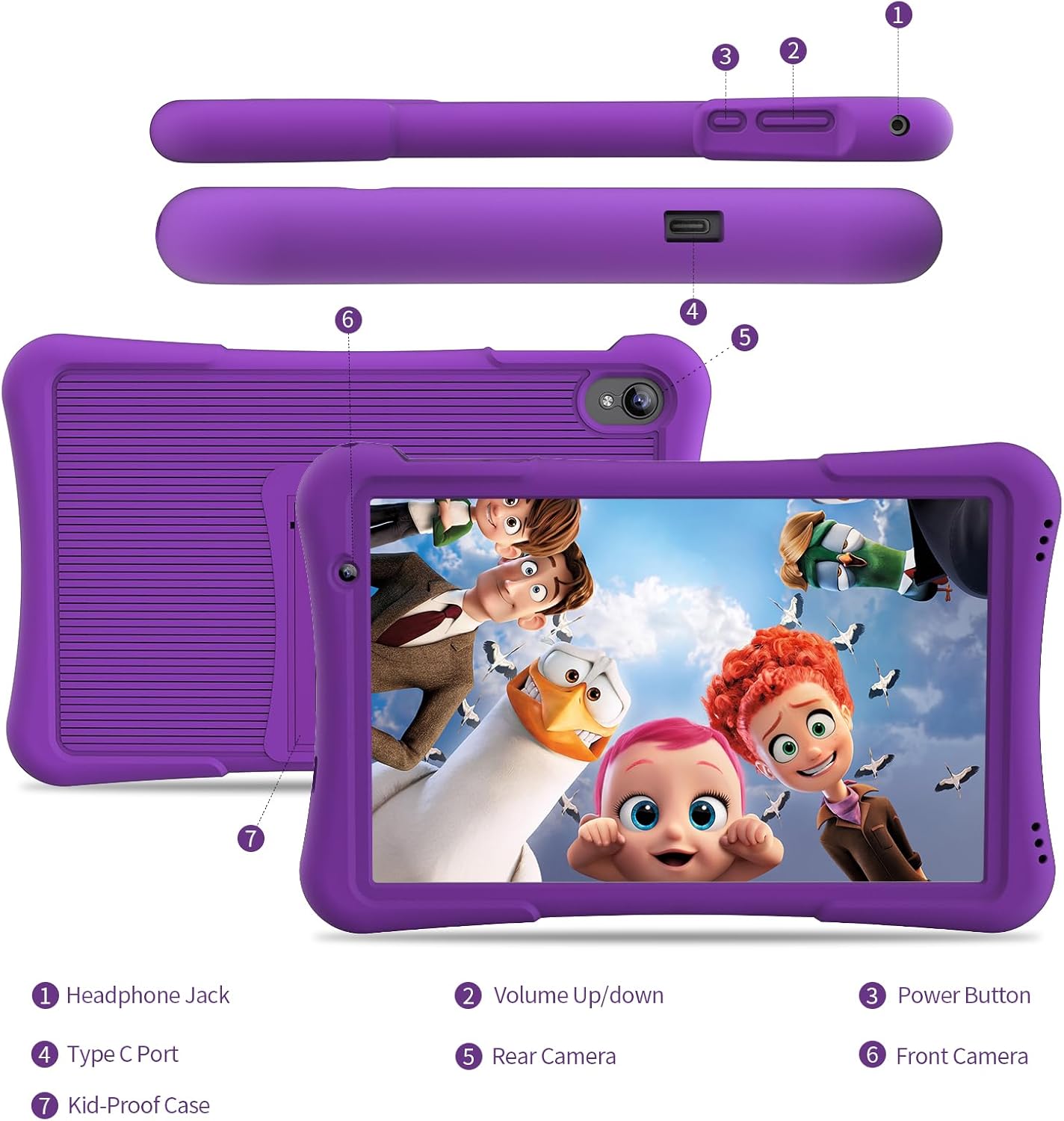
Image: A detailed diagram illustrating the various ports and buttons on the PRITOM 10-inch Kids Tablet, including the headphone jack, volume controls, power button, Type-C charging port, front camera, rear camera, and the protective kid-proof case.
- Headphone Jack: For connecting wired headphones.
- Volume Up/Down: Adjusts the audio output level.
- Power Button: Press and hold to power on/off, short press to sleep/wake.
- Type-C Port: For charging the tablet and connecting to a computer.
- Rear Camera: Main camera for taking photos and videos.
- Front Camera: Camera for video calls and selfies.
- Kid-Proof Case: Durable silicone case designed to protect the tablet from drops and impacts.
4. Setup
4.1 Initial Charging
Before first use, fully charge the tablet using the provided charger and USB Type-C cable. The charging indicator will typically show progress on the screen. A full charge ensures optimal battery performance.
4.2 Powering On/Off
- To Power On: Press and hold the Power Button until the PRITOM logo appears on the screen.
- To Power Off: Press and hold the Power Button until a power-off menu appears. Select "Power off" and confirm.
- Sleep/Wake: Short press the Power Button to put the tablet to sleep or wake it up.
4.3 Initial Setup Wizard
Upon first power-on, the tablet will guide you through an initial setup process. Follow the on-screen prompts to:
- Select your preferred language.
- Connect to a Wi-Fi network.
- Set up date and time.
- Accept terms and conditions.
4.4 Setting Up Parental Control (iWawa App)
The PRITOM Kids Tablet comes pre-installed with the iWawa app, which provides robust parental control features. This allows you to manage content, screen time, and user profiles for your children.
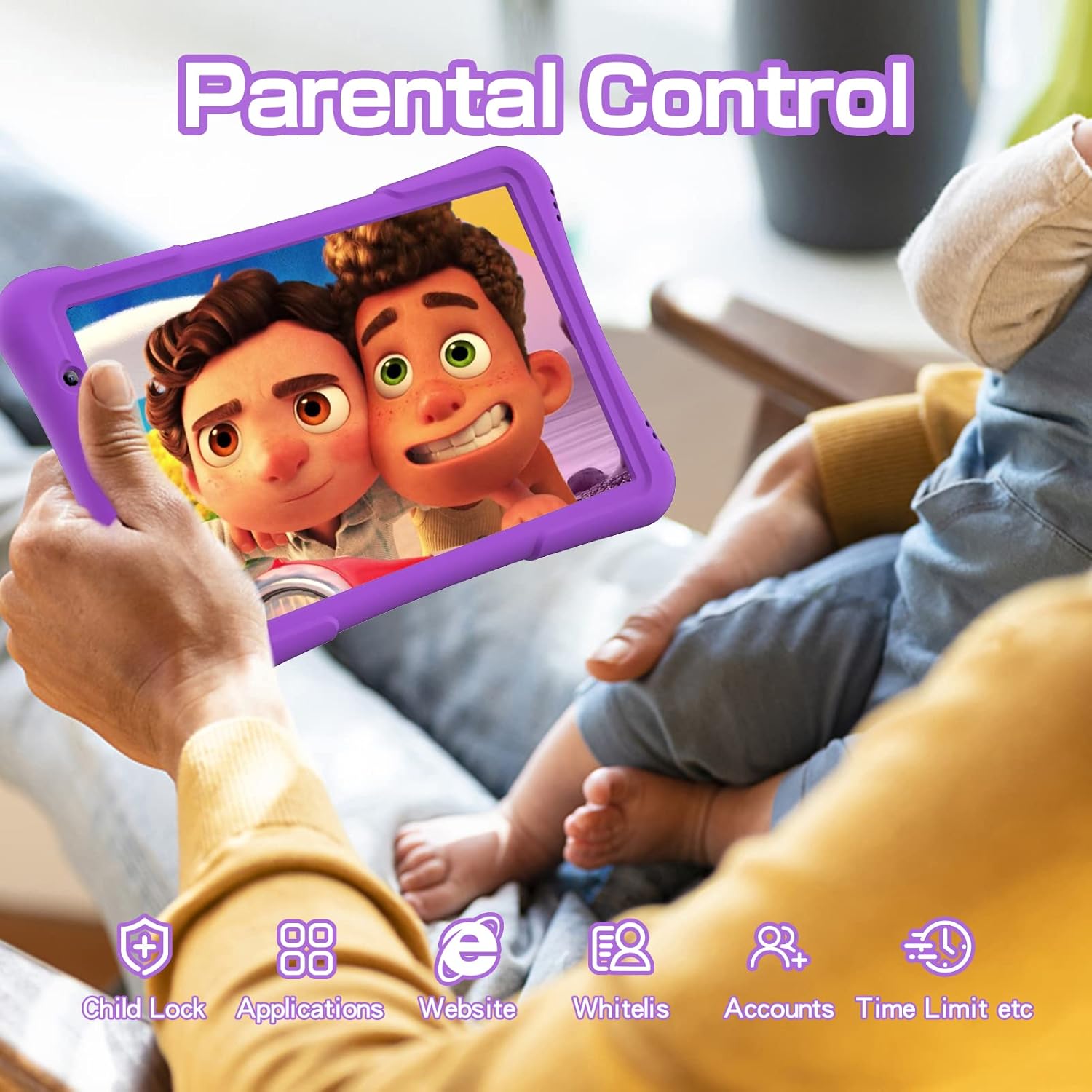
Image: A visual representation of the tablet's parental control interface, highlighting features such as child lock, application management, website whitelisting, account creation, and time limit settings, ensuring a safe digital environment for children.
- Open the iWawa application from the tablet's home screen.
- Follow the on-screen instructions to create a parent account and set a password.
- Create individual profiles for each child.
- Within each child's profile, you can:
- Select specific applications they can access.
- Set daily time limits for tablet usage.
- Manage website access by whitelisting approved sites.
- Monitor usage statistics.
- To exit Kids Mode and return to the standard Android interface, you will need to enter your parent password.
5. Operating Instructions
5.1 Basic Navigation
The tablet operates using a capacitive touchscreen. Common gestures include:
- Tap: To select an item or open an app.
- Tap and Hold: To access contextual menus or move icons.
- Swipe: To scroll through pages or lists.
- Pinch-to-Zoom: To zoom in or out on images and web pages.
5.2 Connecting to Wi-Fi
To access the internet and download apps, connect your tablet to a Wi-Fi network:
- Go to Settings > Network & internet > Wi-Fi.
- Toggle Wi-Fi to the "On" position.
- Select your desired Wi-Fi network from the list.
- Enter the network password if prompted, then tap "Connect".
5.3 Downloading Applications
The PRITOM Kids Tablet is Google GMS Certified, allowing access to the Google Play Store for a wide range of applications.

Image: The PRITOM tablet screen showcasing a variety of popular application icons, such as YouTube, Netflix, and Google, signifying its Google Mobile Services (GMS) certification and ability to run standard Android apps.
- Ensure you are connected to Wi-Fi.
- Open the Play Store app.
- Search for the desired application.
- Tap "Install" to download and install the app.
Additionally, the iWawa app provides pre-installed educational and entertainment content suitable for children.
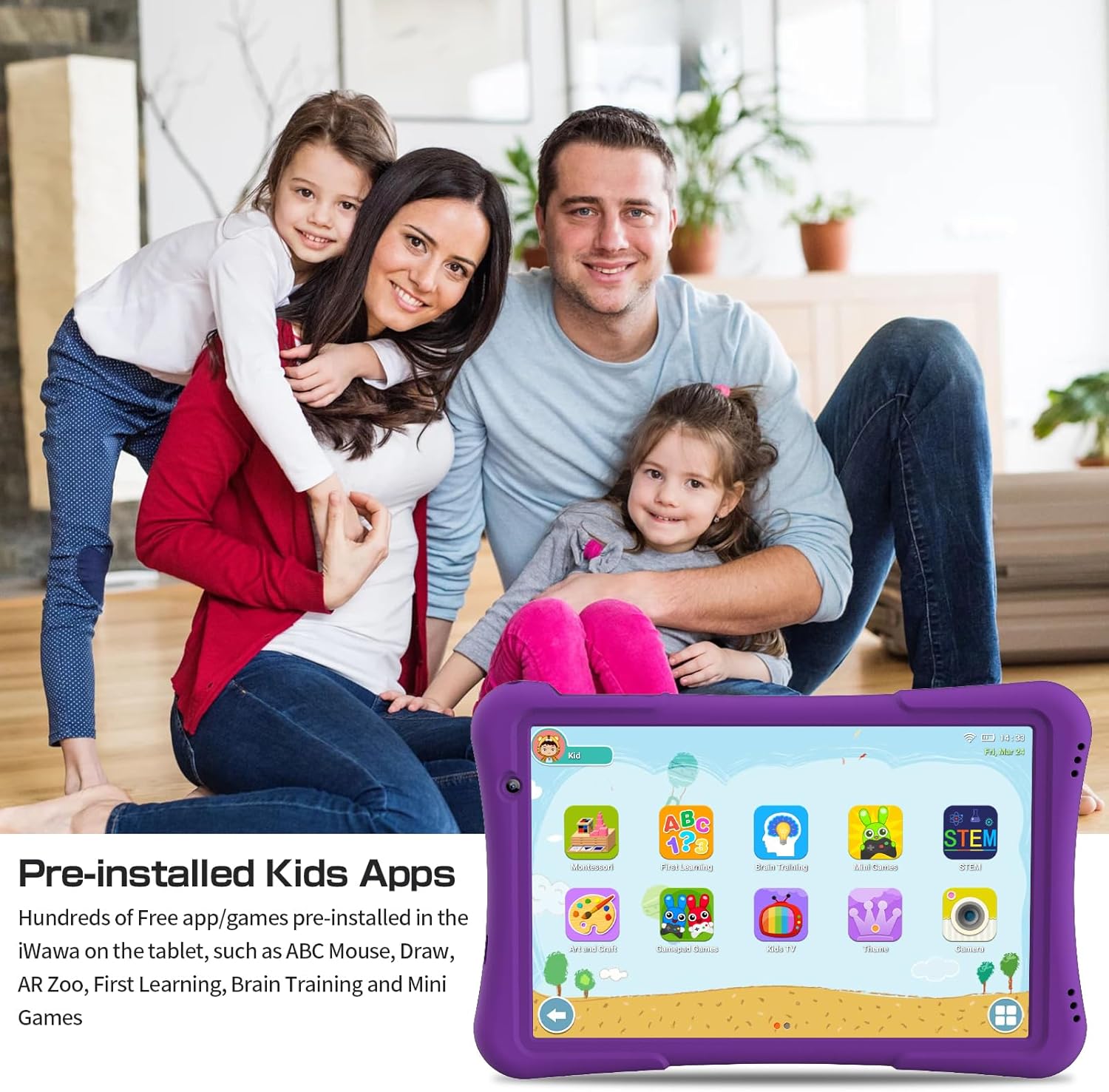
Image: The tablet screen showing a selection of pre-installed educational and entertainment applications for children, including ABC Mouse, drawing tools, AR Zoo, and various learning and brain training games.
5.4 Managing Storage
The tablet comes with 32GB of internal storage. If more space is needed, you can expand the memory up to 512GB using a microSD card (not included).
- To insert a microSD card, locate the card slot on the side of the tablet and gently push the card in until it clicks.
- To check storage usage, go to Settings > Storage.
5.5 Eye Healthy Mode
The tablet features an Eye Healthy Mode designed to reduce eye strain, especially during prolonged use. This mode optimizes backlight settings for a more comfortable viewing experience.
- Access this feature through the quick settings panel (swipe down from the top of the screen) or in Settings > Display.
5.6 Using the Cameras
The tablet is equipped with dual cameras for photos and videos.
- Open the Camera app from the home screen.
- Tap the shutter button to take a photo or start/stop video recording.
- Use the toggle icon to switch between the front and rear cameras.
6. Maintenance
6.1 Cleaning the Tablet
- Use a soft, lint-free cloth to clean the screen and body of the tablet.
- For stubborn smudges, slightly dampen the cloth with water or a screen-cleaning solution.
- Avoid using harsh chemicals, abrasive cleaners, or aerosol sprays directly on the tablet.
6.2 Battery Care
- To prolong battery life, avoid fully discharging the battery frequently.
- Do not expose the tablet to extreme temperatures (hot or cold).
- Use only the provided charger or a certified compatible charger.
6.3 Software Updates
Periodically check for system updates to ensure your tablet has the latest features and security patches.
- Go to Settings > System > System update.
- Follow the on-screen instructions to download and install any available updates.
6.4 Kid-Proof Case Care
The silicone case is designed for durability. Clean it with mild soap and water if it gets dirty. Ensure the case is dry before reattaching it to the tablet.
7. Troubleshooting
This section addresses common issues you might encounter with your PRITOM Kids Tablet.
| Problem | Possible Solution |
|---|---|
| Tablet does not turn on. | Ensure the tablet is fully charged. Connect to the charger and wait a few minutes before attempting to power on again. If unresponsive, try holding the power button for 10-15 seconds for a forced restart. |
| Cannot connect to Wi-Fi. | Check if Wi-Fi is enabled in settings. Ensure the Wi-Fi password is correct. Restart your Wi-Fi router. Try connecting to a different Wi-Fi network if available. |
| Tablet is running slow. | Close unused applications. Clear cache from apps in Settings > Apps. Consider uninstalling rarely used apps. Check available storage space. Restart the tablet. |
| Apps are crashing or freezing. | Force close the app (Settings > Apps > [App Name] > Force Stop). Clear the app's cache and data. Uninstall and reinstall the app. Ensure the tablet's software is up to date. |
| Screen is unresponsive. | Restart the tablet. Ensure the screen is clean and free of debris. If a screen protector is installed, ensure it is properly applied and not interfering with touch sensitivity. |
| Parental control settings are not working as expected. | Review the settings within the iWawa app. Ensure the correct child profile is active. Verify time limits and allowed applications. Restart the iWawa app or the tablet. |
8. Specifications
Key technical specifications for the PRITOM 10-inch Kids Tablet (Model M10):
| Feature | Detail |
|---|---|
| Screen Size | 10 Inches |
| Screen Resolution | 1024x600 pixels (HD IPS Display) |
| Operating System | Android 14 |
| Processor | 1.6 GHz Quad-Core (Allwinner) |
| RAM | 2 GB SDRAM DDR4 |
| Internal Storage | 32 GB |
| Expandable Storage | Up to 512 GB (via microSD card, not included) |
| Battery Capacity | 6000mAh Lithium Polymer |
| Average Battery Life | 6 Hours |
| Wireless Connectivity | WiFi 6 (802.11bgn), Bluetooth |
| Cameras | Dual Camera (Front and Rear) |
| Dimensions (LxWxH) | 13 x 8 x 0.42 inches |
| Item Weight | 1.5 pounds |
| Color | Purple |
9. Warranty and Support
PRITOM offers a 1-year quality warranty for this product. If you encounter any issues or have questions regarding your PRITOM Kids Tablet, please contact our customer service team. We aim to provide a solution within 24 hours.
For support, please refer to the contact information provided on the PRITOM official website or the product packaging. You can also reach out via the Amazon messaging system if purchased through Amazon.


