1. Product Overview
The Topcony TY55 is a high-performance 5MP WiFi PTZ surveillance camera designed for outdoor security. It features advanced imaging capabilities, intelligent detection, and robust construction to provide reliable monitoring in various environments.
Key Features:
- 5MP Full HD Resolution: Captures clear and detailed images at 2560x1920 pixels.
- 4X Optical Zoom: Allows for closer inspection of distant objects without compromising image quality.
- 360° PTZ Control: Pan 355° horizontally and tilt 110° vertically for comprehensive area coverage.
- AI Human Detection & Auto-tracking: Accurately identifies human figures and automatically follows their movement, reducing false alarms.
- Color Night Vision: Provides full-color video even in low-light conditions up to 25 meters (82 feet).
- Two-Way Audio: Built-in microphone and speaker for real-time communication.
- IP66 Weatherproof & Full Metal Body: Durable construction ensures reliable operation in harsh weather.
- Multiple Storage Options: Supports Micro SD card (up to 128GB, not included) and cloud storage.
- Remote Access: Monitor live view and recordings via the free CamHipro app on Android, iOS, and Windows.

Figure 1.1: Topcony 5MP WiFi Surveillance Camera with its mounting bracket and antennas.
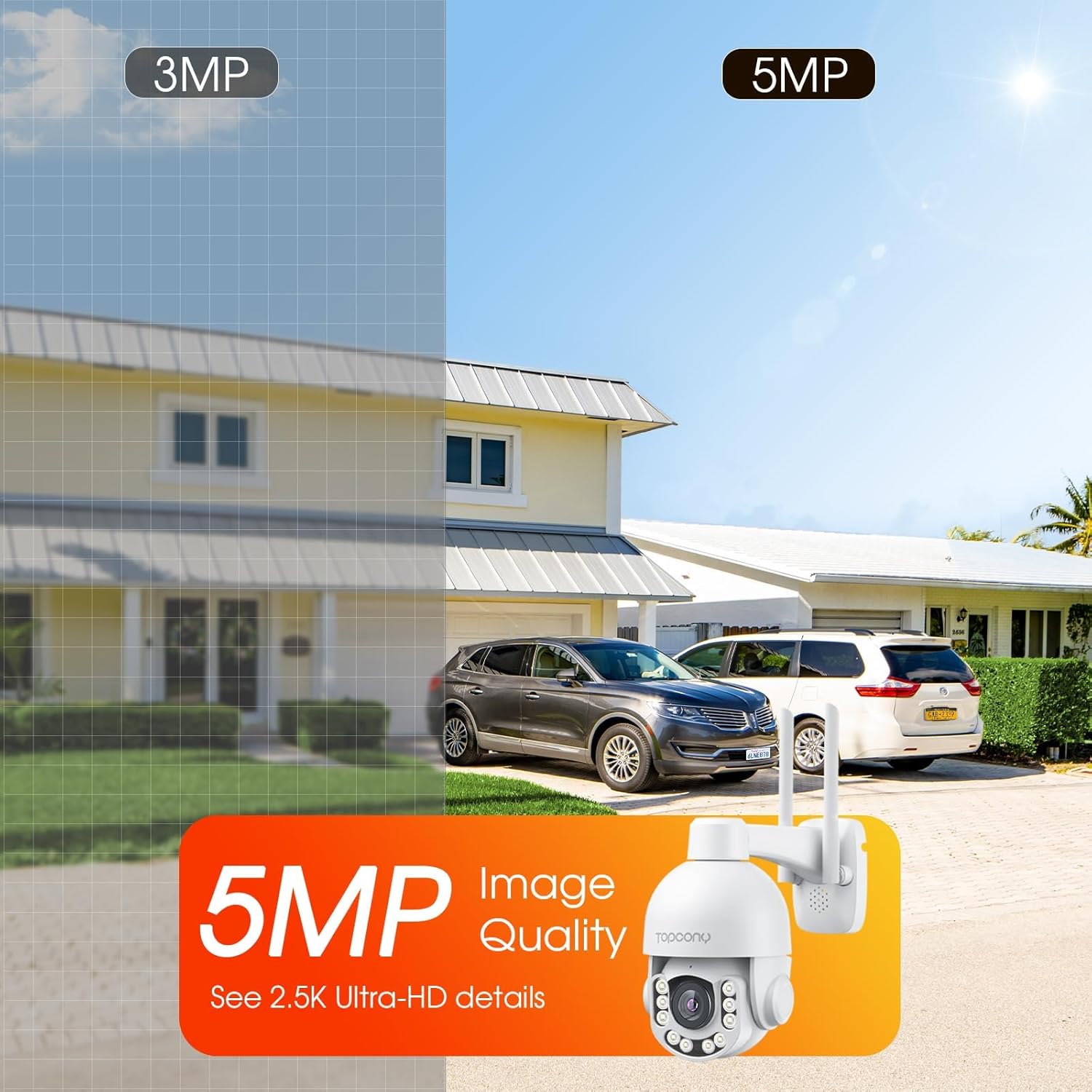
Figure 1.2: Comparison illustrating the superior image quality of 5MP resolution compared to 3MP, showing enhanced detail.
2. Package Contents
Please check the package contents upon unboxing. If any items are missing or damaged, contact Topcony customer support.
- Topcony 5MP WiFi Surveillance Camera (TY55)
- Power Adapter
- Mounting Screws and Wall Plugs
- Waterproof Kit for Network Cable (if applicable)
- User Manual (this document)
3. Setup Guide
3.1 Physical Installation
- Choose a Location: Select a suitable outdoor location with a clear view of the area you wish to monitor. Ensure it is within range of your WiFi network or has access to an Ethernet connection.
- Mounting: Use the included mounting template (if provided) to mark drill holes. Secure the mounting bracket to the wall or ceiling using the screws and wall plugs.
- Attach Camera: Attach the camera to the mounted bracket. Ensure it is securely fastened.
- Power Connection: Connect the power adapter to the camera's power input and plug it into a power outlet.
3.2 Network Connection
The camera supports both Wi-Fi and Ethernet connections.

Figure 3.1: Illustration of Wi-Fi and Ethernet connection options for the camera.
Wi-Fi Connection:
- Download the CamHipro app from your mobile app store (App Store for iOS, Google Play Store for Android).
- Register an account and log in.
- Tap '+' to add a new device. Select 'Add Camera' and follow the in-app instructions for Wi-Fi setup. This typically involves scanning a QR code on the camera or entering Wi-Fi credentials.
Ethernet Connection:
- Connect an Ethernet cable from your router to the camera's Ethernet port.
- The camera will automatically obtain an IP address.
- Open the CamHipro app, tap '+' to add a new device, and select 'Add Camera'. The app should detect the camera on your local network.
4. Operating Instructions
4.1 Live View and PTZ Control
Once connected, open the CamHipro app and select your camera to view the live feed. Use the on-screen controls to pan, tilt, and zoom the camera.

Figure 4.1: Illustration of setting customized preset positions and cruise paths for automated camera movement.
- Pan/Tilt: Drag your finger across the live view screen to move the camera horizontally (pan) and vertically (tilt).
- Optical Zoom: Pinch in/out on the screen to activate the 4X optical zoom.
- Presets: Set up to 32 preset positions for quick navigation to specific areas.
- Cruise Paths: Configure up to 2 cruise paths for automated patrolling between preset points.
4.2 Recording and Playback
The camera supports continuous recording, alarm recording, and scheduled recording to a Micro SD card or cloud storage.
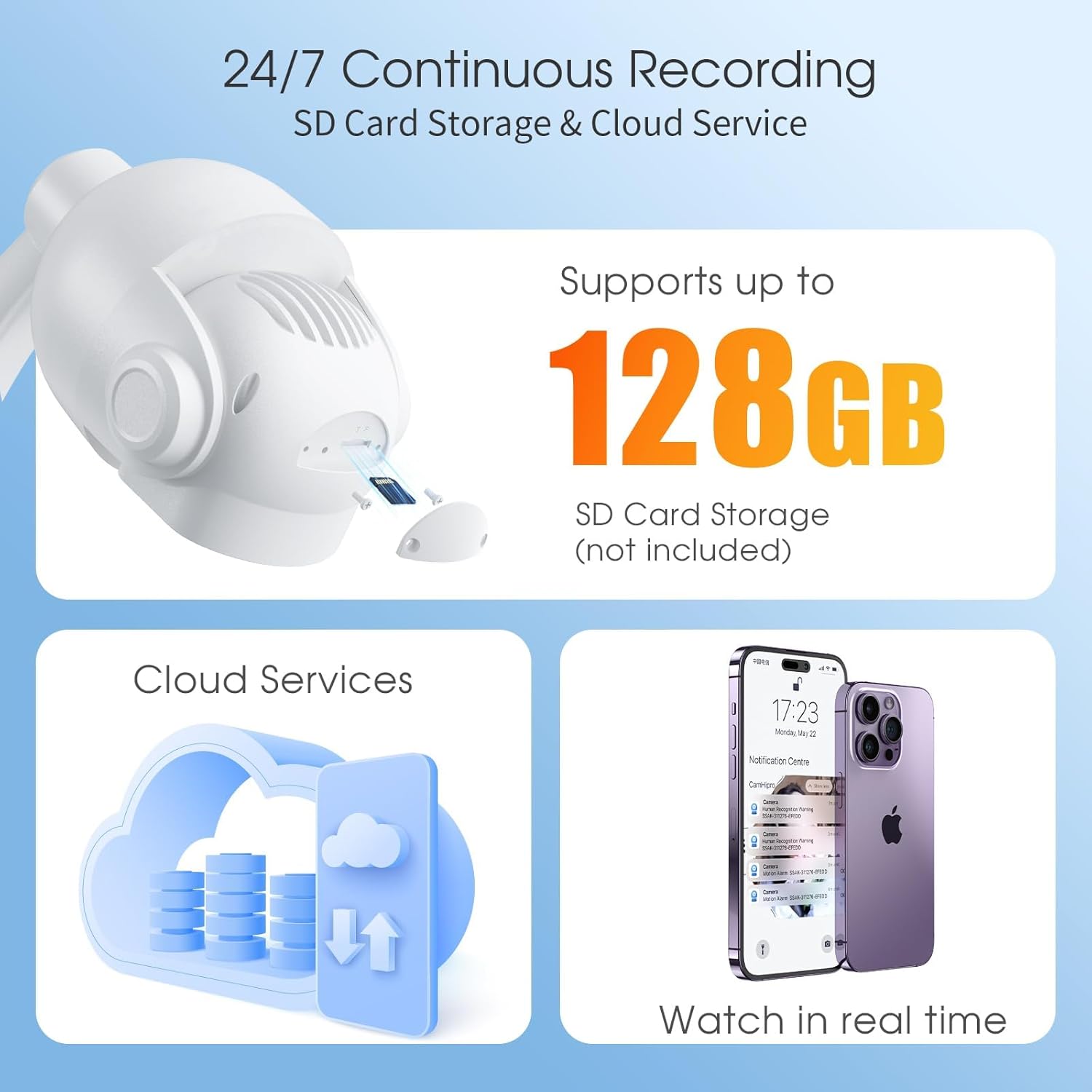
Figure 4.2: Overview of 24/7 continuous recording, showing support for up to 128GB SD card storage and cloud services.
- Micro SD Card: Insert a Micro SD card (up to 128GB, Class 10 or higher recommended) into the designated slot on the camera. Format the card via the app settings.
- Cloud Storage: Subscribe to Topcony cloud services through the CamHipro app for secure off-site storage.
- Playback: Access recorded footage via the 'Playback' section in the app. You can filter by date, time, and event type.
4.3 Motion Detection and Alerts
The camera features advanced AI human detection to minimize false alarms and send instant alerts.

Figure 4.3: Visual representation of AI human detection and auto-tracking capabilities, highlighting detected human figures.
- Enable Detection: Go to 'Detection Settings' in the app to enable human detection and adjust sensitivity.
- Alerts: Receive real-time push notifications on your phone, email alerts, or upload to an FTP server when motion is detected.
- Sound & Light Alerts: Configure the camera to emit a siren and flash its lights to deter intruders upon detection.

Figure 4.4: The camera activating sound and light alerts to deter an uninvited guest at night.
4.4 Two-Way Audio
Use the two-way audio feature to communicate with visitors or deter unwanted guests.
- In the live view, tap the microphone icon to speak through the camera's speaker.
- Tap the speaker icon to listen to audio from the camera's microphone.
4.5 Night Vision Modes
The camera offers both full-color night vision and infrared night vision.

Figure 4.5: Comparison between 5MP full-color night vision and traditional infrared night vision, showing the enhanced detail and color in low light.
- Color Night Vision: Utilizes built-in spotlights to provide full-color images in dark conditions.
- Infrared Night Vision: Uses infrared LEDs for black and white images in complete darkness.
- Switch between modes in the app settings based on your preference.
5. Maintenance
5.1 Cleaning
- Regularly clean the camera lens with a soft, dry cloth to ensure clear image quality.
- Wipe the camera body with a damp cloth if necessary. Do not use harsh chemicals or abrasive cleaners.
5.2 Firmware Updates
- Check the CamHipro app periodically for available firmware updates.
- Updating firmware ensures optimal performance, new features, and security enhancements. Follow in-app instructions carefully during updates.
5.3 Storage Management
- If using an SD card, ensure it is formatted correctly and has sufficient space. Old recordings may be overwritten automatically.
- Manage cloud storage subscriptions and data retention settings through the CamHipro app.
6. Troubleshooting
Common Issues and Solutions:
- Camera Offline:
- Check power connection.
- Verify Wi-Fi signal strength or Ethernet cable connection.
- Restart the camera and your router.
- Poor Image Quality:
- Clean the camera lens.
- Ensure sufficient lighting for optimal image capture.
- Check network bandwidth.
- No Motion Alerts:
- Enable motion detection in app settings.
- Adjust detection sensitivity.
- Check notification settings on your phone.
- SD Card Not Recording:
- Ensure the SD card is inserted correctly.
- Format the SD card via the app.
- Check if the SD card is faulty or full.
For further assistance, please refer to the support section or contact Topcony customer service.
7. Specifications
| Feature | Specification |
|---|---|
| Model Number | TY55 |
| Resolution | 5 Megapixels (2560x1920) |
| Optical Zoom | 4X |
| Pan Angle | 355 degrees |
| Tilt Angle | 110 degrees |
| Connectivity | Wi-Fi (Wireless), Ethernet (Wired) |
| Night Vision | Color Night Vision, Infrared Night Vision |
| Weather Resistance | IP66 |
| Material | Metal |
| Power | 4 Watts (Power Adapter) |
| Storage | Micro SD Card (up to 128GB), Cloud Storage |
| Compatible Devices | Smartphone (Android, iOS), PC (Windows) |
| Control App | CamHipro |
| Dimensions (L x W x H) | 10 x 10 x 8 cm |
| Weight | 1.58 kilograms |
8. Warranty and Support
Warranty Information:
Topcony offers a 12-month service period after purchase, covering technical support and product exchange for manufacturing defects. Please retain your proof of purchase for warranty claims.
Customer Support:
For any questions, technical assistance, or warranty claims, please contact Topcony customer support through the following channels:
- Official Topcony Email: Refer to the contact information provided in your product packaging or on the official Topcony website.
- Official Topcony Website: Visit Topcony Brand Store on Amazon for support resources and contact details.
- Facebook: Search for "Topcony" on Facebook for community support and updates.


