
Introduction
This manual provides detailed instructions for the installation, operation, and maintenance of your SIXTOP 2+32G Android Car Stereo. Please read this manual thoroughly before using the product to ensure proper functionality and safety.
What's in the Box
Verify that all components are present before beginning installation:
- Car Stereo with Frame
- Camera
- Microphone
- Cable Set

Image: Included components of the SIXTOP Android Car Stereo, showing the main head unit with its frame, a rear view camera, an external microphone, and various connection cables.
Setup & Installation
Professional installation is recommended. Ensure the vehicle's power is disconnected before starting. The following steps provide a general overview of the installation process.
1. Removing the Original Head Unit
Carefully use a plastic trim removal tool to pry open the dashboard panels surrounding the original car stereo. Locate and unscrew any retaining bolts. Disconnect all electrical plugs and antenna cables from the original unit.
Video: Demonstrates the process of removing an existing car stereo unit from a Hyundai i10 (2008-2012 model shown, general steps may apply to 2013-2018). This includes prying off trim panels, unscrewing bolts, and disconnecting wiring harnesses.
2. Wiring Connections
Connect the provided wiring harness to the car's existing harness. Ensure all connections are secure. Connect the GPS antenna, Wi-Fi antenna, and microphone. If installing a backup camera, connect its video input and power wires.

Image: Illustrates the various wiring connections for the Android car stereo, including power, speaker outputs, USB, GPS, and camera inputs.
3. Installing the New Head Unit
Carefully slide the new Android car stereo into the dashboard opening. Secure it with the appropriate screws. Reattach all trim panels, ensuring they snap firmly into place.

Image: A side-by-side comparison showing the original Hyundai I10 dashboard (top) and the dashboard after the SIXTOP Android Car Stereo has been installed (bottom).
Operating Instructions
Apple CarPlay & Android Auto
Synchronize your phone's apps, contacts, and navigation to the stereo. Ensure your phone's Wi-Fi is on. Connect via Bluetooth and open the "ZLINK5" app, or use a USB cable and open "ZLINK5".

Image: Displays the user interfaces for both Apple CarPlay and Android Auto on the car stereo screen, highlighting wireless connection capabilities.
Video: Demonstrates the wireless Apple CarPlay connection process on an Android car stereo, showing the phone and stereo interfaces during pairing.
Mirror Link & Split Screen
Mirror your phone's screen to the stereo via the "ZLINK5" app. For split screen, tap the rectangle at the top of the screen, then drag a desired app to either the left or right side.
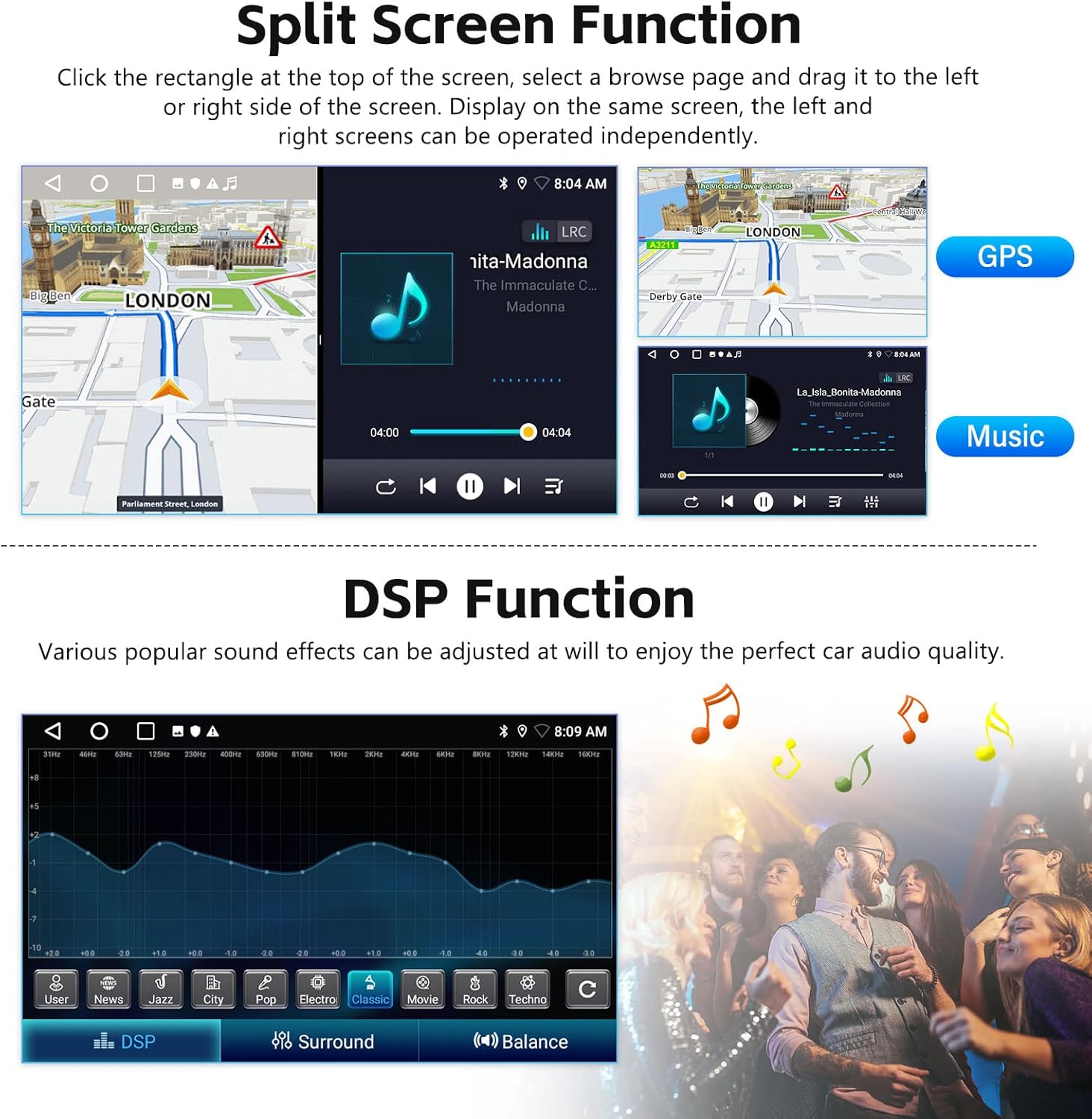
Image: Shows the split-screen feature, allowing two applications (e.g., GPS and music) to run simultaneously. Also depicts the DSP sound adjustment interface.
Video: Showcases various functions of the Android car radio, including the split-screen feature, allowing users to view multiple applications simultaneously.
Wi-Fi & GPS Navigation
Connect to Wi-Fi to download apps and use online maps. The built-in GPS allows for offline navigation by downloading maps from the Play Store.

Image: Illustrates the Wi-Fi connectivity for app downloads and online content, alongside the GPS navigation system displaying a map with route guidance.
Radio Themes
Customize your stereo's appearance with 26 desktop themes. Long-press any blank space on the homepage to select your preferred theme.

Image: A collage of various desktop themes available for the car stereo, showcasing different visual styles and layouts.
Bluetooth & FM/RDS Radio
Bluetooth supports hands-free calls, address book synchronization, and music playback. The FM/RDS radio provides access to news, music, and traffic information (FM 87.5-108).

Image: Shows the FM/RDS radio interface with station presets and the Bluetooth menu for connecting devices and playing music.
Steering Wheel Control Function
Utilize your car's original steering wheel buttons to control the audio system for safer driving. Access the "Steering Learn" option in settings to configure controls.
Video: Illustrates how the car's steering wheel buttons can be configured to control the Android car stereo, enhancing convenience and safety.
Backup Camera
The system supports a waterproof night vision backup camera for clear reversing images. Ensure the two short wires on the camera are connected. Set camera resolution to AHD 720/25fps in Factory Settings (Password: 000000).

Image: Shows the clear display of the backup camera on the car stereo screen, complete with parking guidelines for safe reversing.
Video: Demonstrates the connection method for a car reversing camera, showing the wiring from the camera to the head unit and power supply.
Specifications
| Feature | Detail |
|---|---|
| Model Name | SIXTOP 2+32G |
| Memory (RAM+ROM) | 2GB RAM + 32GB ROM |
| Display Size | 9 Inches |
| Screen Resolution | 1024*600 |
| Operating Temperature | -20℃ to 75℃ |
| Power Output | 4*45W |
| Radio Band | FM/RDS (87.5-108 MHz) |
| Connectivity | Bluetooth, Wi-Fi |
| Special Features | Apple CarPlay, Android Auto, Mirror Link, GPS Navigation, Touchscreen, Split Screen, AHD Backup Camera, Steering Wheel Control, EQ, DSP |
| Vehicle Service Type | Hyundai I10 (2013-2018) |
Warranty & Support
The product comes with a 1-year warranty. For technical support or warranty claims, please contact SIXTOP customer service.
- 1-Year Replacement
- Lifetime Technical Support
- 24 Hours / 7 Days Quick Response