Introduction to Your iPhone 14 Guide
This guide is designed to help you understand and effectively use your new Apple iPhone 14. It provides clear, step-by-step instructions, large text, and illustrations to make learning accessible and enjoyable. Whether you're new to smartphones or just need a refresher on the latest iPhone features, this manual will walk you through everything from basic setup to advanced functionalities, ensuring you stay connected and confident with your device.
1. Getting Started: Initial Setup
Setting up your iPhone 14 is the first step to enjoying its many features. This section covers the essential initial configurations.
1.1 Basic iPhone Settings
Upon first turning on your iPhone, you will be guided through a series of setup screens. Follow the on-screen prompts to select your language, region, and connect to a Wi-Fi network. Ensure you have your Apple ID ready or create one if you don't have one already.
1.2 Setting Up Face ID
Face ID allows you to unlock your iPhone and make purchases securely using facial recognition. To set it up, go to Settings > Face ID & Passcode and follow the instructions to scan your face.
1.3 Connecting to Wi-Fi
To access the internet and download apps, connect your iPhone to a Wi-Fi network. Go to Settings > Wi-Fi, select your desired network, and enter the password if prompted.
1.4 Installing and Managing Apps
Apps extend the functionality of your iPhone. You can download new apps from the App Store. Tap the App Store icon, search for the app you want, and tap Get or the price to download. To manage apps, press and hold an app icon until it jiggles, then tap the 'X' to delete or drag to rearrange.
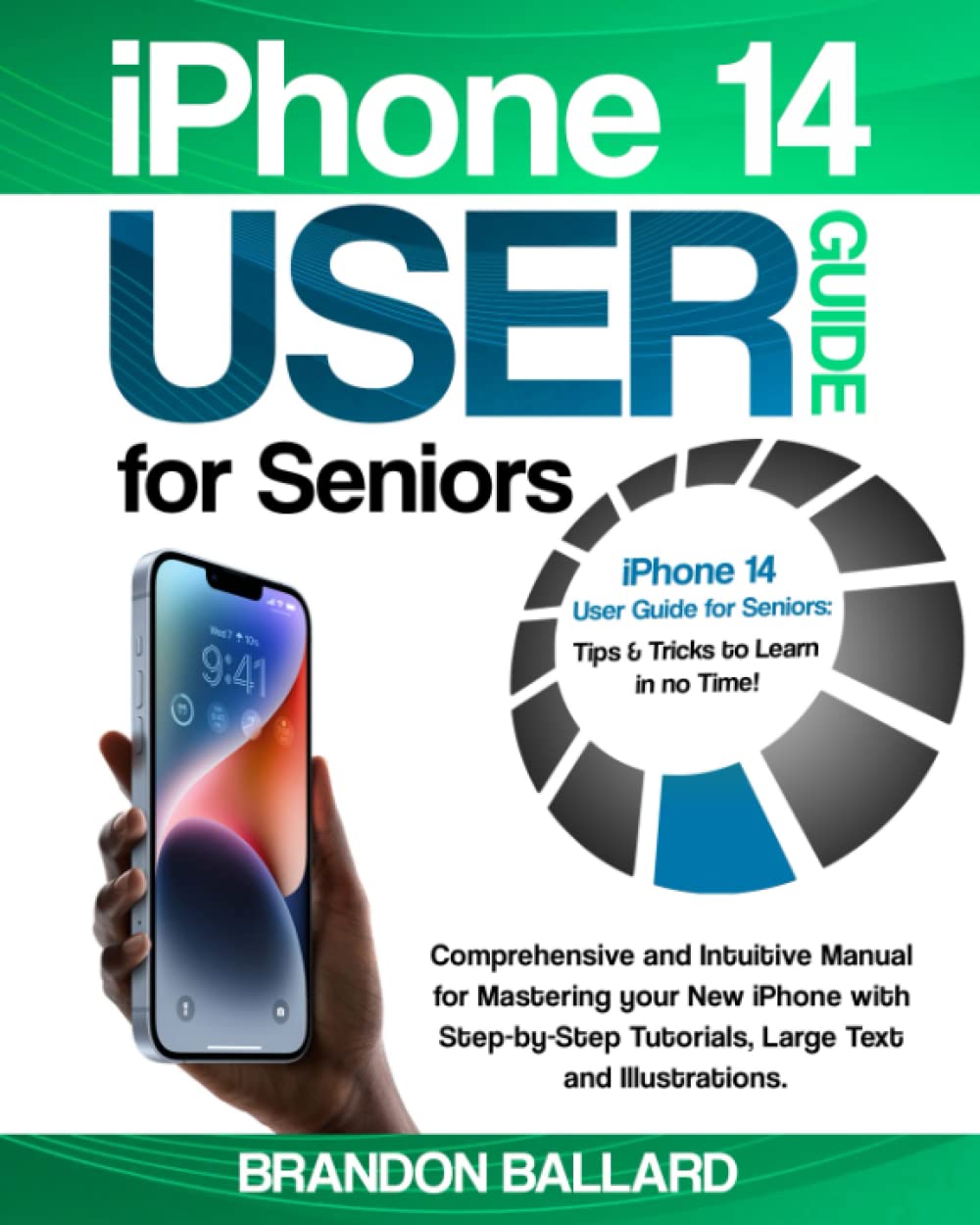
Image: Front cover of the iPhone 14 User Guide for Seniors. This guide provides detailed instructions for your device.
2. Operating Your iPhone 14
Once set up, you can begin to explore the many ways your iPhone 14 can enhance your daily life.
2.1 Taking Photos and Videos
The iPhone 14 features an advanced camera system. Open the Camera app, select Photo or Video mode, and tap the shutter button to capture moments. You can switch between front and rear cameras using the icon with two arrows.
2.2 Using Social Media
Stay connected with friends and family through social media apps. Download popular platforms like Facebook, Instagram, or WhatsApp from the App Store. Once installed, create an account or log in to share updates, photos, and messages.
2.3 Setting Up Medical ID
Your Medical ID can provide crucial health information to first responders in an emergency, even if your phone is locked. To set it up, open the Health app, tap your profile picture, then Medical ID. Fill in your medical conditions, allergies, medications, and emergency contacts.
2.4 Configuring SOS Emergency Calls
The iPhone 14 can automatically call emergency services. To activate, press and hold the side button and either of the volume buttons until the Emergency SOS slider appears. Drag the slider to call emergency services. You can also set up automatic calling in Settings > Emergency SOS.
2.5 Finding a Lost iPhone
If you misplace your iPhone, you can use the Find My app from another Apple device or iCloud.com to locate it, play a sound, lock it, or erase its data remotely.
3. Maintenance and Care
Proper maintenance ensures the longevity and optimal performance of your iPhone 14.
3.1 General Device Care
Keep your iPhone clean by gently wiping it with a soft, lint-free cloth. Avoid exposing it to extreme temperatures, water (unless it has specific water resistance ratings and within limits), and harsh chemicals. Consider a protective case and screen protector.
3.2 Battery Optimization
To maximize battery life, go to Settings > Battery > Battery Health & Charging. Enable Optimized Battery Charging. Reduce screen brightness, disable unnecessary background app refresh, and use Low Power Mode when needed.
3.3 Software Updates
Regularly update your iPhone's software to get the latest features, security patches, and performance improvements. Go to Settings > General > Software Update to check for and install available updates.
4. Troubleshooting Common Issues
Here are solutions to some common problems you might encounter with your iPhone 14.
4.1 App Not Responding
If an app freezes or becomes unresponsive, swipe up from the bottom of the screen (or double-press the Home button on older models) to open the App Switcher. Swipe the problematic app upwards to close it, then reopen it. If the issue persists, restart your iPhone.
4.2 Connectivity Problems (Wi-Fi/Cellular)
If you're having trouble connecting to Wi-Fi or cellular data, try toggling Wi-Fi or Cellular Data off and on in Settings. You can also try restarting your router for Wi-Fi issues or resetting network settings via Settings > General > Transfer or Reset iPhone > Reset > Reset Network Settings.
4.3 Screen Unresponsive or Frozen
For a frozen screen, perform a force restart: Quickly press and release the Volume Up button, then quickly press and release the Volume Down button, then press and hold the Side button until you see the Apple logo.
5. Specifications
This section typically details the technical specifications of the iPhone 14 device. For the most accurate and up-to-date specifications, please refer to Apple's official website or the documentation included with your iPhone 14 purchase. This guide focuses on practical usage rather than technical hardware details.
6. Warranty and Support
Apple products come with a limited warranty. For details on your iPhone 14's warranty coverage, visit Apple's official support website or check the warranty information provided with your device. If you encounter issues that cannot be resolved using this guide, Apple offers various support options:
- Apple Support Website: Provides extensive articles, troubleshooting guides, and contact options.
- Apple Store: Visit a local Apple Store for in-person assistance and repairs.
- Phone Support: Contact Apple's customer service for direct assistance.
Always ensure you are contacting official Apple support channels for reliable service.


