
1. Introduction
This manual provides essential information for setting up, operating, and maintaining your Sony BRAVIA XR A80L Series 65-inch 4K OLED Smart Google TV. The A80L series delivers an exceptional OLED picture with rich sound, powered by the intelligent Cognitive Processor XR. Experience accurate colors, deep blacks, and high peak brightness for a lifelike viewing experience. The Acoustic Surface Audio+™ technology integrates the screen as a multi-channel speaker for immersive audio.

Image 1.1: Front view of the Sony BRAVIA XR A80L 65-inch OLED TV, showcasing its slim design.
2. Setup
2.1 Unboxing and Component Check
Carefully remove the TV from its packaging. Ensure all components are present:
- Power Cable
- Remote Control
- AAA batteries (2 required for remote)
- Stand for A80L OLED TV
2.2 Stand Installation
Attach the included stand to the television according to the diagrams provided in the separate installation manual. Ensure all screws are securely fastened to prevent instability. The stand offers multiple position options for optimal placement.

Image 2.1: Illustration of the Sony A80L OLED TV with various stand configurations, including a soundbar-friendly position.
2.3 Initial Power On and Google TV Setup
Connect the power cable to the TV and a power outlet. Press the power button on the remote control. Follow the on-screen instructions to complete the initial setup, including connecting to your Wi-Fi network and logging into your Google account to activate Google TV features.
2.4 Connectivity
The TV features multiple input ports for various devices:
- HDMI Ports: Four HDMI ports are available, supporting 4K/120Hz, VRR (Variable Refresh Rate), and ALLM (Auto Low Latency Mode) for enhanced gaming.
- USB Ports: Two USB 2.0 ports for media playback or connecting peripherals.
- Wireless Connectivity: Built-in Wi-Fi and Bluetooth for network access and connecting wireless accessories.

Image 2.2: Rear panel of the Sony A80L OLED TV, detailing the location of HDMI, USB, and other connectivity ports.
3. Operating Your TV
3.1 Basic Controls
Use the provided remote control to navigate the TV's interface. Common functions include power on/off, volume adjustment, channel selection, and input switching. The remote also features dedicated buttons for popular streaming services.

Image 3.1: The remote control for the Sony A80L OLED TV, highlighting its layout and dedicated app buttons.
3.2 Smart TV Features (Google TV)
Your A80L TV runs on Google TV, providing access to over 700,000 movies and TV episodes across more than 10,000 apps. The interface organizes content based on your preferences and subscriptions.

Image 3.2: The Google TV home screen, displaying various streaming content and app icons.
3.3 Voice Control
Utilize Google Assistant or an Alexa-enabled device for hands-free control. You can search for content, adjust volume, change channels, and power the TV on or off using voice commands.

Image 3.3: A user interacting with the TV using voice commands, demonstrating the hands-free entertainment feature.
3.4 Gaming Features
The A80L is optimized for gaming, especially with the PlayStation 5. It includes exclusive features like Auto HDR Tone Mapping and Auto Genre Picture Mode. The Game Menu provides a centralized interface for all your gaming picture settings and assist features.
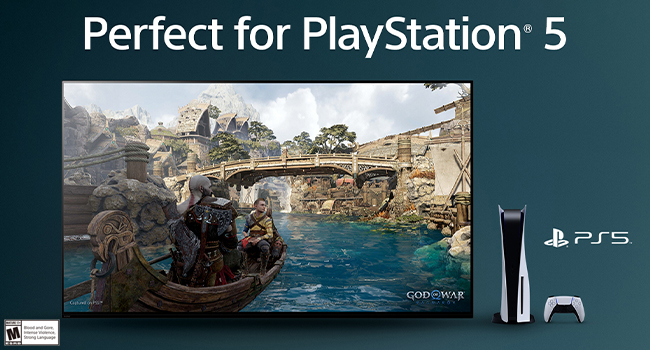
Image 3.4: The Sony A80L TV showcasing a PlayStation 5 game, with the Game Menu overlay visible for quick adjustments.
Video 3.1: An official Sony overview of the BRAVIA XR A80L OLED 4K HDR Google TV, highlighting its features and performance.
3.5 BRAVIA CORE App
The BRAVIA CORE app offers access to high-bitrate, high-quality 4K UHD movies. Your purchase includes 5 credits for new release movies and a 12-month subscription to a library of classic films.
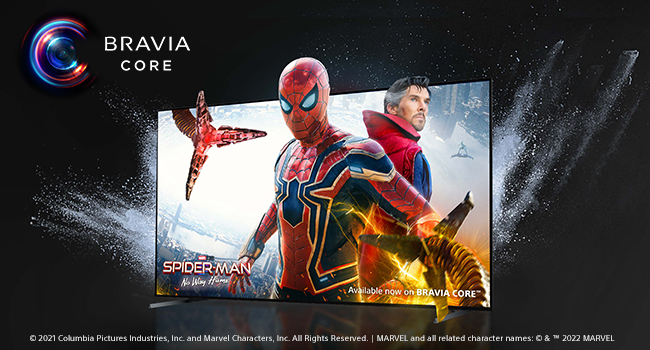
Image 3.5: The BRAVIA CORE app interface, showing available movies like Spider-Man: No Way Home.
3.6 Acoustic Surface Audio+
Experience immersive sound where the screen itself acts as a speaker. Acoustic Surface Audio+ delivers audio that precisely matches the action on screen, providing clear dialogue and a truly engaging listening experience with Dolby Atmos support.

Image 3.6: A visual representation of Acoustic Surface Audio+ technology, showing sound waves originating from the TV screen.
4. Picture and Sound Enhancements
4.1 Cognitive Processor XR
The Cognitive Processor XR intelligently analyzes and optimizes picture and sound in real-time, replicating how the human brain processes visual and auditory information. This results in enhanced contrast, vibrant colors, and clear sound.

Image 4.1: A close-up of the Sony XR Cognitive Processor chip, emphasizing its role in picture quality.
4.2 XR OLED Contrast Pro and XR Triluminos Pro
These technologies work together to deliver pure blacks, lifelike brightness, and billions of accurate colors, ensuring every scene is displayed with incredible depth and realism.

Image 4.2: A split-screen comparison demonstrating the superior contrast and color reproduction of OLED technology.
4.3 XR OLED Motion
For fast-moving action, sports, and games, XR OLED Motion ensures blur-free picture quality, maintaining clarity and smoothness even in dynamic scenes.

Image 4.3: A side-by-side comparison illustrating the reduction of motion blur with XR OLED Motion technology.
5. Maintenance
5.1 Cleaning the Screen and TV Body
To clean the screen, gently wipe with a soft, dry microfiber cloth. For stubborn smudges, lightly dampen the cloth with water or a screen-safe cleaning solution. Avoid harsh chemicals or abrasive materials. For the TV body, use a soft, dry cloth to remove dust. Ensure the TV is powered off and unplugged before cleaning.
5.2 Software Updates
Your TV will periodically receive software updates to improve performance and add new features. Ensure your TV is connected to the internet to receive these updates automatically. You can also manually check for updates through the TV's settings menu.
6. Troubleshooting
If you encounter issues with your Sony BRAVIA XR A80L TV, refer to the following common solutions:
- TV Freezing or Unresponsive Apps: If the TV or an app becomes unresponsive, try restarting the TV by unplugging it from the power outlet for a few minutes, then plugging it back in. This often resolves temporary software glitches.
- No Picture/Sound: Check all cable connections (HDMI, power). Ensure the correct input source is selected. Verify that the volume is not muted or set too low.
- Remote Control Not Working: Replace the AAA batteries. Ensure there are no obstructions between the remote and the TV's IR sensor.
- Wi-Fi Connectivity Issues: Restart your router and modem. Check the TV's network settings to ensure it's connected to the correct Wi-Fi network and the password is entered correctly.
- Picture Quality Concerns: Adjust picture settings (brightness, contrast, color) in the TV's menu. Ensure the content source is high quality (e.g., 4K content for 4K display).
For more detailed troubleshooting, consult the comprehensive digital user manual available through the TV's help menu or on the Sony support website.
7. Specifications
Below are the key technical specifications for the Sony BRAVIA XR A80L 65-inch OLED TV (Model XR65A80L):
| Feature | Specification |
|---|---|
| Screen Size | 65 Inches |
| Brand | Sony |
| Display Technology | OLED |
| Resolution | 4K |
| Refresh Rate | 120 Hz |
| Special Features | Acoustic Surface Audio+, Dolby Vision, Exclusive features for PlayStation® 5, BRAVIA CORE (5 credits/12 months), Eco Dashboard, Game Menu, Works with Google/Alexa assistant |
| Included Components | Power Cable, Remote Control, AAA batteries, Stand for A80L OLED TV |
| Connectivity Technology | Wired, Wireless (Bluetooth, Wi-Fi) |
| Aspect Ratio | 16:9 |
| Product Dimensions (DxWxH) | 13"D x 57.13"W x 34"H |
| Maximum Display Brightness | 1000 Nit |
| Screen Finish | Flat |
| HDR Format Supported | Yes |
| Motion Enhancement Technology | XR OLED Motion |
| Picture Quality Enhancement | XR OLED Contrast Pro, XR Triluminos Pro, Cognitive Processor XR |
| Display Backlight Technology | Self-Luminous |
| Item Weight | 24.2 Kilograms |
| Speaker Description | Acoustic Surface Audio+ |
| Speaker Maximum Output Power | 193 Watts |
| Integrated Surround Sound Format | Dolby Atmos |
| Operating System | Google TV |
| Control Method | Voice, Remote Control |
| Color | Black |
| Tuner Type | ATSC |
| Total Number of HDMI Ports | 4 |
| Total USB Ports | 2 |
| VESA Mount Standard | 300 x 300 mm |
8. Warranty and Support
8.1 Warranty Information
The Sony BRAVIA XR A80L TV comes with a 1-year manufacturer's limited warranty. This warranty covers defects in materials and workmanship under normal use. Please retain your proof of purchase for warranty claims.
8.2 Customer Support
For technical assistance, troubleshooting, or warranty service, please contact Sony Customer Support. You can find contact information on the official Sony website or within the TV's help menu. Online resources, including FAQs and digital manuals, are also available.
9. Product Overview Video
Video 9.1: A detailed product overview from Sony Electronics, explaining the key features and benefits of the BRAVIA XR A80L OLED 4K Google TV.