
Introduction
Welcome to the user manual for your new POCO X5 Pro 5G smartphone. This device is engineered to provide a powerful and immersive mobile experience. Featuring a Snapdragon 778G processor, a vibrant 6.67-inch 120Hz Flow AMOLED display with Dolby Vision, and a high-resolution 108MP main camera, the POCO X5 Pro 5G is designed for both performance and entertainment. Its 5000mAh battery with 67W turbo charging ensures extended usage, while the sleek, lightweight design and dual stereo speakers enhance its overall appeal. This manual will guide you through the setup, operation, and maintenance of your device to help you get the most out of its features.

Figure 1: POCO X5 Pro 5G highlighting key features such as Snapdragon 778G, 108MP Triple Cameras, 67W Sonic Charging, 120Hz Flow AMOLED Display, Dolby Vision Atmos, 7.9mm Thin Body, and MIUI 14.
What's in the Box
Upon unboxing your POCO X5 Pro 5G, please verify that all the following items are present:
- POCO X5 Pro 5G Smartphone
- 67W Power Adapter
- USB Type-C Cable
- SIM Eject Tool
- Protective Case
- Quick Start Guide
- Warranty Card
Setup
1. SIM Card Installation
To install your SIM card(s) and/or microSD card:
- Locate the SIM tray on the side of your device.
- Insert the SIM eject tool into the small hole next to the SIM tray and press firmly until the tray pops out.
- Place your Nano-SIM card(s) and/or microSD card into the designated slots on the tray, ensuring the gold contacts face downwards.
- Carefully push the SIM tray back into the device until it is flush with the side.

Figure 2: Side view of the POCO X5 Pro 5G, illustrating the location of the SIM tray and power/volume buttons.
2. Charging the Device
Before first use, it is recommended to fully charge your POCO X5 Pro 5G. The device supports 67W turbo charging for rapid power replenishment.
- Connect the USB Type-C cable to the charging port at the bottom of your phone.
- Connect the other end of the cable to the 67W power adapter.
- Plug the power adapter into a wall outlet.
- The charging indicator will appear on the screen.

Figure 3: Bottom view of the POCO X5 Pro 5G, highlighting the USB Type-C charging port and speaker grille.
3. Initial Power On and Setup
Once charged, press and hold the Power button (located on the side) until the POCO logo appears. Follow the on-screen instructions to complete the initial setup, including language selection, Wi-Fi connection, Google account setup, and security settings.
Operating Your Device
Power On/Off and Restart
- Power On: Press and hold the Power button until the device vibrates and the POCO logo appears.
- Power Off: Press and hold the Power button until the power menu appears, then tap 'Power off'.
- Restart: Press and hold the Power button until the power menu appears, then tap 'Restart'.
Display and Navigation
The POCO X5 Pro 5G features a 6.67-inch 120Hz Flow AMOLED display, offering smooth visuals and vibrant colors. Navigate the interface using touch gestures:
- Tap: Select an item or open an app.
- Swipe: Scroll through screens or lists.
- Pinch-to-zoom: Zoom in or out on photos and web pages.
- Long press: Access contextual menus or move icons.

Figure 4: Front view of the POCO X5 Pro 5G, showcasing its immersive display.
Camera Usage
Your device is equipped with a powerful 108MP main camera, along with additional lenses for versatile photography. To use the camera:
- Open the Camera app from your home screen or app drawer.
- Select your desired shooting mode (e.g., Photo, Portrait, Video, Pro).
- Tap the Shutter button to capture a photo or start/stop video recording.
- Use the zoom controls on the screen to adjust magnification.
- Tap on the screen to focus on a specific object.
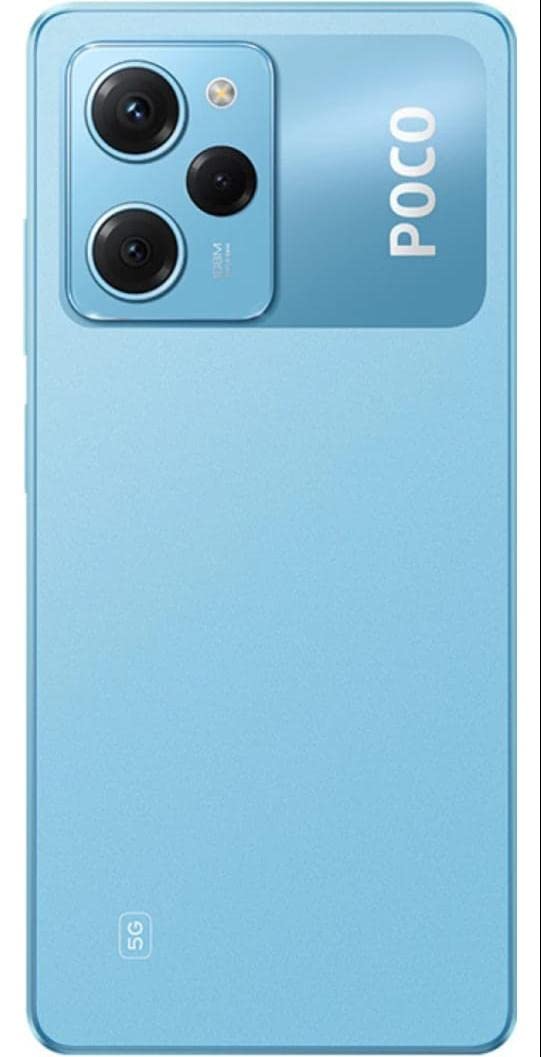
Figure 5: Back view of the POCO X5 Pro 5G, highlighting the 108MP triple camera system.
Audio Features
The POCO X5 Pro 5G features dual stereo speakers for an enhanced audio experience. You can also connect headphones via the 3.5mm headphone jack or Bluetooth.
- Volume Control: Use the Volume Up/Down buttons on the side of the device.
- Headphone Jack: Located on the top edge of the phone.
- Bluetooth Audio: Pair with Bluetooth headphones or speakers via Settings > Bluetooth.

Figure 6: Top view of the POCO X5 Pro 5G, showing the 3.5mm headphone jack and other sensors.
Maintenance
Proper care and maintenance will extend the life of your POCO X5 Pro 5G.
- Cleaning: Use a soft, lint-free cloth to clean the screen and body. Avoid abrasive materials or harsh chemicals.
- Battery Care: Avoid extreme temperatures. Do not let the battery fully discharge frequently. Use the official charger for optimal battery health.
- Software Updates: Regularly check for and install system updates to ensure optimal performance, security, and access to new features. Go to Settings > About phone > MIUI version to check for updates.
- Storage Management: Periodically clear unnecessary files and apps to maintain sufficient storage space and device speed.
Troubleshooting
If you encounter issues with your device, try the following common troubleshooting steps:
| Problem | Solution |
|---|---|
| Device not powering on | Ensure the battery is charged. Press and hold the Power button for at least 10-15 seconds to force a restart. |
| Screen unresponsive | Force restart the device. If the issue persists, try a factory reset (data will be lost). |
| Camera not working / Blurry photos | Ensure camera lens is clean. Restart the camera app or the phone. Check for software updates. |
| Wi-Fi / Bluetooth connectivity issues | Toggle Wi-Fi/Bluetooth off and on. Restart your router/Bluetooth device. Forget and re-add the network/device. |
| Apps crashing or freezing | Clear the app's cache and data (Settings > Apps > [App Name] > Storage). Reinstall the app. |
If these steps do not resolve the issue, please contact POCO customer support or visit an authorized service center.
Specifications
Key technical specifications for the POCO X5 Pro 5G:
| Feature | Detail |
|---|---|
| Brand | POCO |
| Model | X5 Pro 5G |
| CPU Model | Snapdragon 778G |
| RAM Memory Installed Size | 6 GB |
| Display Technology | AMOLED |
| Resolution | 1920 x 1080 |
| Special Features | Camera, Front Camera |
| Connectivity Technologies | Bluetooth, USB, Wi-Fi |
| Wireless Communication Technologies | Cellular |
| Item Weight | 540 g |
| Package Dimensions | 17.7 x 9 x 6.9 cm |
| Date First Available | 16 March 2023 |
Warranty and Support
Your POCO X5 Pro 5G comes with a standard manufacturer's warranty. Please refer to the warranty card included in your product packaging for detailed terms and conditions, including coverage period and limitations.
For technical support, service inquiries, or to find authorized service centers, please visit the official POCO website or contact their customer service hotline. Keep your proof of purchase for warranty claims.
Important: Unauthorized repairs or modifications may void your warranty.


