
ATTACK SHARK K98
Attack Shark K98 Wired Hotswap RGB Gaming Keyboard User Manual
Model: K98
Introduction
Thank you for choosing the Attack Shark K98 Wired Hotswap RGB Gaming Keyboard. This manual provides detailed instructions for setting up, operating, and maintaining your new keyboard to ensure optimal performance and longevity. The K98 is a high-performance mechanical keyboard designed for gaming and productivity, featuring 100 keys, customizable RGB lighting, hotswappable switches, and a durable coiled USB-C cable.

Image: The Attack Shark K98 keyboard in white with blue and red keycaps, connected via a coiled USB-C cable. A single yellow mechanical switch is shown separately in the foreground.
Setup Guide
Follow these steps to set up your Attack Shark K98 keyboard:
- Unpacking: Carefully remove the keyboard and all accessories from the packaging. Ensure all components are present: keyboard, coiled USB-C cable, and any included tools (e.g., keycap puller, switch puller).
- Connecting the Cable:
The K98 features a professional coiled USB-C cable with a detachable metal aviation connector. Connect the USB-C end of the coiled cable to the USB-C port on the keyboard. Connect the USB-A end of the cable to an available USB port on your computer.
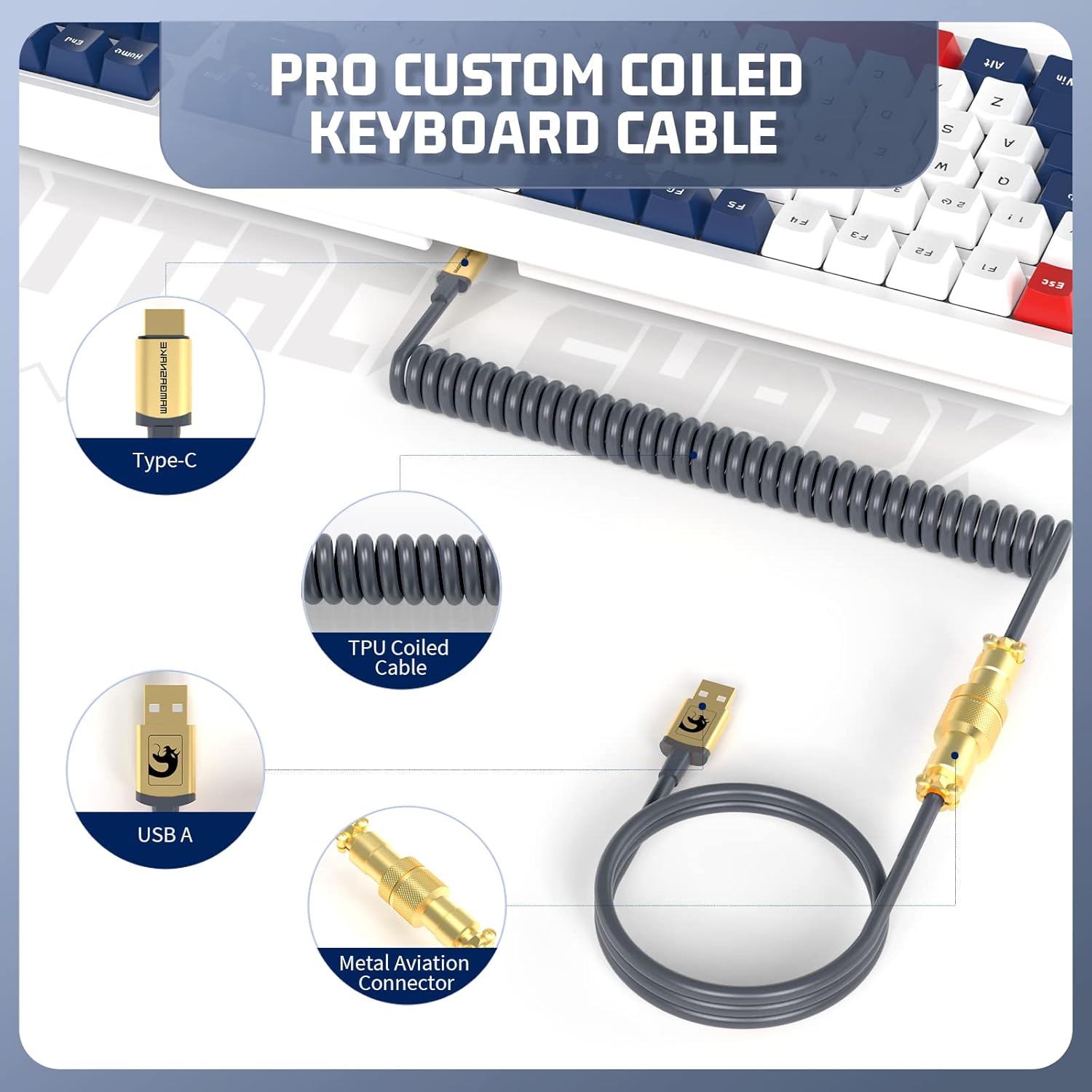
Image: Detailed view of the coiled USB-C cable, highlighting its Type-C connector, USB-A connector, and the metal aviation connector for secure and stable connection.
- System Compatibility: The keyboard is plug-and-play and compatible with most operating systems, including Windows (Win7/8/10/11) and Mac. No additional drivers are typically required for basic functionality.
- Initial Power On: Once connected, the keyboard's RGB lighting will illuminate, indicating it is powered on and ready for use.

Image: The Attack Shark K98 keyboard positioned next to a laptop, illustrating its wide compatibility with various operating systems like Windows and Mac.
Operating Instructions
Basic Functions
- Typing: The K98 features 100 keys with linear yellow mechanical switches, providing a smooth and responsive typing experience.
- Status Indicators: The keyboard includes four status lights for Num Lock (N), Caps Lock (C), Scroll Lock (S), and Win Lock (W). These indicators are located above the numeric keypad.

Image: Close-up of the keyboard's upper right section, showing the four vertical status indicator lights labeled N (Num Lock), C (Caps Lock), S (Scroll Lock), and W (Win Lock).
RGB Lighting Customization
The K98 offers extensive RGB lighting customization:
- Pre-set Modes: Cycle through 18 pre-set RGB backlight modes using the designated function keys (refer to keyboard layout or software for specific key combinations).
- Custom Backlights: Create and save up to 3 custom RGB backlight profiles.
- Music/Game Rhythm Sync: Utilize the RGB driver software to synchronize lighting effects with music, game audio, or microphone input for an immersive experience.

Image: The Attack Shark K98 keyboard displaying vibrant RGB lighting, with a tablet in the background showing a music equalizer, indicating the keyboard's ability to sync lighting with audio.
Programmable Actuation
The keyboard supports programmable actuation, allowing users to customize key functions and macros. Refer to the official Attack Shark software (if available) for advanced programming options.
Key Features
- 100-Key Layout: A compact yet functional layout that includes a numeric keypad, offering a balance between space-saving and full functionality.

Image: An overhead view of the Attack Shark K98 keyboard, highlighting its 100-key layout and showing approximate dimensions (15.4 inches length, 5.6 inches width, 1.6 inches height).
- Custom Linear Yellow Mechanical Switches: Manufactured from POM, these switches offer a smooth, consistent keystroke with a lifespan of up to 70 million actuations. High-precision satellite switches enhance stability.
- Full Key Hot-Swappable Design: The copper sleeve hot-swap design allows users to easily replace switches without soldering, enabling customization of typing feel.

Image: A close-up of the Attack Shark K98 keyboard with several keycaps removed, revealing the hot-swappable mechanical switches underneath, demonstrating the ease of switch replacement.
- ABS Hybrid 3-Color Keycaps: Designed for comfortable touch and durability, these two-color injection molded keycaps resist wear over time.
- Detachable Magnetic Top Cover: The magnetic top cover simplifies cleaning and maintenance, ensuring a clean gaming environment.

Image: Two Attack Shark K98 keyboards, one with its magnetic top cover removed and placed in the foreground, illustrating the detachable design for easy cleaning and customization.
- Gasket Mounted Structure: Features EVA sandwich padding between the PCB and positioning plate, significantly reducing hollow sound and typing noise for a more satisfying typing experience.

Image: An exploded diagram showing the internal layers of the Gasket Mounted Mechanical Keyboard, including ABS keycaps, upper lid, customized shaft body, hardware locating plate, sandwich sound insulation cotton, PCB board, sound insulation bottom cotton, and lower lid.
- Ergonomic Design: Adjustable two-level feet and anti-slip pads provide a comfortable typing and gaming experience, reducing fatigue during extended use.
Maintenance
- Cleaning:
To clean the keyboard, first disconnect it from your computer. The detachable magnetic top cover allows for easy access to the keycaps and switches. Use a soft brush or compressed air to remove dust and debris from between the keycaps. For stubborn dirt, gently wipe the keycaps with a damp cloth and mild cleaning solution, ensuring no liquid enters the switches or PCB.
- Keycap and Switch Replacement:
Utilize the provided keycap puller to carefully remove keycaps. Use the switch puller to remove hot-swappable switches. When installing new switches, ensure the pins align correctly with the sockets to avoid bending. Press firmly but gently until the switch clicks into place.
- Cable Care:
Handle the coiled USB-C cable with care. Avoid excessive pulling or bending, especially near the connectors, to prevent damage. Keep the metal aviation connector clean and free of debris.
Troubleshooting
| Problem | Possible Cause | Solution |
|---|---|---|
| Keyboard not responding | Loose cable connection, incorrect USB port, driver issue. | Ensure the USB-C cable is securely connected to both the keyboard and the computer. Try a different USB port. Restart your computer. |
| RGB lighting not working or stuck | Lighting mode error, software conflict. | Try cycling through the pre-set lighting modes. If using software, ensure it's up to date and not conflicting with other applications. Disconnect and reconnect the keyboard. |
| Specific keys not working | Dust/debris under keycap, faulty switch, bent switch pin. | Remove the keycap and clean the area. If hot-swappable, remove the switch and check for bent pins; straighten if necessary or replace the switch. |
| Keyboard input lag | USB port issue, system performance, cable damage. | Try a different USB port (preferably a USB 3.0 or higher). Close unnecessary background applications. Inspect the cable for damage. |
Specifications
- Model: Attack Shark K98
- Connectivity: Wired USB-C
- Layout: 100-key
- Switch Type: Custom Linear Yellow Mechanical Switches (POM material)
- Switch Lifespan: Up to 70 million actuations
- Keycaps: ABS Hybrid 3-Color, Two-color injection molded
- Hot-Swap: Full Key Hot-Swappable (copper sleeve design)
- Backlight: RGB (18 pre-set modes, 3 custom modes, music/game rhythm sync)
- Cable: Pro Custom Coiled USB-C Cable with Metal Aviation Connector
- Construction: Gasket Mounted, EVA sandwich padding
- Compatibility: Windows (Win7/8/10/11), Mac, PS4, Xbox (via converter, not included)
- Dimensions: Approximately 42.5 x 19.3 x 5.1 cm (16.7 x 7.6 x 2 inches)
- Weight: Approximately 1.38 kg (3.04 lbs)
Warranty and Support
For warranty information and technical support, please refer to the official ATTACK SHARK website or contact your retailer. Keep your purchase receipt as proof of purchase for any warranty claims.
Return Policy: The product typically comes with a 30-day return/replacement policy. Please check with your point of purchase for specific details.
Related documentsK98


Ask a question about this manual
Ask about setup, troubleshooting, compatibility, parts, safety, or missing instructions. Manuals+ will review the question and use this page’s manual context to help answer it.