
ASHATA B0BYNK2339
ASHATA 16.5-inch 3D Holographic Fan Projector User Manual
Model: B0BYNK2339
1. Introduction
This manual provides essential instructions for the safe and efficient operation of your ASHATA 16.5-inch 3D Holographic Fan Projector. Please read this manual thoroughly before use and retain it for future reference.
2. Product Overview
The ASHATA 16.5-inch 3D Holographic Fan Projector creates stunning 3D visual effects, making images appear to float in the air. It is designed for various applications, from retail displays to event venues.
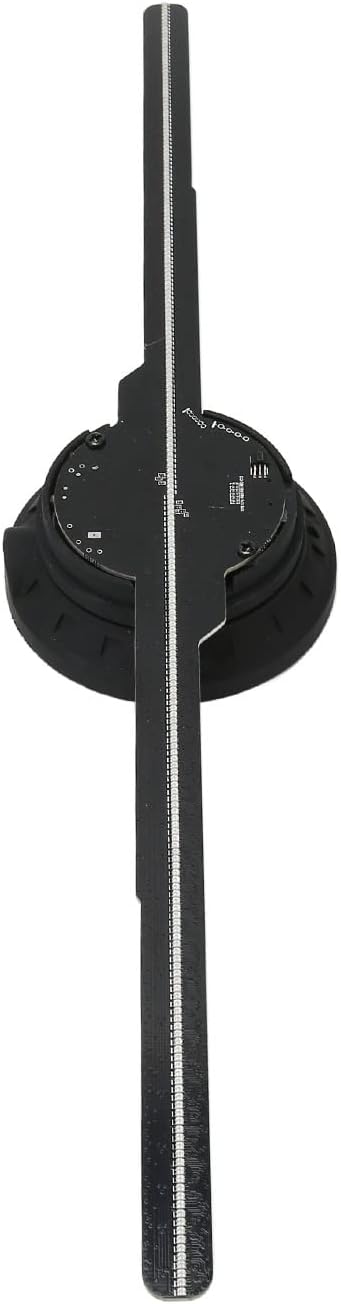
Figure 2.1: Top-down view of the ASHATA 3D Holographic Fan Projector, showing its four blades and central hub.

Figure 2.2: Detailed view of the LED blades and the central motor unit, highlighting the individual LED beads.
3. Package Contents
Ensure all items are present and in good condition upon unboxing:
- 1 x 3D Holographic Fan Projector
- 1 x Remote Control
- 1 x Card Reader
- 1 x Memory Card (16GB)
- 1 x Screwdriver
- 2 x Screws
- 2 x Screw Sleeves
- 1 x Power Adapter
- 1 x User Manual (this document)
Video 3.1: Unboxing and initial component overview of the ASHATA 3D Holographic Fan Projector. This video demonstrates the contents of the package and how to identify each part.
4. Specifications
| Feature | Detail |
|---|---|
| Item Type | 3D Holographic Advertising Machine |
| Material | ABS, PC, Hardware |
| Color | Black |
| Remote Control Battery | 160mAh CR2025 Button Battery (included) |
| Power Input | 100-240V AC 50/60Hz |
| Display Diameter | 42cm / 16.54in |
| Resolution | 512x234P |
| Number of LED Beads | 234 pcs |
| Memory Size | 16GB (Memory Card Built-in) |
| Content Transfer Methods | Memory Card, WiFi, APP |
| Synchronization Mode | WiFi Transmission, BT Audio Output, Remote Control |
| Supported Formats | MP4, AVI, RMVB, MOV, GIF, JPG, PNG |
| Service Life | > 30000 Hours |
| Software Support Systems | Android, iOS |
| Control Methods | App, Remote Control |
| Product Dimensions | 46 x 11 x 6 cm; 449 g |
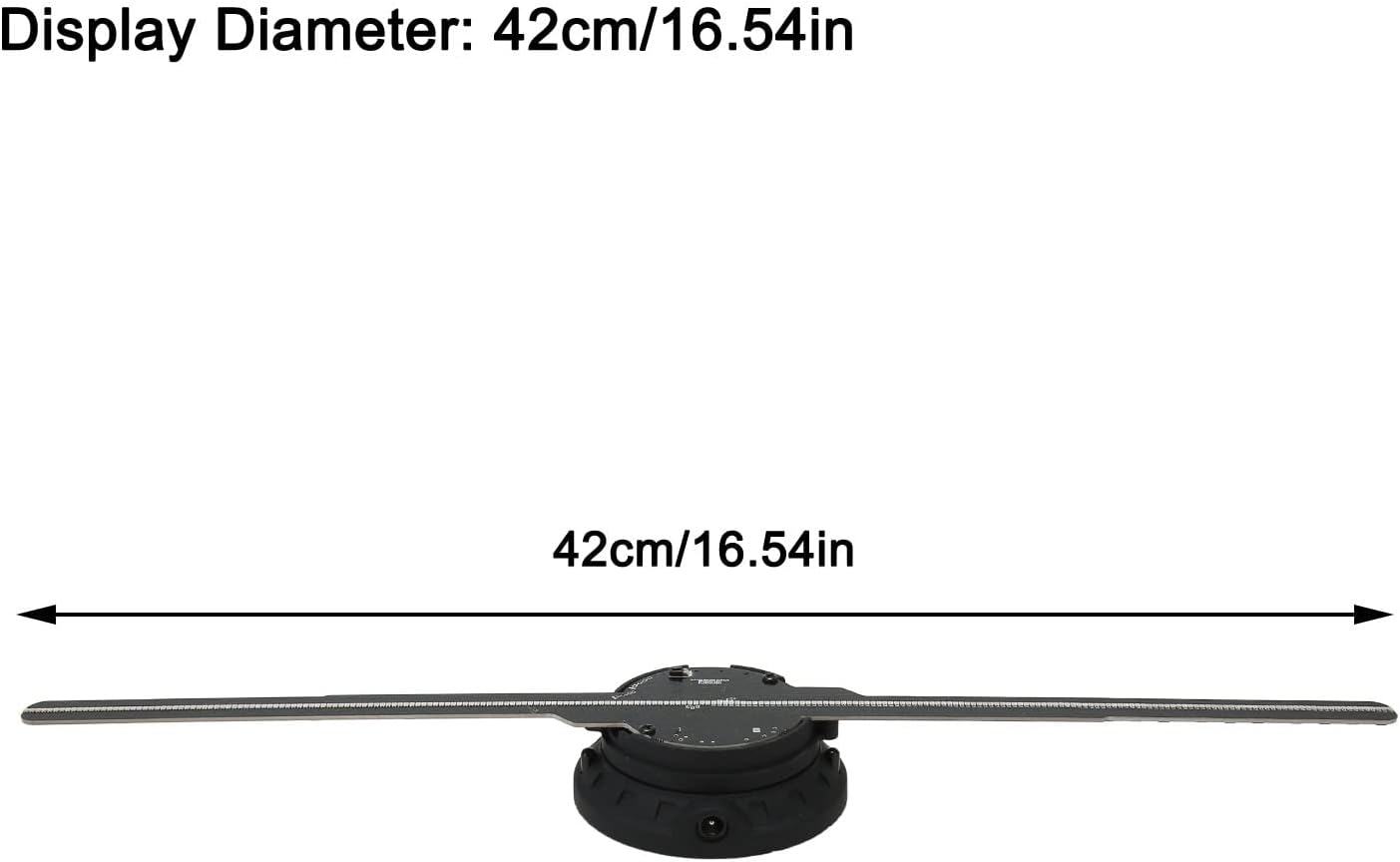
Figure 4.1: The display diameter of the ASHATA 3D Holographic Fan Projector is 42cm (16.54 inches).
5. Setup Instructions
- Blade Installation:
Carefully attach each fan blade to the central unit. Ensure the light bar symbols (A, B, etc.) correspond to the markings on the pedestal. Press the pedestal firmly before inserting each light bar to secure it.
Video 5.1: Detailed assembly guide for the ASHATA 3D Holographic Fan Projector, showing how to correctly attach the fan blades to the main unit.
Video 5.2: Visual instructions for installing the fan blades and securing them with screws, ensuring proper alignment.
- Mounting:
The projector can be mounted on a wall or a stand. Use the provided screws and screw sleeves for secure installation. Ensure the mounting surface is stable and can support the device's weight.
- Power Connection:
Connect the power adapter to the device and then to a 100-240V AC 50/60Hz power outlet.
6. Operating Instructions
6.1. Remote Control Operation
The included remote control allows for basic functions such as power on/off, content selection, and brightness adjustment.

Figure 6.1: The remote control for the ASHATA 3D Holographic Fan Projector, showing buttons for power, playback, and brightness.
6.2. Mobile App and WiFi Control
For advanced control and content management, use the dedicated mobile application (compatible with Android and iOS).
- Download the App: Scan the QR code provided in the package or search for "Holoscope" in your app store.
- Connect to WiFi:
- Turn on the holographic fan.
- On your mobile device, go to WiFi settings and connect to the device's WiFi network (e.g., "3D-PZ65-XXXX"). The default password is "12345678".
- Launch the App: Open the "Holoscope" app.
- Upload Content:
- Within the app, navigate to the content upload section.
- Select the video or image files you wish to display. Supported formats include MP4, AVI, RMVB, MOV, GIF, JPG, PNG.
- Adjust video length and customize naming as needed.
- Initiate the upload. The device will show a blue light during transmission.
- Play Content: Once uploaded, select the desired content from the app and click the green start button to play.
- Bluetooth Audio: To enable BT sound output, go to the app's settings, select 'Bluetooth', and turn 'Bluetooth On'. Connect to your desired Bluetooth speaker.
Video 6.2: Demonstrates connecting the ASHATA 3D Holographic Fan Projector to a mobile device via WiFi, uploading content, and enabling Bluetooth audio.
Video 6.3: Shows various 3D holographic displays and different control methods, including mobile app control.
6.3. Content Examples
The projector supports a wide range of 3D content, including videos, animations, and images. The 512x234P resolution ensures clear visuals even in well-lit environments.
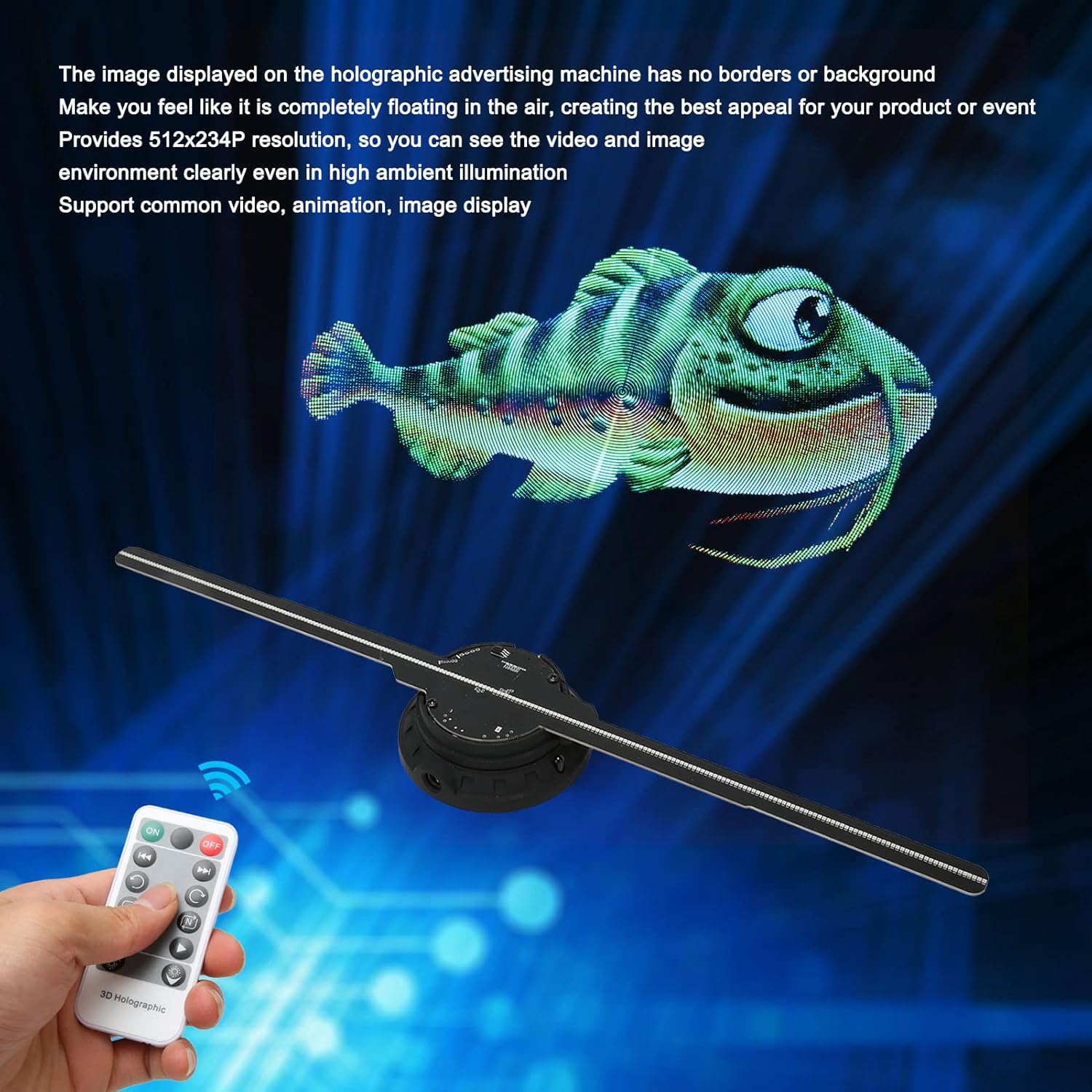
Figure 6.3.1: A 3D holographic fish appears to float in the air, controlled by the remote.

Figure 6.3.2: A collage of various 3D holographic content, demonstrating the versatility of the projector.
Video 6.3.3: A 3D holographic dinosaur is displayed, showcasing the vivid visual effects.
Video 6.3.4: A 3D holographic burger is displayed, illustrating the product's use for advertising and product visualization.
7. Maintenance
- Keep the device clean and free from dust. Use a soft, dry cloth for cleaning.
- Avoid exposing the device to water or excessive moisture.
- Do not attempt to disassemble or repair the device yourself. Contact customer support for assistance.
- Store the device in a cool, dry place when not in use.
8. Troubleshooting
| Problem | Possible Cause | Solution |
|---|---|---|
| Device does not power on. | No power, loose connection. | Check power adapter connection and power outlet. |
| No 3D image displayed. | Incorrect content format, blades not installed correctly. | Ensure content is in a supported format. Verify fan blades are securely installed. |
| Cannot connect to WiFi. | Incorrect password, device too far from mobile. | Double-check WiFi password (default: 12345678). Move closer to the device. |
| No sound from Bluetooth. | Bluetooth not enabled, speaker not paired. | Ensure Bluetooth is enabled in the app settings and the speaker is paired. |
9. Safety Information
- Do not touch the rotating blades while the device is operating.
- Keep the device out of reach of children.
- Ensure proper ventilation to prevent overheating.
- Use only the provided power adapter.
- Avoid placing the device in direct sunlight or near heat sources.
10. Warranty and Support
For warranty information or technical support, please refer to the contact details provided with your purchase or visit the official ASHATA website. The product has a service life of over 30,000 hours under normal operating conditions.
Ask a question about this manual
Ask about setup, troubleshooting, compatibility, parts, safety, or missing instructions. Manuals+ will review the question and use this page’s manual context to help answer it.