
Earto Earto Bluetooth Keyboard with Touchpad
Earto Keyboard with Touchpad User Manual
Model: Earto Bluetooth Keyboard with Touchpad
Introduction
Thank you for choosing the Earto Keyboard with Touchpad. This manual provides detailed instructions for setting up, operating, and maintaining your new keyboard case. Please read this manual carefully before use to ensure optimal performance and longevity of your device.

Image: The Earto Keyboard with Touchpad case, shown with an iPad inserted and the keyboard illuminated.
Compatibility
This keyboard case is designed for the following iPad models:
- iPad 9th Generation 10.2-inch (2021) - Models: A2602, A2603, A2604, A2605
- iPad 8th Generation 10.2-inch (2020) - Models: A2270, A2428, A2429, A2430
- iPad 7th Generation 10.2-inch (2019) - Models: A2197, A2198, A2200
- iPad Air 3rd Generation 10.5-inch (2019) - Models: A2152, A2123, A2153, A2154
- iPad Pro 10.5-inch (2017) - Models: A1701, A1709
To verify your iPad model, check the back of your device for the model number (starts with 'A').

Image: Visual guide showing how to locate the model number on the back of an iPad and a list of compatible models.
Package Contents
The package includes:
- 1 x Earto Bluetooth Keyboard
- 1 x Protective Case
- 1 x USB-C Charging Cable
- 1 x User Manual
Note: iPad and Apple Pencil are not included.
Setup Guide
1. Charging the Keyboard
Before first use, fully charge the keyboard. Connect the provided USB-C cable to the keyboard's charging port and a power source.
- Charging time: Approximately 2-3 hours.
- Battery life: Up to 70 hours without backlight, 6 hours with backlight.

Image: Close-up of the keyboard's USB-C charging port with a charging cable connected.
2. Inserting Your iPad into the Case
Carefully place your iPad into the protective case, ensuring all ports and buttons align correctly with the case cutouts.

Image: Illustration of an iPad being carefully inserted into the protective case.
3. Bluetooth Pairing
- Turn on the keyboard by sliding the ON/OFF switch to the "ON" position.
- Press the Fn + Q or Fn + W keys simultaneously to activate Bluetooth pairing mode for Channel 1 (BT1) or Channel 2 (BT2). The Bluetooth indicator light will flash.
- On your iPad, go to Settings > Bluetooth and turn Bluetooth ON.
- Select "Bluetooth Keyboard" from the list of available devices to connect. The indicator light will stop flashing once connected.

Image: A visual step-by-step guide demonstrating how to activate Bluetooth on the keyboard and connect it to an iPad.
Operating Instructions
Touchpad Functions
The integrated touchpad supports multi-gesture operations for efficient navigation. To activate/deactivate the touchpad, press Fn + Spacebar.
- Single Finger Tap: Left-click.
- Two Finger Tap: Right-click (context menu).
- Two Finger Scroll: Scroll up/down or left/right.
- Three Finger Swipe Up: Open App Switcher.
- Three Finger Swipe Down: Return to Home Screen.
- Three Finger Swipe Left/Right: Switch between open apps.
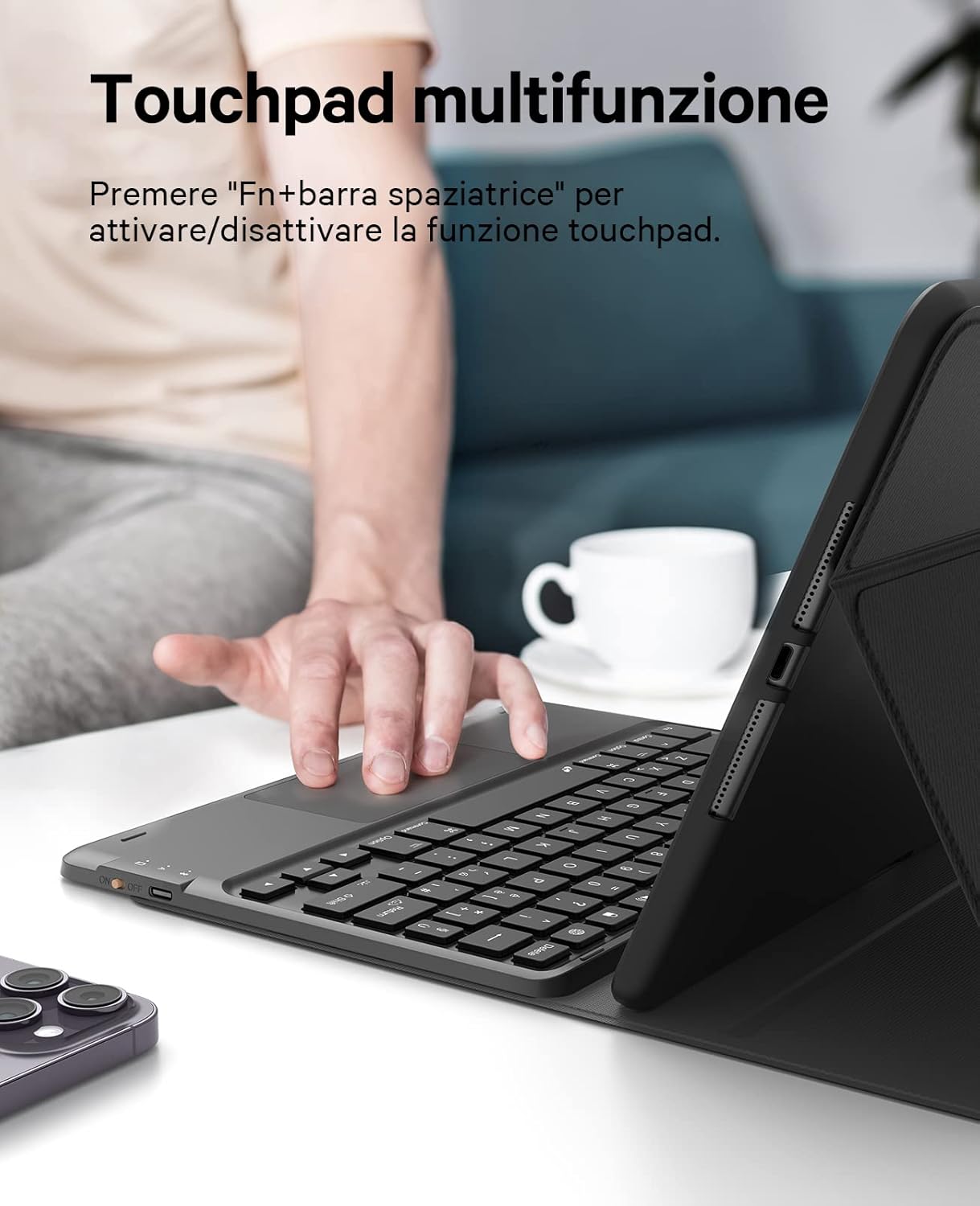
Image: A hand demonstrating interaction with the multi-function touchpad on the Earto keyboard.
Backlight Control
The keyboard features 7-color backlighting and 3 levels of brightness adjustment.
- Press Fn + Light Bulb icon to cycle through backlight colors.
- Press Fn + Up Arrow / Down Arrow to adjust backlight brightness (3 levels).
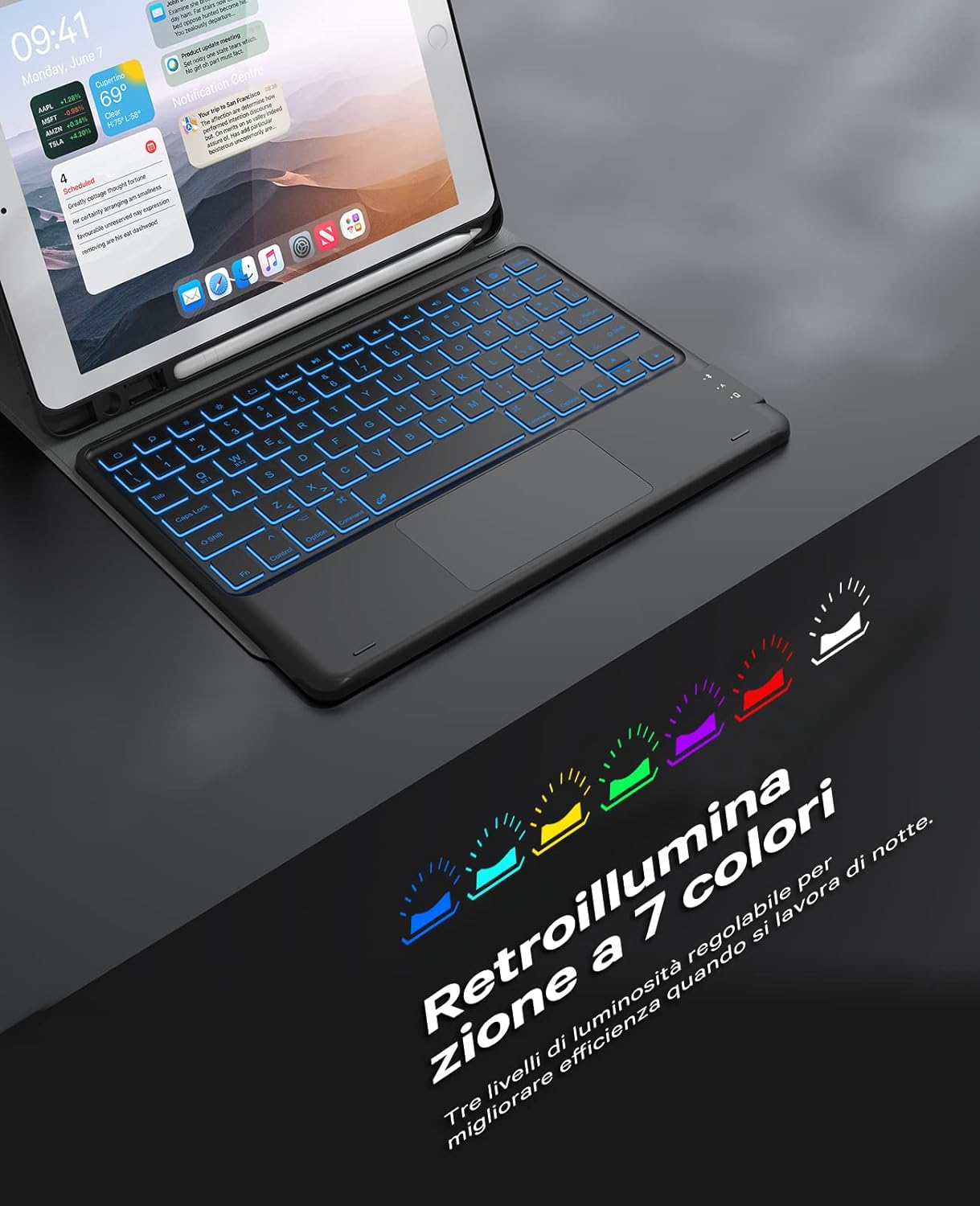
Image: The Earto keyboard displaying its 7-color backlight feature, enhancing visibility in low-light conditions.
Switching Between 2 Bluetooth Channels
The keyboard supports connection to two devices simultaneously, allowing for quick switching.
- To switch to the first connected device (BT1), press Fn + Q.
- To switch to the second connected device (BT2), press Fn + W.

Image: An Earto keyboard simultaneously connected to an iPad and a smartphone, illustrating its dual Bluetooth channel capability.

Image: A user demonstrating switching between two Bluetooth-connected devices using the Earto keyboard.
Detachable Keyboard and Multi-Angle Stand
The keyboard is magnetically detachable from the case, allowing for flexible use. The protective case features three integrated slots to support viewing angles of 110°, 120°, and 130°.

Image: The Earto keyboard shown detached from its protective case, highlighting its magnetic design.

Image: The Earto keyboard case demonstrating its multi-angle adjustment feature, offering various viewing positions.
Maintenance
- Cleaning: Use a soft, damp cloth to clean the keyboard and case. Avoid harsh chemicals or abrasive materials.
- Battery Care: To prolong battery life, avoid fully discharging the keyboard frequently. Charge it regularly, even if not in constant use.
- Storage: Store the keyboard in a cool, dry place away from direct sunlight and extreme temperatures.
Troubleshooting
- Keyboard not connecting via Bluetooth:
- Ensure the keyboard is turned ON and fully charged.
- Make sure Bluetooth is enabled on your iPad.
- Press Fn + Q or Fn + W to put the keyboard into pairing mode.
- Forget "Bluetooth Keyboard" in your iPad's Bluetooth settings and try pairing again.
- Restart both your iPad and the keyboard.
- Touchpad not responding:
- Ensure the touchpad is activated by pressing Fn + Spacebar.
- Check if the keyboard is properly connected via Bluetooth.
- Restart the keyboard and iPad.
- Backlight not working or changing:
- Ensure the keyboard has sufficient battery charge.
- Press Fn + Light Bulb icon to cycle through colors.
- Press Fn + Up Arrow / Down Arrow to adjust brightness.
Specifications
| Brand | Earto |
| Model Name | Earto Bluetooth Keyboard with Touchpad |
| Connectivity Technology | Bluetooth |
| Compatible Devices | iPad 7th/8th/9th Gen 10.2", iPad Air 3rd Gen 10.5", iPad Pro 10.5" |
| Special Features | Backlit (7 colors), Touchpad, Detachable Keyboard, Multi-angle Stand |
| Power Source | Battery Powered (Lithium Polymer, rechargeable via USB-C) |
| Battery Included | Yes |
| Item Weight | 820 g |
| Dimensions | 26.9 x 22 x 3.4 cm |
Warranty and Support
Earto products come with a standard manufacturer's warranty. For detailed warranty information, please refer to the product packaging or contact Earto customer support.
If you encounter any issues or have questions regarding your Earto Keyboard with Touchpad, please contact our customer support team through the retailer's platform or the official Earto website for assistance.
Related documentsEarto Bluetooth Keyboard with Touchpad

Ask a question about this manual
Ask about setup, troubleshooting, compatibility, parts, safety, or missing instructions. Manuals+ will review the question and use this page’s manual context to help answer it.