
FOXPRO X360
FOXPRO X360 Electronic Predator Call User Manual
Model: X360
1. Introduction
The FOXPRO X360 is an advanced electronic predator call system designed for effective and realistic game calling. Featuring a 7-speaker system, including XHD+ speakers and enhanced tweeters, it delivers a wide frequency response for superior sound quality. The X360 comes equipped with 350 pre-loaded sounds and has the capacity to store up to 2,500 sounds. It is operated by the TX2000 remote control, which provides access to innovative FOXFEATURES like FOXPILOT, FOXBANG, and FoxFusion, enhancing your calling experience. This manual provides detailed instructions for setting up, operating, maintaining, and troubleshooting your FOXPRO X360.
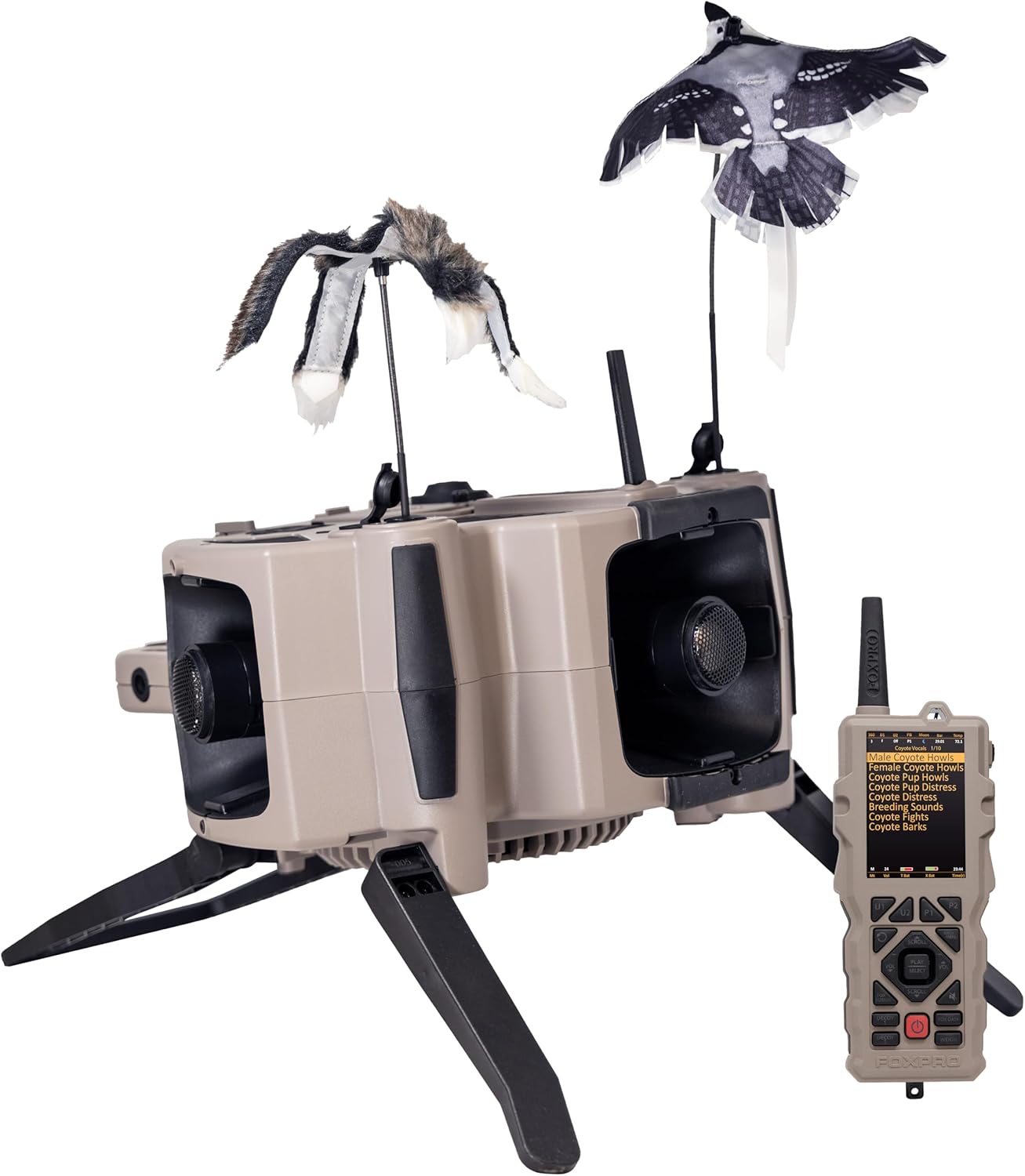
Figure 1: FOXPRO X360 unit with TX2000 remote control and included decoys.
2. Package Contents
Verify that all items listed below are present in your FOXPRO X360 package:
- FOXPRO X360 Digital Game Call Unit
- TX2000 Remote Control
- 10,000 mAh Lithium-ion Battery Pack
- Charger Kit
- User Manual (this document)
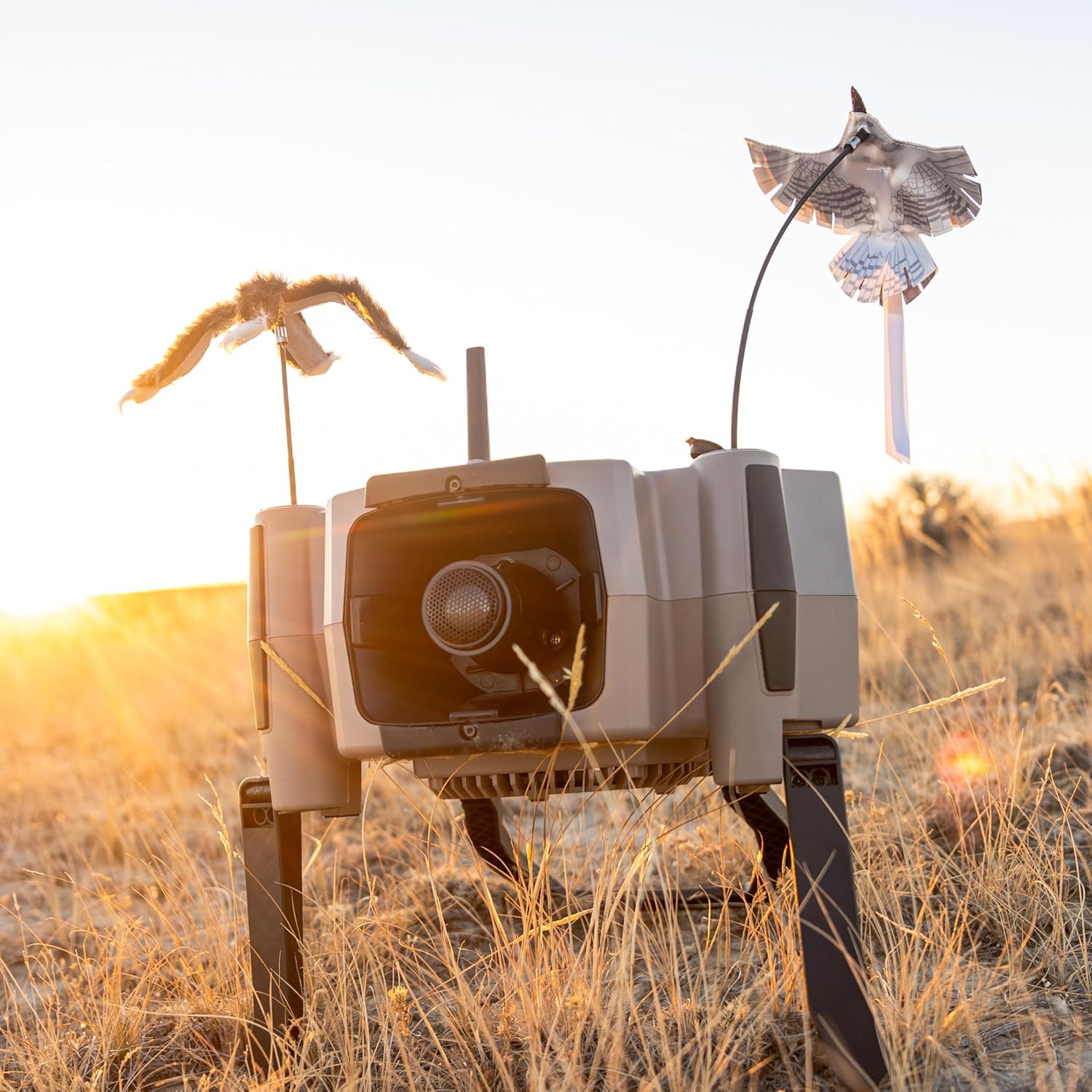
Figure 2: The FOXPRO X360 unit set up in an outdoor environment.
3. Setup Guide
3.1 Charging the Battery
Before initial use, fully charge the 10,000 mAh lithium-ion battery pack using the provided charger kit. Connect the charger to the unit's charging port (refer to Figure 3 for port location). The charging indicator will show the charging status.
3.2 Deploying the Unit
The X360 unit features integrated legs for stable deployment. Gently extend the legs until they lock into position. Ensure the unit is placed on a stable, level surface for optimal sound projection and decoy operation.
3.3 Attaching Decoys
The X360 supports dual decoys with independently controlled speeds. Attach the provided decoys to the designated ports on the unit. Ensure they are securely fastened to prevent detachment during operation.
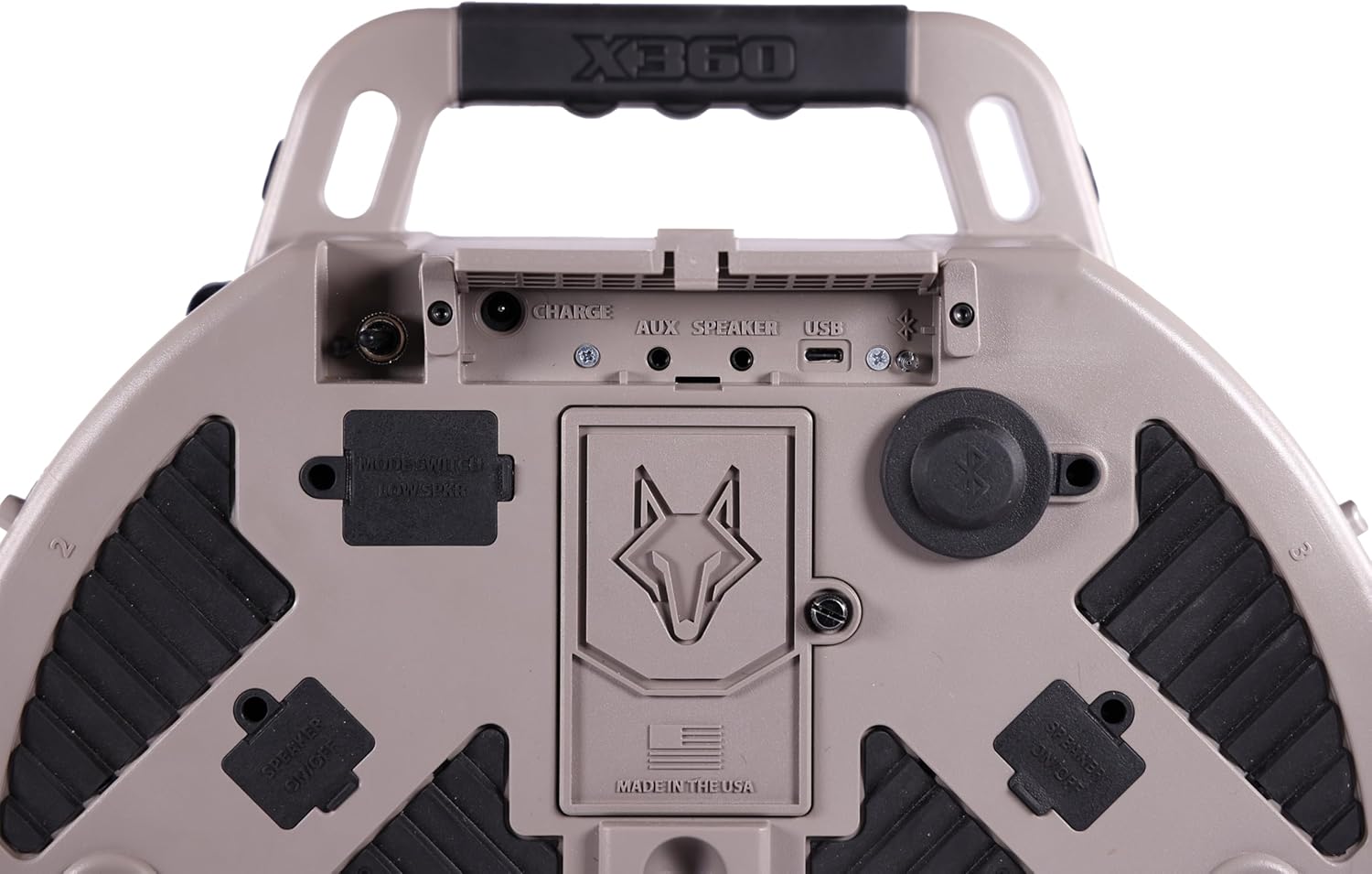
Figure 3: Top view of the FOXPRO X360 showing the charge, auxiliary speaker, and USB ports.
4. Operating Instructions
4.1 Powering On/Off
To power on the X360 unit, press and hold the power button located on the unit. To power off, repeat the process. The TX2000 remote control has its own power button; press and hold to turn it on or off.
4.2 Using the TX2000 Remote Control
The TX2000 remote control is your primary interface for the X360. It features a clear display and intuitive button layout for sound selection, volume control, and accessing advanced features.

Figure 4: Detailed view of the TX2000 remote control interface.
4.3 Sound Selection and Playback
Navigate through the sound library using the scroll and select buttons on the TX2000 remote. The X360 comes with 350 pre-loaded sounds and can store up to 2,500. Adjust volume using the dedicated volume buttons.
4.4 FOXFEATURES Overview
The TX2000 remote provides access to several innovative FOXFEATURES:
- FOXPILOT: Customize enhanced FoxPilot files to control sounds, volume, mute, decoy on/off, and light.
- FOXBANG: Automatically reacts by engaging a specific feature upon discharging a firearm.
- FoxFusion: Play two 16-32-bit sounds simultaneously, along with FoxPitch.
- FoxData: Track key stand data from your hunts, including temperature, barometric pressure, and sounds used.
- FoxPitch: Increases or decreases the playback pitch of the selected sound.
- Advanced 360 Sound: Moves sounds across speakers randomly, creating realistic sound distribution with 5 selectable levels.

Figure 5: Visual representation of FOXPRO TX2000 key features.
4.5 Speaker System
The X360 features a 7-speaker system, including 3 XHD+ speakers, 3 enhanced tweeters, and a full-range speaker. This configuration provides a frequency response range of 100 Hz to over 40 kHz, ensuring clear and dynamic sound reproduction.
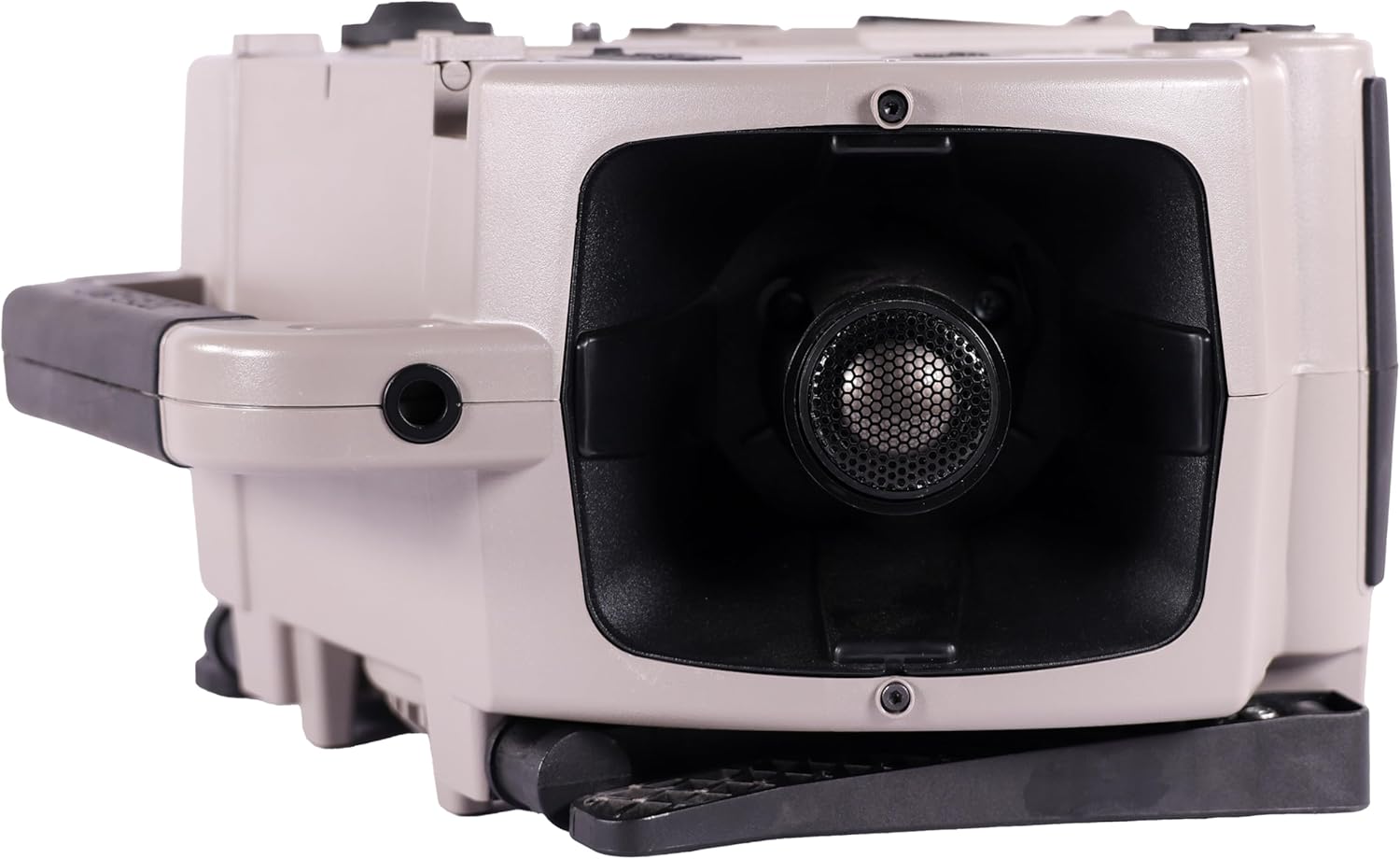
Figure 6: Side view of the X360 unit highlighting a speaker.
4.6 Built-in Weight Scale
The TX2000 remote control includes a built-in weight scale feature, allowing you to weigh predators in the field. Refer to the remote's specific menu for instructions on activating and using this function.
5. Maintenance
Proper maintenance ensures the longevity and optimal performance of your FOXPRO X360.
5.1 Cleaning
After each use, especially in dusty or wet conditions, wipe down the unit and remote with a clean, damp cloth. Avoid using harsh chemicals or abrasive materials. Ensure all ports are free of debris.
5.2 Battery Care
To maximize battery life, store the unit and battery in a cool, dry place. If storing for extended periods, ensure the battery is partially charged (around 50%) rather than fully charged or completely depleted. Recharge the battery periodically if not in use.
5.3 Storage
When not in use, store the X360 unit and TX2000 remote in a protective case to prevent damage from impacts or environmental factors.
6. Troubleshooting
This section addresses common issues you might encounter with your FOXPRO X360.
| Problem | Possible Cause | Solution |
|---|---|---|
| Unit does not power on. | Battery is depleted or not properly connected. | Ensure battery is fully charged and correctly inserted. |
| No sound from speakers. | Volume is too low; speakers are muted; sound file issue. | Increase volume on remote. Check if speakers are muted. Try a different sound file. |
| Remote not connecting to unit. | Out of range; interference; pairing issue. | Move closer to the unit. Ensure no obstructions. Refer to remote pairing instructions in the full manual (if applicable). |
| Decoys not operating. | Decoys not properly attached; motor issue. | Verify decoys are securely attached. Check for any physical obstructions. |
If you encounter issues not listed here, or if the suggested solutions do not resolve the problem, please contact FOXPRO customer support.
7. Specifications
Key technical specifications for the FOXPRO X360 Electronic Predator Call:
- Model Name: X360
- Brand: FOXPRO
- Item Weight: 1 Kilogram
- Item Package Dimensions: 16.5 x 13.5 x 7.13 inches
- Package Weight: 13.1 Pounds
- Material: Plastic
- Color: TAN
- Speaker System: 7-Speaker system (3 XHD+ speakers, 3 enhanced tweeters, 1 full-range speaker)
- Frequency Response: 100 Hz to over 40 kHz
- Sound Capacity: 350 pre-loaded, expandable to 2,500 sounds
- Battery: 10,000 mAh Lithium-ion battery pack
- Remote Control: TX2000
- Run Time: 6-8 hours continuous operation (may vary)

Figure 7: Overview of FOXPRO X360 specifications and features.
8. Warranty Information
The FOXPRO X360 is covered by a 5 Year Limited Warranty. This warranty covers defects in materials and workmanship under normal use. For detailed terms and conditions, including what is covered and how to make a claim, please refer to the warranty documentation included with your product or visit the official FOXPRO website.
9. Customer Support
For technical assistance, troubleshooting, or warranty claims, please contact FOXPRO customer support. You can find contact information on the official FOXPRO website or within the product packaging. When contacting support, please have your product model (X360) and serial number (if applicable) ready.
Official FOXPRO Website: www.gofoxpro.com

Figure 8: FOXPRO X360 is proudly made in the USA and backed by customer support.
Related documentsX360


Ask a question about this manual
Ask about setup, troubleshooting, compatibility, parts, safety, or missing instructions. Manuals+ will review the question and use this page’s manual context to help answer it.