
QGOO BT-831-5.3
QGOO USB Bluetooth Adapter 5.3 User Manual
Model: BT-831-5.3
1. Product Overview
The QGOO USB Bluetooth Adapter 5.3 is designed to provide seamless wireless connectivity for your desktop or laptop PC. Featuring Class 1 radio technology and Enhanced Data Rate (EDR), it offers an extended range and fast data transmission for various Bluetooth devices.

Image: The QGOO USB Bluetooth Adapter 5.3, a compact black device with a USB connector and an adjustable external antenna, designed for long-range wireless connectivity.
Key Features:
- Plug & Play: Simple installation without complex driver setup on supported Windows systems.
- Extended Range: Utilizes Class 1 radio technology, offering a transmission range of up to 328ft (100m) in open areas. Actual range may vary due to obstructions and interference.
- High-Speed Data Transfer: Supports Enhanced Data Rate (EDR) technology for speeds up to 3Mbps, ensuring fast and stable connections.
- Enhanced Stability: Incorporates Bluetooth Low Energy (BLE) configuration to improve stability and reduce interference in the 2.4 GHz band.
- Adjustable Antenna: Features a 360° rotatable external antenna for optimized signal reception and transmission.
- Wide Compatibility: Connects to multiple Bluetooth devices simultaneously, including speakers, keyboards, headsets, mice, and printers.

Image: A person wearing headphones, connected wirelessly to a laptop via the QGOO Bluetooth 5.3 adapter, demonstrating its use for audio streaming.
2. System Requirements
This Bluetooth adapter is compatible with the following operating systems:
- Windows 11 (32/64 bit)
- Windows 10 (32/64 bit)
- Windows 8.1 (32/64 bit)
- Windows 7 (32/64 bit)
Important Note:
This adapter is NOT compatible with Mac OS, Linux, TV systems, car stereos, PlayStation 4 (PS4), or Xbox consoles.

Image: Visual representation showing compatibility with Windows 11, Windows 10, and Windows 8.1 operating systems, highlighting the adapter's system requirements.
3. Setup and Installation
The QGOO USB Bluetooth Adapter 5.3 is designed for plug-and-play functionality on compatible Windows systems. Follow these steps for installation:
- Insert the Adapter: Plug the QGOO USB Bluetooth Adapter into an available USB port on your desktop or laptop PC.
- Automatic Driver Installation: For most Windows 10 and 11 systems, the necessary drivers will install automatically. A notification may appear indicating that the device is ready for use.
- Verify Installation: To confirm successful installation, open Device Manager (right-click on the Start button and select "Device Manager"). Look for "Bluetooth" and expand it. You should see the QGOO Bluetooth adapter listed.
- Troubleshooting Driver Conflicts (if applicable): If your PC has a built-in Bluetooth module, it is recommended to disable or remove its driver from Device Manager before installing the QGOO adapter to prevent conflicts. After disabling/removing, restart your computer and then plug in the QGOO adapter.

Image: A screenshot of the Windows "Bluetooth & other devices" settings, illustrating the simplicity of connecting the adapter and its automatic recognition by the system.
4. Operating Instructions
4.1 Pairing Bluetooth Devices
Once the adapter is installed, you can pair your Bluetooth devices:
- Enable Bluetooth: Ensure Bluetooth is turned on in your Windows settings. Go to Settings > Devices > Bluetooth & other devices and toggle Bluetooth to "On".
- Add Device: Click "Add Bluetooth or other device" and select "Bluetooth".
- Put Device in Pairing Mode: Place your Bluetooth device (e.g., headphones, speaker, keyboard, mouse) into pairing mode. Refer to your device's manual for specific instructions.
- Select and Connect: Your PC will scan for available Bluetooth devices. Select your device from the list and follow any on-screen prompts to complete the pairing process.
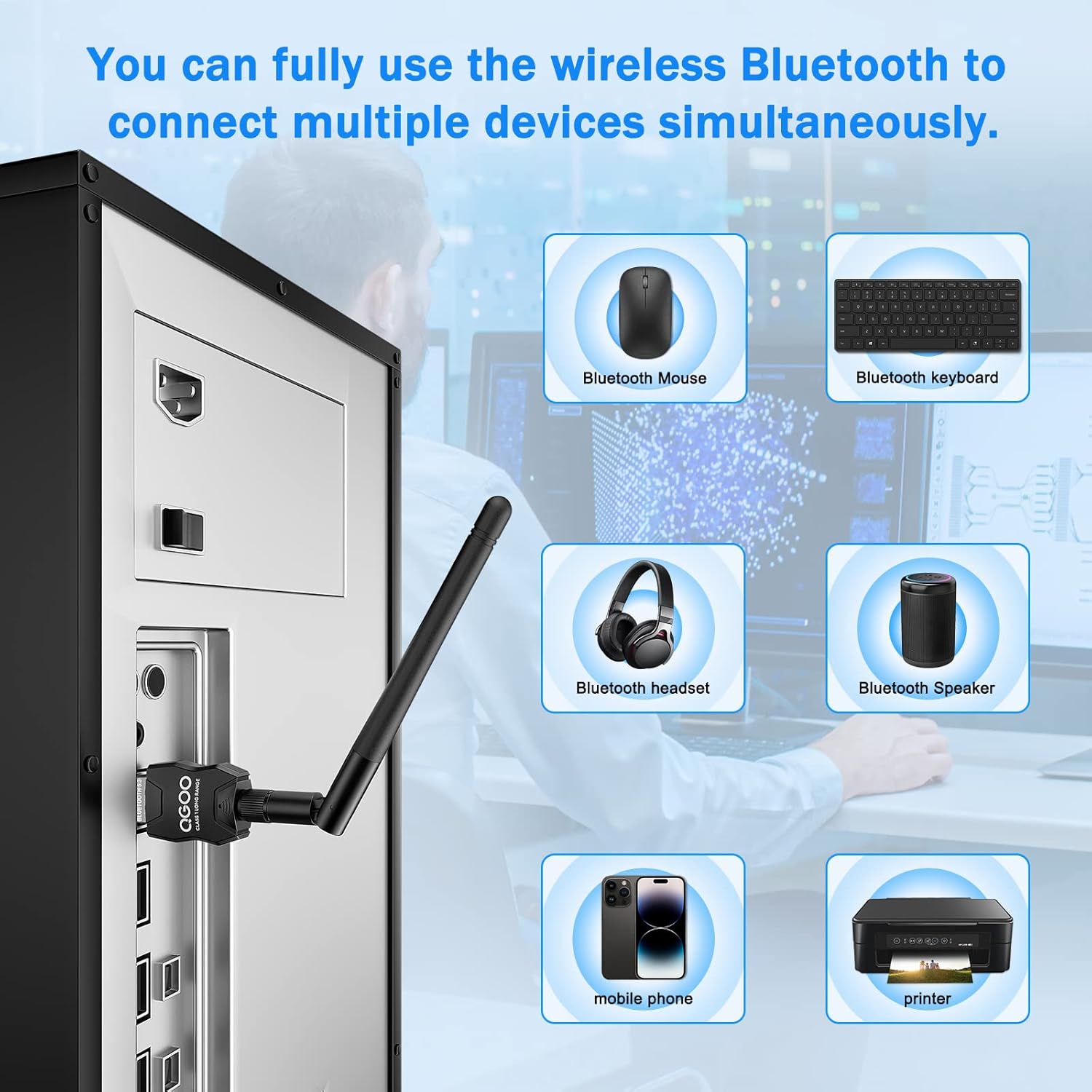
Image: An illustration showing various Bluetooth devices such as a mouse, keyboard, headset, speaker, mobile phone, and printer, all simultaneously connected to a desktop PC using the QGOO Bluetooth adapter.
4.2 Optimizing Signal Range
The adapter features an external antenna for improved signal. For best performance:
- Adjust Antenna: Rotate the 360° antenna to find the optimal signal direction.
- Placement: Position the adapter in a location with minimal physical obstructions (walls, furniture) and away from sources of wireless interference (e.g., Wi-Fi routers, microwaves). Using a USB extension cable to place the adapter higher or in a more open area can significantly improve range.

Image: A diagram illustrating the extended range of the Class 1 Bluetooth adapter (up to 100m) within a multi-story house, showing connectivity to devices in different rooms compared to a standard dongle.
5. Maintenance
The QGOO USB Bluetooth Adapter requires minimal maintenance. Follow these guidelines to ensure its longevity and optimal performance:
- Keep Clean: Periodically wipe the adapter with a soft, dry cloth to remove dust. Avoid using liquid cleaners or solvents.
- Proper Handling: Always grasp the adapter by its body when inserting or removing it from a USB port. Avoid pulling by the antenna.
- Storage: When not in use for extended periods, store the adapter in a cool, dry place, away from direct sunlight and extreme temperatures.
- Software Updates: Keep your Windows operating system updated to ensure you have the latest Bluetooth drivers and system optimizations.
6. Troubleshooting
If you encounter issues with your QGOO USB Bluetooth Adapter, try the following troubleshooting steps:
6.1 Adapter Not Recognized / No Bluetooth Functionality
- Check USB Port: Try plugging the adapter into a different USB port on your computer.
- Restart PC: A simple restart can often resolve minor software glitches.
- Device Manager Check: Open Device Manager. If you see an exclamation mark next to the Bluetooth adapter or an "Unknown Device," the driver may not be installed correctly.
- Disable Onboard Bluetooth: If your PC has built-in Bluetooth, disable it in Device Manager to prevent conflicts. Right-click on the integrated Bluetooth device and select "Disable device." Then, restart your PC and re-insert the QGOO adapter.
- Reinstall Driver: If issues persist, you may need to manually reinstall the driver. While the product is generally plug-and-play, some systems might benefit from a driver update from the manufacturer's website if available.
6.2 Cannot Pair Devices / Devices Disconnect Frequently
- Device Pairing Mode: Ensure your Bluetooth device is in proper pairing mode.
- Distance and Obstructions: Reduce the distance between the adapter and your Bluetooth device. Remove any physical obstructions (walls, large metal objects) that might block the signal.
- Interference: Move the adapter and connected devices away from other wireless devices (Wi-Fi routers, cordless phones, microwaves) that operate on the 2.4 GHz frequency.
- Re-pair Device: Remove the problematic device from your PC's Bluetooth settings and attempt to pair it again.
- Charge Device: Ensure your Bluetooth device has sufficient battery charge.
6.3 Poor Audio Quality / Lag
- Reduce Distance: Move closer to the adapter.
- Minimize Interference: As above, reduce interference from other wireless sources.
- Check Audio Settings: Ensure the correct Bluetooth audio device is selected as the output in your sound settings.
7. Specifications
| Feature | Detail |
|---|---|
| Model Number | BT-831-5.3 |
| Bluetooth Version | 5.3 (with EDR and BLE) |
| Radio Class | Class 1 |
| Max Transmission Range | Up to 328 ft (100 m) in open areas |
| Max Data Transfer Rate | 3 Mbps |
| Hardware Interface | USB |
| Compatible Operating Systems | Windows 11/10/8.1/7 (32/64 bit) |
| Dimensions (Package) | 4.21 x 3.7 x 0.67 inches |
| Item Weight | 1.44 ounces |
| Manufacturer | QGOO / SHEN ZHEN XIN HUA TIAN TECHNOLOGY CO., LTD |
8. Warranty and Support
For warranty information and technical support, please contact QGOO directly through their official channels or the retailer from whom you purchased the product.
Manufacturer: QGOO / SHEN ZHEN XIN HUA TIAN TECHNOLOGY CO., LTD
For further assistance, visit the QGOO Store on Amazon.
Ask a question about this manual
Ask about setup, troubleshooting, compatibility, parts, safety, or missing instructions. Manuals+ will review the question and use this page’s manual context to help answer it.