
TECKNET X315
TECKNET 2.4G Wireless Keyboard Instruction Manual
Model: X315 | Brand: TECKNET
1. Introduction
Thank you for choosing the TECKNET 2.4G Wireless Keyboard. This ultra-slim, compact keyboard is designed for convenience and efficiency, offering a comfortable and quiet typing experience. It is compatible with a wide range of devices including laptops, PCs, desktops, Smart TVs, notebooks, and Chromebooks. This manual provides detailed instructions to help you set up, operate, and maintain your new keyboard.
2. Product Overview

Image: Front view of the TECKNET 2.4G Wireless Keyboard with its USB receiver.
The TECKNET X315 keyboard features a sleek, minimalist design with low-profile keys for comfortable and quiet typing. Its compact size makes it highly portable, ideal for various environments from home offices to travel.

Image: The keyboard shown inside a laptop bag, highlighting its slim and portable design with dimensions of 11.5 x 4.9 inches (29.2 x 12.4 cm) and a weight of 10.4 ounces (294g).
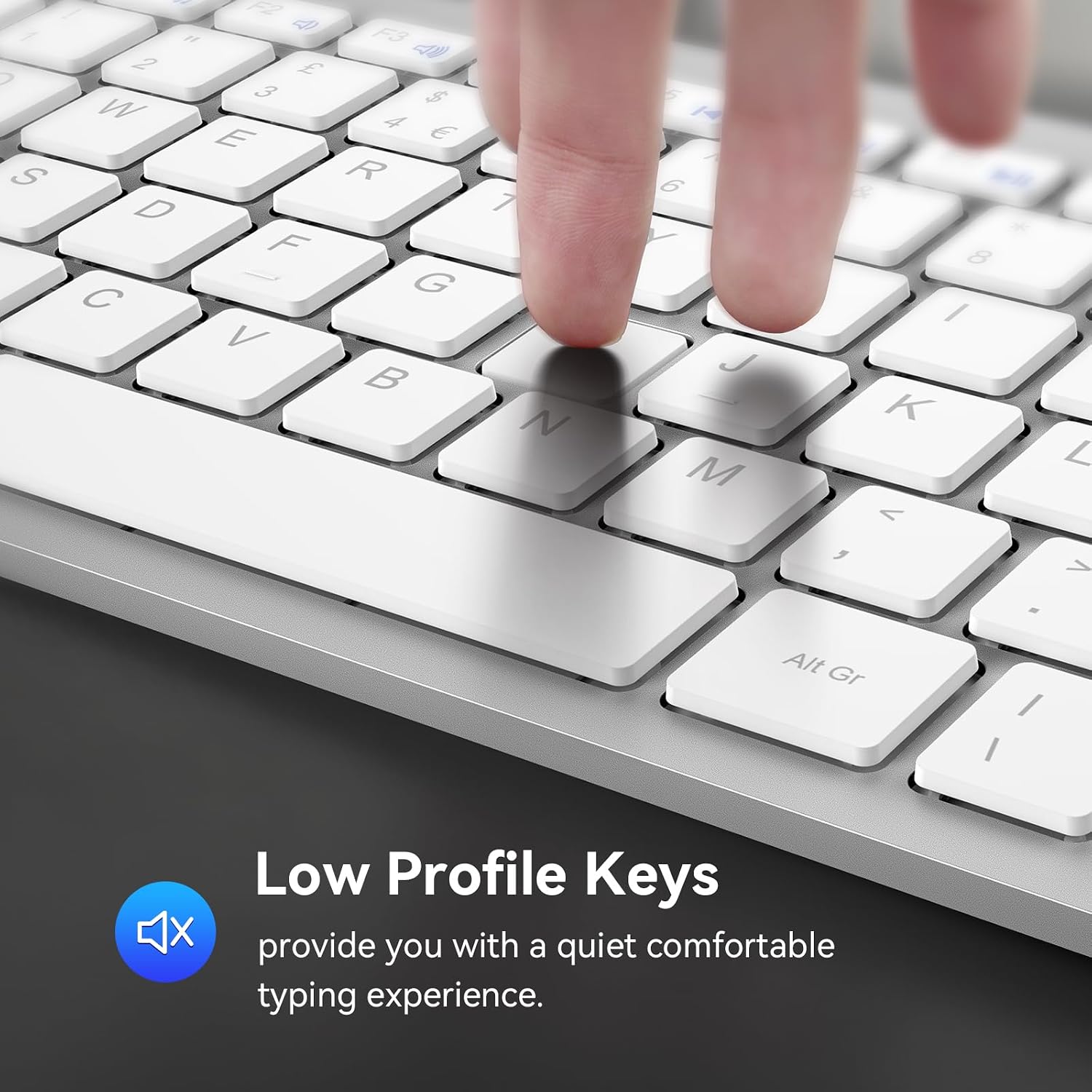
Image: Close-up view of the keyboard's low-profile keys, designed for quiet and comfortable typing.
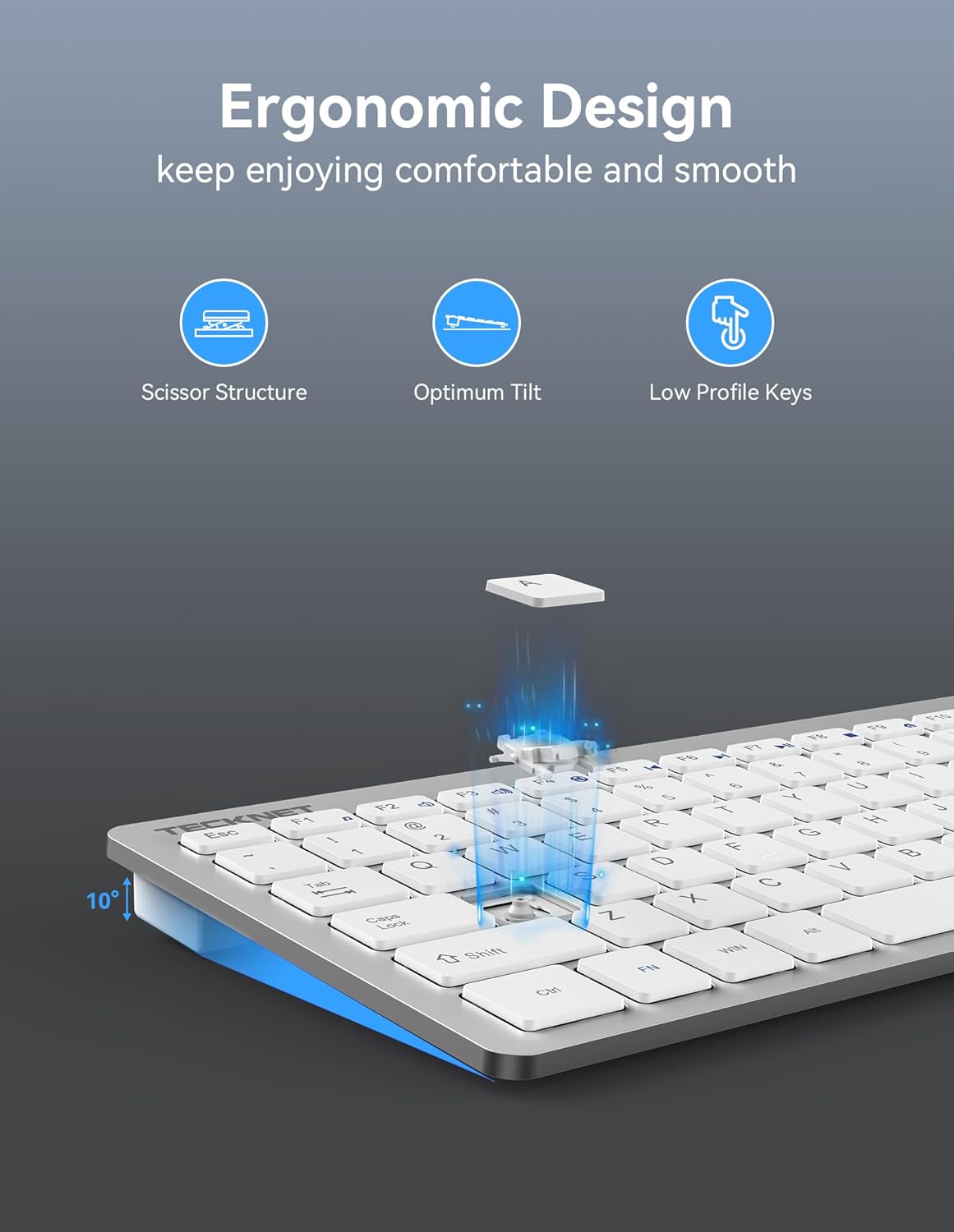
Image: Diagram illustrating the ergonomic design of the keyboard, including its scissor structure, optimum tilt, and low-profile keys for a comfortable typing experience.
Video: Official TECKNET product video showcasing the features and design of the wireless keyboard, including its slim profile, quiet keys, and ease of use.
3. Setup Guide
- Insert Batteries: Locate the battery compartment on the back of the keyboard. Insert two (2) AAA batteries (not included), ensuring correct polarity.
- Locate USB Receiver: The USB receiver is conveniently stored in a slot next to the battery compartment on the back of the keyboard. Gently slide it out.
- Connect Receiver: Plug the USB receiver into an available USB port on your computer, laptop, Smart TV, or other compatible device.
- Power On: Turn on the keyboard using the On/Off switch located on the back.
- Plug and Play: The keyboard is plug-and-play, meaning it should automatically connect to your device within seconds. No additional drivers are required.

Image: Detailed view of the keyboard's back, showing the anti-slip pads, power switch, battery compartment, and the storage slot for the USB receiver.

Image: Illustration of the keyboard's 2.4G wireless range, providing a stable connection up to 49 feet (15 meters) from the USB receiver.

Image: The keyboard connected to a desktop computer, demonstrating its wide compatibility with Windows, Chrome OS, Linux, and Smart TV systems.
4. Operating Instructions
The TECKNET X315 keyboard offers a seamless typing experience. Simply begin typing after successful setup. The intelligent power-saving mode helps conserve battery life, and the keyboard can be woken up with a single key press.
Battery Life
This mini wireless keyboard features an intelligent power-saving mode and an on/off switch. It boasts a battery life of up to 12 months, based on 2 hours of uninterrupted use per day. To maximize battery life, remember to turn off the keyboard using the switch when not in use for extended periods.

Image: Visual representation of the keyboard's energy-saving features, including a battery indicator, on/off switch, and the use of 2 AAA batteries for extended standby time.
5. Multimedia Hotkeys
The keyboard includes 12 multimedia hotkeys (F1-F12) that can be accessed by pressing the Fn key simultaneously with the desired function key. These hotkeys provide quick access to various functions, improving your work efficiency.

Image: Diagram showing the keyboard layout with the 14 multimedia hotkeys highlighted and their corresponding functions listed.
- Fn + F1: Music
- Fn + F2: Volume -
- Fn + F3: Volume +
- Fn + F4: Mute
- Fn + F5: Previous Track
- Fn + F6: Next Track
- Fn + F7: Play/Pause
- Fn + F8: Stop
- Fn + F9: Internet
- Fn + F10: E-mail
- Fn + F11: My Computer
- Fn + F12: Favorite
6. Maintenance
- Cleaning: Use a soft, dry cloth to clean the keyboard. For stubborn dirt, slightly dampen the cloth with water or a mild cleaning solution. Avoid excessive moisture.
- Battery Replacement: When the battery indicator light signals low power, replace both AAA batteries promptly to ensure continuous operation.
- Storage: When not in use for extended periods, turn off the keyboard and store it in a dry, cool place.
7. Troubleshooting
- Keyboard not responding:
- Ensure the USB receiver is securely plugged into a working USB port.
- Check if the keyboard is turned on.
- Replace the AAA batteries if they are low or depleted.
- Try plugging the USB receiver into a different USB port on your device.
- Restart your computer or device.
- Lag or intermittent connection:
- Ensure the keyboard is within the 49ft (15m) wireless range of the receiver.
- Avoid placing the receiver near strong interference sources like other wireless devices, large metal objects, or microwave ovens.
- Keys not functioning correctly:
- Gently clean around the affected keys to remove any debris.
- Ensure the keyboard is connected properly.
8. Specifications
| Feature | Detail |
|---|---|
| Model Number | X315 |
| Connectivity Technology | 2.4G USB Wireless |
| Wireless Range | Up to 49 ft (15 m) |
| Compatible Devices | Laptop, PC, Desktop, Smart TV, Notebook, Chromebook (Windows, Mac, Chrome OS, Linux) |
| Power Source | 2 x AAA Batteries (Not Included) |
| Battery Life | Up to 12 months (based on 2 hours/day use) |
| Product Dimensions | 11.49 x 4.9 x 0.78 inches (29.2 x 12.4 x 2 cm) |
| Item Weight | 10.4 ounces (294g) |
| Number of Keys | 120 |
| Key Type | Low Profile, Scissor Structure |
| Material | Plastic |
| Color | Silver |
| Manufacturer | TECKNET |
9. Warranty and Customer Support
TECKNET offers dedicated customer support for any issues you may encounter while using your wireless keyboard. The product comes with a 36-month warranty (registration may be required). For assistance, please contact our professional customer service team through the contact information provided on the TECKNET official website or your purchase platform.
Related documentsX315


Ask a question about this manual
Ask about setup, troubleshooting, compatibility, parts, safety, or missing instructions. Manuals+ will review the question and use this page’s manual context to help answer it.